Why Is My PC Using So Much RAM When Nothing Is Open?
TL;DR
Nothing "open" doesn't mean nothing running. Background services, drivers, browser leftovers, and Windows itself cache stuff in RAM on purpose because unused RAM is wasted RAM. High usage isn't automatically a problem. But if it's climbing over time or your machine slows to a crawl, something's leaking and you need to find it, not just reboot and hope.
What you need
- Task Manager (built into Windows, press Ctrl+Shift+Esc)
- Ten minutes and a little patience (this isn't a one-click fix, sorry)
- Optional: Resource Monitor for the folks who want more detail than Task Manager gives you
- A notepad to jot down what's using what, because you'll forget by step four
Step 1: Understand what "nothing open" actually means
Your taskbar being empty means nothing to you. It means nothing to Windows either, because Windows doesn't care about your taskbar. It's running dozens of background processes right now: antivirus scanning, update services checking in, printer spoolers idling, cloud sync clients (OneDrive, Dropbox, Google Drive) doing their thing, and your GPU driver's little helper apps sitting around doing nothing useful most of the time.
Modern Windows also does something called SuperFetch or SysMain (same thing, renamed at some point because Microsoft loves renaming things). It preloads apps you use often into RAM before you even ask for them, so they open faster. That'll show up as high memory usage and it's by design. Annoying to see, not actually a problem.
Step 2: Open Task Manager and sort by memory
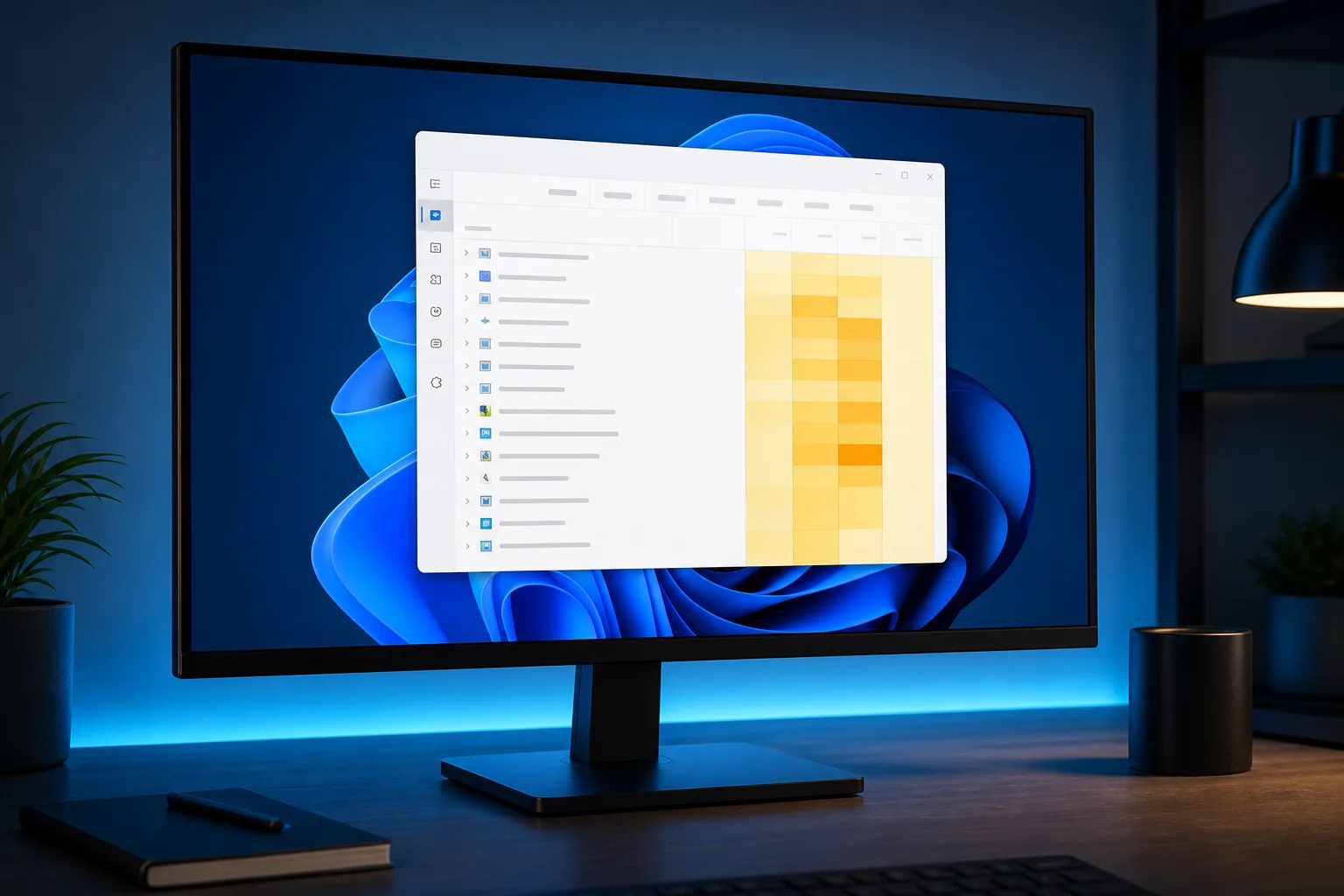
Ctrl+Shift+Esc. Click the Memory column to sort highest to lowest. Look at the top five or six processes. You're looking for two things: anything using an absurd amount for what it is (a note-taking app should not need two gigabytes), and anything you don't recognize at all.
Common normal culprits: your browser (even with no tabs open, background processes linger), your antivirus, Windows Search indexing, and yes, SysMain doing its preload thing. Common abnormal culprits: a runaway update process stuck in a loop, a malware process disguised with a legit-sounding name, or a driver that's leaking memory because the manufacturer never bothered fixing a known bug.
Step 3: Check if usage is stable or climbing
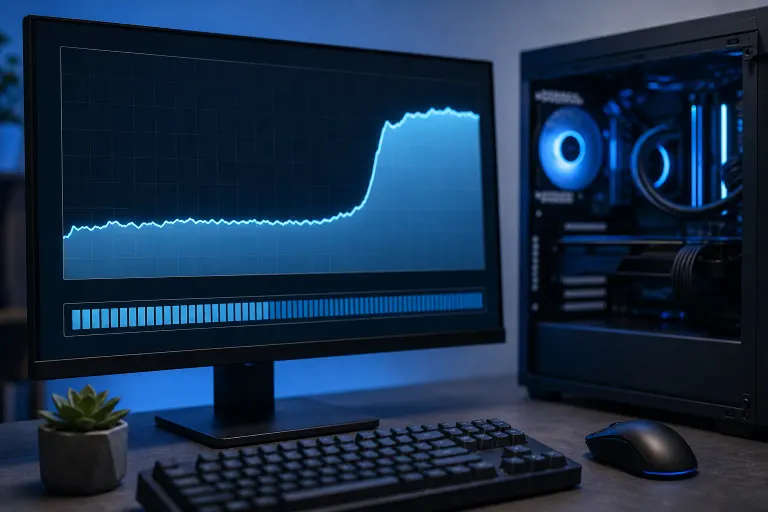
This is the part people skip and it's the part that actually matters. Leave Task Manager open, minimize it, and check back every 15-20 minutes. Is total RAM usage staying roughly flat, or is it creeping up steadily with nothing new happening?
Flat and high: probably just normal caching behavior. Annoying if you've got low RAM to begin with, but not damage.
Steadily climbing with no ceiling: that's a memory leak. Some process isn't releasing memory it's done with. Eventually you'll hit your ceiling, things slow down, and you're forced to reboot. If you find yourself rebooting "just to clear things up" every day or two, that's your leak talking, not your imagination.
Computer acting up? Get a real diagnosis. Book a diagnostic
Step 4: Check background apps with startup permission
Settings > Apps > Startup (on Windows 11) shows you everything that launches when you log in, whether you asked it to or not. Half of what's in there you installed once, used twice, and forgot about. Every one of those is sitting in RAM right now doing nothing for you.
Disable anything you don't use daily. This won't fix a leak, but it'll free up baseline memory and cut down on the noise so you can actually spot the real problem.
Step 5: Check browser extensions and open background browser processes
Browsers are the worst offenders for hidden memory use, full stop. Every extension, every "helper" tab that stays alive in the background, every sync service, they all sit in Chrome's or Edge's process tree eating RAM even when your browser window is closed. Check your browser's own task manager (Shift+Esc in Chrome) and look for extensions you installed for one thing three years ago and never removed.
Step 6: Run a malware scan if something looks off
If you see an unfamiliar process name using a large chunk of memory, don't just kill it and move on. Look it up, or better, run a full scan with Windows Defender or a reputable scanner. Cryptomining malware and some adware variants are notorious for hogging RAM and CPU quietly in the background while pretending to be a system process. CISA has decent plain-language guidance on spotting this stuff if you want to go deeper.
Step 7: Decide whether it's actually a problem
| Situation | Verdict | Action |
|---|---|---|
| High usage, stays flat, PC feels normal | Normal Windows caching | Leave it alone |
| Usage climbs steadily over hours/days | Memory leak | Identify and update/remove the culprit process |
| Unfamiliar process, high usage, odd name | Possible malware | Scan immediately, don't wait |
| High usage AND PC only has 4-8GB total RAM | Just not enough RAM for modern use | Consider a RAM upgrade |
| High usage, old laptop, frequent freezes | Aging hardware plus software bloat | Get it looked at professionally |
Common mistakes
- Killing processes you don't understand. Ending the wrong system process can crash your session or worse. If you're not sure what it is, look it up first.
- Rebooting instead of diagnosing. A reboot clears the symptom, not the cause. If you're rebooting weekly just to "fix" slowness, that's a pattern worth investigating, not a routine.
- Assuming more RAM always fixes it. If something's leaking memory, adding more RAM just delays the moment things fall apart. You'll fill whatever you add.
- Ignoring Task Manager's "Standby" memory as if it's a problem. Windows shows cached memory as "in use" even though it'll release it instantly if an app needs it. That's not wasted, that's efficient. Don't panic over the total number alone, look at what's actually pinned.
- Skipping the extension cleanup because "it's just a browser." Browsers are frequently the single biggest background memory hog on a machine that looks otherwise idle.
Bottom line
High RAM usage with nothing visibly open is mostly normal Windows behavior, caching and background services doing their job. The real question isn't the number, it's the trend. Flat and high, ignore it. Climbing without end, or full of unfamiliar processes, that's worth chasing down before it turns into a full slowdown or a security problem you didn't see coming.
If you've gone through this and something's still eating memory you can't explain, or your machine's old enough that even light background tasks bring it to its knees, don't keep fighting it solo. Bring it in for computer repair and we'll find the actual cause instead of guessing. If it turns out to be a hardware limitation, we can talk upgrade options during a laptop repair visit. And if you can't get it to the shop, remote support can often diagnose this stuff without you unplugging a thing.
Computer acting up? Get a real diagnosis.
Fix My PC Store has repaired thousands of machines across West Palm Beach. Honest pricing, no upsell games, and a free diagnostic for new customers with our email coupon.