Why Does My PC Freeze Only When Streaming Video?
TL;DR: A PC that only freezes during streaming, not during gaming or regular browsing, almost always points to a graphics driver conflict, a browser's hardware acceleration setting, or a GPU that's overheating under sustained video decode load. Work through drivers first, then browser settings, then thermals, and you'll usually nail it in under 30 minutes.
Here's the thing people get backwards. Everyone assumes freezing means the PC is dying. But if your machine handles spreadsheets, games, and Zoom calls just fine and only chokes when you fire up Netflix or a YouTube video, that's actually good news. It means most of your hardware is healthy. The problem is narrow, and narrow problems are fixable.
Streaming video is a peculiar workload. Unlike gaming, which hammers your GPU with raw rendering, or a Zoom call, which leans on your CPU and network adapter, video streaming asks your GPU to run a sustained, continuous decode pipeline, often for hours at a stretch. That sustained load hits components in a very specific way. A GPU that's borderline on thermals or running a driver version with a known decode bug can hold together through a 30-minute gaming session but fall apart 12 minutes into an episode of a TV show. That specificity is your clue, not your enemy.
What you need
- 15 to 30 minutes
- Admin access to your Windows or Mac account
- The browser or app you use to stream (Chrome, Edge, Netflix app, whatever)
- A free tool to check GPU temps (HWMonitor or GPU-Z on Windows, iStat Menus or Activity Monitor on Mac)
- Patience for one or two restarts
You don't need to buy anything to try these steps. If none of them work, that's your sign the issue is hardware-level and worth a professional look. Keep notes as you go, jot down which step you tried and what changed, even if the answer is nothing. That record will be useful if you end up talking to a technician or posting in a support forum.
1. Confirm it's actually video-specific
Before you chase ghosts, isolate the problem. Freeze during a YouTube video but not during a game? That's a decoding issue, not a raw power issue, since games usually hit your GPU harder than 1080p video playback. A game like Cyberpunk 2077 running at high settings is doing orders of magnitude more GPU work than a 1080p Netflix stream, but it uses that GPU in a completely different way, which is why one passes and the other fails.
Test two or three different sources: a browser tab, a native app like Netflix or Hulu, and maybe a local video file played in VLC. If it only happens in the browser, that narrows things fast, you're likely dealing with a browser-specific setting or extension conflict rather than a driver problem that affects the whole system. If it happens everywhere, including local file playback in VLC with hardware decoding enabled, the issue is more likely driver or hardware related across the board. If VLC plays the file fine but your browser freezes, try disabling VLC's hardware decoding under Tools > Preferences > Input/Codecs and compare. That one test alone can tell you whether the decode pipeline or the browser is the weak link.
Also pay attention to timing. Does the freeze happen immediately when the video starts, or after a few minutes? An immediate freeze on load usually points to a browser or driver crash. A freeze after several minutes of playback almost always means thermals, your GPU is gradually cooking itself and throttling or crashing once it hits a temperature ceiling.
2. Update your graphics driver, not just Windows Update
This is the single most common fix, and it's the one most people skip because they assume Windows Update covers it. It doesn't, not fully. Windows Update installs a generic, often outdated driver. You want the one straight from the manufacturer.
- NVIDIA: use GeForce Experience or download directly from nvidia.com
- AMD: use AMD Software: Adrenalin Edition or download from amd.com
- Intel integrated graphics: check Intel's driver support page or use the Intel Driver & Support Assistant tool
Video streaming relies heavily on something called hardware video decode acceleration, where your GPU, not your CPU, handles decompressing the video stream. Codecs like H.264, HEVC (H.265), VP9, and AV1 are all offloaded to dedicated decode hardware blocks inside your GPU. When the driver version and the browser's expectations don't line up, you get stutters, black screens, or a full freeze. For example, NVIDIA's 500-series drivers introduced changes to NVDEC (their hardware decode engine) that broke VP9 playback in older versions of Chrome until both sides were updated. An outdated or corrupted driver is the number one culprit we see on this exact complaint.
If you're on a laptop with both integrated Intel graphics and a discrete NVIDIA or AMD GPU, update both drivers. Laptops often switch between them depending on the workload, and a mismatch between the two can cause exactly this kind of selective freeze.
After updating, restart. Don't skip the restart. Half-applied driver updates cause more freezing than the outdated driver did. If the problem started right after a Windows update pushed a new driver automatically, you can roll back: go to Device Manager, right-click your display adapter, choose Properties, then Driver, then Roll Back Driver.
Computer acting up? Get a real diagnosis. Book a diagnostic
3. Turn off hardware acceleration in your browser (then test with it on)
Counterintuitive, but stick with me. Hardware acceleration is supposed to help, offloading video decoding to your GPU so your CPU isn't doing all the work. Most of the time it does help. But when the GPU driver is buggy or your browser's implementation clashes with your specific card, hardware acceleration is exactly what causes the freeze.
In Chrome: Settings > System > toggle off "Use graphics acceleration when available"
In Firefox: Settings > General > Performance > uncheck "Use recommended performance settings" > uncheck "Use hardware acceleration when available"
In Edge: Settings > System and performance > toggle off "Use graphics acceleration when available"
After turning it off, close the browser completely, not just the tab, the whole browser, and reopen it. Then try streaming again. If the freezing stops, you've confirmed that the hardware acceleration pipeline is the problem. Your GPU driver is likely the underlying cause, but disabling acceleration is a valid temporary fix while you sort out the driver situation.
If turning it off makes things worse or has no effect, turn it back on. You want hardware acceleration working if your system can handle it, without it, your CPU has to decode the video stream entirely on its own, which can cause a different kind of stuttering on lower-end machines, particularly when streaming 4K or HDR content.
One related setting worth checking in Chrome specifically: navigate to chrome://flags in the address bar and search for "Override software rendering list." Enabling this flag forces Chrome to use GPU acceleration even on hardware it would normally blocklist. Sometimes Chrome quietly disables acceleration for your specific GPU model due to a known bug report, even if that bug has since been patched.
4. Check your GPU temperature during playback
Open HWMonitor, GPU-Z's Sensors tab, or iStat Menus before you start a stream, then let a video run for 10 to 15 minutes while monitoring GPU temperature. You're looking for the GPU core temperature and, on NVIDIA cards, the separate memory junction temperature if it's available.
For most desktop GPUs, safe operating range during sustained video decode is 60°C to 80°C. If you're seeing 90°C or above, your GPU is throttling, automatically reducing its clock speed and decode performance to protect itself from damage. At the extreme end, it may crash the driver entirely, which to you looks like a system freeze.
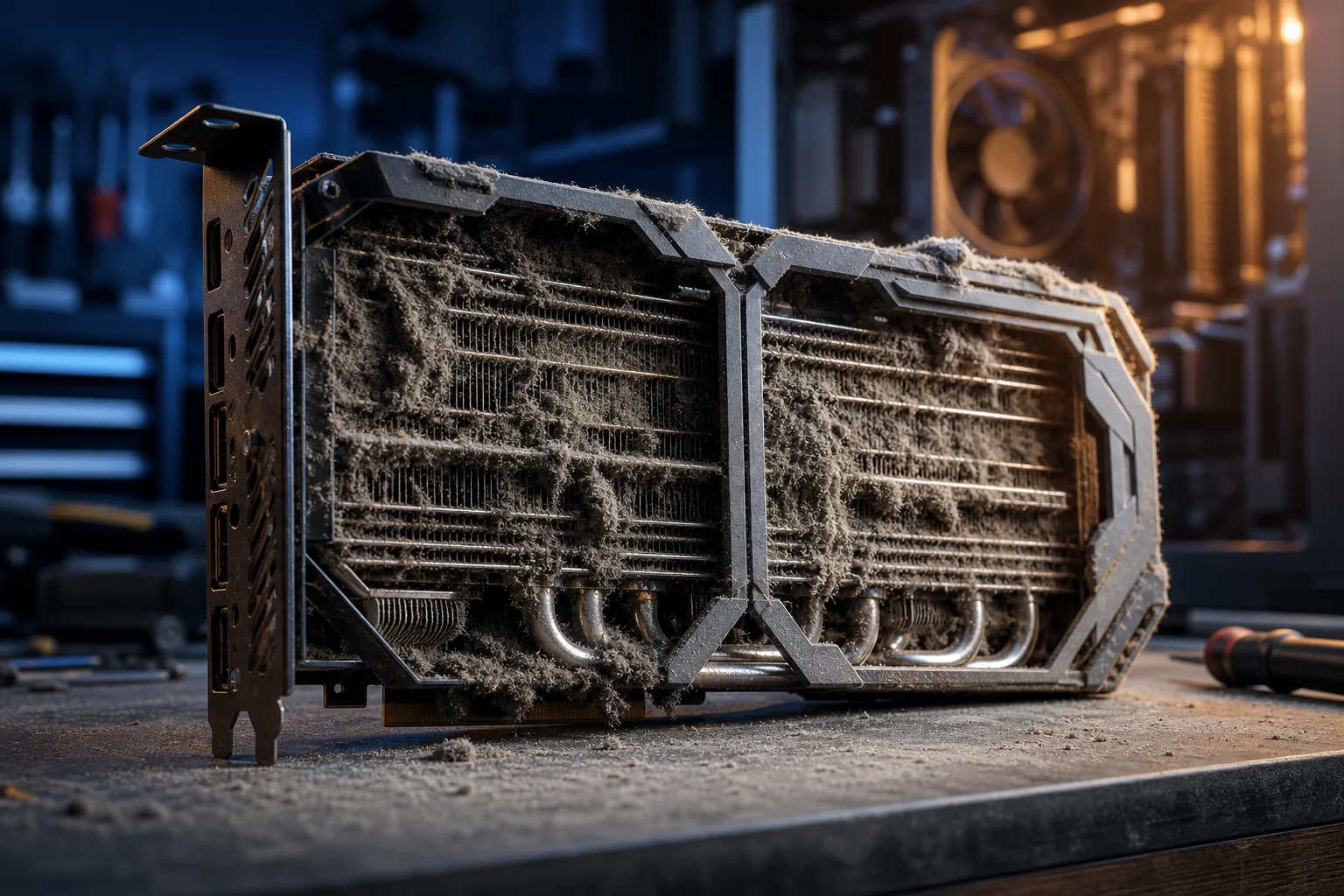
Common causes of overheating during streaming specifically include dust-clogged heatsink fins (streaming runs for longer continuous periods than most gaming sessions, so heat accumulates), dried-out thermal paste on a GPU that's three or more years old, and poor airflow in a case where the cable management has gotten messy over time. Cleaning your PC's fans and heatsinks with compressed air is free, takes 10 minutes, and can drop temperatures by 10°C to 20°C in a system that hasn't been cleaned in a year or two.
If temperatures look fine but you're still freezing, check whether your GPU's decode utilization is hitting 100% during playback. GPU-Z's Sensors tab shows a "Video Engine Load" percentage. If that's pegged at 100% and staying there, your GPU's decode hardware is saturated, often because you're streaming 4K HDR content on older hardware that only has partial AV1 or HEVC decode support.
5. Rule out browser extensions and profiles
Before assuming this is a hardware or driver problem, open an incognito or private browsing window and try streaming there. Incognito mode disables most extensions by default. If the freeze disappears in incognito, an extension is interfering with the video pipeline, ad blockers, VPNs, and certain privacy tools are frequent offenders because they intercept and inspect network traffic in ways that can interrupt streaming buffers.
Disable extensions one at a time in normal mode to identify the culprit. Go to your browser's extensions page, turn them off in batches of two or three, test, and narrow it down. It takes five minutes and occasionally reveals the answer immediately.
When none of this works
If you've updated the driver, adjusted hardware acceleration, confirmed your temperatures are healthy, and ruled out extensions, and the freezing is still happening, the most likely remaining causes are a failing GPU with degraded decode hardware, a RAM issue causing instability specifically under the memory access patterns of video playback, or a corrupted Windows graphics stack that needs a clean driver install using DDU (Display Driver Uninstaller) in safe mode.
At that point, the problem is worth a professional diagnosis. But the majority of people who work through this list, drivers, then hardware acceleration, then thermals, then extensions, find their answer somewhere in those four steps. Streaming freezes sound catastrophic. They almost never are.
Computer acting up? Get a real diagnosis.
Fix My PC Store has repaired thousands of machines across West Palm Beach. Honest pricing, no upsell games, and a free diagnostic for new customers with our email coupon.