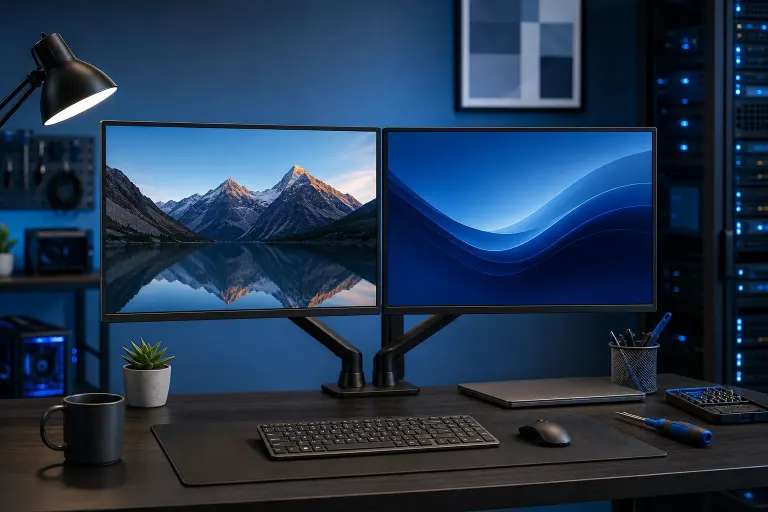
How to Choose the Right Monitors for a Dual-Screen Work Setup
TL;DR: Match resolution and panel type first, then check that your computer has the right ports to drive both screens. Consistent sizing makes the transition between displays feel natural. Get those three things right and everything else is easy to dial in.
What you need
- Your current computer (laptop or desktop) with its model number or specs handy
- A list of the ports on your machine (HDMI, DisplayPort, USB-C, Thunderbolt)
- A rough idea of your primary work type: document editing, spreadsheets, video calls, creative work, or coding
- A tape measure if desk space is a concern
- A budget range, since monitor prices range widely by size and panel quality
Step 1: Check what your computer can actually output
Before you look at a single monitor spec, find out what video outputs your machine has and how many it can drive simultaneously.
On a Windows desktop, right-click the desktop, choose Display settings, and scroll to Advanced display settings. It will show how many displays are detected. On a Mac, go to System Settings > Displays.
Common output combos to look for:
- Two HDMI ports, or one HDMI plus one DisplayPort (most desktop GPUs)
- One HDMI plus one USB-C/Thunderbolt (common on modern laptops)
- Only one video output (some thin laptops), which may require a docking station or USB-C hub
If your laptop has only one video port, a USB-C hub with dual video outputs can expand it, but confirm the hub supports independent video streams, not just display mirroring.
If you are unsure whether your machine can support two external monitors without issues, Fix My PC Store's computer repair team can run a quick check.
Step 2: Decide on screen size
Consistency matters more than size itself. Mixing a 24-inch monitor with a 32-inch monitor creates a noticeable height mismatch when they sit side by side. Your eyes have to travel up and down, which gets tiring fast.
Common dual-monitor size pairings that work well:
| Use case | Recommended size per monitor |
|---|---|
| Office work, documents, calls | 24 inch |
| Spreadsheets, coding, multitasking | 27 inch |
| Creative, video editing, wide content | 27 to 32 inch |
If desk depth is under 24 inches, a 32-inch monitor will feel uncomfortably close. A 27-inch panel at arm's length (roughly 24 to 30 inches) is a comfortable sweet spot for most people.
Step 3: Match resolution across both screens
You do not have to buy identical monitors, but the resolutions should match or be very close. Dragging a window from a 1080p screen to a 4K screen causes a jarring size jump because Windows and macOS scale them differently.
Practical resolution guidance:
- 1080p (1920x1080): Affordable and sharp on 24-inch panels. Looks slightly soft on 27 inches.
- 1440p (2560x1440): The sweet spot on 27-inch monitors. Clear text, good for coding and design.
- 4K (3840x2160): Outstanding on 27 to 32 inches but requires more GPU power and costs more.
If budget is mixed, two 1440p monitors will serve most work users better than one 4K paired with one 1080p.
Computer acting up? Get a real diagnosis. Book a diagnostic
Step 4: Choose the right panel type
Panel type affects color, viewing angle, and response time. For work setups, it matters more than most buyers expect.
IPS (In-Plane Switching): Wide viewing angles, accurate colors. Best for general work, design, and anything involving collaboration where someone else might glance at your screen. This is the most common choice for productivity monitors.
VA (Vertical Alignment): Deeper blacks, higher contrast. Good for reading long documents or watching video. Narrower viewing angles than IPS, and some show motion blur in fast content.
TN (Twisted Nematic): Fastest response times, lowest price. Colors and viewing angles are noticeably weaker. Mostly suited to gaming, not office work.
For a dual work setup, two IPS panels is a reliable, low-drama choice.
Step 5: Confirm connectivity options on the monitor itself
Check the back of each monitor before buying:
- Does it have the port your computer outputs? (HDMI, DisplayPort, USB-C)
- Does it include a USB hub? Useful for plugging in a keyboard, mouse, or webcam without reaching behind a tower.
- Does it have a built-in KVM switch if you share it between two computers? (Less common but worth knowing.)
Some monitors ship with no cables in the box. Confirm what is included, especially for DisplayPort connections, which are rarely bundled.
Step 6: Set up ergonomics before you call it done
The top of the monitor should be at or just below eye level. If the stands that come with your monitors do not adjust high enough, a monitor arm solves this cleanly and frees up desk space.
For side-by-side placement, angle each monitor inward by 15 to 20 degrees so both face your eye position when you turn your head. This reduces neck rotation.
If one monitor is your primary (where you do most work), position it directly in front of you. Put the secondary slightly to the side. Do not place them symmetrically if one is clearly dominant in your workflow.
Common mistakes
Buying mismatched resolutions. A 1080p and a 4K monitor next to each other creates scaling conflicts that are annoying to manage daily.
Ignoring port compatibility. Discovering your laptop only has one HDMI port after the monitors arrive is a frustrating and avoidable surprise.
Overlooking stand adjustability. Many budget monitors ship with tilt-only stands. If you cannot raise the screen to eye level, your neck pays for it over time.
Assuming all USB-C ports output video. Some USB-C ports are data-only. Check your laptop specs or the manufacturer's page to confirm DisplayPort Alt Mode support.
Buying the same brand but different generations. Even the same model line from different years can have slightly different color calibration. If color consistency matters for your work, buy both monitors from the same current batch if possible.
Bottom line
A dual-monitor setup is one of the most effective productivity upgrades you can make, and it does not require expensive hardware. Focus on matching resolution, picking IPS panels, and confirming your computer can actually drive two displays before anything else.
If you are building or upgrading a business workstation and want help spec-ing the right setup, Fix My PC Store's business IT team can point you in the right direction. For remote help figuring out why a second monitor is not being detected, remote support is a fast option. You can also contact us directly or stop by the shop at 10140 Okeechobee Blvd, Suite B, West Palm Beach. Hours are Monday through Friday 9 a.m. to 6 p.m. and Saturday 9 a.m. to 5 p.m.
Computer acting up? Get a real diagnosis.
Fix My PC Store has repaired thousands of machines across West Palm Beach. Honest pricing, no upsell games, and a free diagnostic for new customers with our email coupon.