Why Is My Laptop USB Port Not Recognizing Devices?
TL;DR: Start with the simplest fixes: try a different cable and a different USB port. If nothing shows up anywhere, check Device Manager for driver errors and disable USB selective suspend. Physical damage or a port that works intermittently almost always needs a bench repair.
What You Need
- A second USB cable you know works
- A second USB device you know works
- Access to Windows Device Manager (or macOS System Information)
- About 10 minutes
No special tools required for the software steps. The hardware steps are observation only.
Step 1: Isolate Whether It Is the Port, the Cable, or the Device
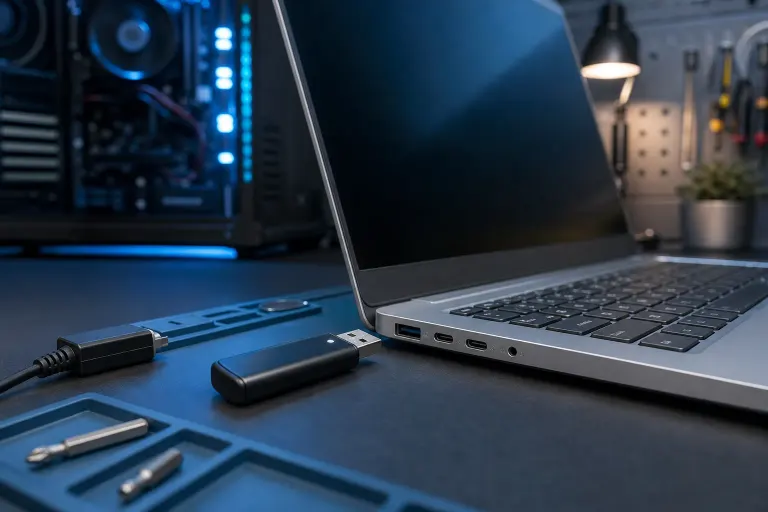
Plug a known-good device into the suspect port. Then plug the original device into a known-good port.
| Result | What It Tells You |
|---|---|
| Known-good device works in suspect port | Your original device or cable is the problem |
| Original device works in a different port | That one specific port has an issue |
| Nothing works in any port | Driver, power, or motherboard issue |
| Everything works fine now | Intermittent contact, dust, or a one-off glitch |
This one table saves most people 30 minutes of random troubleshooting.
Step 2: Restart and Re-Seat
Sounds obvious. Do it anyway. A full shutdown and cold boot clears USB enumeration errors that a sleep/wake cycle buries. Hold Shift while clicking Shut Down on Windows to bypass fast startup, which skips a real power cycle.
While the laptop is off, gently press the plug straight into the port. Loose connectors cause intermittent recognition failures more often than any driver issue.
Step 3: Check Device Manager for Errors (Windows)
- Press Windows + X and choose Device Manager.
- Expand Universal Serial Bus controllers.
- Look for any entry with a yellow warning triangle.
- Right-click a flagged entry and choose Update driver, then Search automatically.
- If no update appears, right-click and choose Uninstall device, then restart. Windows reinstalls the driver on boot.
On a Mac, open Apple menu > About This Mac > System Report > USB to see whether the port even registers connected hardware. If the device is absent from the tree entirely, the port is likely physically damaged.
Step 4: Disable USB Selective Suspend
Windows has a power-saving feature that cuts power to USB ports when it decides they are idle. It occasionally gets stuck and never wakes the port back up.
- Search for Power Plan in the Start menu and open Edit power plan.
- Click Change advanced power settings.
- Expand USB settings > USB selective suspend setting.
- Set it to Disabled on both battery and plugged-in modes.
- Click OK and test the port again.
This fix resolves a surprisingly large share of "USB stopped working after sleep" complaints.
Computer acting up? Get a real diagnosis. Book a diagnostic
Step 5: Update or Roll Back Chipset and USB Drivers
If Device Manager showed no yellow flags but the port is still dead, the installed driver may be corrupt or incompatible with a recent Windows Update.
- Go to your laptop manufacturer's support page and download the latest chipset and USB drivers for your exact model.
- If the problem started immediately after a Windows Update, open Device Manager, right-click the USB controller, choose Properties > Driver > Roll Back Driver.
AMD and Intel both publish chipset drivers directly. Always prefer the OEM version for laptops if one exists, since manufacturers sometimes modify these for their hardware.
Step 6: Test With a USB Hub (and Check Power Delivery)
Powered USB hubs draw their own power rather than relying on the laptop port. If your device works through a powered hub but not directly, the port is likely failing to deliver enough current. This is common on older or heavily used machines where the port hardware is degrading.
Unpowered hubs will not help here. Use one with its own AC adapter for this test.
Step 7: Inspect the Port Physically
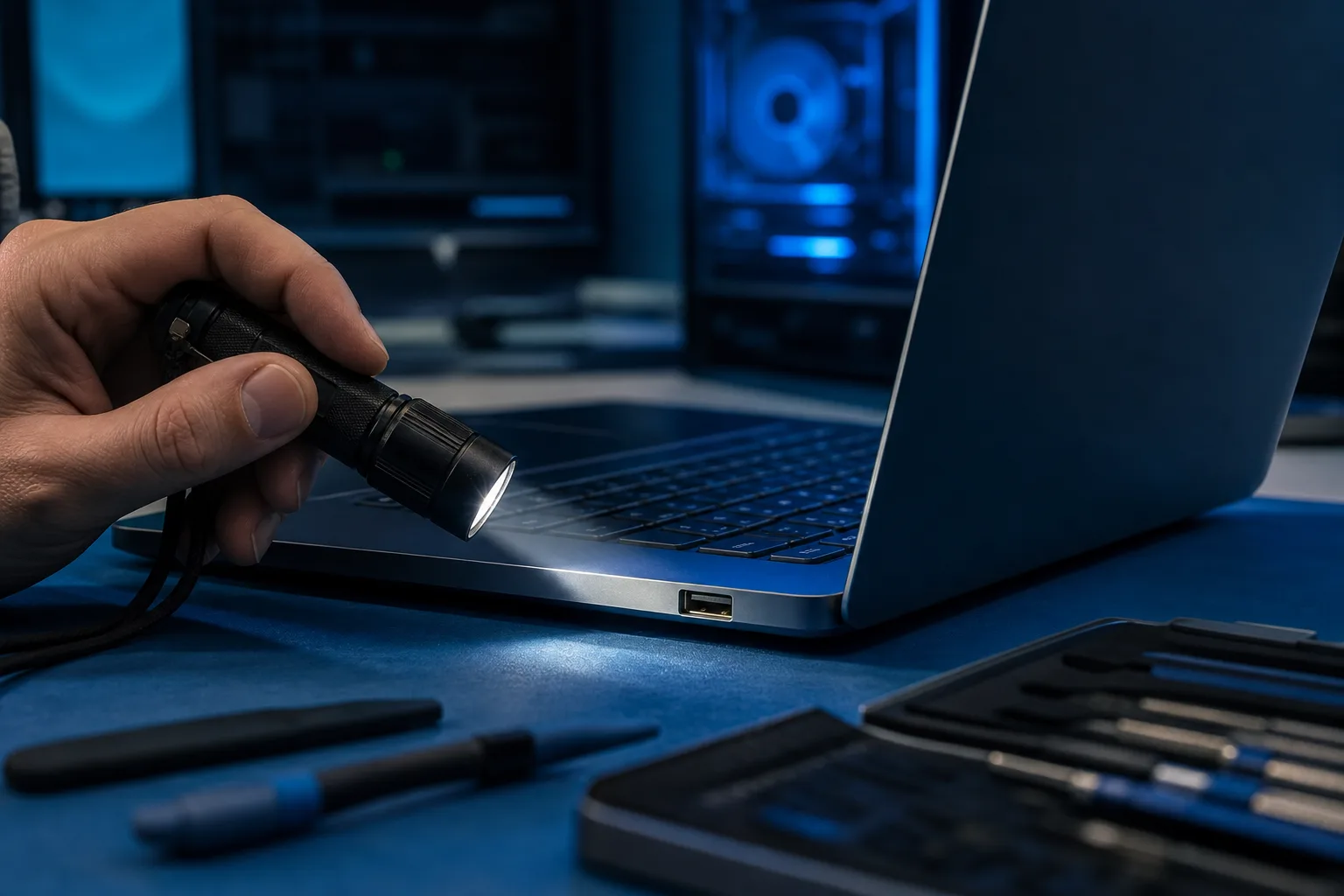
Shine a light into the port and look for:
- Bent or missing pins inside the connector
- Debris or pocket lint compressed at the back
- Scorch marks or discoloration around the port opening
- Wobble when you gently wiggle a plugged-in connector
Compressed air can clear dust. Anything else, including bent pins or a wobbly connector, is physical damage. Do not try to straighten USB pins with a toothpick. You will almost certainly make it worse.
Common Mistakes
Blaming the device when it is the cable. USB cables fail constantly. A cable that charges fine may not carry data at all. Always test with a cable you have confirmed works for data transfer.
Skipping the cold boot. Fast startup in Windows 10 and 11 is not a real shutdown. USB state can persist across it. Hold Shift + Shut Down at least once before deeper troubleshooting.
Installing random "driver fixer" utilities. These rarely help and sometimes install junk software. Use Device Manager or the manufacturer's official support page.
Assuming one dead port means a full motherboard replacement. On most laptops, USB ports are on a small daughterboard or soldered to a board that can be replaced independently. It is usually far cheaper than a full board swap.
Bottom Line
Most USB recognition failures come down to three things: a bad cable or device, a driver or power management glitch, or physical port damage. The steps above sort them in roughly five minutes. Driver and power fixes are genuine DIY territory. Physical damage, including bent pins, a loose connector, or a port that passes the visual test but still fails, is a bench job.
If you have worked through every step and the port is still dead, the laptop repair team at Fix My PC Store can run a full hardware diagnostic and quote the repair before any work begins. Initial checks for standard in-store repairs are free. The shop is at 10140 Okeechobee Blvd, Suite B, West Palm Beach, and reachable at 561-819-9999. If you would rather not make the drive yet, remote support can help confirm whether the problem is software before you bring it in.
Computer acting up? Get a real diagnosis.
Fix My PC Store has repaired thousands of machines across West Palm Beach. Honest pricing, no upsell games, and a free diagnostic for new customers with our email coupon.