Laptop Touchpad Jumpy or Erratic? What Is Actually Wrong
TL;DR: A jumpy touchpad is almost always software (driver or settings), dirt, electrical interference, or hardware (loose connector or swollen battery). Work through the steps below in order. If the pad stays erratic after the software fixes, stop using the laptop and get it looked at, because a swollen battery is a real safety issue.
What you need
- A can of compressed air
- A soft dry cloth
- Admin access to Windows or macOS
- Five to ten minutes
1. Wash your hands and clean the touchpad surface
Skin oils, crumbs, and moisture throw off the capacitive sensors. Wipe the pad with a dry microfiber cloth. If it is visibly grimy, a cloth barely dampened with isopropyl alcohol works fine. Let it dry completely before testing.
This sounds too simple. It fixes the problem more often than people expect.
2. Check for palm rejection and sensitivity settings
Before anything else, rule out a settings problem.
Windows (Precision Touchpad):
- Open Settings, then Bluetooth and devices, then Touchpad.
- Check sensitivity. "Most sensitive" can cause ghost inputs. Drop it one level.
- Look for "Palm rejection" and make sure it is enabled.
- Check that "Tap with two fingers to right-click" is not triggering unintended actions.
macOS:
- Open System Settings, then Trackpad.
- Lower Tracking speed one notch and test.
- Turn off "Force Click" temporarily to isolate whether pressure detection is misfiring.
3. Update or roll back the touchpad driver
A bad driver update is a common cause of sudden erratic behavior, especially after a Windows Update.
- Open Device Manager (right-click Start, then Device Manager).
- Expand Human Interface Devices or Mice and other pointing devices.
- Right-click your touchpad entry and choose Update driver, then Search automatically.
- If it got worse after a recent update, choose Properties, then Driver tab, then Roll Back Driver.
On macOS, driver updates ship with system updates. Go to System Settings, General, Software Update and install any pending updates.
4. Test with an external mouse to isolate the problem
Plug in a USB mouse. If the external mouse works perfectly while the touchpad stays erratic, the problem is the touchpad hardware or its driver, not a system-wide input issue. If the external mouse also acts strange, look at software, OS settings, or even a malware scan instead.
Computer acting up? Get a real diagnosis. Book a diagnostic
5. Check for wireless interference
Wi-Fi, Bluetooth, and even a nearby USB 3.0 device can cause electromagnetic interference that scrambles a touchpad's signal.
- Move away from your router or a crowded 2.4 GHz environment.
- Unplug USB 3.0 devices one at a time and test.
- Temporarily turn off Bluetooth and test.
If the touchpad calms down when you remove a USB device, plug that device into a different port or add a USB hub with shielding.
6. Look at the physical touchpad for swelling or lifting
This is the step most people skip, and it is the most important one.
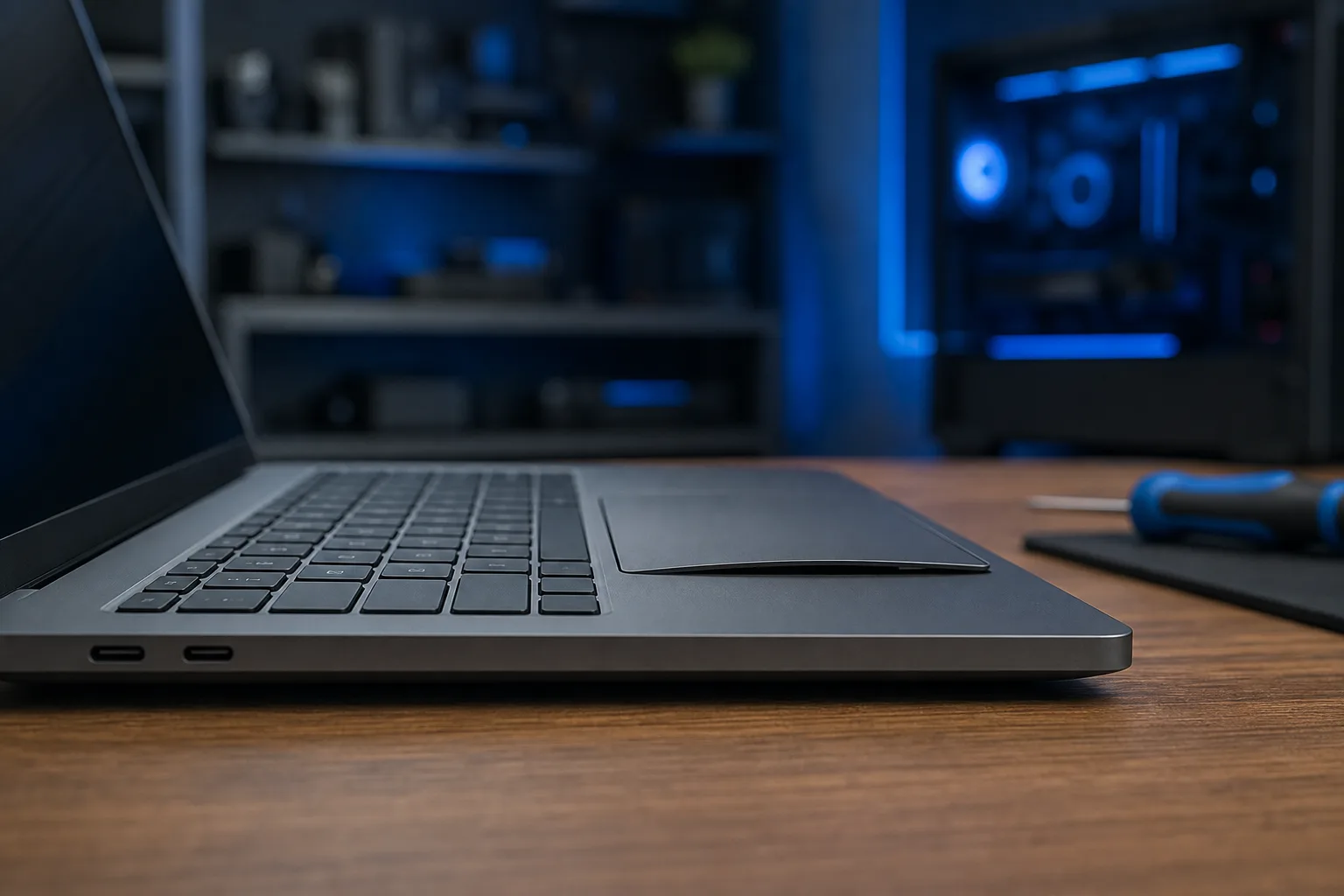
Place the laptop on a flat surface and look at the area around the touchpad from the side. If the touchpad is lifting slightly, if the palm rest has a subtle bulge, or if the touchpad physically clicks unevenly, you may have a swollen battery pushing up from inside.
Stop using the laptop immediately if you see or feel swelling. A swollen lithium battery is a fire risk. Do not try to remove it yourself unless you are experienced with laptop disassembly. Bring it to a repair shop.
If there is no swelling but the pad feels loose or the click mechanism is inconsistent, the ribbon cable connecting the touchpad to the motherboard may have come unseated. That requires opening the chassis.
7. Run a clean boot or safe mode test
Third-party apps like touchpad enhancement utilities, drawing software, or even some VPN clients can intercept input and cause erratic behavior.
Windows: Search for "msconfig", go to the Services tab, hide Microsoft services, then disable all remaining. Restart and test. If the pad behaves, re-enable services in batches to find the culprit.
macOS: Restart and hold Shift until you see "Safe Boot" on the login screen. If the trackpad is smooth in Safe Mode, a login item or kernel extension is interfering.
Diagnostic decision table
| Symptom | Most likely cause | First step |
|---|---|---|
| Jumpy right after Windows Update | Driver regression | Roll back the driver |
| Cursor drifts on its own | Palm detection or hardware fault | Settings first, then check for swelling |
| Erratic only near USB 3.0 device | EMI interference | Swap port or remove device |
| Physical bulge under the pad | Swollen battery | Stop use, get professional repair |
| Fine in Safe Mode only | Software conflict | Clean boot, isolate the app |
| Fine with external mouse only | Touchpad hardware or ribbon cable | Professional repair |
Common mistakes
Ignoring physical signs. People spend an hour reinstalling drivers when the real problem is a battery that needs immediate attention. Do the physical check early.
Disabling the touchpad instead of diagnosing it. Using an external mouse forever is not a fix. If you are on a laptop, you need a working touchpad eventually.
Reinstalling Windows as a first step. A driver rollback or clean boot catches software conflicts without the nuclear option.
Using compressed air at full blast inside USB ports. That can push debris further in. Hold the can upright and use short bursts.
Bottom line
Most erratic touchpad problems fall into four buckets: dirty surface, driver issue, software conflict, or hardware fault. The steps above take fifteen minutes and will tell you exactly which bucket you are in. If you land in the hardware bucket, especially if there is any physical swelling, do not wait. The laptop repair team at Fix My PC Store handles touchpad replacements, battery swaps, and ribbon cable reseating for customers across West Palm Beach and South Florida. You can also start with remote support if you want a second set of eyes on the software side before coming in.
Computer acting up? Get a real diagnosis.
Fix My PC Store has repaired thousands of machines across West Palm Beach. Honest pricing, no upsell games, and a free diagnostic for new customers with our email coupon.