Back to Blog
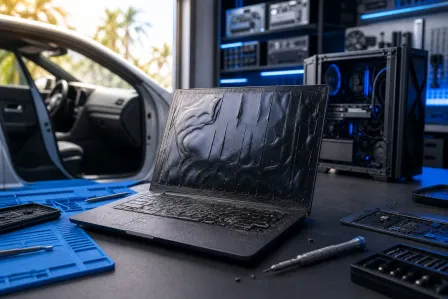
    MacBook open on a blue repair mat surrounded by screwdrivers, tweezers, and circuit boards in a dim tech workshop

    Laptop Screen Black on One Side? Here's What's Wrong

    Author: Fix My PC Store Editorial TeamPublished: 8/15/2026Last Updated: 8/15/2026

    One side of your laptop screen is black while the other still works? That's not random, it's almost always physical damage. Here's how to diagnose it and know when it's a DIY fix versus a trip to the shop.

    TL;DR

    A laptop screen that's black on one side while the other half still shows an image is almost always a hardware problem, not software. Nine times out of ten it's a busted display cable, a cracked panel, or a dying backlight strip. Grab an external monitor, run one quick test, and you'll know in five minutes whether this is a cheap fix or a full screen swap.

    What you need

    • An external monitor or TV with an HDMI cable (or USB-C if your laptop supports DisplayPort out)
    • A flashlight
    • A soft cloth and good lighting
    • 10-15 minutes
    • Optionally, a small Torx or Phillips screwdriver set if you're comfortable popping the bezel

    You do not need any special software for this. This is a physical diagnosis, not a driver issue, so don't waste time reinstalling graphics drivers before you rule out hardware.

    Computer acting up? Get a real diagnosis. Book a free diagnostic

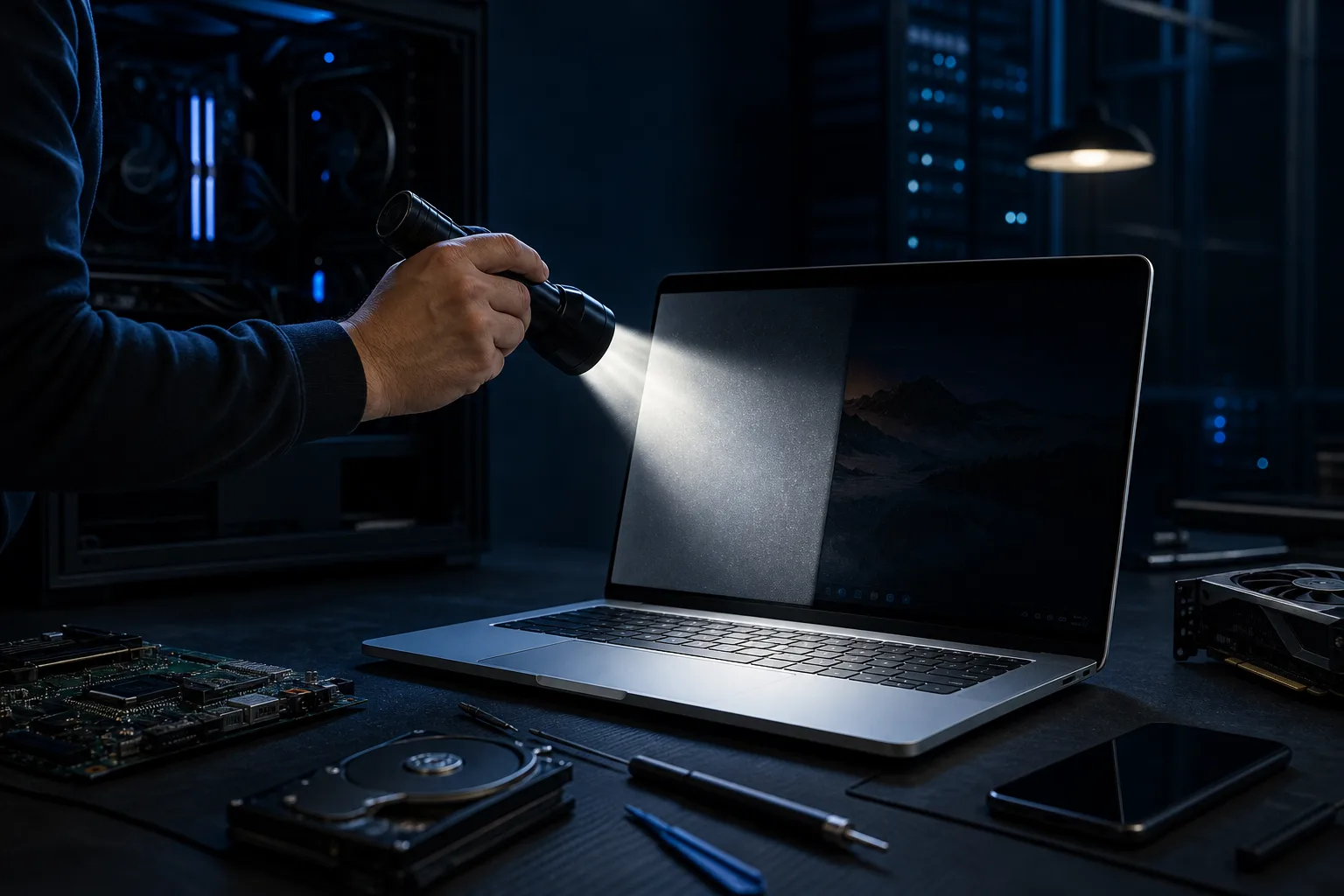
    Hand holding flashlight aimed at dark laptop screen in dim server room, hardware components scattered on desk
    The flashlight test: a faint image in the dark zone means the backlight is failing, not the panel itself.

    Step 1: Confirm it's not a graphics card or driver glitch

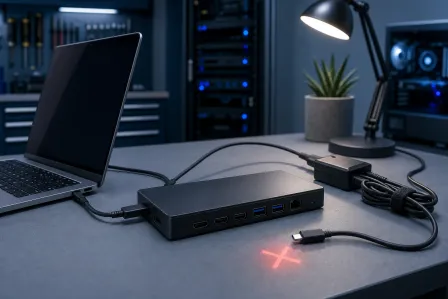
    Before you assume the worst, plug your laptop into an external monitor or TV. Hit the display key combo (usually Fn + F4, F5, or F8 depending on your brand) to project the image externally.

    If the external display shows a full, clean picture with no dark zones, your GPU and motherboard are fine. That confirms the problem lives inside the laptop screen assembly itself, either the panel, the cable, or the backlight. If the external monitor ALSO shows a half-black image, stop here, that points to a GPU or motherboard issue, which is a different repair entirely and worth a proper diagnostic at a computer repair shop.

    Assuming the external display looks perfect, move on.

    Step 2: Shine a flashlight at the dark half

    This is the single best DIY test for laptop screens. Turn the laptop on, aim a flashlight directly at the black section of the screen, and look closely.

    If you can faintly make out windows, icons, or a desktop image ghosting through the darkness, your backlight is failing on that side. The image is technically still there, it's just not illuminated. That's usually a backlight inverter or LED strip problem, common on older laptops with CCFL backlights and still possible on LED panels when the strip along one edge dies.

    If you see absolutely nothing, no ghost image at all, the panel itself is likely damaged or not receiving signal to that half. That points toward a cracked panel or a display cable issue instead.

    Step 3: Check for physical damage and flex points

    Inspect the lid closely, especially the top corners, hinges, and the bezel edges. A black section that lines up with a corner of the screen often means impact damage cracked the LCD panel internally, even if the glass on top looks intact.

    Now gently flex the lid open and closed by a few degrees while the screen is on (don't force it). Watch the black area as you move it. If the dead zone flickers, shifts, or briefly comes back to life when you flex the hinge, that's a strong sign the display cable is pinched, frayed, or partially disconnected where it routes through the hinge. This is one of the most common causes of a


    Computer acting up? Get a real diagnosis.

    Fix My PC Store has repaired thousands of machines across West Palm Beach. Free diagnostics, honest pricing, no upsell games.

    Book a free diagnostic

    Frequently asked questions

    Is a laptop screen that's black on one side a software or hardware problem?

    A laptop screen that's black on one side is almost always a hardware problem. Common causes include a damaged display cable, a cracked panel, or a failing backlight strip. You generally don't need to reinstall drivers or troubleshoot software.

    How can I tell if the problem is with my laptop screen or my GPU?

    Plug your laptop into an external monitor or TV and check if the full image displays correctly. If the external display looks fine, the problem is within the laptop screen assembly itself. If the external monitor also shows a half-black image, the issue likely lies with the GPU or motherboard.

    How do I test if my backlight is failing?

    Shine a flashlight directly at the dark section of your screen while the laptop is on. If you can faintly see a ghost image of your desktop or icons, the backlight is failing but the display is otherwise working. If you see nothing at all, the panel may be cracked or not receiving a signal to that half.

    What does it mean if the black area flickers when I flex the laptop lid?

    If the dead zone on your screen flickers or briefly comes back to life when you gently open and close the lid, this strongly suggests a pinched, frayed, or partially disconnected display cable. The cable likely runs through the hinge area and is being disturbed by the movement.

    Can a laptop panel look physically intact but still be cracked internally?

    Yes, an LCD panel can suffer internal cracks even when the outer glass appears undamaged. A black section that aligns with a corner of the screen often indicates impact damage that cracked the panel internally, which is a common result of drops or pressure on the lid.

    Frequently Asked Questions

    Is a laptop screen that's black on one side a software or hardware problem?
    A laptop screen that's black on one side is almost always a hardware problem. Common causes include a damaged display cable, a cracked panel, or a failing backlight strip. You generally don't need to reinstall drivers or troubleshoot software.
    How can I tell if the problem is with my laptop screen or my GPU?
    Plug your laptop into an external monitor or TV and check if the full image displays correctly. If the external display looks fine, the problem is within the laptop screen assembly itself. If the external monitor also shows a half-black image, the issue likely lies with the GPU or motherboard.
    How do I test if my backlight is failing?
    Shine a flashlight directly at the dark section of your screen while the laptop is on. If you can faintly see a ghost image of your desktop or icons, the backlight is failing but the display is otherwise working. If you see nothing at all, the panel may be cracked or not receiving a signal to that half.
    What does it mean if the black area flickers when I flex the laptop lid?
    If the dead zone on your screen flickers or briefly comes back to life when you gently open and close the lid, this strongly suggests a pinched, frayed, or partially disconnected display cable. The cable likely runs through the hinge area and is being disturbed by the movement.
    Can a laptop panel look physically intact but still be cracked internally?
    Yes, an LCD panel can suffer internal cracks even when the outer glass appears undamaged. A black section that aligns with a corner of the screen often indicates impact damage that cracked the panel internally, which is a common result of drops or pressure on the lid.

    Share this article

    You May Also Like