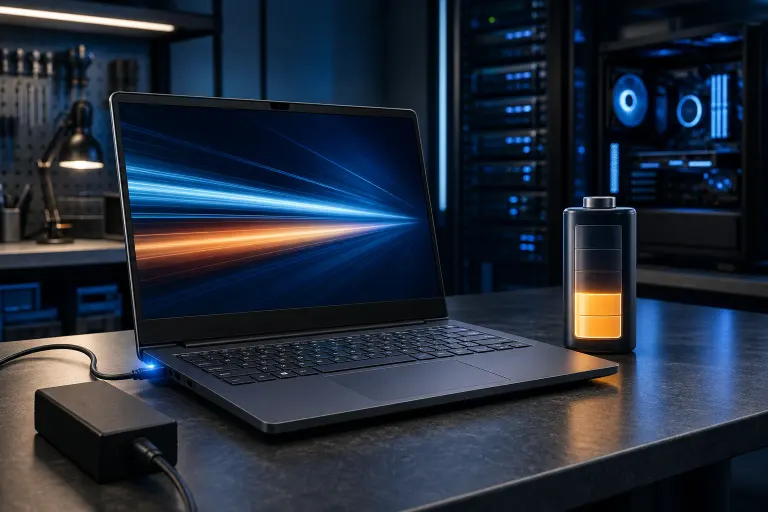
Laptop Runs Fine Plugged In But Slow On Battery? Here's Why
TL;DR: Your laptop isn't broken, it's throttling. Windows and macOS both dial back CPU and GPU speed on battery to save power, and a worn-out battery makes that throttling more aggressive. Fix the power settings first, then check battery health if the problem persists.
This is one of the most common complaints we hear at the shop. Someone brings in a laptop insisting it's dying because it crawls during a video call on battery, then it runs perfectly the second they plug it back in. Good news: that's usually not a hardware failure. It's a feature working exactly as designed, just maybe designed a little too aggressively for your taste.
The technical term is CPU throttling, and it happens because your processor is one of the biggest power draws in the whole machine. When the system detects it's running on a finite battery rather than a wall outlet, it caps how fast the CPU and GPU are allowed to run. Less speed means less heat, less power draw, and more minutes before you're hunting for an outlet. On paper, that's a perfectly reasonable trade-off. In practice, it can make a perfectly capable laptop feel like it's running through mud.
What you need
- Your laptop, obviously
- Its charger (you'll be testing plugged-in vs unplugged behavior)
- 15-20 minutes
- Task Manager or Activity Monitor knowledge (we'll walk you through it)
- Windows users: access to Power Options in Control Panel or Settings
- Mac users: access to Battery settings in System Settings
1. Confirm it's actually a power-state issue
Before chasing settings, prove the theory. Unplug the laptop and open something you know is sluggish, a browser with a bunch of tabs, a video editor, a game. Note how it feels. Plug the charger back in without closing anything and watch what happens over the next 10-15 seconds.
If performance visibly picks up the moment power is connected, you've confirmed it. That's a power-management behavior, not a virus, not a dying drive, not a failing GPU. The fix is in software, and that's great news because software fixes are free.
If plugging in makes zero difference, that points elsewhere, a background process eating CPU, overheating causing thermal throttling regardless of power source, or genuine hardware trouble. In that case, skip ahead to Step 4 for diagnostics before touching any power settings.
A quick way to make this test more objective is to open Task Manager (Windows: Ctrl + Shift + Esc, then click the Performance tab) or Activity Monitor (Mac: Applications > Utilities > Activity Monitor, then the CPU tab) before you unplug. Watch the CPU frequency or usage graph as you switch between battery and plugged-in. On a throttled machine, you'll often see the CPU frequency literally drop, a chip that runs at 3.5 GHz plugged in might cap itself at 1.2 GHz on battery, which explains exactly why everything feels half-speed.
2. Fix Windows power settings
Windows gives you fairly granular control over throttling behavior through Power Plans. Microsoft ships three default plans: Power Saver, Balanced, and High Performance. Most laptops default to Balanced, which is reasonable, but some manufacturers quietly ship their machines set to Power Saver to inflate battery life numbers on spec sheets.
To check and change your plan, right-click the battery icon in the system tray and select Power Options, or search for "Power Plan" in the Start menu. If you see Power Saver selected, switch to Balanced or High Performance and retest on battery immediately. Many people solve the problem right here.
If you want more control, click Change plan settings next to your active plan, then Change advanced power settings. In that dialog, look for Processor power management. You'll see two important fields: Minimum processor state and Maximum processor state. These are percentages of full CPU speed. The "On battery" column might show a maximum of 50% or even lower, meaning Windows is literally cutting your CPU speed in half the moment you unplug. Raising the maximum to 99% or 100% on battery will unlock that headroom.
Windows 11 users can also find a simplified version of this under Settings > System > Power & battery > Power mode. Switching from "Best power efficiency" to "Balanced" or "Best performance" while on battery achieves a similar result without digging into advanced settings.
One important caveat: bumping these settings will reduce your battery runtime. You're making a conscious trade-off, more performance now, fewer minutes per charge. That's a totally valid choice, especially if you're usually near an outlet anyway.
Computer acting up? Get a real diagnosis. Book a diagnostic
3. Fix Mac power settings
Apple handles this differently depending on whether you have an Intel Mac or an Apple Silicon Mac (M1, M2, M3, or M4 chip).
On Intel Macs, open System Settings > Battery (or System Preferences > Battery on older macOS versions). You'll see a checkbox labeled Enable Power Nap and, more relevantly, a slider or dropdown for Battery mode. Look for an option called Low Power Mode, if it's switched on, turn it off. Also check for Automatic graphics switching, which toggles between a power-hungry discrete GPU and a slower integrated GPU depending on power source. Turning this off forces the machine to always use the discrete GPU, which helps in graphics-heavy tasks but costs battery life.
On Apple Silicon Macs, the architecture is fundamentally more efficient, so dramatic throttling is less common. However, Low Power Mode still exists and still dials back performance meaningfully. You'll find it under System Settings > Battery > Low Power Mode. Apple gives you three options: Never, Only on Battery, and Always. If it's set to "Only on Battery," switching it to "Never" will give you consistent performance across both power states. For most M-series users who notice a slowdown on battery, this single toggle is the fix.
It's also worth checking if any third-party apps, particularly battery optimization utilities that sometimes come pre-installed on older Macs, are enforcing their own power limits on top of macOS defaults.
4. Check battery health
If adjusting power settings helps but the laptop still feels sluggish on battery, or if the throttling kicks in very quickly even under light load, your battery health may be the underlying culprit. Here's why: a degraded battery can't deliver current fast enough to feed a CPU running at full speed. The system detects the voltage sag and throttles preemptively to protect itself, and to keep you from experiencing sudden shutdowns.
On Windows, open a Command Prompt or PowerShell as administrator and run:
powercfg /batteryreport
This generates an HTML report saved to your user folder (usually C:\Users\YourName\battery-report.html). Open it in a browser and look for Design Capacity versus Full Charge Capacity. A new battery's full charge capacity should be very close to its design capacity. If your full charge capacity is 60% or less of the design capacity, the battery has worn down significantly. At 40% or below, replacement is strongly recommended.
For example, if your laptop shipped with a 72 Wh battery and the report shows a full charge capacity of 38 Wh, you're running on just over half a battery. The system compensates by throttling harder and earlier.
On Mac, hold the Option key and click the Apple menu, then select System Information. Navigate to Power in the left sidebar. You'll see Cycle Count and Condition. Apple considers a battery healthy up to around 1,000 cycles on most modern MacBooks. The Condition field will read Normal, Service Recommended, or Service Battery. Anything other than Normal means Apple's own diagnostics are flagging the battery as degraded.
You can also check Maximum Capacity percentage in System Settings > Battery > Battery Health on newer macOS versions. An 80% or higher reading is generally fine. Below 80% is when you'll start noticing real-world performance impacts on demanding tasks.
5. When to replace the battery
If your battery health check reveals significant degradation, a replacement battery is usually the most cost-effective fix, and often dramatically cheaper than a new laptop. Third-party battery replacements for popular laptop models like Dell XPS, ThinkPad, or MacBook Pro typically run between $40 and $120 for the part alone. A shop will add labor on top of that, usually another $50 to $80.
For MacBooks, Apple's own battery replacement program charges a fixed fee depending on model, and they'll also run a full diagnostic while they have it open, which is worth the peace of mind.
Before spending anything, weigh the laptop's age and overall condition. If it's a six-year-old machine with other wear showing, a battery replacement still makes sense if everything else works, you'll likely get another two to three years of solid use out of it. If other components are also failing, it might be time to put the budget toward a newer machine instead.
Quick summary
- Throttling on battery is normal, it's power management doing its job
- Windows fix: Check your Power Plan, raise maximum processor state on battery
- Mac fix: Disable Low Power Mode, check automatic graphics switching on Intel models
- If settings don't fully solve it: Run a battery health check, degraded batteries force more aggressive throttling
- Battery below ~60% capacity: Consider a replacement before buying a new laptop
- No difference when plugged in: Look at thermal throttling or background processes instead, as the cause is not power-state related
Computer acting up? Get a real diagnosis.
Fix My PC Store has repaired thousands of machines across West Palm Beach. Honest pricing, no upsell games, and a free diagnostic for new customers with our email coupon.