How to Read Your Router's Admin Page to Catch Network Problems
TL;DR: Log into your router's admin page at 192.168.1.1 or 192.168.0.1, then check your connected devices list, wireless channel stats, DHCP leases, and system logs. Those four areas will surface about 90% of common home and small-business network problems without calling anyone.
What You Need
- A computer or phone connected to the router (wired is better for this)
- Your router's admin credentials (check the sticker on the bottom of the unit)
- About 15-20 minutes the first time through
- A notepad or screenshot tool to record what you find
You do NOT need to be a network engineer. You do need to be willing to click around without changing anything until you understand what you're looking at. Read first, tweak later.
Step 1: Find Your Router's IP Address and Log In
Open a browser on any device connected to your network. Type 192.168.1.1 into the address bar and hit enter. If you get a login page, great. If you get nothing, try 192.168.0.1 or 10.0.0.1. Those three cover the vast majority of consumer and small-business routers.
Still nothing? Here's how to find the exact address. On Windows, open Command Prompt and type ipconfig. Look for the line that says Default Gateway. That number is your router's IP. On a Mac, go to System Preferences, Network, and click your active connection. The router IP shows up under the TCP/IP tab.
Now log in. The default username is usually admin and the default password is either admin, password, or printed on that sticker on the router. If someone changed these and you don't know the new credentials, a factory reset will bring them back, but that also wipes your Wi-Fi settings, so think before you press that button.
Once you're in, take a breath. You're not going to break anything by looking around.
Step 2: Check the Connected Devices List
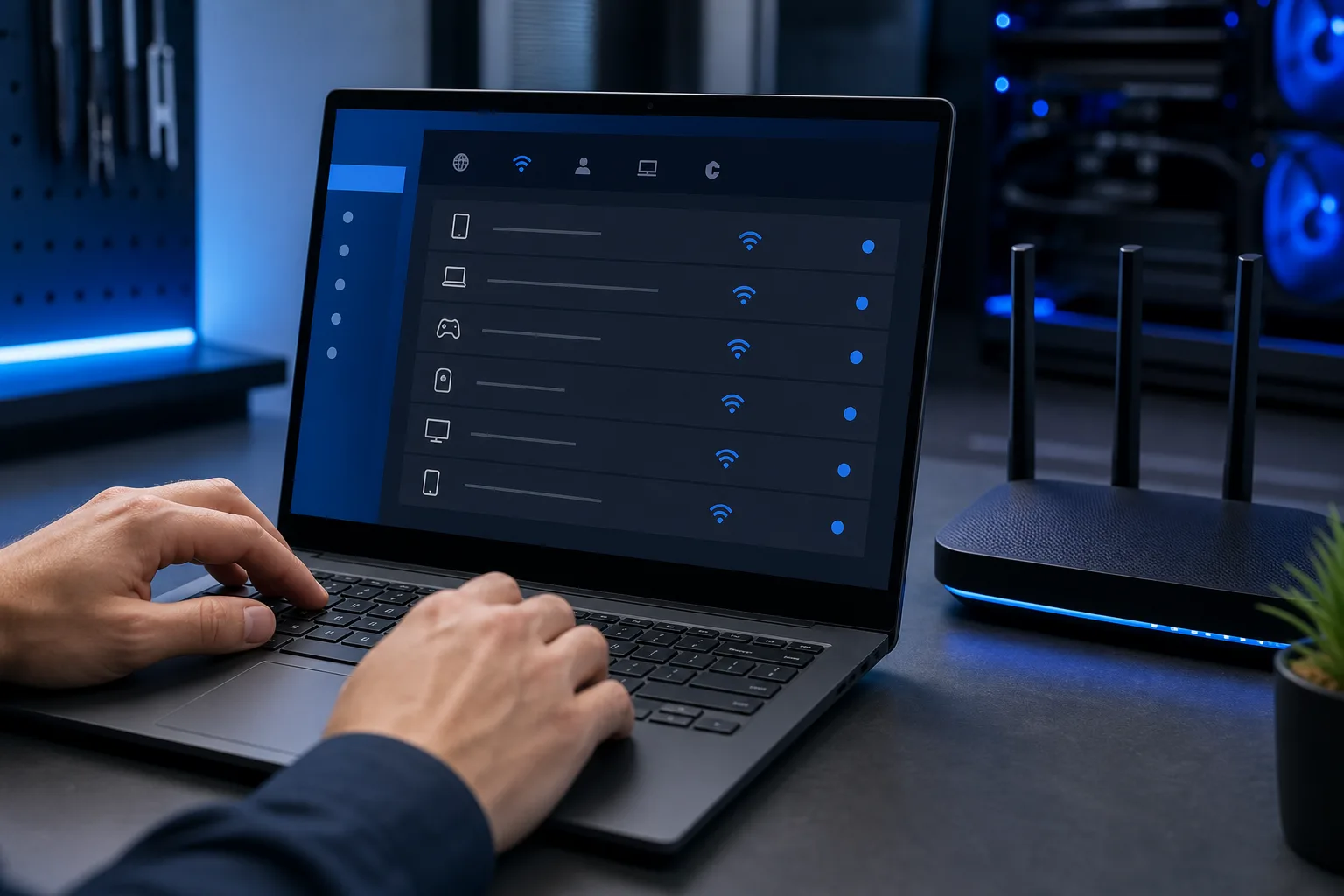
This is the most immediately useful thing on the whole admin page. Find it under a tab called Attached Devices, Device List, LAN Clients, or something similar. Every router brands it differently.
What you're looking for:
- Total device count. If you see 34 devices and you only own 12 gadgets, someone or something is on your network that shouldn't be.
- Unknown device names. Routers pull hostnames from devices. Anything showing up as a random string of letters and numbers, or a brand you don't recognize, deserves a closer look.
- IP address conflicts. Two devices with the same IP will cause intermittent drops for both. Some routers flag this automatically, others don't.
If you spot unauthorized devices, change your Wi-Fi password immediately. For businesses, this is actually a serious security event. The team at Fix My PC Store's cybersecurity services can help you audit who's been on your network and whether any data was exposed.
Step 3: Read the Wireless Radio Stats
Navigate to the Wireless or Wi-Fi section. You're looking for a few specific numbers.
Channel. Most routers default to automatic channel selection on 2.4 GHz. In a dense area like a West Palm Beach apartment complex or an office building, auto-channel often picks the same congested channel as six of your neighbors. Look at what channel you're on, then cross-reference it with a free app like Wi-Fi Analyzer (Android) or similar. Channels 1, 6, and 11 are the non-overlapping ones on 2.4 GHz. If you're on channel 6 and so are four neighbors, manually switching to channel 1 or 11 can make a noticeable difference.
Band utilization. If your router shows it, check how many clients are on 2.4 GHz versus 5 GHz. The 2.4 GHz band has longer range but lower throughput and more interference. Heavy devices like streaming boxes and gaming consoles should be on 5 GHz or, even better, wired.
Signal strength or RSSI. Some routers show per-device signal strength. Anything below -70 dBm is shaky. Below -80 dBm is basically unusable for anything demanding.
Speaking of demanding, if you're running a custom rig and dropping frames mid-game because of Wi-Fi hiccups, that's fixable at the router level or by running ethernet directly to your build. Check out what's possible with a custom gaming PC setup that accounts for network from the start.
Tired of IT that breaks at the worst time? Talk to our business IT team
Step 4: Review DHCP Leases and Address Allocation
Find the DHCP section, usually under LAN settings. Your router hands out IP addresses automatically to every device that connects. The DHCP lease table shows you every device that has an active or recently expired lease.
What to check:
- Lease time. Default is often 24 hours. If you have a small network with lots of transient devices (think a waiting room or small office), you might be running low on available addresses in the pool. The default pool is usually 192.168.1.100 through 192.168.1.200, which gives you 100 addresses. That sounds like a lot until you count phones, printers, laptops, smart TVs, and IoT devices.
- Static vs. dynamic assignments. Critical devices like printers, NAS drives, and security cameras should have static IP reservations so they never get reassigned a new address. If your printer suddenly stops being found on the network, a changed IP address is usually why.
- Scope exhaustion. If the table is full or close to it, new devices will fail to connect with no obvious error message to the user. They'll just see "connected, no internet."
For businesses managing multiple sites or a larger device count, this is exactly the kind of thing a managed IT provider handles proactively so it never becomes a problem.
Step 5: Read the System Log
This is where the router tells its story. Find it under Administration, System Log, Event Log, or Diagnostics. The log is a time-stamped list of everything the router has done and everything that has gone wrong.
Key entries to look for:
- WAN disconnects. Lines that say "WAN link down" or "PPPoE disconnected" followed immediately by reconnect events tell you your internet is dropping and coming back. If you see this happening dozens of times a day, the problem is between your modem and your ISP, not your devices.
- DHCP errors. "DHCP pool exhausted" means you've run out of addresses to hand out.
- Authentication failures. Repeated failed login attempts to the admin page, especially from IP addresses you don't recognize, mean someone is probing your router. Change the admin password and disable remote management if it's enabled.
- Firewall blocks. High volume of outbound blocked connections from one internal IP can mean a device on your network is infected with malware and trying to phone home. That's not something to ignore. If you're not sure how to investigate further, remote support can help you dig in without anyone needing to come on-site.
Don't be alarmed by every single log entry. Some noise is normal. You're looking for patterns, not individual events.
Step 6: Check Your WAN Stats and Connection Quality
Navigate to the WAN or Internet section. This is your router's view of the connection coming in from your ISP.
- IP address. If this shows 0.0.0.0 or is blank, your router isn't getting an address from the ISP. Reboot the modem first, then the router.
- Uptime. A router that's been up for 3 days when you expected 30 days means it rebooted unexpectedly. Check the logs around that timestamp.
- DNS servers. Your router probably defaults to your ISP's DNS. For slightly faster and more reliable resolution, switching to 1.1.1.1 (Cloudflare) or 8.8.8.8 (Google) is a common move. Do this in the WAN settings, not just on individual devices.
- Traffic stats. Some routers show cumulative upload and download totals. A spike in outbound traffic at weird hours is a flag worth investigating.
For businesses in South Florida dealing with connection reliability issues across multiple locations, proper business networking setup makes all of this far easier to monitor from one place.
Common Mistakes
Changing settings while diagnosing. Document first, change second. If you adjust three things at once and something breaks, you won't know which change caused it.
Confusing the modem and the router. If you have a combo unit from your ISP, the admin page might be at a different address (often 192.168.100.1). Some settings on ISP-provided gear are locked anyway.
Ignoring the logs because they look intimidating. You don't need to understand every line. You need to search for the words "error," "fail," "disconnect," and "denied" and read just those entries.
Not updating the firmware. While you're in the admin page, check if there's a firmware update. Router firmware patches fix security vulnerabilities that attackers actively exploit. This is not optional.
Leaving default admin credentials. If your username is still admin and your password is still admin, fix that right now before you close this tab.
Overlooking the 5 GHz band settings. Many people configure their 2.4 GHz radio perfectly and forget the 5 GHz radio entirely has its own channel, power level, and SSID settings.
Bottom Line
Your router's admin page isn't scary once you know what you're looking for. The connected devices list, DHCP table, wireless stats, system log, and WAN status give you a complete picture of what's actually happening on your network.
Most home network problems, and a surprising number of small-business ones, can be diagnosed in under 30 minutes with just these tools. You don't need expensive monitoring software. You need to know where to look.
If you dig through all of this and still can't figure out why your connection is misbehaving, or if you find something in that log that looks genuinely alarming, the team at Fix My PC Store is local to West Palm Beach and can help sort it out. Book a time with us and we'll take it from there.
Tired of IT that breaks at the worst time?
We run managed IT, backups, and security for South Florida businesses so you can stop thinking about it.