How Multi-Factor Authentication Actually Stops Account Takeovers
TL;DR: MFA stops account takeovers by requiring a second proof of identity even when your password is stolen. Not all MFA is equal. Authenticator apps beat SMS codes, and hardware keys beat both. Set it up wrong and you still get owned.
What You Need
- An account that supports MFA (most do in 2024)
- An authenticator app: Google Authenticator, Microsoft Authenticator, or Authy
- Optionally, a hardware security key (YubiKey or similar) for high-value accounts
- Access to your account's security settings
- Backup codes downloaded and stored somewhere safe, not just on your desktop
Step 1: Understand What MFA Actually Does Under the Hood
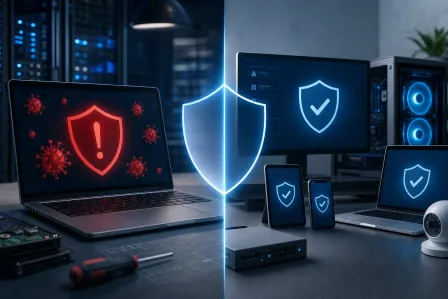
Here is the core idea. A password is one factor: something you know. MFA adds a second factor, which is either something you have (a phone, a hardware key) or something you are (biometrics). An attacker who steals your password still cannot get in without that second factor.
Why does this matter so much? Because credential stuffing is RAMPANT. Attackers buy lists of leaked username and password combos from dark web markets and run automated scripts against every major service. If your password was exposed in any breach ever, it is being tried right now. MFA makes that entire attack class fail instantly.
The math is brutal for attackers. Instead of cracking one secret, they now have to compromise two separate things, often on two separate devices, at the same time. That raises the cost of attacking you high enough that most automated attacks just move on to easier targets.
For businesses handling client data, this is not optional hygiene. It is a baseline recommended by authoritative cybersecurity authorities, see CISA's Require Multifactor Authentication guidance and NIST's MFA guidance for small businesses for details. Our business cybersecurity team sees account takeovers regularly, and almost every single one could have been blocked by MFA.
Step 2: Choose the Right MFA Method (They Are Not All Equal)
This is where most people mess up. They turn on MFA, feel safe, and pick the weakest option available.
SMS Text Codes (Weakest)
SMS-based MFA sends a six-digit code to your phone number. It is better than nothing, but it is vulnerable to SIM-swapping. An attacker calls your carrier, convinces a rep they are you, and gets your number transferred to their SIM. Now they receive your codes. This attack is more common than you think, and it specifically targets people with crypto, business email, or financial accounts.
Authenticator Apps (Solid)
Apps like Microsoft Authenticator, Google Authenticator, and Authy generate time-based one-time passwords (TOTP). These codes refresh every 30 seconds and are generated locally on your device, no network connection required. There is no code being sent over a carrier network, which means SIM-swapping cannot intercept them.
This is the minimum you should be using for any account that matters.
Hardware Security Keys (Best)
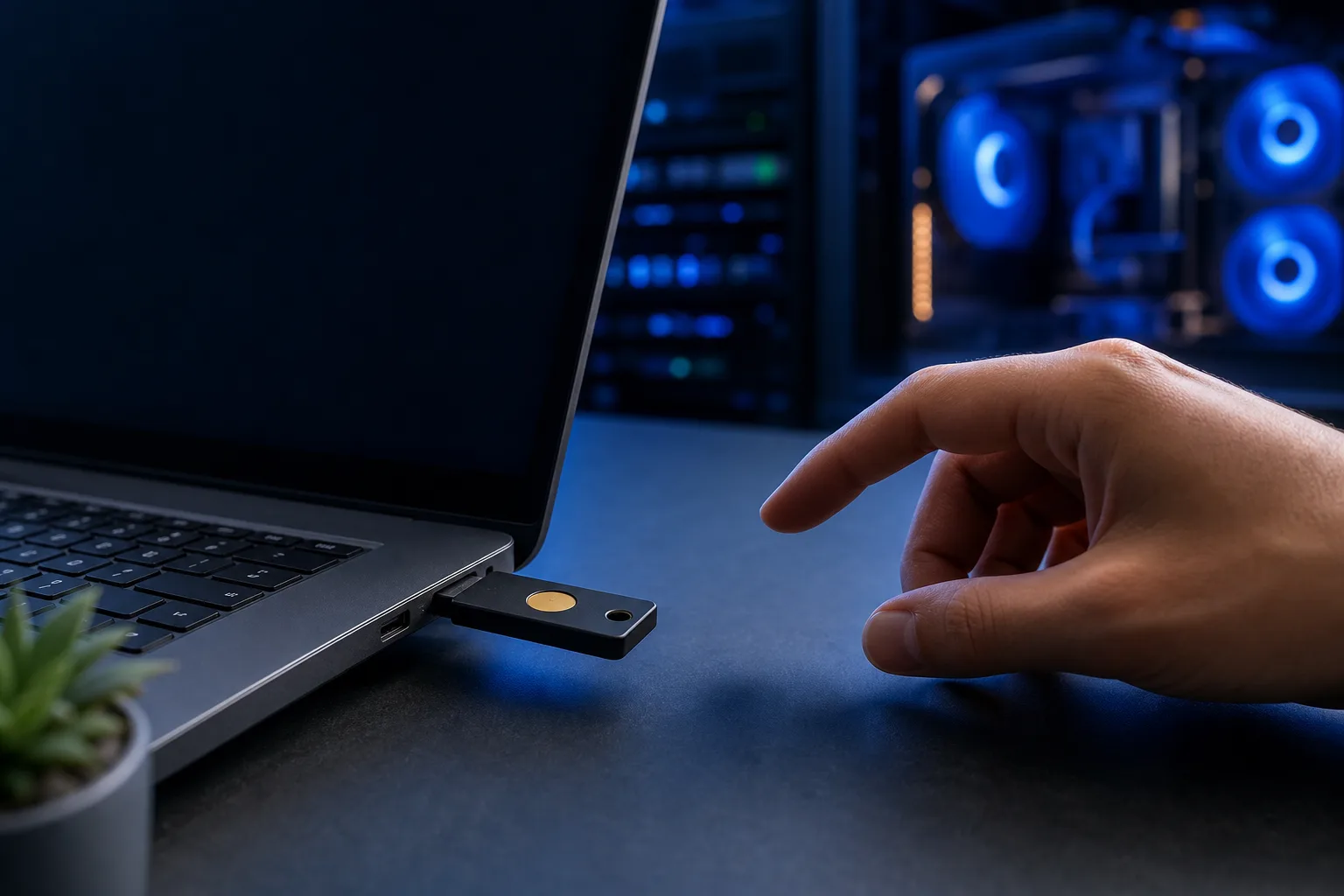
A physical key like a YubiKey plugs into USB or taps via NFC. It uses a cryptographic challenge-response protocol that is phishing-resistant by design. Even if you land on a perfect fake login page, the key will not authenticate because the domain does not match. This is the gold standard for high-value accounts: admin access, payroll, anything with financial or client data.
If your business is using Microsoft 365, you can enforce hardware key authentication for your entire organization. That is a serious threat reduction.
Step 3: Enable MFA on Your Most Critical Accounts First
Do not try to do everything at once. Prioritize in this order:
- Email - This is the master key. Password reset flows for everything else go through email. If an attacker gets your email, they own every other account too.
- Banking and financial accounts - The payoff for attackers is obvious here.
- Business tools - Microsoft 365, Google Workspace, your CRM, your cloud storage, your VPN.
- Domain registrars and hosting - If someone hijacks your domain, your entire business is offline.
- Social media - Lower stakes but still painful and embarrassing when compromised.
Go into each account's security settings. Look for two-factor authentication, two-step verification, or multi-factor authentication. The naming varies but the concept is the same. Enable it, choose your method, and do not skip saving the backup codes.
Worried your business is one click from a breach? Get a security review
Step 4: Set Up Your Authenticator App Correctly
Open your authenticator app on your phone. In the account's security settings, you will usually see a QR code. Scan it with the app. The app will immediately start generating rolling 6-digit codes.
Enter the current code to confirm the link. Done. From now on, every login requires your password plus the current code from the app.
One critical step most people skip: save your backup codes. Every service generates a set of one-time backup codes when you enable MFA. These let you get back in if you lose your phone. Print them or store them in a password manager. Do not just screenshot them and leave the screenshot on your phone, because if you lose the phone you lose the codes too.
For businesses running remote teams, this kind of setup pairs well with remote support from a managed IT partner who can help enforce and audit MFA policies across all staff accounts.
Step 5: Handle Account Recovery Without Creating a Backdoor
This is the sneaky part. The way you set up account recovery can completely undo your MFA protection.
If you set your recovery email to an account that does NOT have MFA, an attacker can target that weaker account first, then use it to reset everything downstream. Every account in your recovery chain needs MFA.
Also be careful with security questions. If your bank still offers "mother's maiden name" or "childhood pet" as a recovery option, treat those questions like passwords. Use random nonsense answers and store them in a password manager. Real answers to those questions are often publicly available from social media.
For businesses, account recovery policies should be documented and controlled by IT, not left to individual employees. A solid managed IT setup will include policies for how recovery access is handled when an employee leaves or a device is lost.
Common Mistakes That Blow Your MFA Protection
Using the same phone number for SMS MFA on every account. One successful SIM swap and everything falls.
Approving push notification prompts without thinking. Microsoft Authenticator and similar apps offer push approvals, where you just tap "Approve" on a notification. Attackers spam these at 3am hoping you tap approve half-asleep. Only approve prompts you explicitly triggered.
Not enabling MFA on your password manager. Your password manager holds every other credential. It should have the strongest MFA you can put on it, ideally a hardware key.
Skipping MFA on admin accounts because it feels inconvenient. Admin accounts are the highest-value target. They need the most protection, not the least.
Losing your backup codes and then also losing your phone. You can get locked out of your own accounts permanently. Store backup codes somewhere physical and off your primary device.
Thinking MFA means you can reuse weak passwords. MFA reduces the damage from stolen passwords, but it does not make bad passwords fine. Use a password manager and generate unique strong passwords per account.
We cover the full picture of protecting business accounts in our business IT services, including auditing which accounts in your org are exposed.
Bottom Line
MFA is the single highest-impact security action most people and businesses are not doing correctly. Turning it on with SMS codes is a start but not the finish line. Authenticator apps are the practical sweet spot for most accounts. Hardware keys are worth the small cost for anything where a breach would be catastrophic.
The setup takes maybe 20 minutes for your critical accounts. That 20 minutes blocks the attack vector that compromises the majority of breached accounts.
If you run a business and want someone to actually audit your account security, enforce MFA across your team, and monitor for suspicious login activity, that is exactly what we do at Fix My PC Store. Check out our business cybersecurity services or schedule a conversation with us. Your passwords are already out there somewhere. Make sure that does not matter.
Worried your business is one click from a breach?
Get a straight-talk security review from a local team that has cleaned up the aftermath more times than we'd like.