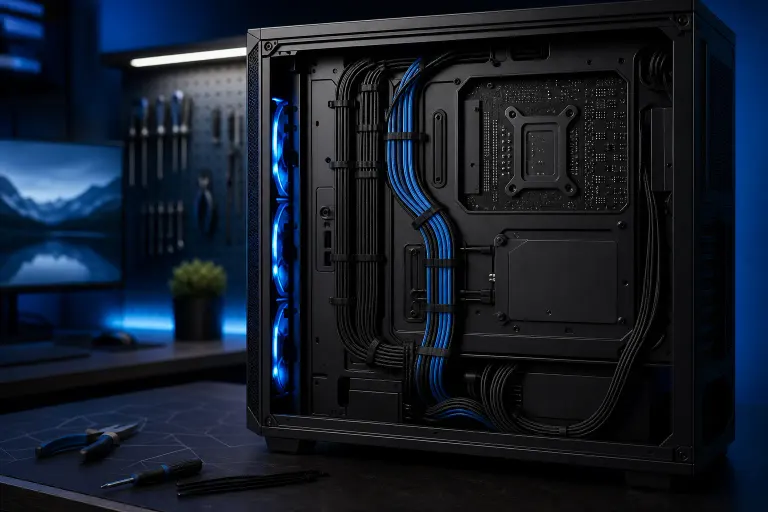
Gaming PC Cable Management: Why It Matters Beyond Looks
TL;DR: Messy cables block airflow, trap heat, and make future upgrades a nightmare. Routing cables behind the motherboard tray and using zip ties or velcro takes maybe an hour and can drop GPU temps by several degrees. The cleaner the interior, the better your thermals, and better thermals mean more consistent frame rates.
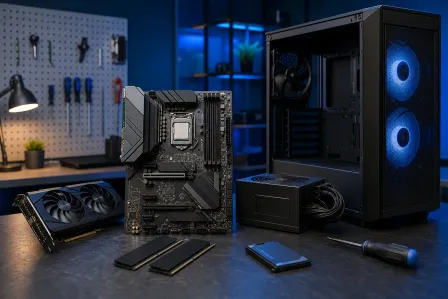
What you need
- Zip ties or velcro cable straps (velcro is reusable and gentler on cables)
- Cable extensions if your PSU cables are too short to route behind the tray
- A modular or semi-modular PSU, which lets you omit cables you don't need
- A case with a cable management spine or routing holes, ideally with rubber grommets
- About 60 to 90 minutes and good lighting
Step 1: Plan your cable paths before you plug anything in
If you're doing a fresh build, route cables before installing the GPU. If you're cleaning up an existing build, disconnect non-essential cables first so you can see what you're working with.
Identify three cable groups: power delivery (24-pin ATX, CPU EPS, PCIe), data (SATA, NVMe is mostly self-contained), and front panel (USB headers, audio, power switch). Each group has a natural path based on where your case routes behind the tray.
Step 2: Route power cables behind the motherboard tray
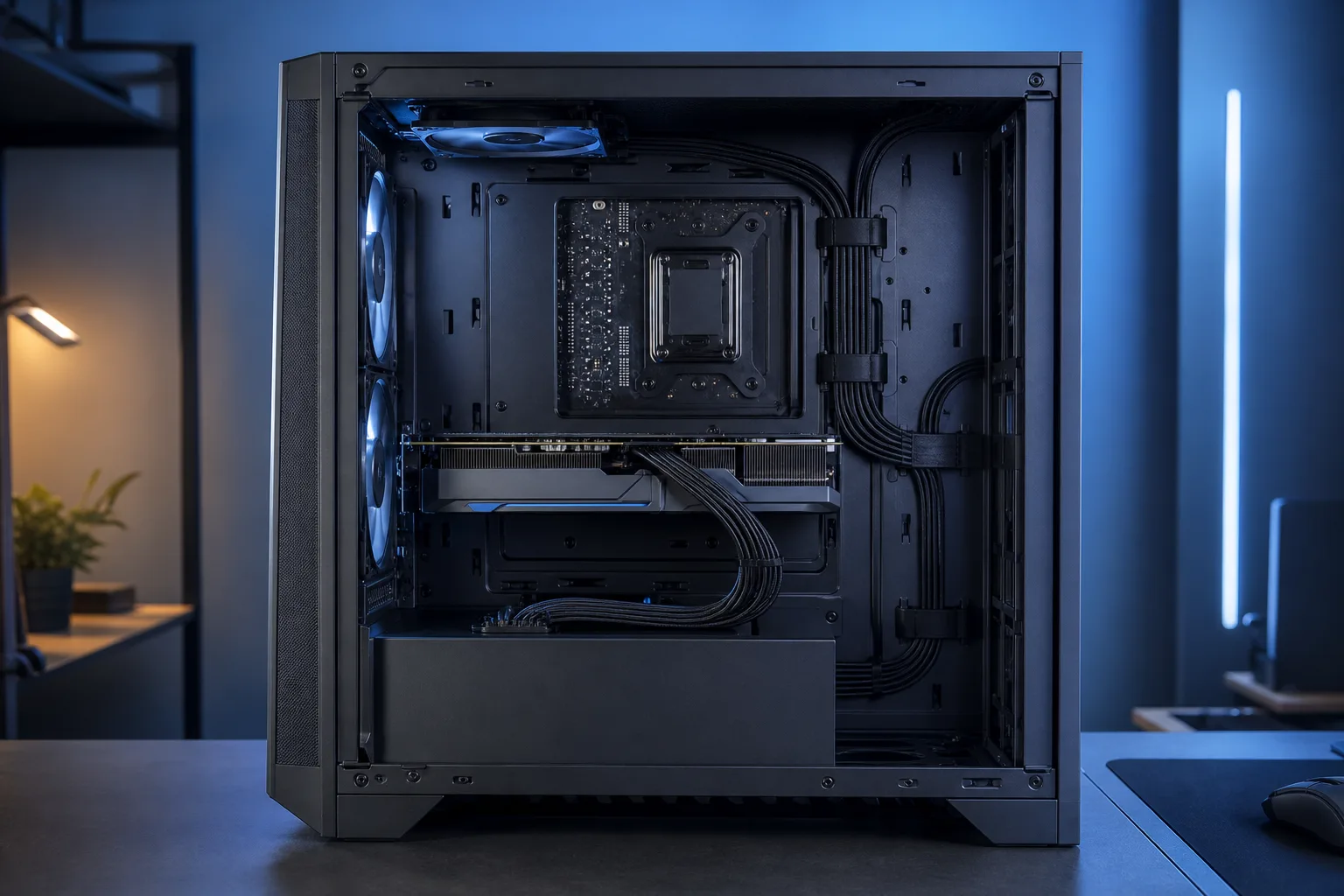
This is the single biggest move. Most mid-tower and full-tower cases have a gap of 15 to 25mm behind the tray specifically for hiding cables. Feed the 24-pin and EPS connectors through the nearest routing hole, then pull them forward and plug in.
The cables will look longer than needed at first. That slack is fine as long as it stays behind the tray. Fold excess cable length into the gap rather than looping it in front of the motherboard.
Step 3: Keep PCIe cables away from fan intakes
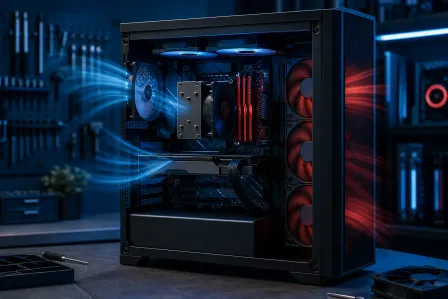
This one kills thermals silently. A fat PCIe cable draped across the bottom intake fans or directly in front of the GPU shroud restricts airflow right where you need it most. Route PCIe cables under the GPU or along the side wall, not across the front of the case.
If your PSU cables barely reach, cable extensions solve this cleanly. Sleeved extensions cost a few dollars and give you the extra length to route properly without tension.
Ready to build a rig that actually rips? Start your build
Step 4: Bundle and secure cables by group
Bundle cables that run parallel into one neat line using velcro straps every 10 to 15cm. Do NOT mix power and data cables into the same bundle if you can avoid it, mostly for troubleshooting clarity later.
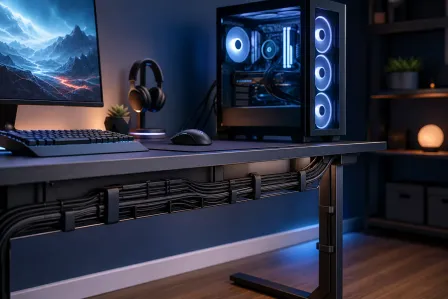
For cables that cross the visible side of the case, like fan headers or RGB cables, tuck them flat against the case wall. RGB cables are usually thin enough to hide in seams. If your build is windowed and you care about the look, save RGB cable routing for last so you can dress them intentionally.
Step 5: Verify airflow after you're done
Before closing the panel, do a quick sanity check:
- Can each intake fan spin without a cable hanging in its path?
- Is there clear space between the GPU shroud and any cable runs?
- Are all fan header cables secured so they can't drift into a fan blade?
- Does the side panel close without compressing cables behind the tray?
After closing up, run a GPU stress test for 10 to 15 minutes and check your GPU and CPU temps in a tool like HWiNFO64 or MSI Afterburner. If temps dropped versus your previous messy state, you've already won frames.
Common mistakes
Leaving unused cables in the case. If you're running a modular PSU, remove every cable you're not using. Unused SATA power cables bundled inside the case still block airflow. Stuff them behind the tray or remove them entirely.
Using zip ties you can't undo easily. Zip ties are fine but trim the tail flush after cinching. A sharp zip tie tail will scratch cables or your hand during future work. Velcro straps let you redo routing without cutting anything.
Routing cables through the wrong holes. Each routing hole is positioned near the connector it's meant to serve. Using the wrong hole creates cable tension that can loosen connectors over time.
Ignoring fan and RGB cables. Fan header cables are usually the thinnest and easiest to forget. One loose fan header flapping into a 120mm intake fan creates noise at best and a failed fan at worst. Secure them.
Overtightening around cables. Crushing a PCIe cable with zip ties hard enough to deform the insulation is a fire risk over time. Snug is good. Tight enough to distort the cable jacket is not.
Bottom line
Cable management is not about impressing people through a tempered glass panel. It's about giving your fans unobstructed paths to move air, keeping your GPU in its thermal headroom so it boosts to max clocks instead of throttling, and making sure the next time you upgrade a component you don't have to re-do a spaghetti disaster.
Want a build that's wired properly from day one? Check out the custom gaming PC builder and see what a well-managed build looks like. If you've got a pre-built that's running hot and you're not sure why, remote support can walk you through a thermal diagnosis without shipping anything anywhere. Or swing by the Okeechobee Boulevard shop in West Palm Beach for hands-on help with your rig.
Ready to build a rig that actually rips?
Custom gaming PCs built and tuned by people who game. Tell us your budget and target frame rate.