Phone Won't Send Texts but Calls Work Fine: What's Wrong
TL;DR: Calls and texts use different channels. Calls use the voice network; SMS and MMS use a separate data or signaling path. A stuck message, wrong APN setting, or a glitchy messaging app can block texts while leaving calls untouched. Work through the steps below in order.
What you need
- Your phone (Android or iPhone)
- Access to carrier account settings (online or via carrier app)
- About 10-15 minutes
- A second phone or someone who can confirm they're receiving your messages
Step 1: Check if it's one contact or everyone
Send a test text to two or three different people. If only one contact fails, the issue is likely on their end or a blocked-number situation. (Yes, people block others and never mention it. Awkward.)
If nobody receives your texts, move on.
Step 2: Look at the failed message itself
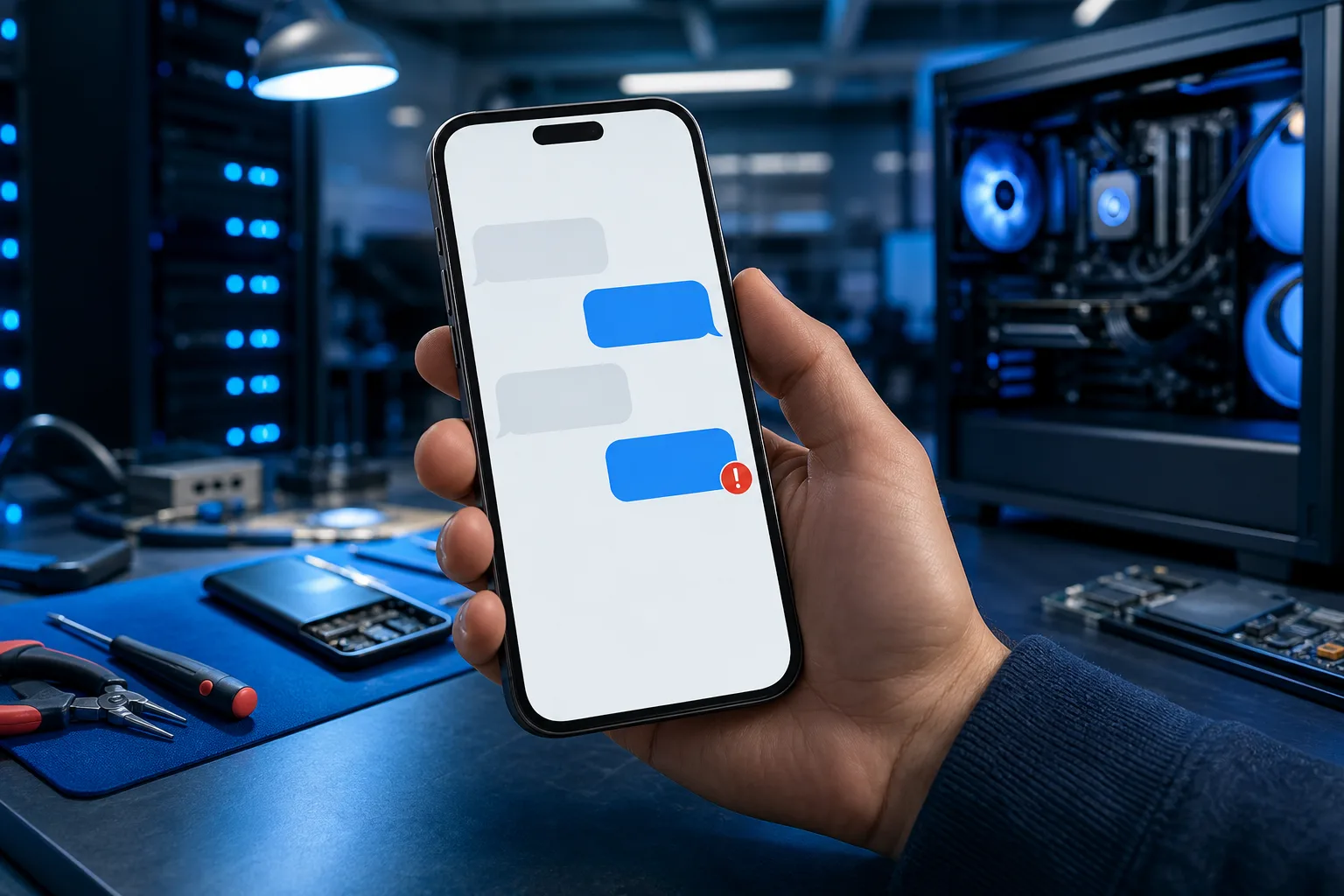
Android usually shows a red exclamation mark next to a failed message. iPhone shows a red "Not Delivered" link. Long-press the failed message and delete it. A single corrupt outgoing message can jam the entire message queue.
After deleting, try sending a fresh, short text with no attachments.
Step 3: Toggle Airplane Mode
Swipe down and turn Airplane Mode on. Wait 15 seconds. Turn it off. This forces the phone to re-register with the carrier network. It sounds dumb. It works more often than it should.
Step 4: Restart the phone
Not sleep, not lock. A full power-off restart. Clears cached states that a simple lock won't touch.
Step 5: Check message center number (Android)
On Android, the SMS Message Center number routes your texts through the carrier. If it's blank or wrong, texts fail silently while calls work fine.
Where to find it:
- Open your default messaging app
- Settings > More Settings (or Advanced) > Text Messages > Message Center
- The number should be pre-filled by your carrier. If it's blank, call your carrier and ask for the correct SMSC number for your account.
iPhone doesn't expose this setting directly, so skip to Step 6 if you're on iOS.
Step 6: Confirm MMS is enabled and APN settings are correct
MMS (picture messages and group texts) requires mobile data, even if you're on Wi-Fi. If mobile data is off, MMS fails. SMS should still work, but some carriers and apps blur this line.
Android:
- Settings > Network > Mobile Network > enable mobile data
- Check APN settings match your carrier's published settings (search "[your carrier] APN settings" on their official support page)
iPhone:
- Settings > Messages > enable MMS Messaging and Group Messaging
- Settings > Cellular > Cellular Data, make sure it's on
Cracked screen or a phone that won't hold a charge? Get a repair quote
Step 7: Clear the messaging app cache (Android)
Settings > Apps > your default messaging app > Storage > Clear Cache. Do not clear data unless you want to lose message history. Cache only.
On iPhone, you can't clear app cache the same way. Instead, offload the app: Settings > General > iPhone Storage > Messages > Offload App. Reinstall it after.
Step 8: Check if iMessage is stuck (iPhone to iPhone)
If you're texting another iPhone user and messages show as green instead of blue, iMessage dropped to SMS. That's fine, usually. But if the message just sits and spins:
- Settings > Messages > toggle iMessage off, wait 30 seconds, toggle back on
- Sign out of iMessage under your Apple ID, sign back in
iMessage outages do happen. Check Apple's System Status page to rule that out.
Step 9: Reset network settings
This clears saved Wi-Fi passwords, Bluetooth pairings, and APN settings. Your carrier APN gets re-pushed automatically on most modern carriers. Do this only after the steps above, because it's a bigger reset.
Android: Settings > General Management > Reset > Reset Network Settings
iPhone: Settings > General > Transfer or Reset iPhone > Reset > Reset Network Settings
After the reset, reconnect to Wi-Fi and retest texting.
Step 10: Check for carrier-side issues
Log into your carrier account online. Look for account flags, suspended service, or unpaid balance. (A past-due balance can silently throttle or block messaging without touching voice service.) Call your carrier if you see anything unusual, or just to confirm your SMS/MMS is provisioned correctly.
Diagnostic decision table
| Symptom | Most likely cause | Start at step |
|---|---|---|
| One contact won't receive texts | Block or their carrier issue | Step 1 |
| All texts fail, MMS and SMS | Carrier account or network reset needed | Step 3, then Step 9 |
| MMS fails, SMS works | Mobile data off or APN wrong | Step 6 |
| iPhone texts spin and don't send | iMessage glitch | Step 8 |
| Android texts show red exclamation | Stuck message or wrong SMSC | Step 2, then Step 5 |
| After a SIM swap or carrier change | APN settings not updated | Step 6, then Step 9 |
Common mistakes
Blaming the hardware immediately. Calls working means the radio and SIM are fine. This is almost never a hardware fault.
Skipping the stuck-message step. One bad message in the queue blocks everything behind it. Deleting it takes five seconds and fixes the problem surprisingly often.
Clearing app data instead of cache. You lose your entire message history. Clear cache first, always.
Assuming Wi-Fi fixes everything. MMS requires cellular data on most carriers regardless of Wi-Fi status. Turning Wi-Fi off temporarily can actually confirm this is the issue.
Ignoring account status. Carriers are not shy about soft-blocking messaging when accounts have issues, but they usually leave voice active. Always rule this out.
Bottom line
Start with the simplest fixes: delete the stuck message, toggle Airplane Mode, restart. If that doesn't work, walk through the APN and messaging app settings. Nine times out of ten this is a software or account configuration problem, not broken hardware.
If you've worked through all of this and your phone still won't send texts, it's possible you're dealing with a deeper software fault or a SIM issue worth having looked at in person. Fix My PC Store handles mobile device diagnostics at 10140 Okeechobee Blvd, West Palm Beach, or you can reach us at 561-819-9999. Initial checks on most devices don't cost you anything to start.
Cracked screen or a phone that won't hold a charge?
Bring it in. Most phone and tablet repairs are same-day, with parts that actually last.