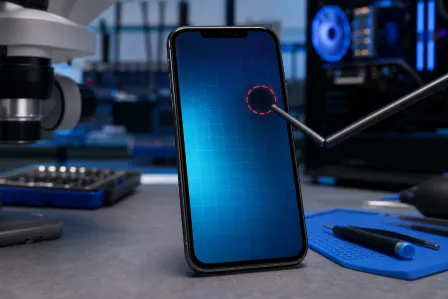
Phone Screen Has Dead Zones That Won't Respond: What Is Wrong
TL;DR: A touchscreen dead zone is usually caused by a failed digitizer layer, a loose display connector, or a software crash. Start with a forced restart. If the dead zone persists after a reboot and a factory reset, the hardware needs to be opened and inspected by a technician.
What you need
- A charged phone (at least 20% battery)
- Access to the Settings app, or the ability to boot into recovery mode
- A clean, dry microfiber cloth
- A second device to look up model-specific key combos if needed
- About 15-30 minutes for software steps; hardware repair takes longer
1. Rule out simple causes first
Before assuming the worst, eliminate the obvious.
- Clean the screen. Oils, moisture, or a cracked screen protector can interfere with capacitive touch. Wipe the screen with a dry microfiber cloth and remove any cracked tempered glass protectors.
- Remove the case. Some thick or metallic cases slightly overlap the screen edges and block corner input.
- Check your hands. Capacitive screens need skin contact. Gloves, lotion residue, or very dry skin can cause inconsistent registration, though this usually affects the whole screen rather than a fixed zone.
- Plug in or unplug the charger. A cheap or damaged charging cable can inject electrical noise into the digitizer, causing ghost touches or dead zones. Test with the charger both connected and disconnected.
If the dead zone is identical in size and location regardless of these factors, the problem is deeper.

2. Force-restart the device
A frozen or partially crashed digitizer driver can produce a dead zone without any visible damage. A force-restart clears RAM and reinitializes the touch subsystem.
- iPhone 8 or later: Press and release Volume Up, press and release Volume Down, then hold the Side button until the Apple logo appears.
- Most Android phones: Hold Power + Volume Down for 10-15 seconds until the screen goes dark and restarts.
- Samsung Galaxy: Hold Power + Volume Down for about 7 seconds.
After the restart, test the dead zone by dragging your finger slowly across the entire screen. A drawing app or the phone's built-in keyboard makes this easy to see.
3. Run a touchscreen diagnostic
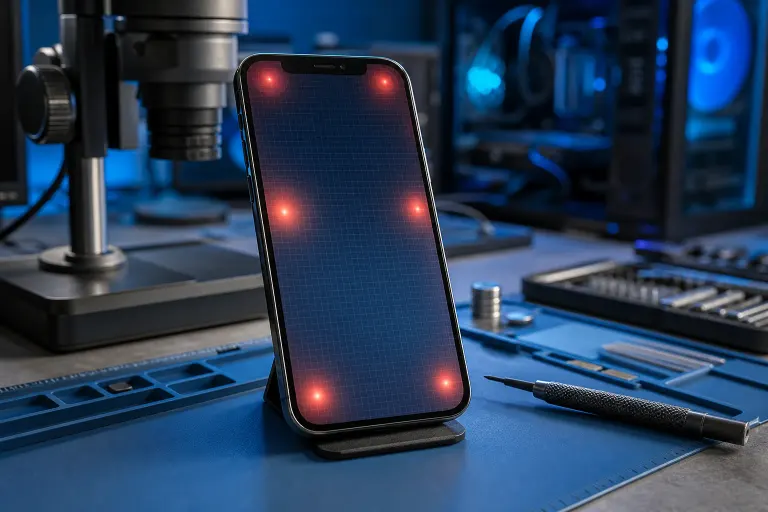
Many phones include a built-in touch test. If yours does not, a free app from your platform's official app store can map which grid squares fail to register.
- Android: Dial
*#*#2664#*#*on some Samsung models to open the touch test. Other brands vary; search your model number plus "touch screen test code." - iPhone: Apple does not expose a user-facing touch test, but you can use the Notes app or Safari to draw a grid and see where input drops out.
Note the exact location of dead zones. A strip along one edge often points to a connector issue. A scattered or diagonal dead zone often points to digitizer damage.
4. Update or roll back the OS
A bad software update can corrupt the touch input driver on both Android and iOS. This is rare but documented.
- Go to Settings > General > Software Update (iPhone) or Settings > System > System Update (Android).
- If an update is available, install it. Many manufacturers push patches quickly when a firmware bug causes widespread touch issues.
- If the dead zone appeared immediately after an update, check your phone manufacturer's support forums. If a rollback is available for your Android device, follow the manufacturer's instructions.
Software fixes work only if the digitizer hardware itself is intact.
Cracked screen or a phone that won't hold a charge? Get a repair quote
5. Test in safe mode (Android)
Third-party apps can occasionally interfere with touch input. Safe mode disables all downloaded apps temporarily.
- Hold the Power button until the power menu appears.
- Long-press Power Off until a prompt asks if you want to reboot into safe mode. Tap OK.
- Test the dead zone. If it disappears in safe mode, a recently installed app is interfering. Uninstall apps added around the time the problem started.
iPhone does not have an equivalent user-accessible safe mode, but you can offload recently installed apps manually.
6. Back up and factory reset
If the dead zone survives safe mode and all software steps, a factory reset rules out a deep software or firmware corruption before you spend money on hardware.
Back up first. A factory reset erases everything.
- iPhone: Settings > [Your Name] > iCloud > iCloud Backup > Back Up Now
- Android: Settings > System > Backup
After the reset, test the screen before restoring any apps. If the dead zone is gone on a clean install, restore your backup and monitor whether it returns. If the dead zone is present immediately after reset, the problem is hardware.
7. Identify the likely hardware cause
If software steps fail, the issue is inside the phone. Here is a decision table for the most common hardware causes.
| Symptom pattern | Most likely cause |
|---|---|
| Dead strip along one side or edge | Loose or damaged display flex connector |
| Dead zone after a drop, even with no visible crack | Digitizer layer cracked internally |
| Dead zone that grows over time | Digitizer delamination or ongoing pressure damage |
| Dead zone only when charging | Electrical interference from a failing charge port or cable |
| Flickering plus dead zone | LCD/OLED panel failure, not just digitizer |
The digitizer is a transparent layer bonded to or separate from the display glass. On most modern phones it is fused to the screen assembly, meaning a digitizer failure usually requires replacing the full display assembly.
A loose connector is sometimes fixable without replacing the screen, but it requires opening the phone, which voids most warranties and risks further damage without proper tools.
Common mistakes
- Assuming a cracked screen protector is harmless. A shattered tempered glass protector can press unevenly on the digitizer and create persistent dead zones. Replace it before drawing any hardware conclusions.
- Pressing harder. Capacitive screens do not respond to pressure. Pressing harder does nothing and can crack the digitizer layer further if it is already stressed.
- Skipping the backup before a reset. The reset itself does not fix hardware, but it is a required diagnostic step. Skipping the backup and then finding the problem is hardware means you lose data for nothing.
- Using a cheap third-party charger as a variable. If you always charge with an off-brand cable, test without it before concluding the hardware is bad. Electrical noise from a poor cable is a surprisingly common and overlooked cause.
- Opening the phone without the right tools. Modern phones use pentalobe or proprietary screws, adhesive seals, and fragile ribbon cables. An amateur teardown often turns a repairable problem into an expensive one.
Bottom line
Start with the charger, the screen protector, and a force-restart. Work through safe mode and a factory reset before assuming hardware failure. If the dead zone survives all of that, the digitizer or a display connector is the problem, and the phone needs to be opened.
If you are in the West Palm Beach area and the software steps did not resolve it, the team at Fix My PC Store on Okeechobee Boulevard handles mobile device screen and digitizer repairs. You can book a repair appointment or contact us to describe the issue first.
Cracked screen or a phone that won't hold a charge?
Bring it in. Most phone and tablet repairs are same-day, with parts that actually last.