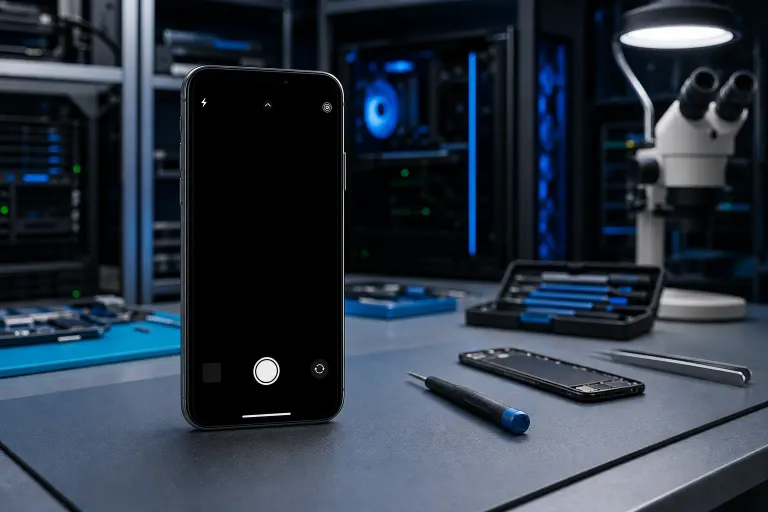
Phone Camera Black Screen but App Opens? Here Is What Is Wrong
TL;DR: A black camera screen with the app running almost always means the camera sensor is frozen, blocked by another app, or has a driver or permission problem. Work through the software fixes first. If none of them work, the hardware likely needs a look.
What you need
- Your phone (Android or iPhone)
- A few minutes for each step
- Your Apple ID or Google account login handy (in case a reset is needed)
- A second device or computer to look up steps if your screen goes dark during a reset
Step 1: Force-close the camera app and restart the phone
This sounds obvious, but it fixes the problem more often than you would expect. The camera sensor can get stuck in a locked state, and a full restart clears it.
- Swipe the camera app fully closed from your recent apps list.
- Hold the power button and restart the phone completely. Do not just lock and unlock the screen.
- Open the camera app again before opening anything else.
If the screen is still black, move to Step 2.

Step 2: Check which app had the camera last
Both Android and iOS prevent two apps from using the camera at the same time. If a video call, scanner, or social app grabbed the camera and did not release it cleanly, the native camera app sees a locked resource and shows black.
- Pull up your recent apps and close every app that could use a camera: Zoom, Teams, Snapchat, Instagram, TikTok, barcode scanners.
- Restart the phone again.
- Open only the camera app.
On iPhone (iOS 14+), the orange dot in the status bar tells you an app is actively using the camera. That is a quick clue.
Step 3: Check camera permissions
If permissions were changed by an OS update or a security app, the camera app can open its interface but receive no video feed.
Android: Settings > Apps > Camera > Permissions. Make sure Camera is allowed.
iPhone: Settings > Privacy & Security > Camera. Find the Camera app in the list and confirm it is toggled on. (Yes, the native Camera app can lose its own permission after certain updates.)
Toggle the permission off, wait five seconds, toggle it back on, and test.
Step 4: Clear the camera app cache (Android only)
iPhone does not expose a cache-clear option for the system camera. Android does.
- Settings > Apps > Camera > Storage.
- Tap "Clear Cache" (not "Clear Data" yet, that resets your camera settings).
- Reopen the camera.
If clearing cache does not help, try "Clear Data" as a next step, knowing your custom camera settings will reset to default.
Step 5: Test front and rear cameras separately
Flip between the front and rear cameras inside the app. If one works and the other does not, you have isolated the problem to a specific hardware module. That is useful information and usually points to a physical repair rather than a software fix.
If neither camera works, software is still a possible cause. If only one fails, software is unlikely.
Cracked screen or a phone that won't hold a charge? Get a repair quote
Step 6: Try a third-party camera app
Download a free alternative camera app (Open Camera on Android, for example) and open it. If it shows a live feed, the problem is with your default camera app's data or settings, not the hardware. Reinstalling or resetting the default app should fix it.
If the third-party app also shows black, the hardware or a system-level driver is the issue.
Step 7: Check for a software update or roll back a recent one
A bad OS update can break camera drivers. Check Settings > System > Software Update and install any pending patch. Camera bugs introduced by updates are often fixed within days in a follow-up release.
If the black screen started immediately after an update and no patch is available yet, note the timing. That detail helps a technician diagnose faster.
Step 8: Factory reset as a last software step
Before opening the phone physically, a factory reset rules out all software causes. Back up your data first.
- iPhone: Settings > General > Transfer or Reset iPhone > Erase All Content and Settings.
- Android: Settings > General Management > Reset > Factory Data Reset.
If the camera still shows black after a clean reset, the problem is hardware.
Common mistakes
- Skipping the full restart. Locking and unlocking the screen does not clear the camera's locked state. A full power cycle is needed.
- Clearing data before cache. Clear cache first. It is less destructive and often enough.
- Assuming a cracked lens cover is the cause. A cracked lens cover blurs or scratches images but rarely causes a completely black screen. Black screen usually means the sensor or its connection is the problem.
- Ignoring the permission toggle fix. Many people skip this because it seems too simple. It works more often than expected after OS updates.
- Waiting too long on a water-damaged phone. If the black screen started after the phone got wet, stop the software troubleshooting and get it to a repair shop quickly. Corrosion gets worse the longer it sits.
Decision table: software vs. hardware
| Observation | Likely cause |
|---|---|
| Both cameras black, fixes itself after restart | Software / frozen process |
| One camera works, one is black | Hardware: specific module |
| Black screen in all camera apps | Hardware or system driver |
| Black screen only in default app | App cache or permission issue |
| Started right after an OS update | Software / driver regression |
| Started after a drop or water exposure | Hardware damage |
| Black screen persists after factory reset | Hardware |
Bottom line
Work through the steps in order. Most black camera screens are a frozen process, a permission glitch, or a cache problem, and they resolve without touching the hardware. If both cameras stay black after a factory reset, or if the phone took a hit or got wet before this started, the sensor connection or module needs a physical inspection.
Fix My PC Store handles phone and tablet repairs at 10140 Okeechobee Blvd, Suite B, West Palm Beach. Initial checks for most in-store repairs are free, and the repair scope is explained before any work begins. You can book a repair visit or check out iPhone and iPad repair options if you want to bring it in. Remote guidance is also available through remote support if you want a second set of eyes before deciding.
Cracked screen or a phone that won't hold a charge?
Bring it in. Most phone and tablet repairs are same-day, with parts that actually last.