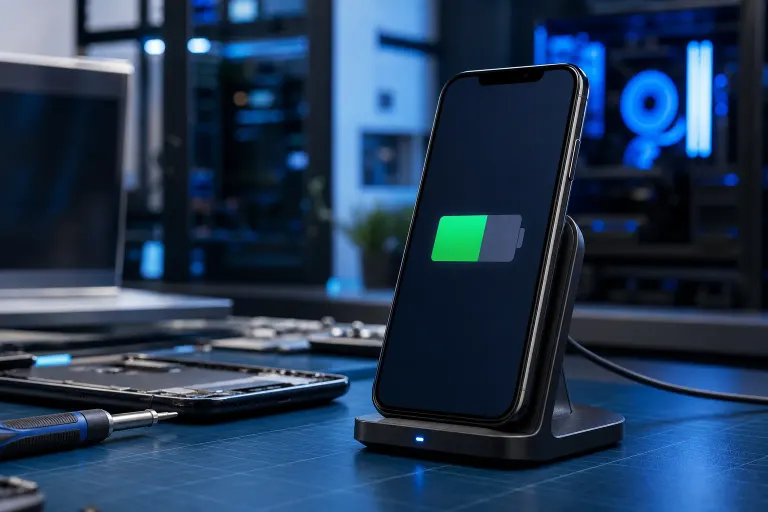
Phone Won't Charge Past a Certain Percentage: What Causes It
TL;DR: A phone capping its charge is almost always caused by one of four things: a built-in charging limit you turned on by accident, a battery that has lost capacity, a bad cable or adapter, or the phone getting too hot. Work through the steps below in order and you will know which one it is before you spend a dime.
What you need
- A known-good USB cable and wall adapter (borrow one if you have to)
- Five to ten minutes of patience
- Your phone's battery settings menu open
- A cool, dry surface to set the phone on while testing
Step 1: Check for a built-in charging limit first
Both Android and iPhone have optional features that cap charging at 80% to reduce long-term battery wear. Apple calls it Optimized Battery Charging on iOS 13 and later. Many Android phones (Samsung, Google Pixel, OnePlus) have similar toggles buried in battery settings.
Go to Settings > Battery and look for anything labeled "Optimized Charging," "Charging Limit," or "Battery Protection." If it is on and set to 80%, that is your answer. The phone is working exactly as configured. Turn it off if you need a full charge today, or leave it on if you prefer the long-term trade-off.
(Yes, a lot of people panic about this and never check. The setting is a good idea, by the way, but it should be your choice to use it.)
Step 2: Rule out the charger and cable
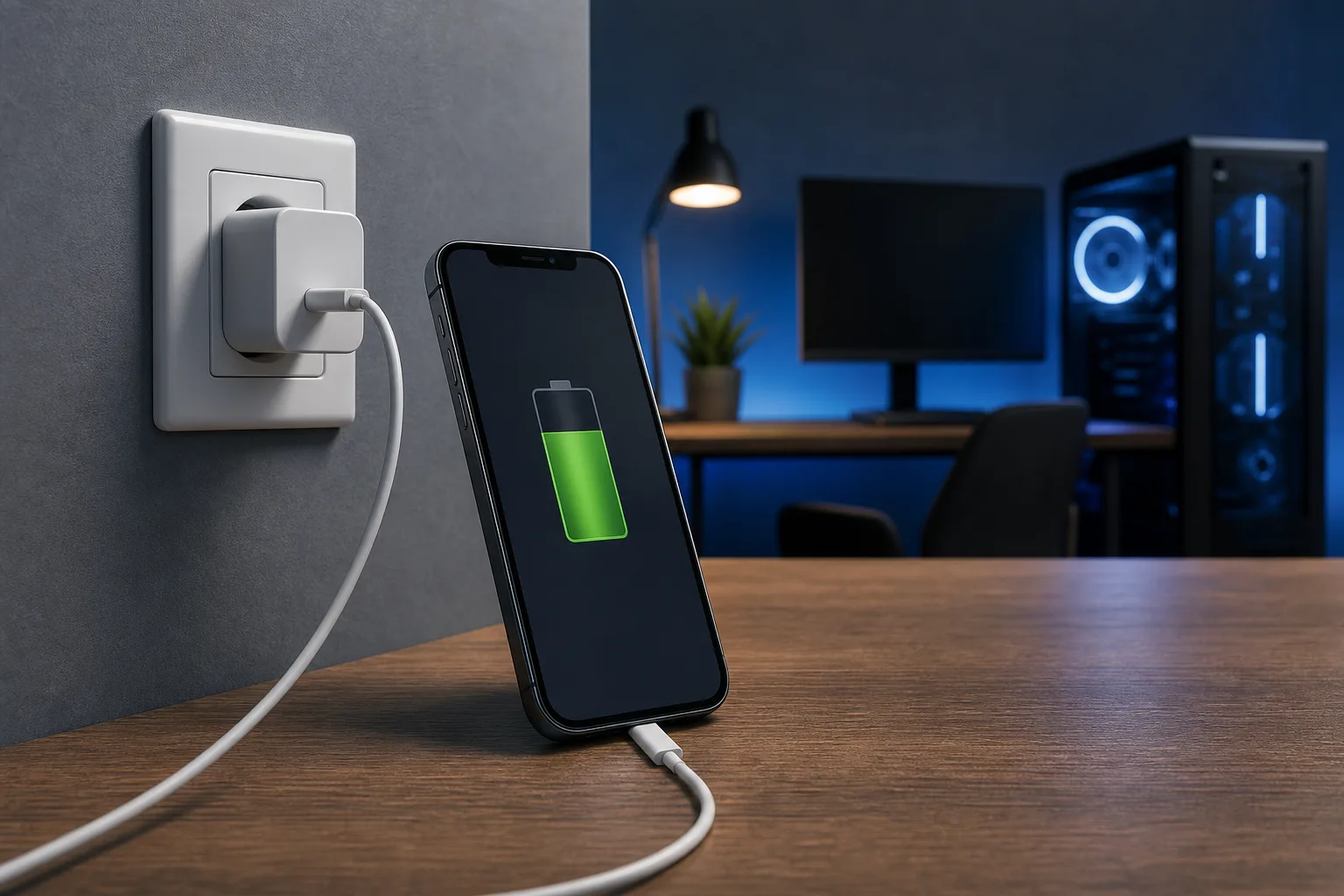
Swap in a different cable and adapter. Use one from a friend or family member, or a certified replacement, not the $4 gas station special. Plug in and watch whether the phone charges past its usual stopping point.
If it does, your original cable or adapter is the problem. Cables fail at the connector end from repeated bending. Adapters die quietly, often still pushing just enough power to charge slowly or stop early.
If swapping the charger changes nothing, move on.
Step 3: Check the battery health
iPhone: Go to Settings > Battery > Battery Health and Charging. Apple shows you maximum capacity as a percentage. Anything below roughly 80% means the battery has lost enough capacity that it may struggle to hold or reach a full charge. Apple recommends service at that point. (Apple Support: Battery Health and Charging on iPhone)
Android: There is no single standard location. On Samsung, look in Settings > Battery and Device Care > Battery. Google Pixel shows it under Settings > Battery > Battery usage. Some phones do not surface this at all, in which case a third-party app like AccuBattery can give you a rough estimate.
A degraded battery can behave oddly. It may charge to 78% and stop, or jump to 100% and drain almost immediately. Both patterns point to the battery, not the charger.
Cracked screen or a phone that won't hold a charge? Get a repair quote
Step 4: Check for heat throttling
Lithium batteries do not like heat. Most phones will slow or pause charging automatically if they get warm. This is protective behavior, not a defect.
If your phone stops at an inconsistent percentage (sometimes 73%, sometimes 81%, never exactly the same number), heat is a strong suspect. Remove the case, set the phone on a hard flat surface away from sunlight or a warm lap, and try charging again. If it now charges further, heat was the cause.
Chronic overheating during charging can also accelerate the battery degradation in Step 3, so it is worth addressing even if the phone seems fine otherwise.
Step 5: Check the charging port
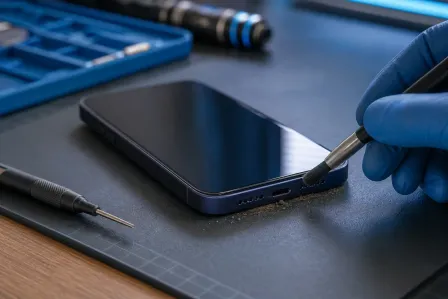
Lint, debris, and bent pins in the charging port can cause inconsistent connections. A partial connection may let the phone charge up to a point and then lose contact under certain positions or temperatures.
Shine a light into the port and look for compacted lint at the back. Do not dig at it with a metal object. A dry toothpick or a short blast of compressed air from a can (held upright) will usually dislodge it without damage.
If the port looks physically damaged, bent, or corroded, that is a hardware repair job.
Decision table: Which cause fits your situation?
| What you observe | Most likely cause |
|---|---|
| Always stops at exactly 80% | Software charging limit |
| Stops at a consistent but unexpected number (e.g., 85%) | Degraded battery or charging limit |
| Stops at a different number each time | Heat throttling |
| Charges further with a different cable or adapter | Faulty charger or cable |
| Port feels loose or phone has to be held at an angle | Damaged charging port |
| Phone is old and battery health reads below 80% | Battery needs replacement |
Common mistakes
Buying a new charger before checking settings. Happens constantly. Check Step 1 first. It costs nothing.
Using wireless charging to "test" the charger. Wireless charging is slower and has its own thermal quirks. It is not a reliable control for this kind of test. Use a wired cable.
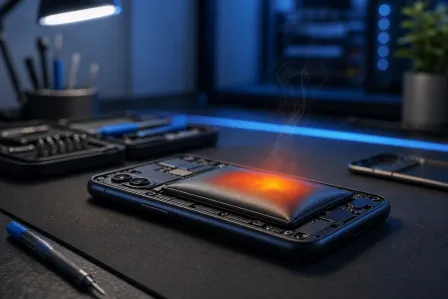
Waiting too long on a degraded battery. A battery that reads below 75% capacity is not just annoying. It can swell over time, and a swollen battery can damage the phone from the inside. Do not leave it indefinitely.
Replacing the battery yourself without the right tools. Modern phones are not designed for easy battery swaps. One slipped spudger can crack a screen or damage a flex cable. If the phone has any value, have someone who knows what they are doing handle it.
Bottom line
Start with the software limit, then the charger, then battery health, then heat. Most people find the answer in the first two steps. If you get through all of them and the phone is still stopping short, the charging port or battery likely needs hands-on attention.
If you are in West Palm Beach or the surrounding area and the phone needs a port cleaning, battery check, or battery replacement, you can schedule a repair at Fix My PC Store. We work on phones and tablets out of our Okeechobee Boulevard shop. If you are not sure whether it is worth fixing, bring it in and we will give you a straight answer.
Cracked screen or a phone that won't hold a charge?
Bring it in. Most phone and tablet repairs are same-day, with parts that actually last.