Phone Won't Charge? How to Diagnose the Problem Step by Step
TL;DR: Most charging failures trace back to one of five things: a clogged port, a faulty cable, a bad adapter, a software issue, or a worn-out battery. Work through each suspect in order before concluding hardware is dead. If you get past all five and the phone still won't charge, a technician needs to look at it.
What You Need
- A known-good charging cable (ideally the same standard, USB-C or Lightning)
- A known-good charging adapter
- A wooden toothpick or non-conductive port cleaning tool (no metal)
- Compressed air (optional)
- A few minutes of patience per step
You do not need any special equipment to cover 90% of this diagnosis. Borrow a friend's cable and brick if you have to.
Step 1: Rule Out the Cable
The cable is the single most common culprit and the easiest to swap.
Look for visible damage: fraying near the connector, kinking along the length, or a loose connector that wiggles in the port. A cable can fail internally without looking bad at all, so even a clean-looking cable should be swapped if you can.
Plug in a different cable you know works. If the phone starts charging, the old cable is the problem. Buy a replacement. Stick with cables that carry a reputable certification (USB-IF certified for USB-C, or MFi-certified for Apple Lightning) rather than the cheapest option you find at a checkout counter.
Step 2: Rule Out the Charging Adapter
The adapter, the block that plugs into the wall, fails more often than people expect. Heat cycles and power surges wear them out quietly.
Swap the adapter with a known-good one. If you only have one adapter, try charging from a computer's USB port instead. If the phone charges from a computer but not from the wall adapter, the adapter is the problem.
One caveat: charging from a computer USB port is slow, often very slow. If you see the charging indicator appear but it charges at a crawl, that's normal. It means the phone hardware is fine.
Step 3: Clean the Charging Port
This step surprises people with how often it works. Over months of pocketing a phone, lint, dust, and debris pack into the port until the connector can no longer make solid contact.
Here is how to clean it safely:
- Power off the phone completely before you start.
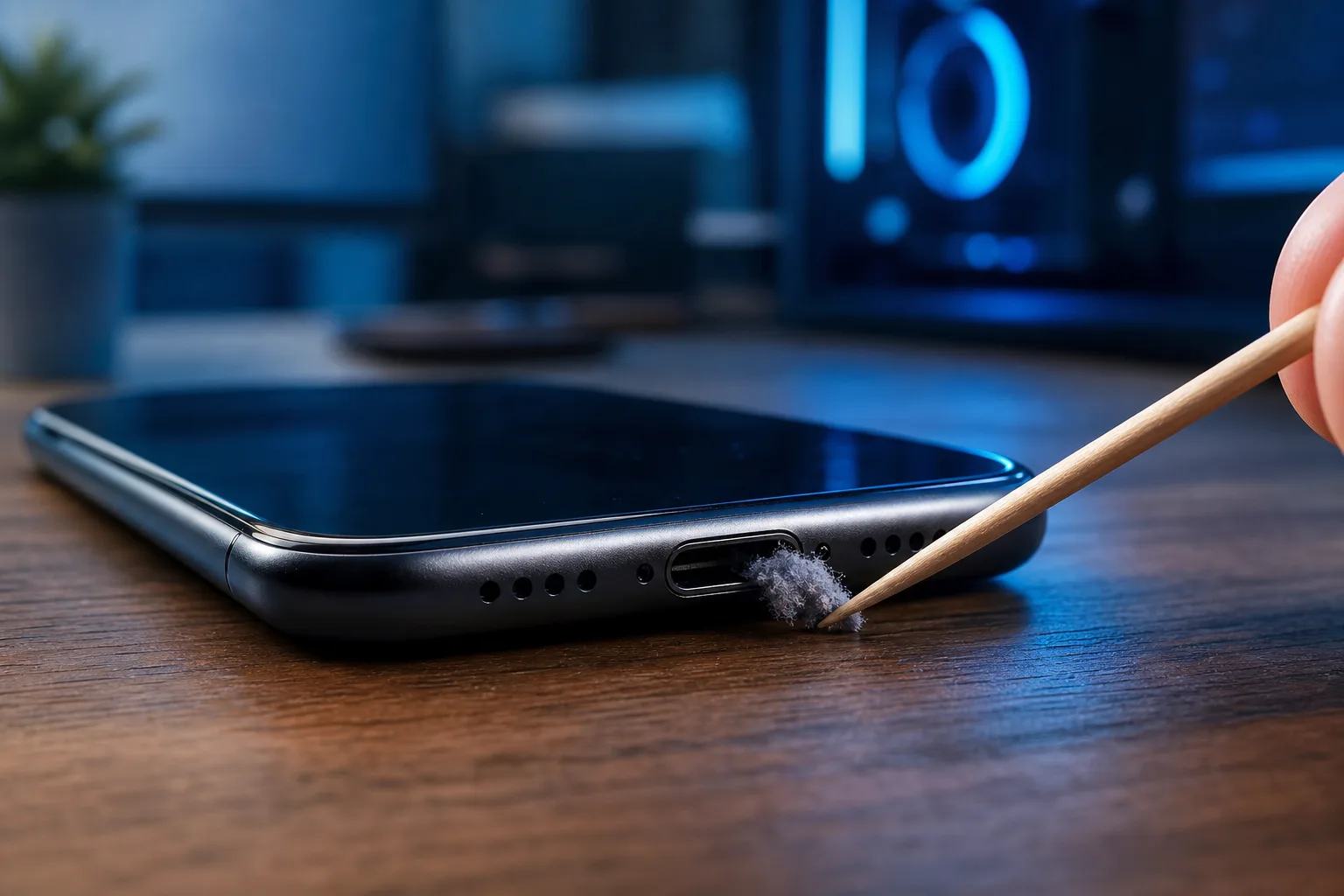
- Use a wooden toothpick or a purpose-made plastic port pick. No metal objects. A paperclip will damage the contact pins.
- Angle the toothpick in gently and scrape along the bottom of the port where lint tends to pack in. You may be surprised what comes out.
- Follow up with a short burst of compressed air held several inches away to clear loose debris.
- Power the phone back on and try charging again.
This fix works more reliably on USB-C and Lightning ports than people expect. A lot of phones that appear to have a failed port are just heavily clogged.
Cracked screen or a phone that won't hold a charge? Get a repair quote
Step 4: Restart the Phone and Check Software
Charging problems are not always hardware. A crashed charging controller process or a misbehaving app can block charging even when the hardware is perfectly functional.
Do a full power-off restart, not just a screen-lock wake. Hold the power button and actually shut the device down, then power it back on. Plug in the charger again.
If the phone charges after a restart but the problem keeps coming back, check whether the issue appears after a specific app is installed or updated. An app running aggressive background processes can occasionally interfere with charging state reporting, even if that seems counterintuitive.
For iPhones, also verify that iOS is up to date. Apple has pushed fixes for charging-related bugs in minor point releases. For Android, same principle applies: check for pending system updates.
Step 5: Check for Battery and Hardware Failure
If you have swapped the cable, swapped the adapter, cleaned the port, and restarted the phone, and it still refuses to charge, the problem is most likely internal hardware.
Two likely causes at this stage:
Battery failure. Lithium batteries have a finite lifespan. A battery that has swollen, or that has been through hundreds of full charge cycles, may no longer accept a charge at all. On iPhones, Settings > Battery > Battery Health gives you a percentage. Anything under 80% is worth replacing. Android varies by manufacturer, but many have a similar diagnostic in settings or in a hidden service menu.
Charging IC or port damage. The charging integrated circuit is a small chip on the motherboard that manages power delivery. It can fail due to a power surge, liquid exposure, or just age. A damaged charging port connector on the motherboard itself (not just debris, but physically bent or broken pins) is another possibility, especially if the phone has been dropped.
At this point, diagnosis without equipment gets difficult. A technician can test with a USB power meter to see whether the phone is drawing any current at all, which narrows it down quickly.
If you are in the West Palm Beach or South Florida area, you can schedule a repair appointment and have someone look at it without committing to a repair cost upfront.
Step 6: Check for Liquid Damage
If the phone was recently near water, even briefly, moisture inside the port or on the charging board can prevent charging entirely. Modern phones with IP ratings are water-resistant, not waterproof, and repeated exposure degrades that resistance over time.
Do not charge a phone you suspect has internal moisture. Applying power to a wet board causes corrosion that makes the damage permanent.
Let the phone sit in a dry environment for at least 24 to 48 hours. Do not use rice. Rice does nothing meaningful for internal moisture and can introduce debris. Silica gel packets in a sealed bag work better. After drying, try charging again.
If liquid damage is confirmed, a technician needs to assess whether the board is still viable. This is covered in detail for anyone who has also had screen damage from a drop or liquid incident.
Common Mistakes
Using a cheap replacement cable to test the cable. If you are testing with another low-quality cable, you may just be swapping one bad cable for another. Use a name-brand or certified cable for your diagnostic swap.
Using a metal object to clean the port. Bent or scraped contact pins turn a dirty-port problem into a hardware-damage problem. Stick with wood or plastic.
Skipping the adapter swap. People swap cables constantly but forget that the adapter can fail independently. Test both.
Charging a phone that just got wet. Patience here matters. Charging too soon corrodes the board.
Assuming a dead screen means the phone won't charge. If the display is cracked or unresponsive, the phone may still be charging even if you can't see it. Plug it in and wait ten minutes, then check whether the device has any response at all.
Ignoring the possibility of a software update. It is a small fix, but it is free and takes two minutes. Check it before paying for anything.
Bottom Line
A phone that won't charge is not automatically a dead phone. Work the problem in order: cable, adapter, port cleaning, software restart, then battery and hardware. Most people find the cause somewhere in the first three steps.
If you get through all six steps and the phone still isn't charging, the repair is almost certainly internal. A good technician with the right tools can usually tell you within a few minutes whether it's a battery swap, a port repair, or a board-level issue.
Fix My PC Store handles mobile device diagnostics and repairs in West Palm Beach. If you want a straight answer about what's wrong before committing to anything, reach out or book a time. No pressure, no guessing.
Cracked screen or a phone that won't hold a charge?
Bring it in. Most phone and tablet repairs are same-day, with parts that actually last.