
How to Fix a Computer: Diagnose Problems Step by Step
Most computer problems follow a pattern, and once you know the pattern, you can fix them faster than you think. This step-by-step guide walks you through diagnosing and fixing the most common PC issues, from freezing and crashing to a machine that won't turn on at all.
TL;DR: Figure out what category your problem falls into (won't boot, slow, crashing, or connectivity), then work through the matching steps below. Fix the simplest things first. If you hit a wall, remote support or a quick drop-off often saves hours of frustration.
What You Need
Before you start, gather these. Nothing exotic.
- A second device (phone or tablet) to look things up while your PC is down
- A USB flash drive, at least 8 GB, if you might need Windows recovery tools
- About 30-60 minutes of uninterrupted time
- Your Windows product key or Microsoft account login (check the sticker on the bottom of a laptop, or your email inbox if you bought digitally)
- A can of compressed air if dust is even a remote possibility
That is genuinely all you need for most fixes. No special software to buy, no expensive toolkit.
Step 1: Describe the Problem Like a Doctor Would
Before you touch anything, write down exactly what is happening. This sounds tedious. Do it anyway.
Ask yourself:
- When did it start? Did anything change right before it started, like a Windows update, a new program, or a thunderstorm?
- Is it every time, or random? Random problems usually point to hardware. Consistent problems usually point to software or settings.
- Are there error messages? Write down the exact wording. Even a partial error code narrows things down dramatically.
- What does the computer do versus what you expect it to do? "It's slow" is a starting point. "It takes four minutes to open Chrome and the fan screams the whole time" is diagnostic gold.
Skipping this step is the most common reason people spend three hours fixing the wrong thing. Seriously, write it down.
Step 2: Restart and Rule Out the Obvious
Yes, really. A proper restart clears memory, applies pending updates, and kills background processes that have gone rogue. Not sleep, not hibernate. A full shutdown and power-back-on.
If you have not restarted in more than a few days, do that now and see if the problem persists.
While you are at it:
- Unplug peripherals. Disconnect everything except keyboard and mouse. A faulty external drive or dock causes more mystery problems than most people realize.
- Check your cables. Power cable, monitor cable, Ethernet if applicable. A slightly loose cable is embarrassing but also extremely common.
- Look at the lights. Is the power light on? Is the hard drive activity light doing anything? No lights at all is a very different problem than "boots but crashes."
Step 3: Identify Which Category Your Problem Falls Into
Most computer problems fit into one of four buckets. Find yours and jump to that section.
A. Won't Turn On or Won't Boot
No power at all: check the outlet first (plug in a lamp to verify), then the power strip, then the cable. Desktop users should also check the small switch on the back of the power supply, it sometimes gets bumped.
Power light comes on but nothing shows on screen: try a different monitor or cable. If you have a desktop with a dedicated GPU, try plugging the monitor into the motherboard's video output instead, just to test.
Starts to boot then stops: look for error messages. "Reboot and select proper boot device" usually means the drive is disconnected or failing. A spinning circle that never ends often means Windows is trying to repair itself. Give it 20 minutes before you intervene.
If you are seeing a black screen with a blinking cursor or a BIOS screen, the issue is almost certainly with Windows itself, not the hardware. Boot from a Windows recovery USB or use the Windows Recovery Environment (hold Shift while clicking Restart in Windows 10/11).
B. Running Slow
Open Task Manager (Ctrl + Shift + Esc) and click "More details" if it is in compact mode. Sort by CPU, then Memory, then Disk. If any single process is pegged near 100%, that is your culprit.
Common offenders:
- Antivirus scans running in the background. Let them finish.
- Windows Update downloading or installing. Give it time.
- Browser tabs. Forty open Chrome tabs will eat RAM on any machine.
- Startup programs. Go to Task Manager, click the Startup tab, and disable anything you do not recognize or need immediately at boot.
If Disk usage is constantly at 100% even at idle, and you have a traditional spinning hard drive, that drive may be reaching end of life. Upgrading to an SSD is often the single best performance improvement you can make on an older machine. Our computer repair team does these swaps regularly and the difference is usually dramatic.
C. Crashing, Freezing, or Blue Screen of Death
BSODs (Blue Screen of Death) always include a stop code. Write it down or photograph it. Common ones:
- MEMORY_MANAGEMENT or PAGE_FAULT_IN_NONPAGED_AREA: usually RAM. Run Windows Memory Diagnostic (search for it in the Start menu).
- CRITICAL_PROCESS_DIED: often a driver issue. Boot into Safe Mode and check for recently installed drivers.
- WHEA_UNCORRECTABLE_ERROR: frequently hardware, sometimes overheating or a failing CPU. Check temperatures.
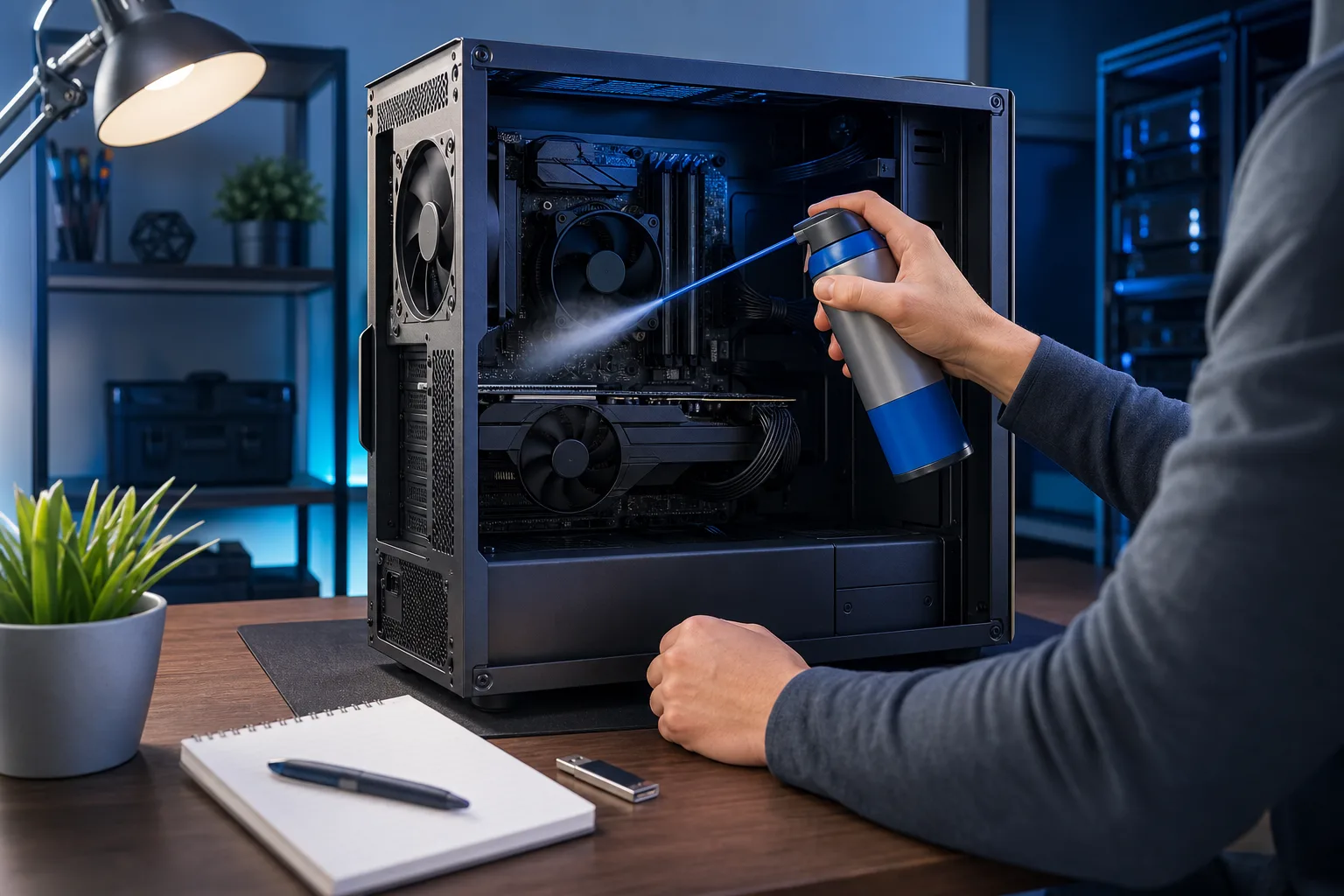
For random freezes without a BSOD, heat is the first suspect. Download a free tool like HWMonitor or Core Temp and watch your CPU temperatures under load. Anything above 90-95°C consistently is a problem. Clean the vents with compressed air. On a laptop, make sure it has breathing room and is not sitting on a soft surface.
If the machine is several years old and has never been cleaned inside, dust buildup alone can cause thermal throttling and crashes. A laptop repair or desktop cleaning appointment costs very little and can add years to a machine's life.
D. Network or Internet Problems
Start with the classic: turn the router and modem off, wait 30 seconds, turn the modem on first, wait for it to fully connect, then turn the router on.
If other devices on the same network work fine, the problem is the computer, not the service. On Windows, open Command Prompt and run:
netsh winsock reset
netsh int ip reset
ipconfig /flushdns
Restart after running those. That fixes a surprising number of connectivity issues.
If no devices on the network can get online, call your ISP. Not a computer problem.
Computer acting up? Get a real diagnosis. Book a free diagnostic
Step 4: Check for Malware
If your computer is slow, showing weird pop-ups, redirecting your browser, or behaving strangely in ways that do not fit the above categories, run a malware scan before doing anything else. A compromised machine will keep having problems until you clean it.
Windows Defender (built into Windows 10 and 11) is genuinely decent for baseline protection. Run a full scan, not a quick scan. For a second opinion, Malwarebytes offers a free version that catches things Defender misses.
If the infection is bad enough that you cannot run scans, or the computer keeps reinfecting, that is when professional help is worth it. Some infections require offline scanning tools or, in worst cases, a full Windows reinstall. If you have not backed up recently, stop everything and do that first, assuming the machine will run long enough. Our backups and disaster recovery page has options if you need a real backup plan going forward.
Step 5: Update or Roll Back Drivers and Windows
A Windows update that broke something is more common than Microsoft would like to admit. If your problem started right after an update, you can uninstall it: go to Settings, Windows Update, Update History, and Uninstall Updates.
If a driver is the problem, especially for graphics, audio, or network, go to Device Manager (right-click the Start button), find the device with a yellow warning icon, right-click it, and choose "Update driver" or "Roll back driver" if the option is available.
For graphics specifically, always download drivers directly from NVIDIA or AMD rather than using Windows' generic driver search. The generic ones are often outdated.
Step 6: Know When to Stop and Call a Pro
There is no shame in this. Some problems genuinely require tools, parts, or experience that most people do not have at home.
Call or bring it in if:
- The machine will not boot at all and you have tried the basics
- You see physical damage, burning smells, or liquid spills
- The hard drive makes clicking or grinding noises (stop using it immediately)
- You suspect a motherboard or GPU failure
- You have tried everything above and the problem is still there
For South Florida residents, Fix My PC Store in West Palm Beach handles everything from basic tune-ups to complex board-level diagnostics. If you cannot bring it in, remote support covers a huge range of software issues without you leaving home.
Business owners dealing with this on company machines should consider whether a one-off fix is actually the right move. Recurring IT problems on work computers are often a sign that you need a more systematic approach. Our managed IT team works with businesses across Palm Beach and the Treasure Coast on exactly this.
Common Mistakes
- Skipping the restart. Just do it first. Always.
- Googling the symptom without the error code. "Computer freezing" returns millions of results. "WHEA_UNCORRECTABLE_ERROR" returns the actual answer.
- Reinstalling Windows as the first step. It is a last resort, not a starting point. It is also time-consuming and you will lose data if you are not careful.
- Ignoring SMART data. Windows does not show this by default, but free tools like CrystalDiskInfo will tell you if your hard drive is already reporting errors. Do not wait until it fails completely.
- Cleaning with a vacuum cleaner. Static discharge. Bad idea. Use compressed air only.
- Dismissing a slow machine as "just old." An SSD upgrade or RAM addition can genuinely extend a machine's useful life by years. Worth asking before replacing.
Bottom Line
Knowing how to fix a computer is mostly knowing how to ask the right questions in the right order. Describe the problem, restart, categorize, then dig into the specific bucket. Nine times out of ten, the fix is simpler than you feared.
When it is not, you have options. Drop it off, book a remote session, or just call us and describe what you are seeing. We are in West Palm Beach and we have heard every version of "it just stopped working" you can imagine.
Computer acting up? Get a real diagnosis.
Fix My PC Store has repaired thousands of machines across West Palm Beach. Free diagnostics, honest pricing, no upsell games.
Frequently asked questions
What is the first thing to do when your computer stops working?
Do a full restart first, not sleep or hibernate, a complete shutdown and power-back-on. Then unplug all non-essential peripherals and check your cables. This alone fixes a surprising number of problems before you need to dig deeper.
How do I know if my computer problem is hardware or software?
Consistent, repeatable errors that produce the same result every time usually point to software or drivers. Random crashes, freezes that happen mid-task, or physical symptoms like overheating, clicking sounds, or no power at all tend to point to hardware. Running Windows Memory Diagnostic and checking drive health with a tool like CrystalDiskInfo are good early hardware checks.
Can I fix a slow computer without buying anything?
Often yes. Disabling unnecessary startup programs through Task Manager, running a malware scan, clearing browser cache, and making sure Windows Update has finished installing are all free steps that can noticeably speed things up. If the machine has a traditional spinning hard drive, upgrading to an SSD is the biggest paid improvement, but start with the free stuff first.
Should I reinstall Windows to fix my computer?
Only as a last resort. A full Windows reinstall is time-consuming, and if you are not careful you can lose data. Work through driver updates, malware scans, and system restore options first. If you do need to reinstall, make sure everything important is backed up before you start.
When should I take my computer to a repair shop instead of fixing it myself?
If the computer won't boot after trying the basics, you hear clicking or grinding from the drive, you smell burning, or you have gone through all the standard software steps and the problem persists, it is time to bring it in. Physical damage and suspected motherboard or GPU failures are also firmly in professional territory.
Can Fix My PC Store in West Palm Beach fix my computer remotely?
Yes, a wide range of software issues, including virus removal, driver problems, slow performance, and connectivity issues, can be handled through a remote support session without you needing to leave home. Hardware problems like failing drives or physical damage do require an in-person visit.