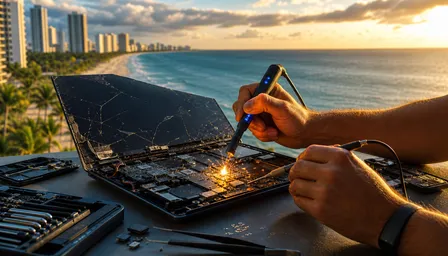
Gaming PC FPS Drops: Diagnose & Fix Them Fast
Listen to this article
TL;DR: Gaming PC FPS drops usually come from heat, driver conflicts, background apps, RAM configuration, or a CPU/GPU bottleneck. Give yourself 30 to 60 minutes, follow this step-by-step frame rate drops diagnosis, and you can usually turn choppy gameplay back into butter smooth frames without panic-buying a new monster rig.
If the stutter keeps coming back, the fix may be hardware-level: thermal paste, dust removal, bad storage, weak cooling, or failing parts. That is where Fix My PC Store in West Palm Beach goes full performance-lab mode for Palm Beach County gamers who want their rigs running cracked again.
What you'll need for gaming PC troubleshooting
Before we start hunting those nasty frame dips, gather your gear. You do not need a million-dollar test bench or a wall of RGB, although I fully support both. You need a clean process, a few trusted tools, and a willingness to compare your parts like trading cards.
- Skill level: Beginner to intermediate. You should be comfortable installing software, checking Task Manager, and opening your PC side panel if needed.
- Time needed: 30 to 60 minutes for software checks, 1 to 2 hours if you are cleaning dust or reseating hardware.
- Monitoring tools: MSI Afterburner with RivaTuner, HWiNFO, Windows Task Manager, or your GPU control panel.
- Benchmarks: A built-in game benchmark, 3DMark, Cinebench, or a repeatable test area in your favorite game.
- Cleaning supplies: Compressed air or an electric duster, microfiber cloth, and isopropyl alcohol if you are comfortable with deeper cleaning.
- Optional hardware: Screwdriver, fresh thermal paste, extra case fan, known-good DisplayPort or HDMI cable.
If you want the full deep dive after this fast path, bookmark our guide to diagnosing every cause of gaming PC FPS drops. Now let us get those frames back, GG style.
1. Confirm the FPS drop with frame time data
First move: stop guessing. Average FPS is useful, but frame time is where the magic happens. Frame time measures how long each frame takes to render. A game can show 120 FPS and still feel like a slideshow if frame times spike like a bad Wi-Fi ping in overtime.
What to do
Open MSI Afterburner, HWiNFO, or your preferred overlay and enable FPS, 1% lows, GPU usage, CPU usage, VRAM usage, RAM usage, and temperatures. Load the same game, same map, same settings, and play for 10 minutes. Record what happens when the stutter hits. If you use Windows 11 or Windows 10, Task Manager also helps you spot CPU, GPU, disk, and memory spikes in real time.
Why it matters
This separates a true low FPS fix from random button-mashing. A dip from 165 FPS to 130 FPS might be normal. A drop from 120 FPS to 28 FPS with a frame time spike is a real stutter problem, and it usually points to a bottleneck, thermal throttle, driver issue, or background process.
What success looks like
You have repeatable evidence. You know which game triggers it, when it happens, and which resource spikes. That data turns troubleshooting from chaos into a clean clutch play.
2. Check GPU thermals and power limits for FPS stuttering fix
Your graphics card is the frame factory. If the GPU gets too hot or cannot pull stable power, it downclocks to protect itself. Translation: your absolute beast starts acting like it skipped leg day. In Palm Beach heat, this is extra real. Warm rooms, humidity, dust, and blocked airflow can turn a clean gaming PC into a thermal swamp.
What to do
Run your game or a GPU stress test while watching GPU temperature, hotspot temperature, clock speed, fan speed, and GPU usage. If temps climb high and clock speeds drop at the same time your FPS tanks, you are likely seeing thermal throttling. Shut down, remove dust from intake filters and fans, confirm GPU fans spin, and make sure the card has breathing room. Also check your power cables. Modern GPUs need secure PCIe power connections, not half-clicked spaghetti.
Why it matters
A gpu bottleneck is normal when the graphics card is fully used, but thermal throttling is not the good kind of GPU-bound. When heat forces lower clocks, your frame rate drops even if the card should be strong enough for the settings.
What success looks like
GPU clocks stay stable, temperatures stop climbing into danger territory, and frame times flatten out. If a dust cleaning or fan curve tweak brings back 10 to 30 percent performance in a hot case, that is not magic. That is airflow, baby.
3. Identify a CPU bottleneck gaming problem
Now let us talk CPU bottleneck gaming issues. Your CPU feeds instructions to the GPU. If the processor is overloaded, the graphics card waits around like a cracked player stuck in the lobby. The result is low GPU usage, random stutters, and weird FPS drops that do not improve much when you lower graphics settings.
What to do
Use your overlay to watch total CPU usage and per-core usage. Some games hammer one or two cores hard, so total CPU usage can look fine while one core is pinned at 100 percent. Test by lowering resolution from 1440p to 1080p or dropping render scale. If FPS barely improves and GPU usage stays low, your CPU, memory, or game engine may be the limiting factor. Close browsers, launchers, recording apps, RGB control stacks, and unnecessary overlays.
Why it matters
CPUs handle physics, AI, draw calls, asset streaming, anti-cheat hooks, and background Windows tasks. In esports titles chasing 240 FPS or 360 FPS, CPU speed and memory latency can matter just as much as GPU horsepower.
What success looks like
GPU usage rises, CPU spikes calm down, and 1% lows improve. You may not always gain a massive average FPS number, but the game feels smoother. That is the difference between it runs and it FLIES.
4. Fix RAM speed, capacity, and dual-channel mistakes
RAM problems are sneaky little gremlins. Your game loads, your RGB glows, and everything seems fine until a new area loads or a big fight starts. Then boom, stutter city. RAM affects how quickly your CPU can access active game data, and bad configuration can make a solid rig feel budget-bin in the worst moments.
What to do
Open Task Manager and check memory usage while gaming. If you are near full capacity, close apps or consider upgrading. For modern gaming in 2026, 16GB is workable for many games, but 32GB is the sweet spot for heavy multitasking, modded games, streaming, and newer titles. Next, confirm your RAM is running in dual-channel and at its rated speed. In BIOS, enable XMP for Intel platforms or EXPO for AMD platforms when supported by your memory kit and motherboard.
Why it matters
Single-channel RAM cuts memory bandwidth. Slow default RAM speeds can hold back your CPU, especially in CPU-heavy games. When the system runs out of memory, it leans on storage as overflow, and that is when frame times can go full roller coaster.
What success looks like
Your RAM runs at the advertised speed, usage has breathing room, and stutters during map loads or chaotic scenes drop hard. Smart RAM upgrades are one of my favorite bang-for-buck plays because they make the whole rig feel snappier.
5. Clean up drivers, overlays, and background process interference
Driver conflicts and background apps can absolutely sabotage gaming PC performance issues. I have seen overlays stack like loot drops: Discord, Steam, Xbox Game Bar, GPU overlay, mouse software, capture tools, RGB control, motherboard utilities, and three launchers all fighting for attention. Poggers? No. Pain.
What to do
Update your GPU driver from NVIDIA, AMD, or Intel directly. If the issue started after a driver update, roll back to a stable version. Microsoft offers guidance for keeping Windows updated through Windows Support, which is worth checking before you blame the hardware. Disable extra overlays one at a time, then test. Also scan for malware or unwanted startup items. Malwarebytes has useful education on performance-sapping threats in its Malwarebytes security blog.
Why it matters
Drivers translate game commands into hardware action. Bad driver installs, conflicting overlays, or background scans can create frame pacing chaos. A browser with 40 tabs can chew RAM and CPU while your GPU waits for the next clean frame.
What success looks like
Startup apps are trimmed, overlays are controlled, GPU drivers are stable, and stutters disappear in repeat tests. If remote help makes more sense than hauling your tower around, our remote gaming PC troubleshooting support can help with software diagnostics and cleanup.
6. Tune in-game settings for a fast low FPS fix
Settings matter, squad. Some graphics options look amazing in screenshots but nuke performance in motion. The trick is not turning everything to potato mode. The trick is knowing which settings cost frames and which ones are basically free eye candy.
What to do
Start with your monitor resolution and refresh rate. Make sure Windows is actually set to your display's highest refresh rate. Then lower the big hitters first: ray tracing, shadows, reflections, volumetric effects, ambient occlusion, anti-aliasing, view distance, crowd density, and texture quality if VRAM is maxed. Use DLSS, FSR, or XeSS if your GPU and game support them. Cap FPS slightly below your monitor refresh rate if you want steadier frame pacing and less heat.
Why it matters
VRAM overload causes texture streaming stutters. Heavy shadows and ray tracing hammer GPU compute. High view distance and crowd density can slam the CPU. Matching settings to your hardware is how you get maximum frames without making the game look like it escaped from 2004.
What success looks like
Your average FPS rises, 1% lows improve, and gameplay feels consistent. If you are deciding whether settings tweaks are enough or you need a stronger GPU, check our GPU upgrade vs. new gaming PC build guide for 2026.
7. Inspect storage, cooling, and Florida climate wear
Here is the part most generic guides miss: Palm Beach County heat and humidity are not gentle on gaming rigs. Dust sticks faster. Fans work harder. Thermal paste ages. Metal contacts can suffer in salty coastal air over time. If your PC lives on the floor near pet hair, carpet, or an open window, your cooling system may be playing hard mode.
What to do
Check whether your game is installed on a hard drive, SATA SSD, or NVMe SSD. Open-world games can stutter when streaming assets from slow or failing storage. Use a reputable drive health tool and watch disk usage during stutters. Then inspect airflow: front intake, rear exhaust, top exhaust if available, and clean filters. If your CPU temps spike quickly, thermal paste may be dried out or the cooler may be mounted poorly. Our thermal paste replacement guide for hot PCs explains what that fix looks like.
Why it matters
Storage affects asset loading, cooling affects clock speeds, and local climate accelerates dust buildup. In West Palm Beach, Boynton Beach, Lake Worth, Wellington, Jupiter, and Boca Raton, a neglected PC can lose performance just from heat saturation.
What success looks like
Games load faster, stutters during traversal fade, temperatures stabilize, and fans stop screaming like a jet engine. Sometimes a budget SSD swap, cooler replacement, or cleaning beats buying a whole new rig. Bang-for-buck victory, GG ez.
8. Stress test and compare results after each fix
Final step: validate like a pro. Do not change 14 things at once and then wonder which one saved the match. Make one change, test, record results, and move to the next. This is how repair techs isolate the root cause fast instead of throwing parts at the problem.
What to do
Pick one repeatable benchmark or game route. Record average FPS, 1% lows, GPU temperature, CPU temperature, GPU usage, CPU usage, RAM usage, and any crash behavior before and after each fix. If you cleaned dust, test. If you changed drivers, test. If you enabled EXPO or XMP, test. If you upgraded storage, test again.
Why it matters
Performance diagnosis is about patterns. A GPU bottleneck shows different signs than a CPU bottleneck gaming issue. A bad driver behaves differently than overheating. Repeated testing tells you whether the fix actually improved frame rate drops diagnosis metrics or just made you feel productive.
What success looks like
You have better 1% lows, fewer frame time spikes, lower temperatures, and no repeat crashes. If the rig still stutters after clean software, stable drivers, good temps, healthy RAM, and proper settings, it is time for deeper hardware diagnostics from a shop that lives for frames.
Common pitfalls / troubleshooting for gaming PC FPS drops
Only watching average FPS: Average FPS can lie. Watch 1% lows and frame time spikes. Smooth 100 FPS beats ugly 140 FPS with constant hitching.
Ignoring monitor settings: If your 144Hz or 165Hz monitor is set to 60Hz in Windows, your monster rig is basically wearing ankle weights. Check display settings and your game settings.
Maxing textures without enough VRAM: Ultra textures are gorgeous, but if VRAM fills up, the game streams data from system memory or storage. That can create brutal stutters.
Assuming high CPU usage is always bad: Some games use CPU heavily. The key is whether one core is pinned, GPU usage is low, and FPS does not improve when lowering resolution.
Using too many tuning apps: One overclocking utility is enough. Multiple RGB, fan, motherboard, and GPU tools can fight each other. Overclocking is an art form, not a software pileup.
Skipping laptop thermals: Gaming laptops can suffer the same FPS drops from dust, heat, drivers, and background apps. If your portable rig is cooking, our gaming laptop repair and thermal service can help bring it back under control.
When to call a pro for gaming PC repair in Palm Beach
DIY troubleshooting is awesome. I love a good home-bench victory. But some symptoms are red flags, and pushing through them can turn a fixable issue into a cooked component. Call a pro if you see repeated blue screen crashes during gaming, sudden shutdowns under load, burning smells, visible liquid damage, GPU artifacts, buzzing from the power supply, or temperatures that spike instantly even after cleaning.
At Fix My PC Store, our local gaming PC repair and performance diagnostics go deeper than a generic checklist. A tech can inspect dust buildup, test GPU and CPU load behavior, check RAM stability, verify storage health, review Windows 10 or Windows 11 drivers, reapply thermal paste when needed, and confirm your power delivery is safe. That is the in-shop advantage: real hardware stress tests, eyes on the build, and a clean path to the right fix.
For Palm Beach County gamers, this can mean a smarter upgrade instead of a full rebuild. Maybe your rig only needs 32GB RAM, an NVMe SSD, better case airflow, or a fresh cooler. Maybe the GPU really is tapped out. Either way, you get answers before spending cash, and your future self will thank you for that upgrade path.
Ready to Upgrade Your Gaming Rig?
Get expert gaming PC builds, upgrades, and repairs from Palm Beach County's performance specialists.
Level Up Now