Gaming PC FPS Drops: Diagnose and Fix Every Cause
Listen to this article
TL;DR: Gaming PC FPS drops usually come from heat, bottlenecks, bad drivers, RAM issues, storage slowdowns, or shaky power delivery. Give yourself 45 to 90 minutes, grab a few monitoring tools, and you can narrow the problem down like a benchmark wizard instead of randomly changing settings and hoping for gg ez frames.
If your once-cracked rig now feels like it is dragging a backpack full of bricks through every match, do not panic. We are going step by step through a proper low FPS fix workflow so you can get back to butter-smooth gameplay, clean frame pacing, and that sweet feeling when your GPU is finally allowed to cook.
What you'll need
- Skill level: Beginner to intermediate. If you can install software, open Task Manager, and carefully clean a PC, you are in the game.
- Time: 45 to 90 minutes for DIY checks, longer if you need deep cleaning, thermal paste replacement, or hardware testing.
- Tools: Hardware monitoring software, Windows Task Manager, your GPU driver utility, a microfiber cloth, compressed air or an electric duster, and a flashlight.
- Optional but clutch: A UPS battery backup, a known-good power cable, extra RAM for testing, and benchmark tools for repeatable results.
- Safety: Shut down and unplug before opening the case. Touch bare metal on the case to discharge static before handling components.
Before we start swapping parts like trading cards, remember the golden rule: measure first, change second. FPS drops are a symptom, not the final boss. Your mission is to catch the culprit in the act.
Step 1: Confirm the Gaming PC FPS Drops Are Real and Repeatable
What to do: Start by testing one or two games where the frame rate stuttering is obvious. Use the same map, same graphics preset, same resolution, and the same gameplay route for each test. Turn on an FPS counter and, if possible, a frame-time graph. Steam, Xbox Game Bar, NVIDIA App, AMD Software, and many games include overlays that can show FPS in real time.
Why it matters: Average FPS only tells part of the story. A game can show 120 FPS and still feel awful if frame times spike like a jump-scare. Frame time is how long each frame takes to render. Smooth frame times feel buttery. Spiky frame times feel like your rig just tripped over its own RGB cables.
Success looks like this
You have a repeatable test where you can say, “FPS drops happen after 10 minutes,” or “stutters happen when entering crowded areas.” That is huge. Now every fix can be tested against the same baseline. No guessing, no vibes-only troubleshooting, just clean data like a proper performance goblin.
Step 2: Check GPU Thermals, Clocks, and VRAM Usage
What to do: Run your game while monitoring GPU temperature, GPU usage, clock speed, fan speed, and VRAM usage. If the GPU is near 95 to 100 percent usage and temperatures are reasonable, you may simply be GPU-limited. That is not always bad. It means your graphics card is working hard. But if clock speeds drop while temperatures climb, thermal throttling is likely smacking your frames.
Why it matters: Your GPU is the pixel-pushing monster in the build. It handles resolution, textures, ray tracing, shadows, reflections, and most of the eye candy. When VRAM fills up, the system starts juggling assets through slower memory or storage, and that can cause sudden frame rate stuttering. Ultra textures at 1440p or 4K can absolutely bully older cards.
Success looks like this
A healthy GPU holds steady clocks under load, avoids extreme temperatures, and has enough VRAM headroom for the game settings. If lowering texture quality, ray tracing, or resolution scaling instantly stabilizes FPS, boom, you found a GPU bottleneck or VRAM limit. If you are deciding whether to upgrade the graphics card or rebuild the whole monster rig, check our GPU upgrade vs. new gaming PC build guide.
Step 3: Test for CPU Bottleneck and Background Process Chaos
What to do: Open Task Manager or your preferred monitoring tool and watch CPU usage per core while gaming. Do not only look at total CPU percentage. A game can bottleneck on one or two cores while the overall CPU reads 50 percent. Close browser tabs, launchers, recording software, RGB controllers you are not using, and random updaters. Yes, even RGB software can get spicy sometimes, and I say that as an RGB enjoyer.
Why it matters: The CPU feeds the GPU frames. It handles game logic, AI, physics, draw calls, and background Windows tasks. In esports games chasing 144fps, 240fps, or higher, CPU performance and memory latency can matter a ton. If your CPU cannot prepare frames fast enough, your GPU sits there waiting like a legendary card stuck on the bench.
Success looks like this
If lowering graphics settings does not improve FPS much, but CPU cores are pegged or background apps are spiking, you likely have a CPU bottleneck or software conflict. After closing unnecessary apps, successful improvement looks like steadier frame times, less input delay, and fewer random dips during fights. For Windows upkeep basics, Microsoft Support for Windows is a reliable place to verify update and system maintenance guidance.
Step 4: Fix RAM Configuration, Speed, and Capacity Problems
What to do: Check how much RAM is installed, whether it is running in dual-channel mode, and whether the rated memory profile is enabled in BIOS or UEFI. On many AMD and Intel gaming systems, memory may default to a slower speed unless you enable EXPO or XMP. Also check real-world usage while your game is open. If you have 16GB and your system is constantly maxing it out with Discord, browsers, game launchers, and mods, you may need more headroom.
Why it matters: RAM is the fast staging area for game data. Single-channel RAM can kneecap performance, especially in CPU-heavy games. Low capacity causes Windows to lean on the page file, which lives on storage and is much slower. That is when stutters hit right as you swing around a corner. Tragic. Absolutely not poggers.
Success looks like this
Success means your RAM runs in the correct channel configuration, at the expected speed, with enough free capacity during gameplay. You should see fewer hitching moments when loading new areas, opening inventories, or turning quickly in open-world games. This is one of those bang-for-buck fixes that makes a budget build feel way more cracked, and we love that energy.
Step 5: Clean Drivers, Game Files, and Malware Conflicts
What to do: Update your GPU driver from NVIDIA, AMD, or Intel. If the problem started immediately after a driver update, try a clean reinstall or roll back to a previous stable version. Verify game files in your launcher. Disable overlays one at a time, including capture tools, performance overlays, chat overlays, and tuning utilities. Run a malware scan if performance tanked suddenly after installing sketchy mods, cheats, or unknown utilities.
Why it matters: Drivers are the translator between your game and your hardware. A corrupted driver, conflicting overlay, or background malware process can wreck frame pacing without showing an obvious hardware failure. Game files can also break after patches, especially with mods. If a game update changed shader compilation behavior, you may see stutters until shaders finish building.
Success looks like this
After a clean driver path and verified game files, your FPS should return to expected ranges or at least become more consistent. If malware was involved, removing it should reduce CPU, disk, and network spikes. For safe cleanup education, Malwarebytes security resources are solid reading. If you want help without hauling the tower in, our remote gaming PC troubleshooting support can tackle software-side performance issues fast.
Step 6: Inspect Cooling, Dust, and Florida Heat Problems
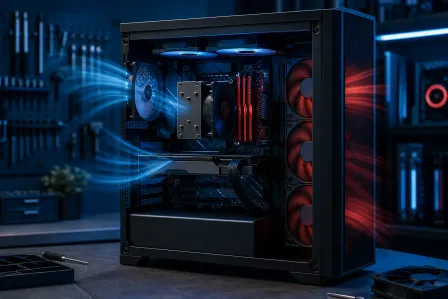
What to do: Shut the PC down, unplug it, and inspect every intake, exhaust, fan blade, radiator fin, and dust filter. In Palm Beach County, heat and humidity are not just beach-day vibes. They speed up dust buildup, make cooling work harder, and can turn a once-clean airflow path into a lint dungeon. Clean filters monthly, do a deeper dust-out every 3 to 4 months, and check CPU and GPU temperatures more often during hot seasons.
Why it matters: Heat is the silent FPS assassin. CPUs and GPUs protect themselves by lowering clock speeds when temperatures get too high. That means your absolute beast of a graphics card can start performing like it skipped leg day. Dried-out thermal paste is another sneaky culprit, especially in older desktops and gaming laptops that have lived through Florida heat.
Success looks like this
After cleaning, idle temperatures should drop, fans should ramp less aggressively, and under-load clocks should stay steadier. If temps remain high, thermal paste replacement may be the move. The process involves removing the cooler, cleaning old compound, applying new paste correctly, and remounting with even pressure. For a deeper dive, hit our thermal paste replacement hot PC fix guide. Local service pricing varies by desktop or laptop complexity, so always ask for a current quote before the re-paste begins.
Step 7: Check Storage Health, Game Location, and Shader Stutter
What to do: Confirm your game is installed on an SSD, ideally an NVMe SSD for large modern titles. Check remaining free space. If your drive is nearly full, clear room. Use manufacturer tools or Windows drive health checks to look for warning signs. If a game stutters only when entering new zones, loading textures, or after updates, shader compilation or slow storage may be involved.
Why it matters: Storage does not usually determine maximum FPS, but it absolutely affects hitching, loading, asset streaming, and open-world smoothness. A mechanical hard drive can make modern games cough up frame spikes like a boss fight with lag armor. Even an SSD can struggle if it is overheated, failing, or packed to the brim.
Success looks like this
Success means games load faster, traversal feels smoother, and those ugly one-second hitches happen less often. Keep plenty of free space for updates, shader caches, and Windows operations. If your drive health tool reports errors, back up your data immediately. That is not a “maybe later” moment, gamer. That is save-your-loot-now energy.
Step 8: Diagnose PSU, Power Quality, and Laptop Power Modes
What to do: Make sure the PC is plugged into a quality surge protector or, better yet, a UPS battery backup. Check that GPU power connectors are fully seated. Avoid daisy-chaining high-power GPU cables if your power supply manual recommends separate cables. For gaming laptops, plug into the original charger and set Windows and vendor performance modes correctly. If FPS drops only happen during storms, brownouts, or heavy GPU load, suspect power stability.
Why it matters: Florida power is spicy. Lightning storms, surges, and brownouts can stress power supplies and cause weird intermittent symptoms. A shaky PSU can lead to crashes, black screens, coil whine changes, or FPS drops when the GPU boosts. Power delivery is not glamorous like RGB fans, but it is the foundation that lets the whole rig go full send.
Success looks like this
A stable system should hold boost clocks under load without sudden downclocking, shutdowns, or stutters tied to power events. If changing outlets, using a UPS, or removing overloaded power strips improves stability, you found a major clue. If you smell burning, hear popping, or see visible damage, stop testing immediately and get professional help.
Common Pitfalls and Gaming Performance Troubleshooting Mistakes
The biggest mistake is chasing settings before diagnosing the cause. Turning everything to low might raise average FPS, but it will not fix a CPU bottleneck, dried thermal paste, failing storage, or a PSU that is having a bad day. Another classic trap is assuming 100 percent GPU usage is always bad. In many games, high GPU usage means your graphics card is doing exactly what you paid for. GG, little silicon gladiator.
Do not ignore frame times. If you only watch average FPS, you will miss microstutter. Also, do not stack five monitoring overlays at once, because overlays can conflict and create the exact frame rate stuttering you are trying to fix. Run controlled tests. Change one thing at a time. Write down temperatures, usage, clocks, and FPS before and after.
For Palm Beach gamers, dust is not optional. If your tower sits on carpet, near pets, or close to an open window, your cleaning schedule needs to be more aggressive. Monthly filter cleaning and quarterly internal dust checks are clutch. If you run a gaming laptop, airflow is even more critical, so consider a hard surface, clean vents, and professional internal cleaning when temps climb. Our gaming laptop repair service can help when the cooling system is buried under the motherboard like a tiny thermal escape room.
When to Call a Pro for Gaming PC Repair in Palm Beach
Call a pro when the symptoms point beyond safe DIY. Red flags include burning smells, random shutdowns under load, GPU artifacting, repeated blue screens, grinding fans, liquid damage, swollen laptop batteries, or temperatures that remain dangerous after cleaning. Also bring it in if you have already tested drivers, thermals, RAM, and storage but FPS drops keep clapping your gameplay.
This is where Fix My PC Store comes in clutch for Palm Beach County gamers. Whether you are in West Palm Beach, Palm Beach Gardens, Lake Worth Beach, Boynton Beach, Wellington, Royal Palm Beach, Jupiter, or nearby communities, our team can run deeper diagnostics, stress tests, component checks, cooling service, cable inspections, and repair recommendations. If your monster rig needs hands-on troubleshooting, start with our gaming PC repair and diagnostics in West Palm Beach.
DIY is awesome. I am always here for a clean cable-managed glow-up. But when hardware instability starts looking like a raid boss, a proper bench diagnosis saves time, protects parts, and gets you back to cracked aim instead of endless forum rabbit holes.
Ready to Upgrade Your Gaming Rig?
Get expert gaming PC builds, upgrades, and repairs from Palm Beach County's performance specialists.
Level Up Now