Windows 11 Anti-Cheat 2026 Kernel Updates: Stop FPS Drops
Listen to this article
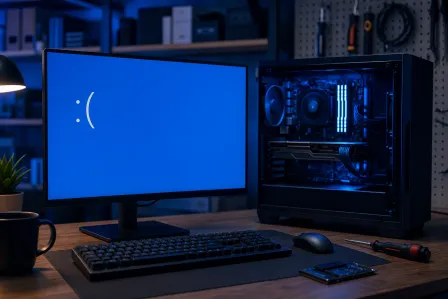
TL;DR: If you updated Windows 11 in 2026 and your competitive games suddenly feel like they got nerfed, you are not imagining it. Kernel-level anti-cheat plus Windows security changes can increase CPU scheduling pressure, driver friction, and background checks, which shows up as FPS drops, frame-time spikes (stutter), and input lag.
In this guide, I am going to help you figure out whether the culprit is windows 11 anti-cheat 2026 behavior, a driver update, or a security feature interaction, then get you back to butter-smooth gameplay.
What changed with Windows 11 anti-cheat 2026 and why your FPS can tank
Alright squad, here is the deal. Modern anti-cheat for competitive titles often runs with deep system access (kernel-level drivers) to catch cheats that operate below the game level. That is not automatically “bad,” but it can create performance side effects when Windows 11 updates tighten security, adjust driver requirements, or change how background services behave.
When kernel anti-cheat and Windows security are both doing their job, your PC can end up with extra work happening at exactly the worst time: right when you need consistent frame times. And in esports titles, frame time consistency matters more than peak FPS. A stable 144 FPS feels cracked. A “technically 144 FPS” average with spikes feels like mud.
Kernel anti-cheat performance: why frame-time spikes happen
- CPU overhead: Anti-cheat can add CPU load and context switching. Even small overhead can cause stutter if your CPU is already near its limit in-game.
- Driver interactions: Kernel drivers (GPU, chipset, network, audio) all share the same party. If one driver update is scuffed, you can get DPC latency spikes and input delay.
- Background scanning and integrity checks: These can trigger at inconvenient moments and show up as micro-stutters or hitching.
Symptoms that scream “anti-cheat or security interaction”
- FPS is fine in the menu, but drops hard during fights.
- You see stutter after update even though your GPU usage is not maxed.
- Input lag Windows 11 style: mouse feels floaty, shots feel late, peeks feel off.
- CPU usage spikes when anti-cheat initializes or when the match starts.
Quick diagnosis: is it anti-cheat, drivers, or Windows 11 security?
Before you start reinstalling everything like it is a ritual, let us do a clean, gamer-brain diagnostic pass. We want to identify the bottleneck, not guess.
Step 1: Look at frame times, not just FPS
Average FPS can lie. What you feel is frame-time spikes. Use an overlay (Steam, Xbox Game Bar, or your GPU software) that shows frame time if possible. If your FPS is “high” but it feels stuttery, that is usually frame pacing, CPU scheduling, or driver latency.
Step 2: Check CPU spikes and “Easy Anti-Cheat high CPU” behavior
Open Task Manager while the game is running (or right after you quit if it closes overlays). You are looking for unusually high CPU usage from anti-cheat components or related services. If you see consistent spikes that line up with stutter, that is a major clue.
Important: do not end anti-cheat processes mid-match. That is a fast track to getting kicked, or worse.
Step 3: Confirm whether a driver update was the real trigger
A shocking amount of “anti-cheat killed my FPS” cases are actually a driver regression that happened around the same time as a Windows update. GPU drivers, chipset drivers, and network drivers can all impact competitive smoothness.
- GPU driver: Can cause stutter, shader compilation hitches, or weird frame pacing.
- Chipset driver: Impacts CPU scheduling and power behavior.
- Network driver: Can add latency spikes that feel like input lag.
Step 4: Sanity-check Windows security settings (do not panic-toggle)
Windows 11 security features are there for a reason. The goal is not to disable everything. The goal is to identify if a security feature interaction is causing measurable performance issues on your specific rig.
If you need official Windows troubleshooting references, start with Microsoft Support for Windows troubleshooting and work from known-good guidance, not random forum “disable everything” lists.
Fixes that actually work for gaming PC FPS drops and stutter after update
Okay, now the fun part. Let us get your rig back to being an absolute beast. These steps are ordered from safest and most effective to more advanced.
Fix 1: Clean boot for gaming (to isolate the real offender)
A clean boot for gaming is the clutch move when you suspect background apps are fighting your anti-cheat or drivers. The idea is simple: start Windows with minimal non-Microsoft services and startup apps, then test your game.
- If performance improves: a background app is the problem (RGB utilities, overlays, hardware monitors, “optimizer” apps, audio suites, etc.).
- If performance does not improve: look harder at drivers, firmware, or the game/anti-cheat itself.
Pro tip from Hardware Hank: you do not need five overlays. Pick one. Every overlay is a tiny tax on frame time.
Fix 2: Driver rollback gaming PC method (when an update is cursed)
If your issues started right after a driver update, a driver rollback gaming PC approach can instantly restore stability. Roll back the specific driver most likely to impact frame pacing:
- GPU driver rollback: Great for sudden stutter, inconsistent frame times, or crashes.
- Network driver rollback: Great for “input lag” that is actually network jitter.
Then re-test the same map, same mode, same settings. We want apples-to-apples results. Benchmarking is a lifestyle.
Fix 3: Update chipset and BIOS settings (the hidden sauce)
This is where the magic happens. Competitive smoothness depends on more than the GPU. Your platform matters.
- Chipset drivers: Grab the latest stable chipset package from AMD or Intel for your motherboard platform.
- BIOS: A BIOS update can improve CPU boosting behavior, memory compatibility, and overall stability.
- Memory stability: Unstable XMP/EXPO can manifest as stutter, WHEA errors, or random hitching. “It boots” is not the same as “it is stable under load.”
If you are not comfortable updating BIOS or validating memory stability, that is a perfect moment to bring in the pros via gaming PC computer repair and performance tuning.
Fix 4: Kill the stutter monster by managing overlays and background capture
Overlays can conflict with anti-cheat hooks. Background capture can also add overhead. If you are chasing max FPS and minimum input latency:
- Disable extra overlays you do not need (keep one, max).
- Turn off background recording if you never use it.
- Close hardware monitoring tools while testing (some poll sensors aggressively).
Fix 5: Address DPC latency style input lag (audio and network are common)
Sometimes what feels like “FPS drops” is actually latency spikes from drivers. Audio suites, USB devices, and network adapters can all contribute. If your mouse feels delayed even at high FPS, that is a classic “something is stalling the system” vibe.
If you want a security and performance sanity check, Malwarebytes resources on performance and security are a solid read, especially if you suspect background junkware or unwanted software adding overhead.
Battleye FPS drop fix and Easy Anti-Cheat high CPU: what you can do safely
Let us be super clear: you should not try to bypass, disable, or “mod” anti-cheat. That is not a performance tweak, that is a ban speedrun. GG, account.
But you can do safe, legit steps to reduce the chance of anti-cheat causing issues.
Safe steps that help anti-cheat behave
- Verify game files in your launcher to repair corrupted components.
- Reinstall the anti-cheat using the game’s official installer (many games include an anti-cheat setup folder).
- Run the game as admin only if the publisher recommends it. Do not randomly elevate everything.
- Update GPU drivers to a known stable release if you rolled back too far.
If you need a Battleye FPS drop fix mindset: isolate, then stabilize
For BattlEye and similar systems, the pattern is usually the same: isolate background conflicts (clean boot), stabilize drivers (GPU/chipset/network), then validate with repeatable testing. If the problem only happens in one title, it may be a game-side update, so keep an eye on official patch notes.
Gaming PC optimization in Palm Beach County: the fastest path back to butter smooth gameplay
Now, if you are in Palm Beach County and you are tired of spending your entire evening troubleshooting instead of fragging, this is where a targeted tune-up is clutch. A proper performance service is not “turn it off and on.” It is systematic testing and optimization.
What a real gaming tune-up checks (and why it matters)
- Driver stack health: GPU + chipset + network + audio alignment to reduce latency and stutter.
- Windows services and startup load: Stop background bloat from stealing frame time.
- Thermals and boosting: If your CPU is thermal throttling, your 1% lows get cooked.
- Storage health: An SSD with issues can cause loading hitches and stutter.
- Stability testing: Validate XMP/EXPO and CPU boost stability so your “monster rig” stays stable under pressure.
Fix My PC Store helps gamers across West Palm Beach and the wider Palm Beach County area with gaming PC repair Palm Beach style diagnostics and tuning. If you are on a laptop, we do that too with gaming laptop repair and performance service. And if you are mid-grind and just need settings and software help, remote support for gaming PC optimization can save you a trip.
Checklist: stop FPS drops after Windows 11 updates (quick hits)
- Re-test with one overlay only.
- Clean boot to identify background conflicts.
- Check Task Manager for CPU spikes that correlate with stutter.
- Roll back the last driver that changed (GPU first, then network).
- Update chipset drivers and verify BIOS settings are stable.
- Validate thermals so your CPU is not throttling mid-match.
Do those, and you will usually go from “why does this feel awful?” to “okay, this is cracked” real quick.
Ready to Upgrade Your Gaming Rig?
Get expert gaming PC builds, upgrades, and repairs from Palm Beach County's performance specialists.
Level Up Now