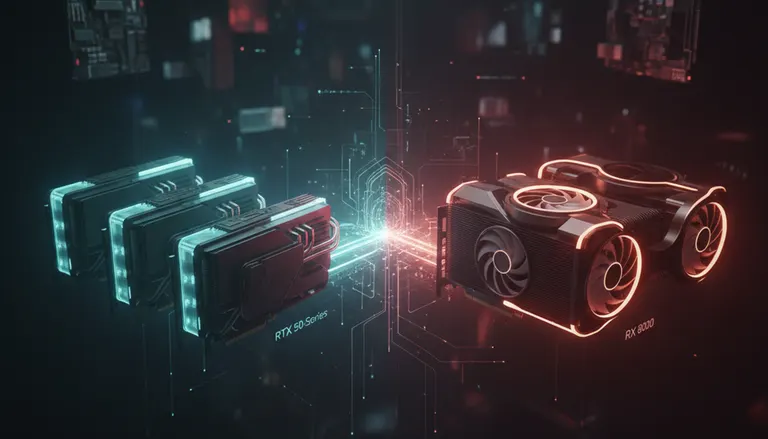
RTX 50-Series vs RX 8000: Cooler, Quieter 2026 GPU Upgrade Paths
Listen to this article
TL;DR: An RTX 50 series upgrade or an RX 8000 upgrade can both be a massive W for 2026 gaming, but the real deciding factors are PSU headroom, connector safety (12V-2x6), case clearance, and thermal/noise tuning. If you want butter-smooth gameplay without turning your PC into a space heater, your upgrade plan needs to be as smart as your GPU choice.
I’m Hardware Hank, and I’m here to make this simple: more frames, less noise, cleaner cable routing, and zero “why is my PC crashing mid-raid?” energy. If you’re in Palm Beach County and you want a legit gaming PC GPU swap that’s stable, cool, and quiet, let’s map the path.
RTX 50 series upgrade vs RX 8000 upgrade: what actually matters for a cooler, quieter rig
Specs are fun (I collect them like trading cards), but your ears and your temps don’t care about marketing. They care about:
- Total board power and cooling design - higher power usually means more heat to dump, which can mean higher fan RPM and more noise if airflow is mid.
- Case fit - modern GPUs are absolute units. Length, thickness (slots), and front-to-back clearance matter.
- PSU quality and headroom - stable power delivery is the difference between “it runs” and “it FLIES.”
- Power connector type and cable routing - especially if your card uses PCIe 5 power connector 12V-2x6.
- Driver stability and game compatibility - because nothing ruins a banger session like random black screens.
Both NVIDIA and AMD have strong options depending on your goals. The clutch move is matching the GPU to your monitor resolution and refresh rate and then building the rest of the upgrade around it.
Pick the target first: 1080p, 1440p, or 4K (and your refresh rate)
Before you drop cash on a new GPU, lock in the mission:
- 1080p high refresh (144Hz-240Hz+): You want high sustained FPS and low latency. CPU limits can show up hard here.
- 1440p (the sweet spot): This is where a lot of gamers feel the “gg ez” upgrade the most - huge visual bump, still high FPS.
- 4K: You’re chasing max image quality. GPU load is heavy, and thermals/noise tuning becomes extra important.
Bring your monitor model (or at least resolution and Hz) into the decision. It’s the scoreboard your GPU is trying to top.
GPU upgrade Palm Beach County reality check: case fit, airflow, and noise before you buy
Here’s the part most people skip: the “will it physically fit and breathe?” test. In West Palm Beach and across Palm Beach County, I see tons of upgrades that should have been amazing… except the case is choking the GPU like it’s a bad boss fight.
Case clearance checklist (aka: don’t get bodied by a triple-fan brick)
- GPU length: Measure from the rear expansion slots to the front fans/radiator.
- GPU thickness: Many cards are 3-slot or more. Make sure you’re not blocking critical PCIe slots or starving the fans.
- Power plug clearance: Leave room for the connector and safe cable bend radius. This is huge for 12V-2x6 setups.
- Front intake: If your front panel is restrictive, your “quiet build” becomes a jet engine build.
If you want us to sanity-check fitment and airflow, that’s exactly the kind of practical upgrade help we do at Fix My PC Store through our gaming PC upgrade and computer repair service.
Airflow that actually works (quietly)
Cool and quiet is a vibe, and it’s achievable if you set the airflow like a pro:
- 2-3 intake fans up front (or bottom intake in some cases)
- 1 rear exhaust
- Top exhaust if your case supports it and you are not starving the CPU cooler
- Dust filters cleaned because clogged filters = higher temps = louder fans
Good airflow lets your GPU run cooler at lower fan RPM, which is literally how you get that “butter smooth gameplay” without the soundtrack of a leaf blower.
PSU compatibility for new GPUs: watts are not the whole story
PSU upgrades are not glamorous, but they are clutch. A high-end GPU paired with a tired, low-quality PSU is like slapping racing tires on a shopping cart.
How to judge PSU headroom (without guessing)
Here’s the rule of thumb I use for stable gaming rigs:
- Leave headroom so the PSU is not living at the edge under spikes.
- Prioritize quality (reputable platforms, protections, stable rails) over just “big number watts.”
- Match connectors to your GPU so you are not relying on sketchy adapters.
If you want a deeper read from an authoritative source, check Intel guidance on choosing a PC power supply (PSU). It’s a solid baseline for understanding PSU sizing and why quality matters.
PCIe 5 power connector 12V-2x6: safe routing and why it matters
Let’s talk cables, because this is where “clean build” meets “safe build.” If your GPU uses 12V-2x6 (the PCIe 5 style connector), you want:
- Fully seated connection - no gap, no half-click. Push until it’s locked.
- No extreme bends right at the plug - give it space so the connector is not under stress.
- Prefer native PSU cables when available - fewer points of failure than adapters.
When we do a gaming PC GPU swap in-store, cable routing and connector seating is part of the job, not an afterthought. That’s how you avoid random shutdowns and “why does it smell like hot plastic?” panic.
Frame generation comparison: what it is, when it helps, and when it’s just fluff
Frame generation is one of those features that can feel like actual wizardry when it’s implemented well. In simple terms: the GPU uses advanced rendering techniques to increase perceived FPS by generating additional frames between traditionally rendered frames.
Why gamers care: it can turn “pretty good” FPS into “holy wow this feels cracked” smoothness, especially at higher resolutions where raw FPS is harder to brute force.
When frame generation is a big W
- Single-player and cinematic games where visuals and smoothness matter most
- 4K gaming where extra perceived frames can make high settings feel way more playable
- GPU-limited scenarios (your GPU is the bottleneck, not the CPU)
When to be cautious
- Competitive esports: latency matters. Some players prefer native frames and lower input lag over generated frames.
- CPU bottlenecks: if your CPU is tapped out at 1080p high refresh, frame gen may not feel as magical.
My take: treat frame generation as a tool in the toolbox, not the only reason to buy a card. The “best” GPU is the one that hits your FPS target and stays cool and quiet doing it.
GPU undervolting for gaming: the secret sauce for lower temps and less noise
Okay, this is where the magic happens. GPU undervolting for gaming is one of my favorite tweaks because it’s basically free performance-per-watt optimization. You reduce the voltage the GPU uses at a given clock, which often drops power draw and temps while keeping FPS nearly the same (or sometimes identical).
What you gain from undervolting
- Lower GPU temps - less heat saturating your case
- Lower fan RPM - quieter gaming sessions
- More consistent boost behavior - fewer thermal throttles
How we tune for “cool and quiet” after a GPU upgrade
When you bring a rig into Fix My PC Store for a GPU install, we can also do thermal and stability tuning. Typical steps include:
- Fan curve optimization (case fans and GPU fans working together)
- Undervolt testing to find a stable voltage-frequency point
- Stress testing to confirm stability under real gaming-like loads
- Noise focus: we tune for the lowest fan speed that keeps temps in a safe range
And yes, it can absolutely be the difference between “loud but fast” and “fast AND chill.”
Driver stability troubleshooting: keep your new GPU from acting cursed
New GPU day should be poggers, not pain. If you swap cards and start seeing crashes, black screens, weird stutters, or games refusing to launch, it’s usually one of these:
- Old driver leftovers conflicting with the new card
- Unstable undervolt/overclock (even factory OC profiles can be spicy in some cases)
- Power delivery issues (PSU aging, wrong cables, loose connections)
- Thermals causing downclocking or instability
Windows stability basics that actually help
Keep Windows 10 or Windows 11 updated, and don’t ignore system errors. If you need official guidance on troubleshooting basics, here’s a reliable starting point: Microsoft Support for Windows performance and troubleshooting.
If you’re stuck in a loop of crashes after a GPU swap, we can help in-shop or via remote support for PC troubleshooting when it’s a software-side issue.
Post-upgrade stability testing (the step that separates pros from “hope it works”)
This is the part I’m obsessed with: after the install, you validate the rig. We typically check:
- GPU temps and hotspot behavior under load
- Fan noise profile at your real gaming settings
- Power draw behavior and connector/cable temps
- Game-specific stability (because one game can be stable while another is chaos)
That’s how you get a monster rig that stays a monster, night after night.
So… RTX 50 series upgrade or RX 8000 upgrade? Match the card to your build constraints
Here’s the honest gamer-to-gamer answer: both can be fantastic. The right pick depends on what you already own and what you’re trying to achieve.
Choose the upgrade path that fits your rig (and your vibe)
- If your case is tight: prioritize cards with more manageable dimensions, and plan cable routing early. Bigger is not always better if it cooks.
- If your PSU is older or borderline: budget for a PSU upgrade. This is not a place to gamble.
- If you want the quietest experience: plan on undervolting and airflow tuning regardless of brand. Cooling setup matters as much as the GPU.
- If you’re chasing high refresh esports: consider the whole platform. A GPU upgrade might expose a CPU bottleneck at 1080p.
And hey, if you’re also trying to keep a laptop in the house alive for school or work while your desktop becomes the main character, we do that too via laptop repair services.
Fix My PC Store gaming PC upgrades in West Palm Beach: installs, PSU swaps, and thermal tuning
If you’re in West Palm Beach, Boca Raton, Delray Beach, Lake Worth, Wellington, Palm Beach Gardens, or anywhere in Palm Beach County, we can help you go from “thinking about upgrading” to “booting into a new level of FPS.”
Popular upgrade services we do for 2026 GPUs:
- GPU installs and full gaming PC GPU swap (including safe cable routing and connector checks)
- PSU compatibility checks and PSU upgrades
- Thermal optimization: airflow improvements, fan curves, and noise reduction
- Post-upgrade testing: stability validation and performance verification
- General diagnostics through our computer repair service when the issue is deeper than “just the GPU”
Trust me: your future self will thank you for doing the upgrade the right way the first time.
Ready to Upgrade Your Gaming Rig?
Get expert gaming PC builds, upgrades, and repairs from Palm Beach County's performance specialists.
Level Up Now