PCIe 5.0 GPU in 2026: Fix Link Speed Drops & Stutter
Listen to this article
TL;DR: A PCIe 5.0 GPU can be an absolute beast, but if your system negotiates down to x8 or a lower PCIe generation (especially through a sketchy riser cable or a cranky BIOS setting), you can get microstutter and ugly frametime spikes. In this guide, I will show you how to verify your real link speed under load, what causes drops like PCIe link speed x8 vs x16, and the cleanest fixes for a butter-smooth experience.
And if you want it handled fast and safely, Fix My PC Store can do the heavy lifting for gamers across Palm Beach County, including West Palm Beach, Boca Raton, Boynton Beach, Delray Beach, Lake Worth Beach, Jupiter, Palm Beach Gardens, and Wellington.
Why PCIe 5.0 GPU link speed drops can cause stutter (x8 vs x16, Gen5 vs Gen4)
Okay squad, here is the vibe: PCIe is the highway between your GPU and the rest of the system. With a PCIe 5.0 GPU on a Gen5 motherboard, you want that lane count (x16) and generation (Gen5) locked in when you are gaming or doing heavy GPU workloads.
If the GPU negotiates down (like x8 instead of x16, or Gen4 instead of Gen5), your rig might still look “fine” in basic monitoring, but you can get:
- Frametime spikes (those nasty little bumps that feel like hitching)
- Microstutter in open-world streaming, shader compilation moments, or high-FPS competitive games
- Random “why did it feel bad right there?” moments even when average FPS looks good
Important reality check: x8 on modern PCIe can still be totally playable in a lot of games. This is not a budget-shame zone. But if your system is unexpectedly dropping link speed or bouncing between states, that instability can absolutely mess with frametime consistency. And we are here for butter smooth gameplay, not “it runs.”
When x8 is normal vs when it is a problem
- Normal: Some boards share lanes with certain M.2 slots or expansion cards. Depending on the motherboard design, populating specific slots can force the main PCIe slot into x8 mode. That is not “broken,” it is lane routing.
- Problem: You used to run x16 and now you are stuck at x8, or the link flips under load, or you see stutter that lines up with PCIe power management events, driver hiccups, or signal integrity issues (hello, riser cables).
How to verify actual PCIe 5.0 GPU link speed under load (not just at idle)
This is where the magic happens. A lot of GPUs will downclock the PCIe link at idle to save power. That is normal. The clutch move is checking what happens under load.
Use GPU-Z to confirm x16 and the correct PCIe generation
Grab GPU-Z from TechPowerUp GPU-Z. In the main window, look for the “Bus Interface” line. You will usually see something like “PCIe x16 5.0 @ x16 1.1” while idle. That “@” part is the current state.
Now click the little “?” next to that field to run the render test. While the test is running, your GPU should ramp the link up. Ideally you will see it jump to something like:
- PCIe x16 5.0 @ x16 5.0 (dream scenario, gg ez)
- or at least @ x16 at the correct generation your platform supports
If it sticks at @ x8 or refuses to go Gen5 when you know your CPU, motherboard, and GPU support it, we have a lead.
Cross-check with in-game frametime graphs
Average FPS is a highlight reel. Frametime is the truth. Use your preferred overlay (many gamers use tools that show frametime graphs) and look for repeatable spikes when streaming assets, entering new areas, or during heavy combat. If spikes correlate with link drops, you are not crazy. Your rig is telling you something.
Common causes of PCIe Gen5 stability issues (and why your rig negotiates down)
PCIe 5.0 is fast. Like, “signal integrity matters” fast. Newer GPU and motherboard combos in 2026 are pushing tighter margins, and small issues can turn into link training failures or stability weirdness.
1) BIOS PCIe settings and auto-negotiation weirdness
Most boards default to “Auto” for PCIe generation. Auto is usually fine, until it is not. If link training fails at Gen5, the system may fall back to Gen4 for stability. Sometimes it will even act flaky and retrain unexpectedly.
Service-friendly fix: In BIOS, find PCIe slot settings and try:
- Set the primary x16 slot to Gen5 explicitly (if stable), or
- Temporarily force Gen4 to confirm whether Gen5 signal integrity is the root cause
If forcing Gen4 makes stutter disappear, you just isolated a Gen5 stability issue (riser cable, seating, or board firmware are the usual suspects).
2) Chipset drivers and motherboard firmware
Chipset drivers help Windows manage PCIe devices, power states, and system-level communication. Outdated chipset drivers or an old BIOS can cause odd behavior, including device power management quirks that feel like stutter.
Fix: Update your motherboard BIOS from the board vendor and install the latest chipset drivers for your platform (AMD or Intel). Also update your GPU driver using the official NVIDIA/AMD package. No mystery driver sites. Keep it clean.
If you want the official, boring-but-correct Windows angle on driver reliability and testing concepts, Microsoft’s documentation is a solid reference point: Microsoft documentation on Windows hardware and driver testing concepts.
3) GPU not fully seated (the classic, still undefeated)
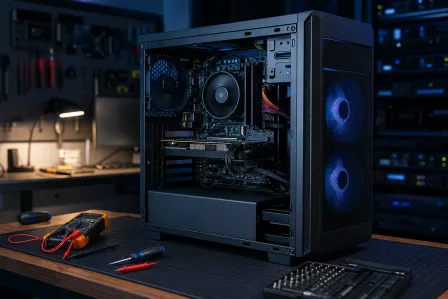
Listen. I have seen monster rigs brought to their knees because the GPU was 2 mm shy of fully seated. A slightly unseated card can negotiate fewer lanes, behave inconsistently, or freak out under vibration and heat.
Fix checklist:
- Power down, switch PSU off, and unplug.
- Remove the GPU, inspect the PCIe slot for dust or debris.
- Reinsert firmly until the retention clip clicks.
- Confirm the case bracket is not torquing the card upward.
- Double-check GPU power connectors are fully latched.
This is one of the top “instant win” repairs we do in-shop under gaming PC computer repair and GPU troubleshooting.
4) Riser cable problems (PCIe 5 riser cable or bust)
Vertical GPU mounts look so clean, especially with RGB fans doing the whole nightclub-in-a-box vibe. But Gen5 is picky. If your riser cable is not truly Gen5-rated (or it is bent too tight, routed near noisy cables, or just low quality), you can get link downshifts or intermittent errors that show up as stutter.
Fix: Test without the riser cable by mounting the GPU directly in the motherboard slot. If the problem disappears, the riser is the culprit. Upgrade to a high-quality Gen5 riser and keep routing gentle and tidy.
5) Lane sharing with M.2 slots (x8 vs x16 by design)
Some motherboards share CPU lanes between the top x16 slot and certain M.2 slots. Populate the wrong M.2 slot and boom, your GPU runs x8. Not broken, just the board design.
Fix: Check your motherboard manual’s lane-sharing table. Move the NVMe drive to a different M.2 slot (often one connected to the chipset instead of the CPU lanes) if you want to restore x16.
Gaming stutter fix checklist: BIOS, ReBAR, power management, and DPC latency
Now we get into the “make it feel cracked” tuning. These are safe, reversible changes that can improve consistency.
BIOS PCIe settings for Gen5 stability
- Set the main PCIe slot to a fixed generation (Gen5 if stable, Gen4 for troubleshooting).
- Disable unused onboard devices you do not need (can reduce complexity, sometimes helps).
- Load optimized defaults if your BIOS has gotten “experimental.” Then reapply only needed settings.
ReBAR settings (Resizable BAR) and why it matters
Resizable BAR (ReBAR) lets the CPU access larger chunks of GPU memory in a more efficient way. In some games it helps performance, in others it is neutral, and in a few edge cases it can cause weirdness depending on platform and driver maturity.
Fix approach: If you are chasing stutter, test with ReBAR enabled and disabled (one change at a time). Keep the setting that gives you the best frametime consistency in your main games. The goal is not just higher FPS, it is stable frametimes.
Windows power and PCIe power management
Windows 10 and Windows 11 can manage PCIe link power states. Sometimes aggressive power savings can contribute to latency spikes or link state transitions at the worst possible time.
- Use a performance-oriented power plan for desktop gaming.
- In advanced power settings, test disabling PCIe Link State Power Management (if available) to see if it reduces stutter.
If you are not comfortable digging through settings, this is exactly the kind of dial-in we can do via remote support for PC performance tuning when it is software-side.
DPC latency and frametime spikes (the sneaky villain)
DPC latency spikes can come from drivers that misbehave (network, audio, RGB controllers, capture devices, you name it). The symptom feels like: your FPS counter looks fine, but the game “hitches” anyway.
Fix: Update drivers (chipset, LAN/Wi-Fi, audio), unplug unnecessary USB devices to test, and avoid running multiple hardware-monitoring apps that fight each other. If you stream or use capture gear, test a clean boot scenario to isolate the culprit.
When to bring it to Fix My PC Store (Palm Beach County) for a clean, safe fix
If you have done the basics and your PCIe 5.0 GPU still drops link speed, or you are seeing repeatable frametime spikes you cannot pin down, it is time to stop guessing and start testing like a pro.
At Fix My PC Store in West Palm Beach, we can:
- Verify PCIe link speed under load and confirm x8 vs x16 behavior
- Check for lane-sharing conflicts with M.2 and expansion cards
- Reseat GPU and inspect the PCIe slot, bracket alignment, and power connectors
- Validate riser cable behavior (and recommend Gen5-safe options)
- Update BIOS and chipset drivers safely and correctly
- Tune BIOS PCIe settings and stability options for consistent gaming
And yes, we love desktops, but if you are chasing stutter on a gaming laptop (thermal throttling, driver conflicts, weird power states), we also do gaming laptop repair and performance troubleshooting.
Quick “don’t panic” notes for budget and midrange builds
If your rig is not top-tier and you are worried this is some “you must spend more” situation, nah. A smart, stable configuration beats an unstable flex build every day. We can help you get the most bang-for-buck and keep your gameplay smooth, whether you are running 1080p esports settings or pushing a high refresh 1440p setup.
Final boss checklist (fast recap)
- Confirm link speed under load (GPU-Z render test).
- Update BIOS + chipset drivers + GPU drivers.
- Reseat GPU and verify power connectors.
- Remove/replace riser cable for Gen5 testing.
- Check motherboard lane-sharing (M.2 can force x8).
- Test ReBAR on/off for frametime consistency.
- Adjust Windows power settings if link state transitions cause stutter.
Ready to Upgrade Your Gaming Rig?
Get expert gaming PC builds, upgrades, and repairs from Palm Beach County's performance specialists.
Level Up Now