macOS Boot Loop Fix on Apple Silicon: Update Crashes (2026)
Listen to this article
TL;DR: If your Apple Silicon Mac (M1, M2, M3, or M4) is stuck on the Apple logo, rebooting in a loop, or kernel panicking after an update, don’t panic. Start with Safe Mode and Recovery tools like Disk Utility, then try a reinstall that keeps your data. If firmware got scrambled, a DFU Revive/Restore with Apple Configurator may be the real fix.
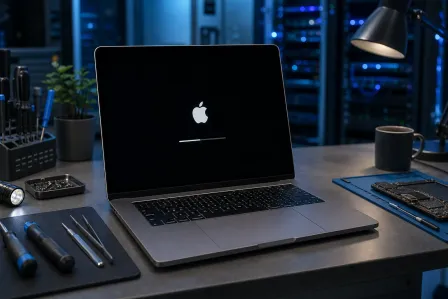
In 2026, we’re seeing a familiar pattern after big macOS upgrades: the update finishes, the Mac restarts… and then it just never fully comes back. This sounds complicated, but I promise it’s not! Let’s break this down in a calm, data-first way so you can get back to a normal boot without making things worse.
Why macOS updates can trigger boot loops on Apple Silicon
Apple Silicon Macs handle updates a little differently than older Intel Macs. Updates can touch:
- System files (the OS volume and signed system components)
- Firmware (low-level startup code)
- Login items and extensions (third-party tools that load at startup)
- Disk structure (APFS snapshots and volume health)
If anything in that chain fails or conflicts, you can end up with:
- Mac stuck on Apple logo after update
- Repeated restarts (boot loop)
- Black screen with no progress
- Apple Silicon kernel panic after update (sudden restart with an error report)
Good news: most of the time, the data is still there. The Mac is just failing during startup.
macOS boot loop fix: quick triage before you change anything
Before we dive into tools, do two quick checks. Small wins matter!
1) Disconnect peripherals (yes, even “harmless” ones)
Unplug everything except power: hubs, external drives, docks, printers, audio interfaces, even HDMI adapters. A flaky USB-C hub or external drive can hang boot and make it look like a macOS failure.
2) Give it one patient boot attempt
If you see the Apple logo and a progress bar, give it time. If the bar doesn’t move for 30-60 minutes, or it restarts repeatedly, move on to the steps below.
Safe Mode on Apple Silicon: the first “gentle” fix
Safe Mode is your friend. It loads the essentials, checks the startup disk, and disables a bunch of third-party startup behavior. If your Mac boots in Safe Mode, that’s a huge clue and a big win!
How to enter Safe Mode (M1, M2, M3, M4)
- Shut down your Mac completely.
- Press and hold the power button until you see Loading startup options.
- Select your startup disk (usually “Macintosh HD”).
- Hold Shift, then click Continue in Safe Mode.
Once you’re in:
- Open System Settings and remove any recent login items you don’t recognize.
- If you use third-party security tools, disk tools, VPNs, or “cleaner” apps, consider temporarily uninstalling them.
- Restart normally and see if the boot loop is gone.
If you suspect malware or a sketchy browser add-on started this mess, pair this with a reputable security check and cleanup guidance. We also help with infections and unwanted software at virus removal and malware cleanup.
Mac stuck on Apple logo after update: use Recovery and Disk Utility First Aid
If Safe Mode won’t boot, or you can’t even reach the login screen, it’s time for Recovery. You don’t need to be a tech expert to do this. Let’s walk through it together.
Enter recoveryOS on Apple Silicon
- Shut down the Mac.
- Press and hold the power button until Loading startup options appears.
- Click Options, then Continue.
If you want Apple’s official overview, here’s a solid reference: Apple Support: Use macOS Recovery on a Mac.
Run Disk Utility First Aid (data-safe step)
- In Recovery, open Disk Utility.
- Click View -> Show All Devices.
- Select the topmost internal drive (not just a volume), then run First Aid.
- Run First Aid on the containers/volumes underneath as well.
What you’re looking for: If First Aid completes with no serious errors, your disk structure is probably okay. If it reports repeated failures, that’s a red flag for storage issues or deeper corruption.
recoveryOS reinstall macOS without data loss (the “reset the OS” move)
This is the step that fixes a lot of update crashes. A reinstall from Recovery typically keeps your data intact because it replaces system files without erasing your user volume.
How to reinstall macOS from Recovery (without erasing)
- Boot into Recovery (Startup Options -> Options).
- Select Reinstall macOS.
- Choose your main disk (usually “Macintosh HD”).
- Follow prompts and let it finish. Keep it on power.
Important: Do not click Erase unless you have a verified backup and you specifically intend to wipe the Mac.
If your Mac boots after reinstalling, celebrate that win! Then immediately update again (if needed) and check for app updates, especially for VPNs, audio drivers, and security tools.
Mac update failed black screen: what it usually means (and what to try)
A black screen can be different from a boot loop. Here are a few practical angles:
Try a forced shutdown and a clean power-up
Hold the power button for about 10 seconds to fully shut down. Wait a few seconds. Then power on normally.
Check for external display or dock issues
If you use an external monitor, unplug it and boot on the built-in display only. Some docks and monitors can confuse the boot display handoff after updates.
If it boots but acts “haunted,” consider a software conflict
Random freezes, reboots, or kernel panics after you finally get in often point to third-party kernel/system extensions, security tools, or old drivers. If you need help sorting what’s safe to remove, our remote support for Mac troubleshooting can be a quick way to get guidance without hauling your setup across town.
M1 M2 M3 M4 macOS upgrade crash: when kernel panics are the clue
Kernel panics feel dramatic because they are dramatic. But they’re also useful clues.
Common causes after an upgrade
- Peripheral conflicts (USB devices, docks, audio gear)
- Outdated system software for pro tools (VPNs, endpoint security, backup tools)
- Disk issues that only show up under heavy update activity
- Firmware mismatch/corruption (less common, but real)
What you can do safely
- Boot Safe Mode and remove recent login items.
- Run Disk Utility First Aid in Recovery.
- Reinstall macOS from Recovery (data-preserving).
If panics continue after a clean reinstall, that’s when we start thinking about hardware diagnosis or firmware repair steps.
DFU Revive/Restore with Apple Configurator: the “firmware-level” macOS boot loop fix
Okay, this is the advanced tier. You’ve got this, but it’s totally normal to ask for help here.
On Apple Silicon, a failed update can sometimes leave firmware in a bad state. When that happens, Recovery reinstall might not stick, or the Mac may not boot at all. A DFU Revive (or DFU Restore) using Apple Configurator on a second Mac can bring it back.
Revive vs Restore (what’s the difference?)
- Revive: Attempts to repair firmware and recoveryOS without erasing your data. This is the first choice when possible.
- Restore: Reinstalls firmware and macOS and typically erases the internal drive. This is the last resort if Revive fails or the system is severely corrupted.
Reality check: DFU requires the right cable, a compatible second Mac, and correct timing. If you’re not 100% comfortable, it’s smart to stop here and bring it in.
Mac data backup before macOS upgrade (and what to do if you skipped it)
If your Mac is currently boot looping, you might be thinking: “Wait... is my data safe?” That’s a very normal question.
Best practice for next time (simple and strong)
- Time Machine backup to an external drive
- Cloud sync check (iCloud Drive, OneDrive, Google Drive) to confirm files are fully uploaded
- Enough free space before upgrading (updates need breathing room)
If you can’t boot right now
If you can reach Recovery, there are data-safe paths, but the right approach depends on the Mac’s condition. If your files are critical (work projects, family photos, business documents), it’s often best to pause and get a data-first plan. Our team can help through data recovery services when an update goes sideways.
Red flags that point to SSD, board, or accessory problems (not just macOS)
Here’s the part people miss: an update doesn’t always cause the problem. Sometimes it reveals one. Think of it like a stress test.
Watch for these warning signs
- Disk Utility First Aid repeatedly fails or can’t repair the drive
- The Mac shuts off instantly or reboots even in Recovery
- Boot issues only happen when a specific hub/dock is connected
- Kernel panics continue after reinstalling macOS
- You can’t enter Startup Options at all
If you’re seeing any of these, it’s time for diagnostics. That’s exactly what we do at computer repair and Mac diagnostics in our West Palm Beach shop: confirm whether it’s software, storage, firmware, or a hardware fault before risky steps are taken.
Palm Beach County Mac repair: when to DIY and when to bring it in
I love a good DIY win. But I love your data more!
DIY is great when:
- You can boot Safe Mode
- Disk Utility First Aid succeeds
- Recovery reinstall completes and the Mac stabilizes
Bring it in (or book remote help) when:
- You’re stuck in a boot loop and Recovery reinstall fails
- You suspect firmware corruption and DFU is needed
- Your Mac shows repeated kernel panics after the update
- You need a data-safe plan before any erase or restore
We help Mac owners across Palm Beach County, including West Palm Beach, Palm Beach Gardens, Lake Worth, Royal Palm Beach, Wellington, and Boynton Beach. If you’re nearby, in-shop service is often the fastest path. If you’re slammed, remote Mac support can help you triage safely before you make any big changes.
A quick note on “cleanup” tools and security after a crash
After a scary boot issue, it’s tempting to install random “Mac cleaner” apps. I get it! But many of those tools create more problems than they solve.
If you want solid, practical security education, I like reputable sources such as Malwarebytes’ Mac security resources. And if you want a hands-on cleanup, our virus removal service focuses on safe, explain-it-to-me fixes.
Need Expert Computer Support?
Get professional help from Palm Beach County's trusted computer repair specialists.
Get Help Today