MacBook Screen Flickering or Lines: Diagnose Flexgate vs GPU Issues
Listen to this article
TL;DR: If your macbook screen flickering changes with lid angle or you see the “stage light” glow at the bottom, you’re probably looking at a Flexgate-style display cable problem. If the same glitches show up on an external monitor or in screenshots, that’s when we start side-eyeing the GPU or logic board. Let’s run the safe tests so you don’t shotgun parts like it’s a loot box.
Alright gamer fam, Hardware Hank here. I know this is a MacBook topic, but trust me, diagnosing display problems is the same energy as chasing a weird stutter in a high-FPS rig: you test, you isolate, you confirm. Screen flicker, vertical lines, random blackouts, and that cursed “stage light” backlight effect are confusing because the symptoms overlap. The good news? With a few clutch checks, you can usually tell whether you need a flexgate repair, a full display assembly, or serious board-level work.
Why MacBook screen flickering and MacBook screen lines happen
When you see macbook screen lines or flicker, you’re basically dealing with one of three buckets:
- Display path issue (Flex cable / Flexgate): The signal or backlight power is getting flaky as the lid moves.
- Panel issue (LCD assembly): The LCD itself is failing, or the backlight layers are damaged.
- Graphics/logic board issue (GPU artifacts): The system is generating corrupted video output or losing stability under load.
Think of it like a gaming setup: is the problem the monitor, the cable, or the GPU? Same logic. We just do it in MacBook form factor where everything is packed tighter than a mini-ITX monster build.
Flexgate 101: the MacBook display cable and the “stage light” backlight issue
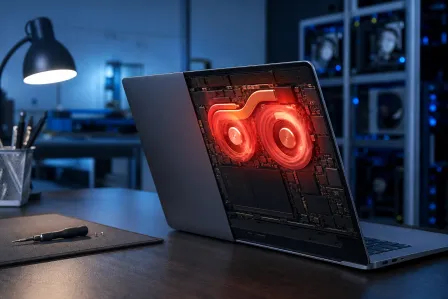
Flexgate is the nickname people use for a failure mode where the macbook display cable (a thin flex cable routed through the hinge area) wears over time. Every open-close cycle is basically a micro stress test. Eventually, you can get:
- Stage light effect: uneven backlight along the bottom edge, like footlights on a stage
- Backlight dropout: screen goes dim or black, but you might still faintly see the image with a flashlight
- Flicker that changes with lid angle: open it 5 degrees and it’s fine, open it 10 more and it’s chaos
MacBook LCD vs flex cable: how to tell which one is failing
Here’s the quick mental model:
- Flex cable issue: flicker/backlight problems that are position-dependent (lid angle matters)
- LCD panel issue: persistent lines, blotches, cracks, or color problems that do not care about lid angle
And yeah, sometimes the fix is a MacBook display replacement because the cable is part of the display assembly on many models. That’s not “overkill,” that’s how Apple designed the part stack. It’s like when a laptop vendor soldered RAM: you don’t love it, but you plan around it.
Step-by-step diagnostic checklist (safe, no screwdriver required)
We’re going to run the tests in the order that gives you the most signal with the least risk. No heat guns, no bending, no “I saw a video” hero plays. Let’s keep it clean.
1) Lid-angle behavior test (Flexgate’s favorite giveaway)
- Set brightness to about 70-100%.
- Open a mostly white screen (Notes, a blank document, or a white webpage).
- Slowly move the lid through different angles.
What it means: If the flicker, backlight, or lines get better/worse as you move the lid, that screams flexgate repair territory. That hinge area is the “cable flex zone,” and Flexgate loves to show up right there.
2) MacBook external monitor test (display vs GPU/logic board)
This is the big one. Borrow a monitor or TV, use the correct adapter, and connect your MacBook.
- If the external display is perfect while the MacBook screen flickers or shows lines: the GPU is likely fine, and the issue is in the built-in display path (LCD, backlight, flex cable).
- If the external display shows the same glitches (flicker, blocks, weird colors, tearing, random lines): now we’re looking at potential macbook gpu artifacts or a logic board fault.
This is basically the laptop version of swapping monitors in a gaming setup to prove whether your GPU is cracked or your panel is cooked.
3) Screenshot test (panel problem vs rendered problem)
Take a screenshot while the issue is visible. Then open that screenshot on another device (phone, another computer) or view it on the external monitor.
- If the screenshot contains the lines/artifacts: the Mac is rendering the problem. That points toward GPU/driver/software, or logic board instability.
- If the screenshot looks normal: the problem is likely happening after rendering, meaning the built-in display hardware path (LCD/flex/backlight).
It’s a super clutch test because it separates “bad image output” from “bad display.”
4) Safe Mode test (software vs hardware)
Boot into Safe Mode to reduce third-party startup items and run a more minimal software environment. Apple’s steps vary by Mac type, so use Apple’s official guide: Use Apple Safe Mode to isolate software and drivers.
What it means:
- Issue disappears in Safe Mode: could be software, login items, or a graphics-related setting. Hardware is still possible, but software moves up the suspect list.
- Issue persists in Safe Mode: hardware becomes much more likely.
5) Backlight-specific symptoms (the “flashlight test” and stage light)
If the screen is black but you can still hear your Mac running (startup chime on some models, keyboard backlight, fan noise, notifications), shine a flashlight at an angle on the display.
- Faint image visible: that’s a classic macbook backlight issue. Often flex cable/backlight circuit related.
- No image at all: could be display signal, panel failure, or system-level issue.
Stage light at the bottom edge is also a huge Flexgate hint. If you’ve got it, don’t keep “stress testing” the hinge like it’s a mechanical keyboard. Every extra flex can make the cable worse.
When it’s Flexgate: what a real flexgate repair usually involves
If your tests point to Flexgate, here’s what matters in plain gamer terms: the cable is failing because it’s physically worn. Software updates don’t heal copper traces.
Repair paths (model-dependent)
- Display assembly replacement: Common when the flex cable is integrated into the display assembly. It’s the most straightforward “swap the whole module” solution.
- Cable-level repair (board-level or micro-solder work): In some cases, a specialist can repair/replace the damaged flex connection path, but it depends on model design and damage extent.
Either way, you want the diagnosis right before spending money. Misdiagnosis here is like buying a new GPU when your HDMI cable was trash. Pain.
When it’s GPU issues: spotting MacBook GPU artifacts and logic board faults
GPU/logic board issues can look like:
- Artifacts on both the internal display and an external monitor
- Random colored blocks, checkerboarding, shimmering textures
- Crashes, reboots, or freezes when doing anything graphics-heavy (video calls, external displays, creative apps)
Quick sanity checks (still safe)
- Update macOS (macOS Sequoia is macOS 15 as of 2026). Sometimes stability fixes are real.
- Disconnect peripherals and test again (bad docks can cause display weirdness).
- Intel Macs only: NVRAM reset can help with some display configuration issues. Use Apple’s official info: Reset NVRAM (Intel-based Macs) and understand what it affects.
Important: If artifacts are present on an external monitor and in screenshots, that’s not a “new screen” problem. That’s when you’re looking at logic board diagnostics and potentially board-level repair. This is the “your GPU is dropping frames because it’s literally malfunctioning” moment.
Do you need a MacBook display replacement? Here’s the decision tree
Let’s make it simple and actionable:
- External monitor is clean + lid angle changes the problem: likely flex cable/Flexgate. Display assembly replacement is often the practical fix.
- External monitor is clean + problem never changes with lid angle: likely LCD panel issue (or internal display path). Display replacement is still likely.
- External monitor shows the same glitches: likely GPU/logic board issue. Don’t waste money on a display first.
Don’t forget data safety (because panic is real)
If the screen is unstable, your number one move is protecting your files. If you’re seeing crashes or suspect a deeper fault, consider a backup ASAP. If you need help rescuing files, our data recovery service for failing Macs is built for exactly this kind of “my screen is dying and I need my stuff” emergency.
Palm Beach County MacBook repair: when to DIY and when to call in the pros
I love a good DIY moment. I also love not turning a repairable MacBook into an expensive parts donor. Here’s the balanced take:
- DIY is fine for running the tests above, trying Safe Mode, and confirming whether external monitors behave.
- Pro repair is the move when you suspect Flexgate, need a display assembly replacement, or see signs of GPU/logic board failure.
If you’re in Palm Beach County (West Palm Beach, Palm Beach Gardens, Lake Worth Beach, Boynton Beach, Jupiter, Wellington, Royal Palm Beach, and nearby areas), getting a correct diagnosis fast can save you real money. If it’s Flexgate, you don’t want to buy a logic board. If it’s GPU/logic board, you don’t want to buy a display. GG either way when you diagnose it right.
How Fix My PC Store can help (and keep it cost-effective)
Start with a proper diagnostic through our computer repair service so you know what actually failed. If your Mac is still usable but glitchy, our remote support can help you run software-side checks, verify settings, and prep backups before you bring it in.
And hey, while most screen flicker/lines are hardware, don’t ignore the rare case of malware or junkware causing system instability. If your Mac is acting weird beyond the display, our virus removal and malware cleanup service is there to get your system back to “butter smooth” operation.
Common mistakes that waste money (avoid these like a bad overclock)
- Replacing the display without doing the external monitor test: this is how people lose cash when the logic board was the real culprit.
- Assuming all lines mean a cracked LCD: Flexgate can look like lines, flicker, and backlight weirdness too.
- Forcing the hinge angle repeatedly: if it’s a cable, you’re literally grinding the damage.
- Ignoring backups: don’t wait until you can’t see the screen at all.
Quick FAQ: MacBook screen flickering and lines
Can a Flexgate issue affect only brightness or backlight?
Yep. Flexgate can show as a pure macbook backlight issue first, including stage light at the bottom edge, dimming, or backlight cutting out at certain lid angles.
If my external monitor works, does that guarantee it’s not the GPU?
It’s a strong sign the GPU is okay, but not an absolute guarantee in every edge case. That said, for most real-world scenarios, a clean external display plus lid-angle sensitivity points hard to the built-in display path.
Is it safe to keep using the MacBook if it flickers?
If it’s mild and stable, you can sometimes limp along, but you risk worsening a flex cable problem over time. If you see heavy flicker, blackouts, or stage light, I’d treat it like a failing component in a gaming rig: stop stressing it, back up your data, and get it checked.
Need Expert Computer Support?
Get professional help from Palm Beach County's trusted computer repair specialists.
Get Help Today