MacBook Overheating Fix: Causes, Cooling Tips & When to See a Tech
Listen to this article
TL;DR: If your MacBook is running hot, sounding like a jet engine, or crawling in games and apps, it usually comes down to airflow, background processes, or aging thermal materials. This guide covers the most common causes, safe DIY steps you can try at home, and the warning signs that mean it’s time to book a pro in Palm Beach County.
Alright squad, Hardware Hank here. If you’re Googling macbook overheating fix, odds are your MacBook is doing that classic combo: macbook fan noise + hot chassis + mac performance slowdown heat. That’s not just annoying, it’s your machine protecting itself. Heat forces your CPU or GPU to downclock (aka mac cpu throttling), which is the tech equivalent of your rig tapping out mid-match. Not GG.
We see this constantly at Fix My PC Store in West Palm Beach, and across Palm Beach County. It hits older Intel MacBooks, and yes, it can also happen with newer Apple Silicon models (M1, M2, M3, and M4 families) even though they’re usually power-efficient champs. Let’s break down why it happens and how to get your Mac back to butter-smooth performance.
Why your MacBook is overheating (and why it kills performance)
Heat is the silent FPS thief. Even if you’re not gaming, the same logic applies: when temperatures spike, macOS will reduce clock speeds to prevent damage. That’s mac cpu throttling, and it feels like your MacBook suddenly got nerfed.
1) Dust buildup and blocked airflow
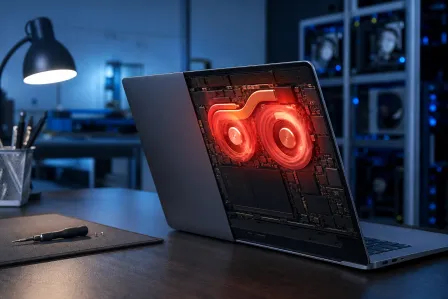
If you’ve had your MacBook for a while, dust is basically inevitable. Dust mats out heatsink fins, clogs fan blades, and turns your cooling system into a sad little hairball. On Intel MacBooks with fans, this is a top-tier cause of overheating and macbook fan noise.
Why it matters: Cooling is all about moving heat away from the CPU and out of the chassis. Block airflow, and heat saturates everything fast.
2) Soft surfaces and “vent suffocation”
Gaming on a bed? Editing video on a couch? I get it, cozy vibes. But soft surfaces can block intake/exhaust paths and trap heat. Even fanless models can get toasty if they can’t dump heat into the air.
Why it matters: Your Mac’s mac thermal management expects open air around the chassis to shed heat.
3) Background processes spiking CPU/GPU
Sometimes your MacBook isn’t overheating because it’s “old” - it’s overheating because something is absolutely going cracked in the background. Common culprits:
- Browser tabs (especially video, heavy web apps, or runaway scripts)
- Cloud sync loops (iCloud Drive, Dropbox, OneDrive)
- Spotlight indexing after an update or migration
- External displays pushing high refresh or high resolution
- Rogue apps stuck in a CPU loop
Why it matters: More CPU/GPU work equals more watts, and watts equal heat. Even Apple Silicon can heat up under sustained loads.
4) Dried thermal paste (mostly on older Intel models)
Thermal paste is the microscopic “bridge” between the CPU and heatsink. Over time, it can dry out and lose efficiency. When that happens, your CPU temps spike faster and stay higher.
Why it matters: Bad paste means heat can’t move into the heatsink efficiently, so fans ramp, performance drops, and temps stay spicy.
5) Apple Silicon heat issues (what’s real, what’s not)
Let’s be accurate here: Apple Silicon Macs (M1 through M4) are generally very efficient. But apple silicon heat issues can still show up in real life with sustained workloads like:
- Long video exports
- 3D rendering
- Running virtual machines
- External monitor setups
- High ambient temps (hello Florida)
Why it matters: Even efficient chips can saturate a thin chassis if the workload is constant. Heat soak is real.
MacBook overheating fix: Safe DIY steps you can do at home
Okay, here’s where we go from “it runs” to “it FLIES.” These are the safe, no-drama steps that can seriously reduce temps and fan noise without risking your machine.
Step 1: Check Activity Monitor for CPU hogs
- Open Activity Monitor (Applications - Utilities).
- Click the CPU tab.
- Sort by % CPU.
- Look for anything pinned high for minutes at a time.
If you find a culprit, quit the app normally first. If it won’t quit, use “Force Quit” carefully. If the same process keeps coming back, that’s a clue something deeper is going on (bad extension, corrupted app install, or malware-like behavior).
If you suspect something nasty, check out our virus removal service for Macs - because yes, macOS can still get hit with adware, malicious extensions, and unwanted background junk that burns CPU and cranks heat.
Step 2: Update macOS and your apps (thermal fixes can be software)
macOS updates often include bug fixes and power management improvements. Keep macOS (currently macOS Sequoia, version 15) and key apps updated, especially browsers and creative tools.
Also: if overheating started right after an update, give Spotlight indexing some time. If it lasts more than a day or two, it’s time to investigate.
Step 3: Improve airflow the simple way
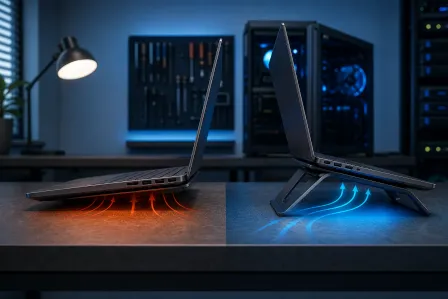
- Use the MacBook on a hard, flat surface.
- Elevate the rear slightly (a stand helps).
- Keep it out of direct sun and hot cars.
- Unplug unused peripherals and hubs that add heat.
Why it works: Better airflow lets the chassis and heatsink dump heat faster, reducing fan ramping and throttling.
Step 4: MacBook vent cleaning (what’s safe and what’s not)
macbook vent cleaning can be clutch, but do it safely:
- Do: Use gentle bursts of compressed air at an angle around vents and hinge areas.
- Do: Power down fully first.
- Do not: Jam objects into vents or use a high-powered blower.
- Do not: Spin fans aggressively with air if you have the bottom removed (overspin can damage bearings).
If your MacBook is older Intel and you’re comfortable opening the bottom cover, internal dust cleaning can be a game-changer. If you’re not comfortable, no shame. That’s exactly what our computer repair team is for. We love a clean thermal comeback story.
Step 5: Reduce browser heat (yes, your tabs are cooking your laptop)
Browsers can be mini space heaters. Try this:
- Close heavy tabs and streaming pages you aren’t watching.
- Disable unnecessary extensions (especially coupon and “search helper” stuff).
- Try Safari for efficiency, or a fresh Chrome profile if Chrome is misbehaving.
Why it works: Less CPU time equals less heat, less fan noise, and fewer slowdowns.
Step 6: Reset SMC and NVRAM (Intel Macs only)
If you have an Intel MacBook and the fans are acting weird (ramping for no reason), SMC and NVRAM resets can help. Apple Silicon Macs do not use SMC the same way, and most “reset” behavior is handled by a normal restart and system management built into the platform.
For official guidance, see Apple guidance on Mac notebook temperatures and fans.
Mac thermal management explained (aka why your Mac slows down when it’s hot)
Let’s demystify it. Mac thermal management is macOS and firmware working together to keep your system inside safe temperature limits. When temps rise:
- Fans ramp up (if your model has them) which creates macbook fan noise
- Clock speeds drop (that’s mac cpu throttling)
- Performance tanks so the chip can cool down
What you feel: apps lag, beachballs happen, video playback stutters, exports take longer, and the keyboard deck gets warm. It’s not your imagination. It’s physics.
When overheating is a red flag: Signs you should see a tech
DIY is awesome, but some symptoms mean you should stop grinding and get it checked before it turns into a bigger bill.
1) Your MacBook shuts down or reboots under load
Random shutdowns during Zoom calls, gaming, or exports can indicate thermal protection triggers, battery issues, or logic board problems. If it’s happening repeatedly, don’t brute-force it.
2) Constant max fan noise even at idle (Intel models)
If your fans are screaming when you’ve got basically nothing open, you might have:
- Clogged heatsink/fans
- Failing fan
- Sensor issues
- Runaway background processes
This is where a proper diagnostic is worth its weight in RGB.
3) Visible swelling, trackpad issues, or the bottom case looks bowed
Stop using it and get it checked. Swelling can indicate battery failure, which is a safety issue and can also increase heat.
4) Thermal paste service needed (common on older Intel machines)
If cleaning and software checks don’t help, dried thermal paste or uneven heatsink contact can keep temps high. Re-pasting is a precision job, and it’s easy to damage connectors if you rush. If you want it done right, book a pro.
5) You’re worried about your files (heat + crashes = risk)
Heat-related instability can lead to crashes and file corruption. If your Mac is freezing, kernel panicking, or failing to boot, prioritize your data. Our data recovery service can help if things go sideways.
Palm Beach County reality check: Heat, sand, and laptops do not mix
Let’s talk local. In Palm Beach County, we’ve got warm ambient temps and plenty of fine dust and sand in the air. That combo makes clogged cooling systems more common than you’d think, especially if you use your MacBook near open windows, patios, or you travel with it a lot.
If you’re in West Palm Beach, Palm Beach Gardens, Lake Worth, Boynton Beach, Wellington, Royal Palm Beach, or nearby areas, a seasonal cleaning and performance check is one of those “future you will thank you” moves.
Quick checklist: MacBook running hot fixes in 10 minutes
- Restart the MacBook (seriously, do it)
- Open Activity Monitor and kill the top CPU hog
- Close heavy browser tabs and disable sketchy extensions
- Move to a hard surface and elevate the rear
- Update macOS and key apps
If it’s still cooking after that, you’re likely looking at airflow blockage, failing cooling hardware, or a deeper software problem.
Need help without leaving home? Remote troubleshooting is a thing
If your MacBook is overheating because of background processes, startup items, or software conflicts, we can often help without you driving across town. Check out our remote support service for fast diagnostics and cleanup guidance.
And if you suspect malware or adware is turning your Mac into a space heater, here’s a solid read: Malwarebytes resources on malware symptoms and cleanup.
Need Expert Computer Support?
Get professional help from Palm Beach County's trusted computer repair specialists.
Get Help Today