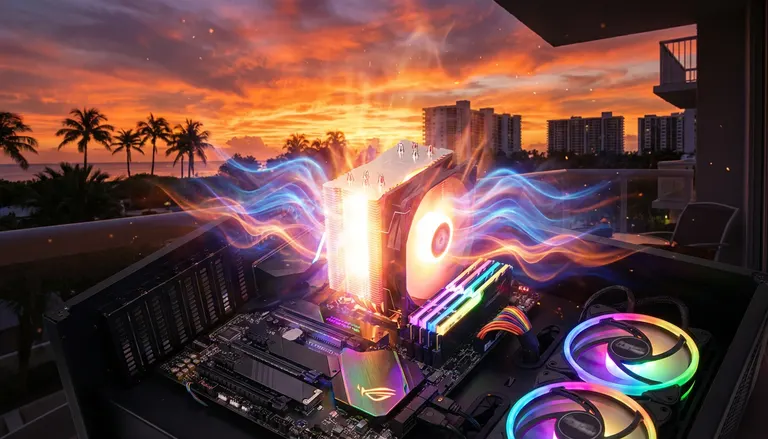
How to Stop Gaming PC FPS Drops: A Thermal Throttling Checklist
Listen to this article
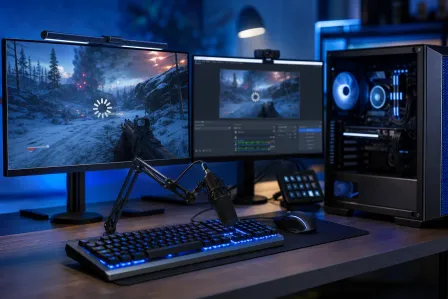
TL;DR: If you’re getting gaming PC FPS drops and that nasty stutter mid-fight, your rig might not be “weak” - it might be hot. Thermal throttling can silently slam your clocks (CPU and GPU) to save itself, which looks exactly like random dips, hitching, and “why does it feel worse after 10 minutes?” gameplay.
I’m Hardware Hank, and we’re about to go full detective mode: confirm throttling with real sensor data, fix the root cause (dust, paste, airflow, fan curves), and only then talk upgrades. Because buying a new GPU when you really needed a $10 tube of paste is the most tragic side quest in PC gaming.
Why Gaming PC FPS Drops Happen (And Why Heat Is Usually the Villain)
Let’s set the stage. Your PC can run a game fine for a bit, then suddenly you get stutter in games, frame dips, input lag vibes, and your “butter smooth gameplay” turns into a slideshow. That pattern screams thermal throttling more often than it screams “dead GPU.”
Here’s why heat hits performance so hard:
- Modern CPUs and GPUs boost dynamically. They chase higher clocks until they hit power or temperature limits.
- When temps spike, clocks drop. Lower clock = fewer frames = stutter city.
- Heat can build over time. Dust, weak airflow, and tired thermal paste get worse as the case heat-soaks.
And no, this isn’t just a “high-end rig problem.” Budget builds can be absolute champions - they just need clean airflow and sensible cooling to stay cracked.
Confirm Thermal Throttling with HWiNFO Sensors (No Guessing, Just Data)
If you do one thing from this entire checklist, do this: measure before you wrench. Your goal is to catch the moment FPS drops and match it to temps and clocks.
What to Install and What to Watch
- HWiNFO (Sensors-only mode) to track temps, clocks, and throttling flags.
- AIDA64 stress test (or its system stability test) to load CPU, memory, and optionally GPU.
In HWiNFO, pin these like they’re legendary loot:
- CPU Package Temperature (and per-core temps if available)
- CPU Clocks (effective clock is especially useful)
- CPU Thermal Throttling / PROCHOT indicators (if exposed)
- GPU Temperature
- GPU Hotspot Temperature (big one!)
- GPU Clock and GPU Power
- Fan RPM for CPU and GPU
GPU hotspot temperature is the “spiciest point” on the GPU die. Your average GPU temp can look fine while the hotspot is quietly cooking and forcing downclocks. That mismatch is a classic FPS-drop trap.
How to Reproduce the FPS Drops on Command
- Start HWiNFO sensors and leave it logging if you can.
- Run your game in the same scenario that triggers drops (same map, same settings, same chaos).
- When the stutter hits, alt-tab and check clocks + temps (or review the log afterward).
Signs you’re throttling:
- Temps climb, then clocks fall right when FPS tanks.
- Fans are already screaming, but temps still rise (airflow or contact problem).
- GPU hotspot climbs way higher than GPU temp (potential paste or mount issue).
CPU Temperature Spikes: The Silent FPS Drop Assassin
CPU temperature spikes can cause brutal 1% lows (the dips you feel as stutter) even if your average FPS looks decent. Competitive titles especially feel awful when the CPU stops boosting.
Common Causes of CPU Spikes
- Dust-clogged heatsink or AIO radiator
- Pump issues on an AIO (low RPM, bad header config, or failing pump)
- CPU cooler not mounted evenly
- Old thermal paste that’s dried out
- Case airflow feeding the CPU cooler hot air
Quick CPU Checks (Fast Wins)
- Verify fan direction: front/side intake, rear/top exhaust is the usual clean setup.
- Check AIO pump speed: many AIOs want a constant full-speed pump header.
- Reseat the cooler: even pressure matters. Uneven mount = uneven temps.
If your CPU hits its thermal limit and drops clocks under load, that’s not “normal.” That’s your frames getting nerfed.
GPU Hotspot Temperature: Why Your “GPU Temp Is Fine” Can Still Be a Lie
Okay, gamers, this is where the magic happens. You look at GPU temp and it says something reasonable, but your FPS still collapses after a few rounds. Then you check gpu hotspot temperature and it’s in the danger zone. That hotspot is often what triggers throttling first.
What Hotspot Behavior Usually Means
- Hotspot much higher than GPU temp: contact or paste issue is likely.
- Hotspot climbs fast: cooler saturation, dust, or fan curve too chill.
- Clocks drop while power drops: GPU protecting itself from heat.
Not every GPU reports hotspot the same way, but when it’s available in HWiNFO, it’s absolute gold for diagnosing stutter.
Clean Gaming PC Dust: The Cheapest FPS Upgrade You’ll Ever Get
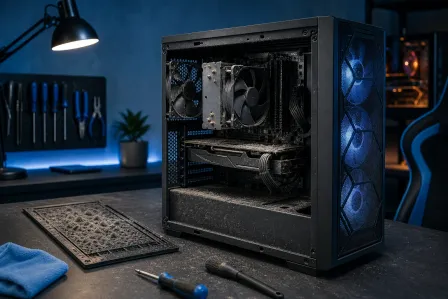
I’m not joking: clean gaming PC dust can be a bigger performance upgrade than people expect, because it restores boosting behavior. Dust turns your heatsinks into sweaters, your filters into walls, and your fans into sad little pinwheels.
How to Clean Without Breaking Stuff
- Power down and unplug. Flip the PSU switch off.
- Hold fans in place when using compressed air (don’t overspin bearings).
- Clean filters first: front panel filters, bottom PSU filter, top filter.
- Blow through heatsinks and radiators from the clean side outward if possible.
Placement suggestion: Put a supporting image of dust cleaning and filter removal right after this H2 to make the steps super visual.
Airflow Optimization: Feed Your Beast Fresh Air
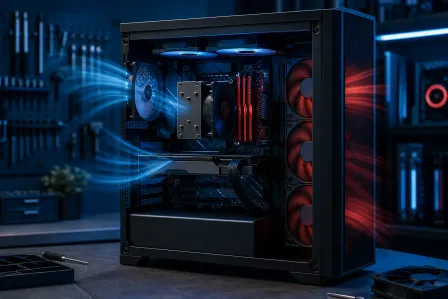
Airflow optimization is the difference between “it runs” and “it FLIES.” Your parts don’t just need cooling - they need a steady supply of cool intake air and a clean exhaust path.
Airflow Rules That Actually Matter
- Intake beats exhaust (slightly). Mild positive pressure helps reduce dust intrusion.
- Front intake fans should have a clear path. Cables and drive cages can choke flow.
- Top exhaust is great if your case supports it, especially for CPU heat.
- Don’t suffocate the GPU. If the GPU is starved for air, hotspot climbs and frames die.
Case Layout Tips (No-RGB Shaming, Only Performance)
- If your front panel is solid glass with tiny side vents, consider higher static-pressure intake fans.
- Re-route cables behind the motherboard tray. Cleaner airflow and cleaner looks. Poggers.
- Make sure the PC isn’t shoved into a tight desk cubby. Your rig needs breathing room.
Fan Curve Tuning: Stop Throttling Before It Starts
Fan curve tuning is basically overclocking’s responsible cousin. You’re telling your system: “Spin up sooner so temps never get the chance to spike.” The result is more stable boost clocks and fewer frame-time spikes.
CPU Fan Curve Basics
- Set a more aggressive ramp starting around the mid-temp range so it doesn’t wait until the CPU is already boiling.
- Avoid ultra-smooth curves that react too slowly. FPS drops happen fast.
GPU Fan Curve Basics
- If your GPU software allows it, bump fan speed earlier to control hotspot.
- Watch for diminishing returns: +10% fan can be a big temp win, but +30% might just be noise.
Goal: stable clocks. Stable clocks = stable frame times. Stable frame times = that “butter smooth gameplay” vibe.
Repaste CPU GPU: When Temps Say “I’m Tired, Boss”
If you’ve cleaned dust, optimized airflow, and tuned fans but temps still spike hard, it might be time to repaste CPU GPU. Thermal paste is not magical forever-goop. It can dry out, pump out, or just lose performance over years of heat cycles.
When Repasting Makes Sense
- CPU temps spike instantly under load even with a decent cooler
- GPU hotspot is consistently way higher than expected and keeps climbing
- You see throttling behavior even after cleaning and airflow fixes
Repaste Safety Notes (Read This, Legends)
- Use high-quality thermal paste from reputable brands.
- Clean old paste with high-percentage isopropyl alcohol and lint-free wipes.
- For GPUs, repasting can be more advanced (pads, screws, pressure). If you’re not confident, that’s not an L - it’s smart.
Placement suggestion: Put a supporting image showing CPU paste cleanup and reapplication right after this H2.
Stress Testing with AIDA64: Prove the Fix and Lock in Stable FPS
Once you’ve made changes, you need to validate them. This is where the aida64 stress test (system stability test) plus HWiNFO logging becomes your scoreboard.
How to Test Without Cooking Your Rig
- Open HWiNFO sensors and start logging.
- Run AIDA64 stability test for a controlled session.
- Watch temps, clocks, and whether throttling flags trip.
- Then run your actual game (because real workloads matter most).
If temps are lower and clocks stay higher for longer, that’s real performance you can feel. GG.
Don’t Ignore Background Issues That Make Stutter Worse
Heat is the headline today, but background chaos can amplify stutter. If your system is already borderline on thermals, extra CPU tasks can push it over the edge.
- Check Windows startup apps and background utilization.
- Keep Windows 10 or Windows 11 updated and drivers current.
- If you suspect malware or unwanted background processes, use trusted guidance like Malwarebytes resources for checking background activity.
For Windows stability troubleshooting references, Microsoft’s documentation can be a useful starting point: Microsoft documentation and troubleshooting resources for Windows stability checks.
When It’s Time for Palm Beach Gaming PC Repair (Diagnostics > Guesswork)
If you’ve confirmed throttling in hwinfo sensors data but fixes aren’t sticking, it’s time to stop throwing parts at the problem. This is where professional diagnostics are clutch.
At Fix My PC Store, we help gamers across Palm Beach County (West Palm Beach, Palm Beach Gardens, Lake Worth Beach, Boynton Beach, Jupiter, Wellington, and nearby areas) figure out what’s actually causing FPS drops: cooling failures, failing fans, warped mounts, case airflow problems, or power/driver issues that look like heat.
- Desktop acting up? Book gaming PC computer repair and performance diagnostics.
- Gaming laptop doing the stutter shuffle? Check laptop repair for overheating and FPS drops (laptops throttle hard when clogged).
- Want guided help without leaving your setup? Use remote support for troubleshooting stutter and FPS drops to review software, sensors, and settings.
Thermal Throttling Checklist (Print This, Save This, Live By This)
- Step 1: Reproduce the FPS drops and log HWiNFO sensors.
- Step 2: Check CPU temperature spikes and CPU clocks under load.
- Step 3: Check GPU temp and GPU hotspot temperature plus GPU clocks.
- Step 4: Clean gaming PC dust (filters, heatsinks, radiators).
- Step 5: Airflow optimization (fan direction, cable management, intake path).
- Step 6: Fan curve tuning for CPU and GPU to prevent heat spikes.
- Step 7: Repaste CPU GPU if data suggests poor thermal transfer.
- Step 8: Validate with AIDA64 stress testing and real-game sessions.
Do this and you’ll go from random dips to stable, consistent performance. That’s the real flex.
Ready to Upgrade Your Gaming Rig?
Get expert gaming PC builds, upgrades, and repairs from Palm Beach County's performance specialists.
Level Up Now