
How to Set Up a Secure Home Office Network
Your home network is the front door to everything, your files, your clients, your bank. Most people leave it wide open. This guide walks you through locking it down properly, without buying a bunch of gear you don't need.
TL;DR: Change your router's default credentials, segment your network into separate SSIDs, and enable a proper firewall. Those three things alone will put you ahead of 90% of home office setups in Palm Beach County. Everything else below makes it even better.
What You Need
- Your router's admin login (usually printed on a sticker on the back of the unit)
- A computer or phone connected to your home network
- About 45 minutes and a cup of coffee (or two, depending on your router's interface)
- A password manager app, any reputable one will do
- Optional but worth it: a consumer-grade router that supports VLANs or a guest network (most made after 2019 do)
You do not need to spend $400 on a mesh system to do this right. A solid $80-$120 router from a known brand is plenty for a one or two-person home office. (Don't let any YouTube "tech influencer" talk you into a rack-mounted enterprise setup for checking email and joining Zoom calls.)
Step 1: Log Into Your Router and Change the Default Admin Password
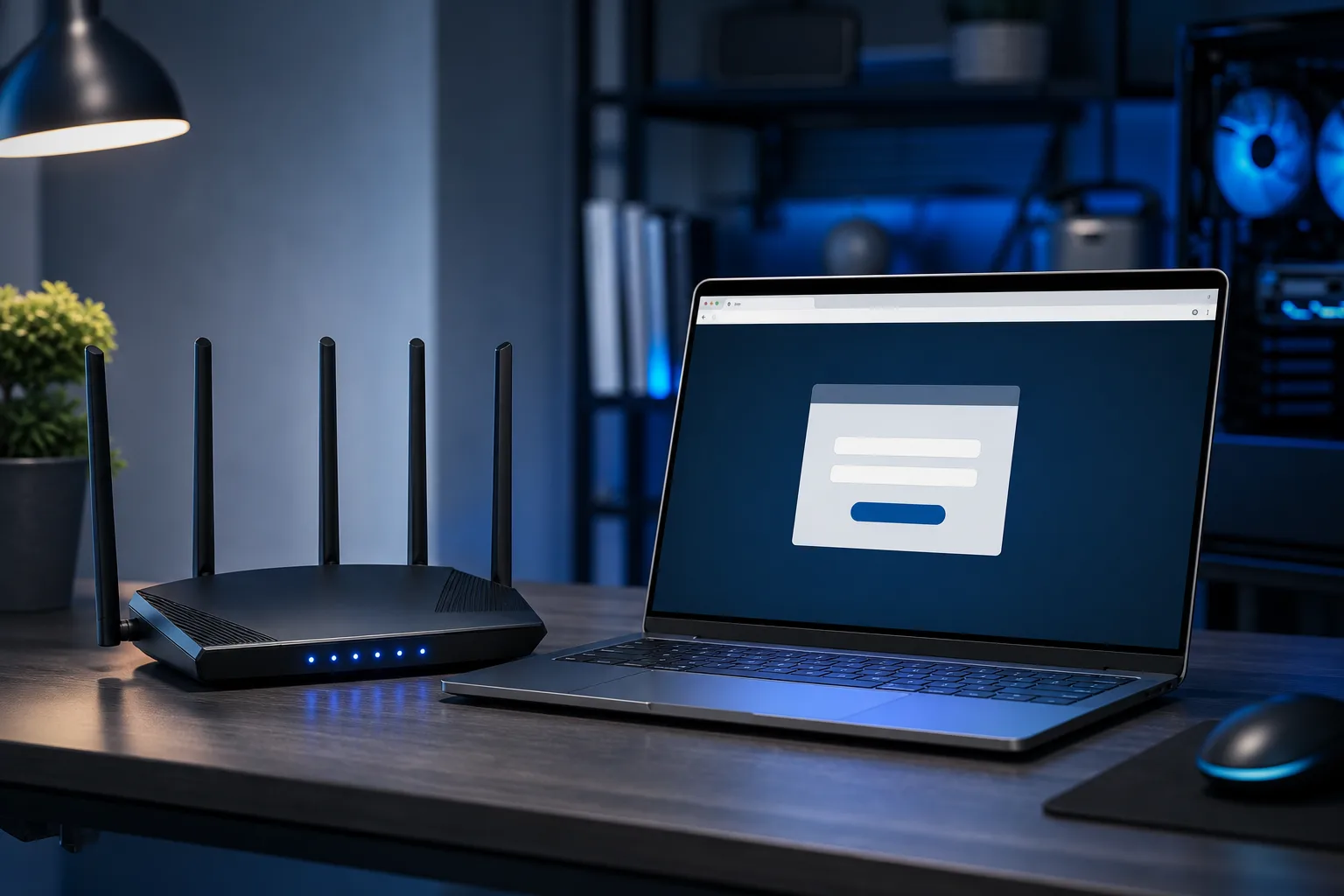
Open a browser. Type 192.168.1.1 or 192.168.0.1 into the address bar. One of those will pull up your router's login page. The default username and password are almost always something like admin / admin or admin / password. It's printed on the router.
Now change them. Both the username and the password. Make the password long, at least 16 characters. Use your password manager to generate and store it. Write it on a piece of tape stuck to the router if you want. I don't care. Just don't leave it as admin.
This is the single most skipped step in home network security. Attackers scan for routers with default credentials constantly. It takes them seconds. It takes you two minutes to fix.
Step 2: Update Your Router's Firmware
While you're in the admin panel, find the firmware update section. It's usually under "Advanced" or "Administration." Check for updates and apply them.
Router manufacturers push firmware patches to fix security holes. Most routers don't auto-update. Yours is probably running firmware from the day it came out of the box. (Which, if you bought it in 2020 and never touched it, means it's had four or five years of unpatched vulnerabilities sitting on your network.)
Set a calendar reminder to check firmware every three months. It takes five minutes.
Step 3: Rename Your Network and Disable SSID Broadcasting Tricks
Rename your Wi-Fi network, the SSID, to something that doesn't identify your household or business. Don't name it "Smith Family" or "JonesLawOffice." Something generic and unmemorable is fine.
You'll hear people say to hide your SSID entirely so it doesn't broadcast. Don't bother. Any basic scanning tool sees hidden networks anyway, and hiding it just makes your own life harder when you need to connect something new. Rename it, don't hide it.
Step 4: Set Up a Separate Network for Work and One for Everything Else
This is the step most people skip, and it's the one that matters most for a home office.
Your smart TV, your kid's tablet, your Ring doorbell, your guest's phone. those all share your network right now. If any one of them gets compromised, an attacker is on the same network as your work laptop and your client files.
The fix is network segmentation. Most modern routers let you create a guest network. Use it. Put all your IoT devices and personal devices on the guest network. Put your work computer, your NAS, your printer on the main network.
If your router supports VLANs, even better. But a basic guest network separation is a massive improvement over one flat network for everything.
For businesses with multiple employees working remotely, this is exactly the kind of thing our business networking team helps set up properly.
Step 5: Use WPA3 Encryption (or WPA2-AES at Minimum)
In your router's wireless settings, look for the security protocol. Make sure it's set to WPA3 if your router supports it. If not, WPA2 with AES encryption is acceptable. WPA2-TKIP is outdated. WEP is a joke from 2005. If you see either of those, change them immediately.
Your Wi-Fi password should also be strong. Same rules as the admin password: long, random, stored somewhere safe. "Fluffy2012" is not a Wi-Fi password.
Worried your business is one click from a breach? Get a security review
Step 6: Enable the Router's Built-In Firewall
Almost every consumer router has a firewall built in. Almost nobody checks if it's actually turned on.
Go into your router's security or firewall settings. Make sure SPI (Stateful Packet Inspection) firewall is enabled. While you're there, disable remote management unless you specifically need it. Remote management means someone can try to log into your router from outside your network. You almost certainly don't need that.
Also disable UPnP if you're not gaming. UPnP automatically opens ports when applications request it, which is convenient and also a known attack surface. For a home office doing video calls and document work, you don't need it.
Step 7: Set Up a VPN for Work Traffic
If you're handling any client data, financial information, medical records, legal documents, anything sensitive, you should be running a VPN on your work machine or router.
A VPN encrypts your traffic before it leaves your network. It also protects you when you inevitably end up working from a coffee shop in Delray or a hotel in Fort Lauderdale.
For business use, look at solutions like WireGuard or your employer's provided VPN. Consumer VPN services vary wildly in quality and trustworthiness. Check your company's IT policy first. If you run your own small business, talk to someone about setting up a proper business VPN. Our business cybersecurity team handles exactly this.
Step 8: Lock Down Your Devices on the Network
The router is only part of the picture. Every device on your network is a potential entry point.
Make sure Windows or macOS firewall is turned on for each work device. Keep operating systems and software updated. Don't use the same password across different services. (A password manager makes this easy. There's no excuse in 2024 for reusing passwords.)
If you're running Windows and using Microsoft 365 for work, make sure multi-factor authentication is enabled on every account. Microsoft's own data suggests MFA blocks the overwhelming majority of automated account attacks. That's not a number I'm making up. It's in their published security research.
Step 9: Set Up Automatic Backups
This isn't directly a network security step, but it belongs in this conversation. If something does go wrong, ransomware, hardware failure, a bad update, your backup is what keeps you in business.
A local backup plus a cloud backup is the minimum. If you're storing work files only on your laptop with no backup, you're one hard drive failure away from a very bad week.
We cover backups and disaster recovery for businesses of all sizes. Even if you're a one-person operation, a proper backup strategy costs less than the alternative.
Common Mistakes
Leaving the ISP's router in charge. Your ISP-provided modem-router combo is designed for convenience, not security. The admin credentials are often the same across thousands of units. Replace it or at least put your own router behind it.
Assuming the cable guy set everything up correctly. He installed the hardware. He did not configure your security settings. That's your job.
Using the same Wi-Fi password you've had since 2015. Change it. Yes, you'll have to reconnect your devices. It takes twenty minutes. Do it.
Not having a guest network. Every device on one network means one compromised device can see everything. Segment it.
Buying gear you don't understand and can't maintain. A $500 router sitting on factory settings is worse than an $80 router someone actually configured. Don't let YouTube push you into enterprise hardware for a two-person home office.
Forgetting about this stuff until something goes wrong. Security isn't a one-time setup. Check your firmware quarterly. Review who's on your network occasionally. It's not glamorous. Do it anyway.
If your situation is more complex, multiple employees working remotely, client data regulations, compliance requirements, that's when you call professionals. Our managed IT team works with small businesses across Palm Beach and the Treasure Coast who don't have in-house IT staff but still need things done right.
And if you're not sure where your current setup stands, we offer remote support sessions where we can walk through your network configuration with you without you having to bring anything into the shop.
Bottom Line
Setting up a secure home office network is not complicated. It's just steps that most people skip because nobody told them they mattered. Change your admin credentials. Update your firmware. Segment your network. Use strong encryption. Turn on the firewall. Back everything up.
None of this costs much. None of it requires an IT degree. And every single step makes you a harder target than the next person who skipped it.
If you're in West Palm Beach or anywhere in South Florida and want a professional set of eyes on your setup, book a time with us. We'll tell you exactly what's misconfigured and what you can leave alone. No upselling, no scare tactics. Just straight answers.
Worried your business is one click from a breach?
Get a straight-talk security review from a local team that has cleaned up the aftermath more times than we'd like.
Frequently asked questions
How often should I update my router's firmware?
Check for firmware updates at least every three months. Most routers don't update automatically, so you have to log into the admin panel and check manually. Manufacturers release firmware patches to close security vulnerabilities, and skipping updates leaves those holes open indefinitely.
Do I need a separate router for my home office or can I use my ISP's equipment?
You can use ISP-provided equipment, but it's not ideal. ISP routers often share default credentials across thousands of units and have limited security configuration options. A dedicated consumer router, even a budget one that you actually configure properly, is generally more secure and gives you more control.
Is a guest network really necessary if I work from home alone?
Yes, because it's not just about other people. Your smart TV, thermostat, doorbell camera, and other IoT devices all live on your network. Those devices are frequently targeted and rarely updated. Putting them on a guest network keeps them separated from your work computer and client data.
What's the difference between WPA2 and WPA3, and does it matter?
WPA3 is the newer Wi-Fi encryption standard and is more resistant to certain password-guessing attacks than WPA2. If your router and devices support WPA3, use it. If not, WPA2 with AES encryption is still acceptable. What you absolutely want to avoid is WPA2-TKIP or WEP, both of which are outdated and considered insecure.
Do I need a VPN if I work from home and don't travel?
If you never leave your home to work and you're handling low-sensitivity data, a VPN is less critical but still a good layer of protection. If you handle client information, financial records, or any regulated data, a VPN is worth the trouble. It also protects you when you eventually do work from a coffee shop or hotel.
Can you help me set up or audit my home office network remotely?
Yes. We offer remote support sessions where we can walk through your router settings, network configuration, and connected device security with you directly. For more complex business setups involving multiple remote employees or compliance requirements, our managed IT team handles those engagements as well.