How to Recover Data From a PC That Won’t Boot (Step-by-Step)
Listen to this article
If your computer won't boot data recovery is suddenly urgent, you are not alone. In 2026, many homeowners and small businesses only discover their backups are incomplete when Windows will not start. The good news is that in many cases you can recover files from an unbootable PC safely without wiping the drive. This guide walks through non-destructive options: using Windows recovery tools, booting from a recovery USB, and removing the drive to copy files using an external enclosure.
These steps are written for Windows 10 and Windows 11 PCs. If you are in West Palm Beach or anywhere in Palm Beach County and you need hands-on help fast, Fix My PC Store can assist with professional data recovery services and diagnostics.
Before You Start: Do This to Avoid Making Data Loss Worse
1) Stop repeated boot attempts if you hear clicking or grinding
If the PC makes repetitive clicking, grinding, or does not detect the drive in BIOS/UEFI, powering it on repeatedly can worsen physical damage. Skip DIY and contact a shop for Palm Beach County data recovery assistance.
2) Do not run “Reset this PC” or reinstall Windows yet
A reset or reinstall can overwrite data. Focus first on getting your files off the drive. Repair attempts can come later, often through computer repair and boot diagnostics.
3) Gather what you need
- A second working Windows PC (for creating a USB)
- A USB flash drive (at least 8 GB) for a bootable environment
- An external drive to copy files to (USB HDD/SSD)
- If removing the drive: the right screwdriver and an external enclosure for SSD/HDD or a USB-to-SATA adapter
Option 1: Recover Files Using Windows Recovery Environment (WinRE)
When Windows will not start, the Windows Recovery Environment can sometimes provide a path to access files without fully booting Windows. This is the least invasive option and should be tried first.
Step-by-step: Get into WinRE
- Power on the PC and as soon as you see the Windows logo, hold the power button to force it off.
- Repeat this 2-3 times. Windows should load Automatic Repair and then Advanced options.
- Go to Troubleshoot -> Advanced options.
Microsoft’s official overview of recovery options is here: Windows recovery options (Microsoft Support).
Method A: Try Safe Mode file recovery
If Windows is only partially broken, Safe Mode file recovery can work.
- In Advanced options, choose Startup Settings -> Restart.
- Press 4 for Safe Mode or 5 for Safe Mode with Networking.
- If you reach the desktop, plug in an external drive and copy your user folders (Desktop, Documents, Pictures, etc.).
Tip: Prioritize irreplaceable items first: accounting files, QuickBooks company files, client documents, photos, and email archives.
Method B: Use Command Prompt to copy files (no desktop needed)
If Windows will not load a usable desktop, you can still copy files from WinRE using Command Prompt. This is a practical way to access files without Windows.
- Advanced options -> Command Prompt.
- Identify drive letters (they can change in WinRE). Type: notepad and press Enter.
- In Notepad, go to File -> Open to browse drives and confirm where your files are (for example, C: or D:).
- Close Notepad and use robocopy to copy data to an external USB drive.
Example robocopy commands (adjust drive letters):
robocopy "C:\Users\YourName\Documents" "E:\Backup\Documents" /E /COPY:DAT /R:1 /W:1
robocopy "C:\Users\YourName\Desktop" "E:\Backup\Desktop" /E /COPY:DAT /R:1 /W:1
If you are unsure which drive letter is your USB backup drive, unplug it and re-plug it, then check again in Notepad Open or by running diskpart and list volume.
Option 2: Use a Bootable Recovery Drive to Recover Files From an Unbootable PC
If WinRE is missing, corrupted, or too limited, the next step is a bootable recovery drive. This approach boots the computer from USB so you can copy files without relying on the installed Windows.
Step 1: Create a Windows installation USB (official method)
On a working PC, use Microsoft’s Media Creation Tool to create installation media for Windows 10 or Windows 11. This does not automatically erase your data. It just gives you a bootable environment.
Official guide: Create installation media for Windows (Microsoft Support).
Step 2: Boot the non-working PC from USB
- Insert the USB into the unbootable PC.
- Power on and open the boot menu (commonly F12, Esc, F9, or F11 depending on the manufacturer).
- Select the USB device.
- When the Windows Setup screen appears, choose Repair your computer (do not click Install).
Step 3: Copy files using Command Prompt (from the USB environment)
From the repair options, open Command Prompt and use the same Notepad and robocopy method described above. This is often the fastest DIY method to recover files from an unbootable PC without opening the computer.
What about Macrium Reflect or a Macrium Reflect alternative?
Many older guides recommend imaging tools such as Macrium Reflect. Macrium Reflect remains a real product, but licensing and availability can change over time. If your goal is simply to copy critical files, the built-in Windows recovery tools above are usually enough.
If you need a full-disk image (recommended for unstable drives), consider having a technician create a sector-by-sector image using professional-grade tools. This reduces risk compared to repeated DIY scans on a failing drive. Fix My PC Store can evaluate whether imaging is the safest next step through our data recovery service.
Option 3: Remove the Hard Drive and Copy Files Using an External Enclosure
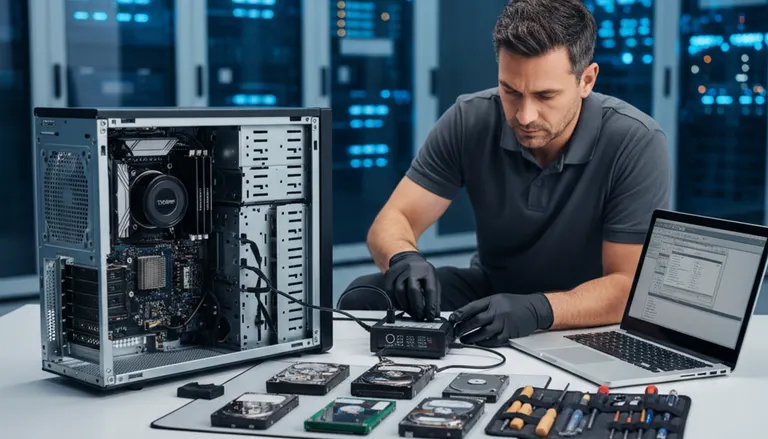
If the PC will not boot at all (or the motherboard/power supply is the issue), the most reliable DIY method is to remove the hard drive and copy files from another computer. This is also the best option when Windows is badly corrupted but the drive itself is still readable.
Step 1: Identify your storage type (2.5-inch SATA, 3.5-inch SATA, or M.2)
- 2.5-inch SATA SSD/HDD: common in laptops and many desktops.
- 3.5-inch SATA HDD: common in desktops.
- M.2 SSD: a small “gumstick” SSD. It can be SATA (M.2 SATA) or NVMe (M.2 NVMe). Enclosures must match the type.
Step 2: Power down safely and remove the drive
- Shut down and unplug power (and remove the laptop battery if it is removable).
- Hold the power button for 10 seconds to discharge residual power.
- Ground yourself to reduce static risk.
- Remove the drive carefully and keep screws organized.
Step 3: Use an external enclosure for SSD/HDD and copy your data
Connect the removed drive to a working PC using a USB enclosure or adapter:
- SATA drives: USB-to-SATA adapter or a 2.5-inch/3.5-inch enclosure (3.5-inch usually needs external power).
- M.2 NVMe: NVMe USB enclosure (make sure it explicitly says NVMe).
Once connected, open File Explorer and copy:
- C:\Users\<name>\Desktop
- C:\Users\<name>\Documents
- C:\Users\<name>\Pictures
- Any business app data folders you rely on
If you get “Access Denied”
This is common when permissions were tied to the old Windows install. Try:
- Right-click the folder -> Properties -> Security -> Advanced -> change Owner to your current user, then apply.
Important: If BitLocker is enabled, you will need the recovery key to access the data. Look for it in your Microsoft account (if used) or your organization’s IT records. If you cannot locate it, stop and seek professional help to avoid lockouts.
When DIY Stops: Signs You Need Professional Data Recovery
DIY steps are best for logical issues (corrupt Windows, bad updates, minor file system problems). You should stop and request help if you see any of these:
- Drive is not detected in BIOS/UEFI
- Clicking, beeping, or repeated spin-up/spin-down sounds
- Copying files causes frequent disconnects or severe slowdowns
- Severe malware suspicion (unknown encryption, ransom notes)
In those cases, professional tooling and controlled handling can improve odds. For malware-related boot failures, pair recovery with cleanup via virus and malware removal to prevent reinfection after you restore files.
Palm Beach County Data Recovery Help: Local Service Areas We Cover
If you need urgent help in Palm Beach County, Fix My PC Store supports homeowners and businesses in West Palm Beach, Palm Beach Gardens, Lake Worth, Boynton Beach, Royal Palm Beach, Wellington, Jupiter, and nearby communities. For time-sensitive situations, we can often triage quickly and advise whether remote guidance is possible through remote IT support or if the device should be brought in for bench diagnostics.
Simple Prevention Checklist (So This Does Not Happen Again)
Use the 3-2-1 backup rule
- 3 copies of important data
- 2 different storage types (PC + external drive, for example)
- 1 offsite copy (cloud backup)
Verify backups monthly
Backups fail silently. Set a calendar reminder to restore a few files to confirm they open correctly.
Keep security tight
Boot failures sometimes follow malware and ransomware. Use reputable protection and keep Windows updated. If you suspect infection, consult Malwarebytes security resources for general guidance, then schedule a cleanup if needed.
Consider a recovery plan for small businesses
If you run a small business, document where your data lives (local PC, server, cloud apps) and who has access to BitLocker keys, passwords, and backup accounts. This reduces downtime when a PC fails.
Need Expert Computer Support?
Get professional help from Palm Beach County's trusted computer repair specialists.
Get Help Today