How to Fix No Boot Device Found on PC & Mac (Step-by-Step)
Listen to this article
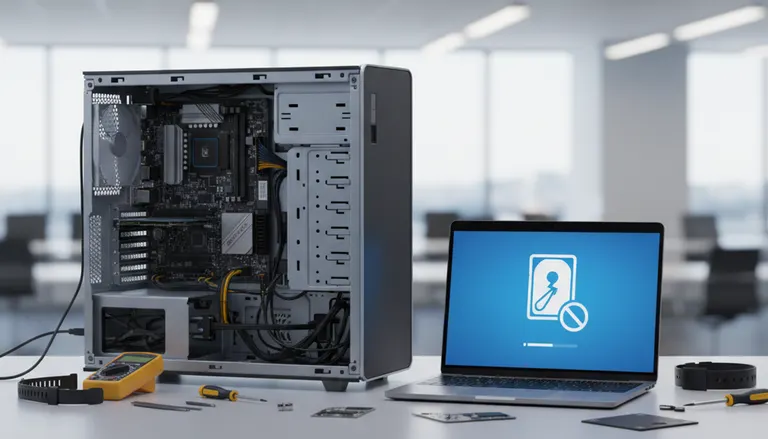
If your computer suddenly won’t start and shows “No Boot Device Found”, “Boot device not found”, or a drive-related error, you’re usually dealing with one of three issues: (1) the system can’t detect the drive (disk not detected), (2) it detects the drive but can’t boot from it (boot order or bootloader problem), or (3) the drive is failing. This guide walks you through a safe, practical no boot device found fix for both Windows PCs and Macs, including how to protect your data before you attempt repairs.
Important: If the drive contains critical files, prioritize data backup before repair. Some “fixes” can make recovery harder if the drive is failing.
No Boot Device Found Fix: What the Message Actually Means
Common PC messages
- “No boot device found”
- “Boot device not found”
- “No bootable device”
- “Operating System not found”
Common Mac symptom
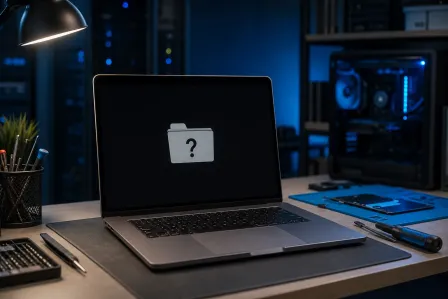
- Folder with a question mark at startup (macOS can’t find a valid startup disk)
In plain terms, the computer’s firmware (BIOS/UEFI on PCs, Apple firmware on Macs) cannot locate a valid, bootable operating system on any detected storage device.
Before You Fix Anything: Data Backup Before Repair (Do This First)
If you suspect the drive is failing (clicking noises, repeated boot loops, very slow behavior before failure, or SMART warnings), treat every boot attempt as a risk. Here are safer first moves:
Quick data-protection checklist
- Stop repeated restarts if the drive is making unusual sounds or disappears intermittently in BIOS/UEFI.
- Try a bootable USB recovery to copy files before repairs (Windows Recovery Drive, Linux live USB, or macOS Recovery tools).
- If you can access the drive from another computer, connect it via a USB-to-SATA adapter (2.5-inch SATA) or an NVMe enclosure (M.2 NVMe) and copy the most important folders first.
If you need help preserving data, Fix My PC Store can assist with data recovery services for drives that won’t boot in Palm Beach County.
Step 1: Check Power, Cables, and Simple Hardware Issues (Disk Not Detected)
A surprising number of “boot device not found” cases are caused by a loose connection or a drive that is not getting stable power.
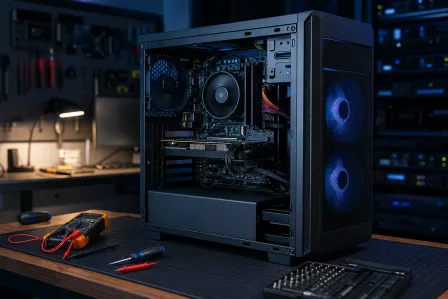
Desktop PCs: SATA cable check and power check
- Shut down, unplug the PC, and hold the power button for 10 seconds to discharge.
- Open the case and do a SATA cable check: reseat the SATA data cable on the motherboard and the drive.
- Reseat the SATA power connector from the power supply.
- If you have a spare SATA cable, swap it. If you have another SATA port, try it.
Laptops and small form factor PCs: M.2 SSD reseat
- If your system uses an M.2 SSD, remove the bottom cover (if accessible) and perform an M.2 SSD reseat.
- Inspect for obvious damage or contamination. Do not force the connector.
NVMe SSD not recognized: what it points to
If an NVMe SSD is not recognized in BIOS/UEFI, likely causes include a loose M.2 connection, a failed SSD, a BIOS setting mismatch (UEFI/Legacy), or a motherboard/slot issue. Reseating is the first safe step. If the SSD still does not appear, skip ahead to SMART checks (if possible) and recovery options.
Step 2: Confirm BIOS/UEFI Boot Order (Fix Boot Device Not Found Due to Misconfiguration)
Misconfigured BIOS UEFI boot order is one of the most common reasons a working drive won’t boot, especially after updates, power loss, or adding a new drive.
How to enter BIOS/UEFI
- Common keys: F2, Del, F10, or Esc (varies by manufacturer).
- Look for “Boot” or “Startup” menus.
What to check inside BIOS/UEFI
- Is the drive detected? If the drive is missing from storage/device lists, go back to Step 1 or suspect hardware failure.
- Set the correct boot option first. Choose “Windows Boot Manager” (common on UEFI Windows installs) or the internal SSD/HDD.
- Disable accidental USB boot priority if a flash drive is plugged in.
- UEFI vs Legacy/CSM: Most modern Windows 10/11 systems use UEFI. If settings changed, reverting can restore booting. Only change this if you understand your original configuration.
If you’re unsure which setting is correct, it’s safer to stop and get hands-on help. Our technicians can diagnose boot configuration issues via remote support when the system can still reach recovery tools, or in-store when it cannot.
Step 3: Run Windows Startup Repair (Windows 10 and Windows 11)
If the drive is detected but Windows will not boot, use built-in recovery tools. This addresses many bootloader and file system issues without reinstalling.
Option A: Use Windows Automatic Repair
- Power on and interrupt boot (hold power to shut down) 2-3 times until you see Preparing Automatic Repair.
- Go to Troubleshoot > Advanced options > Startup Repair.
Option B: Bootable USB recovery (recommended if Windows won’t enter recovery)
- Create a Windows installation USB on another PC using Microsoft’s official Media Creation Tool.
- Boot from the USB (select it from the BIOS/UEFI boot menu).
- Choose Repair your computer > Troubleshoot > Startup Repair.
Microsoft’s guidance on Windows recovery options is here: Microsoft Support for Windows recovery and troubleshooting.
If Startup Repair fails
- Try System Restore (if enabled).
- Try Uninstall Updates (if the problem started after an update).
- As a last resort, consider a repair install or reinstall after backing up data.
Step 4: Fix macOS Question Mark Folder (Startup Disk Not Found)
On a Mac, the macOS question mark folder means the Mac cannot find a valid system folder on the startup disk. Causes range from startup disk selection issues to drive failure.
1) Try Startup Manager
- Shut down the Mac.
- Turn it on and immediately hold Option (Alt).
- Select your internal Macintosh HD (or the correct system volume) if it appears.
2) Use macOS Recovery and Disk Utility
- Boot into macOS Recovery (method varies by Mac model and macOS version).
- Open Disk Utility and check whether the internal drive appears.
- Run First Aid on the disk/volume if available.
3) Reinstall macOS (after backup planning)
If Disk Utility sees the drive and First Aid completes, reinstalling macOS can rebuild system files without necessarily erasing data. Still, if data is critical, prioritize backup or professional recovery first.
Step 5: Check SMART Drive Health Test (Spot Failing SSD/HDD Early)
A SMART drive health test can indicate whether the drive is failing. Many BIOS/UEFI tools show basic SMART status. On Windows or macOS, you can also check SMART with reputable utilities (availability varies by drive and enclosure type).
Signs the drive may be failing
- Drive intermittently disappears from BIOS/UEFI
- Frequent read/write errors, freezing, or extremely slow boot before failure
- SMART status reports “Bad,” “Caution,” or similar warnings
If SMART indicates trouble, continuing to “repair” the OS may waste time and increase wear on a failing drive. At that point, the best path is often data-first recovery, followed by SSD/HDD replacement.
Step 6: When It’s a Boot Configuration Issue vs. Drive Failure
More likely misconfiguration or software issue
- The drive is consistently detected in BIOS/UEFI
- Startup Repair finds and fixes problems
- The system started failing after a BIOS update, power loss, or settings reset
More likely hardware failure
- Disk not detected in BIOS/UEFI even after reseating and cable swaps
- NVMe SSD not recognized across multiple attempts and settings checks
- SMART warnings or repeated I/O errors
If you’re stuck between these two, a proper diagnostic can save hours. Fix My PC Store offers in-shop computer repair diagnostics for Windows PCs and Macs, including storage testing and boot troubleshooting.
Step 7: Malware and Boot Problems (Less Common, Still Real)
Some boot failures are triggered by malware, failed security software updates, or corrupted system files after an infection. If the PC was behaving strangely before the boot error (pop-ups, browser redirects, unknown programs), consider scanning from a trusted recovery environment.
For prevention and cleanup, see reputable guidance from Malwarebytes: Malwarebytes threat research and removal resources. If you suspect an infection, our virus removal service can help ensure the system is clean after it boots again.
Step 8: If You Need a Bootable USB Recovery Plan (Windows and Mac)
Windows
- Create a Windows installer USB from Microsoft’s official tool.
- Use it for Startup Repair, System Restore, and Command Prompt tools when needed.
Mac
- Use macOS Recovery to run Disk Utility and reinstall macOS.
- If the internal drive is not detected, you may need professional diagnostics or an external boot option depending on the Mac model.
Palm Beach County IT Help: When to Stop DIY and Get Professional Diagnostics
If you’ve checked connections, verified BIOS UEFI boot order, attempted Windows Startup Repair or macOS Recovery, and the system still shows boot device not found, it’s time for a deeper look. The risk at this stage is spending hours on software steps when the real issue is a failing SSD, a damaged M.2 slot, or a corrupted boot structure that needs advanced tools.
Fix My PC Store provides Palm Beach County IT help from our West Palm Beach location and commonly serves nearby areas including Palm Beach Gardens, Lake Worth Beach, Wellington, Royal Palm Beach, Greenacres, Boynton Beach, and Jupiter. We can help with diagnostics, SSD upgrades, OS repair, and data-first recovery planning.
Quick Checklist: No Boot Device Found Fix (Summary)
- Unplug USB drives and remove recently added hardware.
- SATA cable check (desktops) and M.2 SSD reseat (NVMe/SATA M.2 systems).
- Confirm the drive is detected in BIOS/UEFI and set correct boot order.
- Run Windows Startup Repair or macOS Recovery + Disk Utility First Aid.
- Run a SMART drive health test when possible.
- Prioritize data backup before repair if failure signs appear.
Need Expert Computer Support?
Get professional help from Palm Beach County's trusted computer repair specialists.
Get Help Today