How to Diagnose Random Gaming PC Crashes: A Step-by-Step Guide
Listen to this article
TL;DR: Random gaming pc crashes usually come from five villains: heat, power delivery, RAM/XMP instability, drivers, or a dying GPU/PSU. This guide gives you a safe, repeatable flow to catch the culprit with real tests, not vibes. Follow it in order and you will go from “it crashes sometimes” to “I have proof.”
Alright squad, Hardware Hank here. If your rig is doing the classic random reboot while gaming, a game crash to desktop, or that soul-crushing black screen reset mid-raid, we are not panic-buying parts. We are diagnosing like pros. Because nothing is more “gg ez” than fixing stability and getting back to butter smooth gameplay.
Step 0: Identify what kind of gaming PC crash you are actually having
Before we touch a single setting, you need to label the crash type. Different crash types point to different hardware and software suspects.
Crash type cheat sheet (fast and clutch)
- Instant reboot (no blue screen): often power related, think psu failing symptoms, GPU power spikes, or a loose cable.
- Blue Screen (BSOD): can be drivers, RAM, CPU instability, storage, or Windows corruption. WHEA errors matter here.
- Game crash to desktop: commonly gpu driver crash, unstable GPU OC/UV, RAM/XMP instability, or a buggy API path (DX12/Vulkan).
- Freeze then audio loops: often GPU driver hang, overheating, or memory instability.
Pro move: Write down the game, settings, and what happened (reboot, BSOD code, or CTD). Repro steps are your legendary loot drop.
Step 1: Stop the “free FPS” instability (turn off OCs and test stock)
I love overclocking like it is an art form. But when you are chasing gaming pc crashes, you need a clean baseline.
Reset these to stock (temporarily)
- CPU: disable manual overclock. If you use PBO on Ryzen or Intel turbo tweaks, set to default/auto for now.
- GPU: remove core/memory OC, undervolt tweaks, and custom power limits.
- RAM: disable XMP/EXPO for the moment (yes, even if it “worked for months”). XMP instability can show up later.
If your crashes vanish at stock, congrats: you found instability. Now you can tune back up slowly and keep the frames without the pain.
Step 2: Check temps to catch CPU overheating while gaming
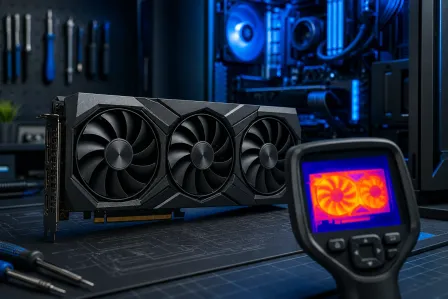
Heat is the silent FPS assassin. CPU overheating while gaming can cause stutters, CTDs, WHEA errors, or full reboots if the system gets spicy enough.
What to monitor
- CPU package temperature and CPU clocks
- GPU temperature and hotspot (if your GPU reports it)
- Fan speeds and whether they ramp up
What “too hot” looks like
- CPU: modern CPUs protect themselves by throttling, but repeated high temps can still cause instability if cooling is failing or paste/contact is bad.
- GPU: high temps can trigger clock drops, driver timeouts, or hard crashes in demanding titles.
Quick wins: clean dust filters, confirm the CPU cooler is mounted tight, make sure pump headers (AIO) are powered, and verify case airflow is not choking. Also check that your GPU fans actually spin under load.
Step 3: Power delivery checks for random reboot while gaming (PSU and cables)
If the PC randomly reboots while gaming with no warning, power is a prime suspect. Modern GPUs can spike power draw fast, and a weak PSU or bad connection can tap out mid-fight.
PSU failing symptoms you should not ignore
- Reboots only under heavy GPU load (newer games, ray tracing, uncapped FPS)
- PC shuts off like someone yanked the plug, then restarts
- Burning smell, clicking, or electrical buzzing that is new
- Crashes started after a GPU upgrade without a PSU upgrade
GPU power cable check (this is where the magic happens)
- Fully seat connectors: PCIe 6+2 pins must click in. If you have a 12VHPWR connector, make sure it is inserted fully and straight.
- Use separate PSU cables for multi-connector GPUs when possible (avoid daisy chaining on high-draw cards).
- Inspect for damage: bent pins, discoloration, or a connector that feels loose.
- Check the wall power: try a different outlet or a quality surge protector. Power strips can be sneaky villains.
Power issues are one of the top causes of “it only crashes in games” because games are the ultimate stress test. Your browser does not hit 400W GPU spikes. Cyberpunk does.
Step 4: Read the receipts in Event Viewer (WHEA errors and Kernel-Power)
Windows logs a lot of useful clues if you know where to look. This step is huge for diagnosing gaming pc crashes without guessing.
Use Microsoft Support: open Event Viewer in Windows if you have never opened it before.
What to look for
- Kernel-Power (Event ID 41): means the system lost power or rebooted unexpectedly. It does not tell you why, but it supports the “power or hard crash” theory.
- WHEA-Logger: event viewer whea errors often point to hardware instability (CPU, RAM, PCIe devices, sometimes storage). If you see WHEA errors right before crashes, that is a massive clue.
- Display driver events: can align with a gpu driver crash or TDR (Timeout Detection and Recovery) behavior.
Hank tip: If WHEA errors appear when XMP is enabled, your RAM settings might be the culprit even if the kit is “rated” for that speed. The memory controller lottery is real.
Step 5: RAM stability first (RAM stress test + XMP instability)
RAM instability is one of the most common causes of game crash to desktop and weird “only in this game” behavior. And yes, xmp instability can show up after a BIOS update or after the system ages a bit.
How to test RAM the right way
- Baseline: test with XMP/EXPO off first. If stable, then test with it on.
- Run a real RAM stress test: you want hours, not minutes. A quick pass is not enough to catch intermittent errors.
- Watch for: errors, freezes, or reboots during the test. Any error is a fail for gaming stability.
If your RAM fails with XMP on
- Try a slightly lower memory speed (small drop, big stability gain).
- Update BIOS (carefully) because memory compatibility can improve.
- Reseat RAM sticks and try one stick at a time to isolate a bad module or slot.
This is the difference between “it runs” and “it FLIES” because stable RAM means stable frametimes. No stutter gremlins, no random CTDs.
Step 6: GPU stress test to confirm a GPU driver crash vs hardware instability
If your crashes scream gpu driver crash or only happen in GPU-heavy scenes, it is time to isolate the graphics stack.
Do this before you blame the GPU
- Clean install GPU drivers: use the vendor installer and choose a clean install option when available. Avoid stacking driver updates for months without cleanup.
- Remove unstable GPU tuning: even mild VRAM OCs can cause instant CTDs in certain games.
- Test with a GPU stress test: if it crashes under a consistent GPU load, that supports GPU/driver/power issues.
What the results mean
- Stress test crashes the whole PC: suspect PSU/cables first, then GPU hardware.
- Stress test crashes to desktop: suspect driver instability, GPU OC/UV, or VRAM errors.
- Stress test passes but games crash: suspect API issues (DX12), game files, overlays, or RAM/XMP.
Fair take: NVIDIA and AMD both can have driver edge cases per game. The goal is to prove whether it is a driver layer problem or a hardware stability problem.
Step 7: DX12 crash fix moves (when the game is the diva)
Some titles are allergic to certain render paths. If you are chasing a dx12 crash fix, these are the highest value checks that do not nuke your system.
DX12 crash fix checklist
- Switch API: if the game supports DX11 or Vulkan, test it. If DX11 is stable, your issue may be DX12-specific (driver, shader cache, or game bug).
- Clear shader cache: corrupted shader cache can cause repeatable crashes in one game.
- Disable overlays: Discord overlay, GeForce overlay, Steam overlay, and capture tools can trigger CTDs in some games.
- Verify game files: corrupted assets can crash at the same spot every time.
If the crash only happens in one title and nowhere else, do not instantly blame your PSU. Games can be bangers and still be messy.
Step 8: Storage and Windows sanity checks (because corrupted files are sneaky)
If your logs are weird, crashes are inconsistent, or you recently had a power loss, check the basics.
Fast stability hygiene
- Windows Update: stay current on Windows 10 or Windows 11 updates.
- Check for malware: instability can come from unwanted software. Use trusted resources like Malwarebytes resources on malware and system stability to understand what to look for.
- Free space: keep healthy free space on your game drive to avoid stutters and weird patching issues.
Step 9: When to stop DIY and bring in the pros (Palm Beach County gaming PC repair)
Look, I am all about the home-lab grind. But some problems need bench testing, known-good parts swaps, and time. If you hit any of these, it is time for palm beach county gaming pc repair support.
Bring it in if you see any of this
- Repeat WHEA errors even at stock settings
- Hard reboots under load after you already did the gpu power cable check
- RAM stress test errors that persist across slots/sticks
- GPU stress test crashes that survive a clean driver install
If you are in West Palm Beach or anywhere across Palm Beach County (think Wellington, Royal Palm Beach, Palm Beach Gardens, Lake Worth Beach, Boynton Beach, Delray Beach, Jupiter), Fix My PC Store can do professional validation: thermal checks, PSU rail testing via known-good swaps, GPU/RAM isolation, and stability burn-ins. That is how you go from “random” to “root cause.”
Need hands-on help with a desktop? Start with gaming PC crash diagnostics and computer repair. On a portable setup that is rage-quitting mid-match? Hit laptop repair for gaming laptop crashes. Want to try software fixes without leaving your chair? remote support for driver and Windows troubleshooting can be a clutch first step.
Quick diagnostic flow (print this in your brain)
- Reboot under load: PSU/cables/temps first
- BSOD + WHEA: CPU/RAM/PCIe stability (often XMP)
- CTD only: drivers, overlays, DX12 path, RAM instability
- Only one game: verify files, switch DX11/DX12, clear shader cache
Do it in order and you will save money, time, and sanity. Trust me, your future self will thank you for this upgrade: stability.
Ready to Upgrade Your Gaming Rig?
Get expert gaming PC builds, upgrades, and repairs from Palm Beach County's performance specialists.
Level Up Now