How to Diagnose Random Game Crashes: Systematic Troubleshooting Guide
Listen to this article
TL;DR: Random game crashes are the ultimate buzzkill, but they're almost always solvable with a systematic approach. This guide walks you through checking Event Viewer logs, stress-testing your GPU and RAM, monitoring thermals, doing clean driver installs, and knowing when a component is actually dying. Follow this workflow and you'll go from frustrated to fragging in no time.
Alright, let me be real with you. There is nothing - and I mean nothing - more tilting than being in a ranked match, absolutely cracked out of your mind, about to clutch the round, and then BAM. Black screen. Desktop. Maybe a blue screen if your PC is feeling extra spicy. Your gaming PC random crashes are costing you more than just matches - they're costing you your sanity. I've been there, and GG to your patience if you've been dealing with this for weeks.
Here's the thing about game crash troubleshooting: random crashes are harder to nail down than consistent ones because they could stem from a dozen different causes. Unstable RAM, GPU driver conflicts, failing power delivery, overheating VRMs, corrupted game files - the list goes on. But don't worry, because Hardware Hank has your back. We're going to walk through a repeatable, systematic diagnostic workflow that works regardless of what hardware generation you're running. Let's get into it.
Step 1: Check Windows Event Viewer for Game Crash Clues
Before you start swapping hardware or reinstalling Windows, the FIRST thing you need to do is check what your PC is actually telling you. Windows keeps a detailed log of every error, warning, and critical event, and most gamers completely ignore it. That's like ignoring your check engine light and wondering why your car stopped working.
How to Use Event Viewer for Crash Diagnosis
Here's your play-by-play:
- Press Win + R, type eventvwr.msc, and hit Enter.
- Navigate to Windows Logs > Application and Windows Logs > System.
- Look for entries marked with a red circle (Critical or Error) around the timestamp of your crash.
- Double-click those entries and read the details. You're looking for source names like "Application Error," "Display," "Kernel-Power," or "nvlddmkm" (NVIDIA) and "atikmpag" (AMD).
If you see Kernel-Power Event ID 41, that's a critical indicator - it means your system rebooted without a clean shutdown. This often points to power delivery issues, overheating, or hardware instability. If you see display driver errors, you're likely dealing with a GPU-related issue. Write down what you find - this is your roadmap. For more detailed guidance on reading these logs, check out Microsoft's official Event Viewer documentation.
Step 2: Minidump Analysis for Gaming PC Crashes
If your crashes produce a Blue Screen of Death (BSOD), congratulations - that's actually GOOD news. I know that sounds wild, but BSODs generate minidump files that contain incredibly useful diagnostic data. This is where things get spicy.
How to Read Minidump Files
Your minidump files live in C:\Windows\Minidump. To read them, you can use Microsoft's free WinDbg tool (available from the Microsoft Store) or the community favorite BlueScreenView from NirSoft. These tools will tell you exactly which driver or process caused the crash.
Common culprits you'll see in minidump analysis:
- ntoskrnl.exe - Often points to RAM instability, driver conflicts, or hardware issues
- nvlddmkm.sys - NVIDIA display driver crash
- atikmdag.sys - AMD display driver crash
- dxgmms2.sys - DirectX Graphics kernel, often GPU-related
- win32kfull.sys - Can indicate driver or Windows corruption
Pro tip: if multiple minidumps point to the same driver, you've found your prime suspect. That's a clutch piece of information right there.
Step 3: GPU Crash Diagnosis - Testing Your Graphics Card
Let's talk about the heart of your gaming rig - your GPU. When your PC crashes during gaming specifically (but runs fine during normal use), the graphics card is suspect number one. This is where we separate "it runs" from "it FLIES" - or in this case, "it crashes" from "it's rock solid."
Stress Test Your GPU Independently
Fire up a dedicated GPU stress test like FurMark, 3DMark, or Unigine Superposition. Run the test for at least 20-30 minutes and watch for:
- Artifacts (weird visual glitches, colored pixels, flickering) - could mean dying VRAM or an unstable overclock
- Driver crashes during the test - points to driver issues or hardware failure
- Temperature spikes above 95-100°C - thermal throttling territory, and potential crash city
While the test runs, use HWiNFO64 or MSI Afterburner to monitor your GPU temperature, clock speeds, and power draw. If your GPU is thermal throttling and then crashing, you might need a repaste, better case airflow, or a look at those fans. If you've got an overclock running, dial it back to stock and test again. Sometimes that extra 50MHz on the core clock is the difference between stable and "surprise desktop."
Step 4: RAM Stability Testing for Gaming
Okay, this one is HUGE and so many people overlook it. Unstable RAM is one of the sneakiest causes of random game crashes because the symptoms are all over the place - crashes in different games, random BSODs with different error codes, occasional file corruption. It's chaos, and it's maddening.
How to Test RAM Stability
Here's your RAM testing game plan:
- Windows Memory Diagnostic - The built-in tool. Press Win + R, type mdsched.exe, restart, and let it run. This catches obvious issues but can miss subtle instability.
- MemTest86 - The gold standard. Boot from a USB drive and let it run for at least 4 full passes (this takes hours, run it overnight). Even ONE error means your RAM configuration is unstable.
- Test sticks individually - If MemTest86 finds errors, pull out all but one stick and test each one separately. This isolates a bad stick from a bad configuration.
Here's a banger tip that saves people constantly: if you're running XMP or EXPO profiles, try disabling them and running at stock JEDEC speeds. XMP/EXPO is technically an overclock, and not all memory controllers handle it perfectly. If your crashes stop at stock speeds, you know the RAM overclock is your issue. You can try bumping up the DRAM voltage slightly (like 0.02V) or loosening timings to find stability.
Step 5: Monitor Thermals and Voltages Under Load
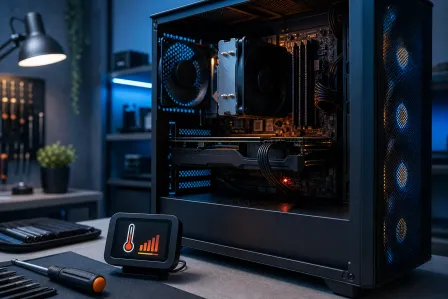
Temperature and power delivery problems are absolute silent killers. Your PC might run fine during light gaming but crash the second you load into a demanding title. This is where monitoring becomes your best friend.
Key Temperatures and Voltages to Watch
Fire up HWiNFO64 in sensors-only mode and keep an eye on these while gaming:
- CPU Package Temp - Should stay under 90°C for most processors under sustained load
- GPU Temperature - Ideally under 85°C, with the hot spot under 95°C
- VRM Temperature - This is the one people miss! VRM temps above 110°C can cause shutdowns and instability, especially on budget motherboards paired with power-hungry CPUs
- 12V Rail Voltage - Should stay close to 12V. If it's dipping below 11.4V under load, your PSU might be struggling
If your VRMs are cooking, improving case airflow or adding a small fan pointed at the VRM heatsink can make a massive difference. And if your PSU voltages are sagging hard, it might be time for a higher-quality power supply. A failing or underpowered PSU is one of the most common causes of PC crashes during gaming - and one of the hardest to catch without monitoring.
Step 6: Clean Driver Install with DDU
Driver conflicts are responsible for more gaming crashes than most people realize. Updating drivers on top of old ones can leave behind remnants that cause conflicts. The fix? A completely clean install using Display Driver Uninstaller (DDU).
How to Do a Proper DDU Clean Install
- Download the latest GPU driver from NVIDIA or AMD's website (don't install yet)
- Download DDU from Wagnardsoft's official page
- Boot into Windows Safe Mode
- Run DDU and select "Clean and restart"
- Once Windows reboots, install your fresh driver
This process strips out every trace of the old driver and gives you a squeaky-clean foundation. I've seen this single step fix crashes that people had been chasing for months. It's that clutch.
Step 7: Verify Game Files and Check for Software Conflicts
Sometimes the problem isn't your hardware at all - it's the software. Corrupted game files, conflicting overlays, or aggressive antivirus software can all cause random crashes.
Quick Software Checks
- Verify game files through Steam, Epic, or whatever launcher you're using
- Disable overlays temporarily - Discord overlay, GeForce Experience overlay, Xbox Game Bar, Steam overlay. Test with all of them off
- Check for Windows updates - Sometimes a pending update or a buggy recent update is the culprit
- Try a clean boot - Use msconfig to disable all non-Microsoft services and startup items, then test. This isolates third-party software conflicts
When to Recognize a Failing Component
Look, I love DIY troubleshooting as much as the next hardware nerd, but sometimes a component is genuinely dying. Here are the red flags that point to actual hardware failure rather than misconfiguration:
- GPU artifacts at stock clocks that persist after a clean driver install - possible VRAM or GPU die failure
- MemTest86 errors on multiple sticks in multiple slots - could indicate a failing memory controller (CPU issue)
- Random shutdowns (not crashes, full power-off) under load with adequate cooling - likely PSU failure
- Crashes that get progressively worse over time - degrading hardware
- Burning smell or visible capacitor damage - stop using it immediately, that's game over for that component
If you've worked through this entire diagnostic workflow and you're still crashing, or if the signs point to hardware failure, it's time to bring in the pros. Our gaming PC repair specialists at Fix My PC Store in West Palm Beach deal with exactly these kinds of complex diagnostic scenarios every day. We have the tools, the spare parts for swap-testing, and the experience to pinpoint failing components fast.
Keeping Your Gaming PC Crash-Free in 2026
Prevention is always better than troubleshooting. Here are Hardware Hank's top tips for keeping your rig running butter-smooth:
- Keep drivers updated but wait a few days after new releases to let early bugs get patched
- Monitor temps regularly - make HWiNFO64 part of your gaming routine
- Clean your PC every 3-6 months - dust is the enemy of performance and longevity
- Don't push unstable overclocks - that extra 3% performance isn't worth random crashes
- Invest in quality power supplies - your PSU is the foundation of your entire build
And hey, if you're dealing with crashes on a gaming laptop, the same diagnostic principles apply - though the hardware solutions are more limited. Our laptop repair team can help with thermal repastes, hardware diagnostics, and more. Not local to Palm Beach County? We also offer remote support services where we can walk you through diagnostics, check your Event Viewer logs, and help isolate software-side issues from anywhere.
Random game crashes are frustrating, but they're almost always solvable. Follow this systematic approach, document what you find at each step, and you'll either fix it yourself (GG, absolute legend) or have all the diagnostic info ready for a technician to fast-track the repair. Either way, you're getting back to butter-smooth gameplay. Now go get those frames back!
Still Crashing? Let the Pros Handle It.
Fix My PC Store in West Palm Beach specializes in gaming PC diagnostics, repairs, and performance optimization. Bring us your toughest crash - we'll find it and fix it.
Book a Diagnostic Now