How to Clone a Hard Drive to a New Drive Without Losing Data
Listen to this article
Hard drive cloning is the safest way to move everything—your operating system, apps, files, and settings—from an aging or failing drive to a new one with minimal downtime. If you’re seeing slow boots, freezing, clicking noises, SMART warnings, or “disk repair” messages, cloning can help you replace a failing drive before it stops working completely. In this 2026 step-by-step guide, you’ll learn when to clone vs. use disk imaging, how to create a bootable clone, and how to migrate to a new drive on Windows and Mac without losing data.
If you’d rather have a local pro handle the process end-to-end (including drive selection, installation, and verification), Fix My PC Store provides in-shop and on-site help across Palm Beach County, including West Palm Beach, Palm Beach Gardens, Lake Worth Beach, Wellington, Royal Palm Beach, Greenacres, Jupiter, and Boca Raton.
Hard drive cloning vs. disk imaging (and when to use each)
What hard drive cloning does
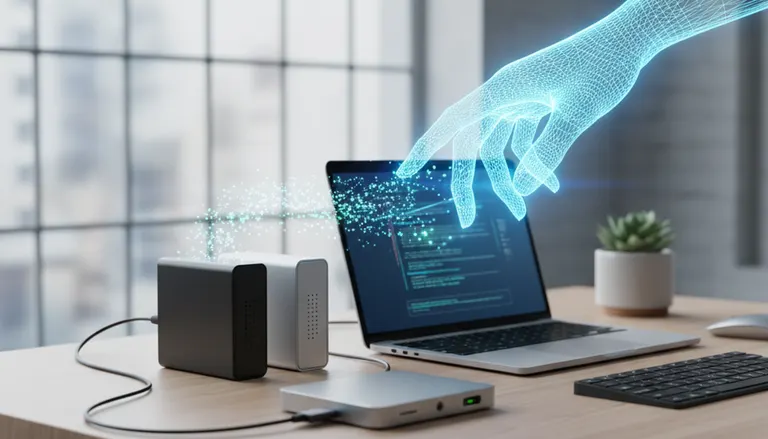
A drive clone copies your source drive to a target drive so the new drive is immediately usable—often bootable—with the same partitions, OS, applications, and settings. This is ideal for a drive upgrade (HDD to SSD, or a larger SSD) or when you need to replace a failing drive fast.
What disk imaging does
Disk imaging creates an image file (or a set of files) stored on another drive or network location. You can later restore that image to a replacement disk. Imaging is great for backups and deployment, but it adds an extra restore step compared to cloning.
Quick decision guide
- Choose cloning if you want minimal downtime and a “swap-and-boot” result.
- Choose imaging if you want a portable backup you can store off-device, or you’re building a repeatable recovery plan.
Before you start: prep checklist for a safe data migration
Most cloning failures come from skipping preparation. Use this checklist to reduce risk and avoid surprises.
1) Confirm the new drive is compatible
- Interface: SATA (2.5-inch SSD/HDD) or NVMe (M.2). Many laptops support only one type, so verify before buying.
- Capacity: The target drive must be large enough to hold the used data being cloned. If your old drive is 1TB but only 350GB is used, a 500GB SSD is usually fine—assuming your cloning tool supports resizing.
2) Use a reliable connection method
- Desktop: connect the new drive internally (best) via SATA or M.2 slot.
- Laptop: use a SATA-to-USB adapter, NVMe USB enclosure, or a docking station (quality matters).
3) Back up the irreplaceable (even if you plan to clone)
Cloning is not a substitute for backup—especially if the old drive is failing. At minimum, copy critical folders (Documents, Desktop, Photos) to an external drive or cloud storage first.
4) Check drive health and encryption
- Windows: If BitLocker is enabled, make sure you have the recovery key saved to your Microsoft account or stored safely. Microsoft explains how to locate it here: Find your BitLocker recovery key.
- Mac: If FileVault is enabled, ensure you know the login password and have recovery options available.
5) If malware is suspected, clean first
If the computer shows pop-ups, browser redirects, unknown “security” apps, or suspicious slowdowns, address that before cloning—otherwise you may copy the problem to the new drive. If you need help, see our virus removal service for safe cleanup before migration.
Step-by-step: how to clone a hard drive to a new drive (Windows 10/11)
This section focuses on a practical, evergreen Windows clone workflow. The exact clicks vary by tool, but the process and precautions are consistent.
Step 1: Connect the new drive and confirm it’s detected
- Plug in the new SSD/HDD (USB adapter/enclosure or internal connection).
- Open Disk Management to confirm the drive appears. If prompted to initialize, stop and verify you selected the correct disk—initializing the wrong disk can erase data.
Step 2: Choose a reputable cloning tool
Use a well-known cloning utility from a trusted vendor. Many SSD manufacturers also provide migration software for their drives. Avoid random “free” tools from unknown sites. If you’re unsure, Fix My PC Store can handle the entire data migration with verified tooling and validation.
Step 3: Select source disk and target disk carefully
In the cloning tool:
- Source: your current (old) system drive.
- Destination/Target: the new drive.
- Double-check sizes and model names. This is the most important safety step.
Step 4: Use the right clone options (alignment and resizing)
- SSD alignment: Ensure the tool enables SSD alignment/optimization for best performance and longevity.
- Resize partitions: If the new drive is larger, expand the main partition to use the extra space. If it’s smaller, ensure the tool can shrink partitions to fit the used space.
- Copy all required partitions: Windows boot partitions (EFI/System Reserved/Recovery) must be included for a bootable clone.
Step 5: Run the clone and don’t use the PC heavily during the process
Cloning can take from minutes to hours depending on drive speed, connection type, and data size. For best results, avoid large downloads or heavy multitasking while the clone runs.
Step 6: Swap drives (or change boot order) and test the bootable clone
- Best practice: Power down and physically replace the old drive with the new drive.
- If you keep both drives connected internally, enter BIOS/UEFI and set the new drive as the first boot device.
Step 7: Validate that everything transferred correctly
- Confirm Windows boots normally and you can sign in.
- Open a few key apps (email, accounting, line-of-business apps).
- Check files in Documents/Downloads/Desktop.
- Verify available storage matches expectations.
If Windows won’t boot after cloning, the issue is often boot configuration (UEFI/Legacy mismatch), missed boot partitions, or a failing source disk that caused read errors. If you’re stuck, our computer repair and drive upgrade service can diagnose and correct boot issues without wiping your data.
Step-by-step: Mac clone and migration options (macOS)
On Mac, “cloning” commonly means creating a bootable copy (where supported) or performing a full migration to a new internal drive using Apple’s built-in tools. The best method depends on your Mac model and macOS version.
Option A: Use Migration Assistant for a complete move
For many users, Apple’s Migration Assistant is the simplest way to migrate apps, user accounts, and settings to a new drive or a new Mac. Apple’s official overview is here: Use Migration Assistant to transfer your data.
Option B: Clone to an external drive first (then restore)
If you’re replacing an internal drive and want a safety net, you can create a full backup/clone-style copy to an external drive, then restore. This is especially helpful when the original drive is unstable and you want a fallback if migration hits errors.
Mac-specific tips that prevent headaches
- Encryption: If FileVault is enabled, keep credentials and recovery methods handy.
- Permissions: After migration, confirm you can access Documents and Desktop without permission prompts.
- External enclosures: Use a quality enclosure/adapter to avoid disconnects during transfer.
Common cloning problems (and how to avoid data loss)
Problem: The clone finishes but won’t boot
- Cause: missing EFI/Recovery partitions, wrong boot mode (UEFI vs. Legacy), or incorrect boot order.
- Fix: re-clone with “copy all partitions” enabled; set UEFI boot; verify the new drive is first in boot order.
Problem: Target drive is smaller than the old drive
- Cause: source partitions are too large to fit.
- Fix: delete/move large files first, empty recycle bin/trash, uninstall unused apps, then shrink partitions (where applicable) before cloning.
Problem: Read errors or the clone keeps failing
- Cause: the source drive is actively failing (bad sectors) or the USB bridge/enclosure is unstable.
- Fix: prioritize rescuing critical data first. If the drive is degrading, stop repeated clone attempts that may worsen failure and consider professional data recovery services.
Problem: You cloned malware or unwanted programs
- Cause: cloning copies everything—including infections and adware.
- Fix: clean the system before cloning, or scan immediately after. If you need hands-on help, use our malware and virus removal service.
Best practices for a no-downtime drive upgrade (home & small business)
Stage the upgrade after hours
For small businesses, schedule cloning and validation after business hours to avoid interruptions—especially if the PC runs POS, QuickBooks, or line-of-business software.
Keep the old drive untouched for a short “rollback window”
After a successful Windows clone or Mac clone, store the old drive safely for 1–2 weeks (powered off). If something was missed, you can retrieve it without panic.
Verify backups going forward
Once you’ve migrated to a new drive, set up a reliable backup plan. If you want help configuring secure backups or remote assistance, our remote support team can guide you through best practices.
Palm Beach County IT help for drive replacement and data migration
If your computer is showing SMART alerts, random crashes, extremely slow performance, or you’re hearing clicking/grinding sounds, don’t wait—those can be signs the drive is near end-of-life. Fix My PC Store helps homeowners and small businesses across Palm Beach County with:
- Drive replacement (HDD to SSD upgrades, capacity upgrades)
- Hard drive cloning and disk imaging for minimal downtime
- Bootable clone troubleshooting and boot repair
- Data rescue options when a drive is failing
Not sure whether cloning is still safe for your drive? If the system is unstable, it’s often smarter to diagnose first to prevent further damage. Start with our computer repair service or, if data access is already failing, our data recovery service.
Need Expert Computer Support?
Get professional help from Palm Beach County's trusted computer repair specialists.
Get Help Today