Gaming PC Stress Test: Validate a New Build Without Killing Parts
Listen to this article
TL;DR: A smart gaming pc stress test is not “slam everything at 100% for 12 hours and pray.” It is a staged validation plan: set a benchmark baseline, test RAM first, then CPU, then GPU, then combined load while watching temps, clocks, and power. You will catch unstable XMP/EXPO, thermal throttling, and weak power delivery early, without cooking your shiny new parts.
Alright squad, Hardware Hank here. You just built a monster rig or dropped in a fresh GPU and you are ready for butter-smooth gameplay. But here’s the plot twist: plenty of new builds boot fine, install games fine, and then faceplant the second you hit a real load. Random reboots, black screens, driver timeouts, stutters, or the classic “it only crashes in that one game.” GG to that chaos. We are going to do new pc build validation the right way so your PC goes from “it runs” to “it FLIES.”
Why a gaming PC stress test matters (and how parts actually get hurt)
A stress test is basically a controlled boss fight for your hardware. The goal is stability, not self-destruction. Parts usually get “hurt” from two things:
- Heat - sustained high temps can cause thermal throttling (performance drop) and, in worst cases, long-term wear.
- Bad power or bad settings - unstable RAM profiles, aggressive CPU undervolts/overclocks, or a struggling PSU can cause crashes and abrupt shutdowns.
Modern CPUs and GPUs have safety systems. They will throttle clocks or shut down to protect themselves. The danger zone is when you ignore warning signs, run unlimited power settings, or let temps ride the limiter for hours. We’re not doing that. We’re doing safe, staged testing with eyes on the metrics.
Before you start: prep your rig for new PC build validation
Step 1: Update the boring stuff that prevents spicy crashes
- Windows 10 or Windows 11: run updates and restart until you are fully current. Microsoft’s official hub is here: Microsoft Support for Windows updates and recovery.
- GPU drivers: install the latest stable driver from NVIDIA, AMD, or Intel.
- Chipset drivers: grab the newest from AMD or Intel for your platform. This matters for scheduling, power states, and overall stability.
- BIOS/UEFI: if you are on a brand-new platform or new CPU support, updating BIOS can fix RAM compatibility and weird boost behavior. Do it carefully, on stable power.
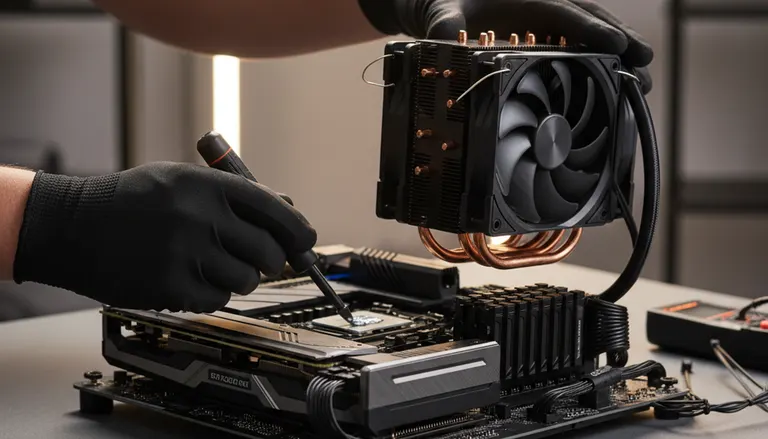
Step 2: Check the physical build like a pro (30 seconds, huge payoff)
- CPU cooler mounted evenly, fans spinning, and pump (if AIO) powered correctly.
- RAM fully seated (both latches clicked). This is the #1 “why won’t it behave” culprit.
- GPU fully seated, PCIe power cables firmly clicked in.
- No loose screws, no cable touching fans, and decent airflow.
Step 3: Install monitoring tools (your HUD for stability)
You need to watch temps, clocks, and power draw. Pick a couple tools you like, but make sure you can see:
- CPU temperature and clock behavior under load
- GPU temperature (core and hotspot if available) and clocks
- Fan speeds and whether they ramp properly
Pro tip: record a quick screenshot of idle temps and a screenshot under load. That becomes your “baseline receipts.”
Benchmark baseline: your “before” picture for FPS and stability
Before we go full stress mode, we set a benchmark baseline. Why? Because stability is not just “it didn’t crash.” It is also “it performs like it should.” If your GPU is scoring way below expectations, something is off: PCIe link speed, power limit, thermals, or a driver issue.
What to run for a quick baseline
- 3DMark (Time Spy or Steel Nomad) for GPU and overall gaming performance.
- Unigine Heaven or Superposition for a repeatable GPU load.
- Cinebench for a fast CPU sanity check.
Run each once, note the score, and watch temps. If anything is instantly hitting temperature limits or power limits, fix that before longer tests. This is where the magic happens.
Placement suggestion for supporting image: put gpu-cpu-thermals-monitoring-overlay.jpg right after this section to show what “watch the metrics” looks like.
RAM Memtest first: the sneaky king of crash troubleshooting
If I had a dollar for every “my GPU is defective” case that was actually unstable RAM, I’d have a wall of RGB-powered trophies. RAM instability causes:
- Game crashes to desktop
- Random reboots
- Corrupted downloads or installs
- “Driver timeout” errors that look like GPU problems
How to run a RAM memtest safely
- Start with your BIOS defaults first if you suspect instability.
- Then test with your intended profile: XMP (Intel) or EXPO (AMD).
- Use a reputable memory test tool and let it run long enough to catch intermittent errors.
Rule: Any RAM error is a fail for a new build. Even one. Fix RAM stability before you blame the GPU or PSU.
What to do if memtest throws errors
- Reseat the RAM and try again.
- Try one stick at a time to isolate a bad DIMM or slot.
- Reduce RAM speed one step (for example, drop one multiplier) or loosen timings.
- Update BIOS for better memory compatibility.
Placement suggestion for supporting image: put memtest-ram-stability-screen.jpg right after this H2 to visually reinforce what “errors = fail” looks like.
CPU stability test: keep clocks high, temps sane, and throttling away
A proper cpu stability test checks two things: can your CPU sustain load without errors, and can your cooling keep it from slamming into thermal limits. If your CPU is constantly throttling, you are leaving FPS on the table, especially in competitive titles where 1% lows matter.
Safe CPU testing approach (staged, not savage)
- Short run (10-15 minutes): verify temps stabilize and nothing instantly crashes.
- Medium run (30-60 minutes): watch for clock drops, WHEA errors, and random restarts.
- Long run (optional): only after the system behaves in shorter runs.
What to watch during CPU load
- Temperature: if you are riding the thermal limit, you need better cooling, airflow, or fan curve tuning.
- Clock stability: big drops can mean thermal throttling or power limits.
- System logs: WHEA errors often point to CPU or RAM instability.
Quick fixes if the CPU test fails
- Check cooler mount and thermal paste coverage.
- Set a more reasonable fan curve.
- If you are overclocking or undervolting, back it off. Overclocking is an art form, not a YOLO button.
GPU stress test: prove your graphics card is cracked (and stable)
Your gpu stress test should validate sustained performance without artifacts, driver resets, or black screens. GPU issues usually show up as:
- Visual artifacts (sparkles, checkerboards, weird texture corruption)
- Driver timeout or “display driver stopped responding”
- Hard black screen under load
- Fans ramping like a jet engine because hotspot temps are out of control
How to run a safe GPU stress test
- Start with a benchmark loop (like 3DMark or Unigine) for 20-30 minutes.
- Then run a heavier load if needed, but keep an eye on temps and power draw.
- Finally, validate with real games because some issues only show up with specific engines.
GPU thermals: the difference between “banger FPS” and “why is it stuttering”
Two GPUs can have the same model name and perform wildly different if one is thermal throttling. If your GPU hits its temperature or hotspot limit, it will downclock, and your FPS will dip. That shows up as:
- Average FPS looks okay, but 1% lows are trash
- Micro-stutter when the card bounces between boost states
Fixes are usually airflow, fan curve tuning, or in rare cases repasting or checking for a bad cooler mount.
Power supply stability: the silent MVP of a monster rig
Let’s talk power supply stability. Your PSU is the teammate that never top-frags but wins championships. A weak or failing PSU can cause:
- Instant shutdowns under combined CPU + GPU load
- Random reboots (no blue screen, just lights out)
- GPU driver crashes when power spikes hit
How to test PSU behavior without doing anything sketchy
We do not “paperclip test” a brand-new gaming rig and call it a day. Instead:
- Run a combined load (CPU + GPU) for a short period while monitoring stability.
- Watch for sudden drops, shutdowns, or coil whine changes under load (not always bad, but it can hint at stress).
- Make sure you are using the correct PCIe power cables (no mixing modular cables between PSU brands).
Gaming PC burn-in: the safe full-system validation run
A gaming pc burn-in is basically your final exam. The goal is to simulate real-world heat soak and power spikes, but with guardrails. Here’s my safe recipe:
The staged burn-in plan (my go-to)
- RAM memtest: pass clean before anything else.
- CPU test: 30-60 minutes, watch temps and clocks.
- GPU test: 30-60 minutes, watch temps, hotspot, and stability.
- Combined load: 15-30 minutes, watch for shutdowns or throttling.
- Real game session: 60-120 minutes in your most demanding game with an FPS overlay. This is where weird driver conflicts show up.
Set safety limits (aka: stress test without roasting parts)
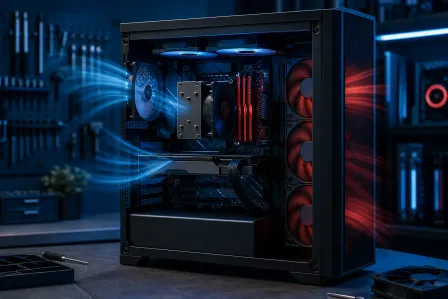
- If temps are climbing nonstop and never stabilize, stop and fix airflow or cooler mounting.
- If you see artifacts, driver resets, or WHEA errors, stop and troubleshoot. Do not keep hammering it.
- If your PC hard shuts down under combined load, suspect PSU, cables, or motherboard power delivery.
How to interpret symptoms: crash troubleshooting like a ranked grinder
When a rig fails, the key is spotting patterns. Here’s the cheat sheet:
Symptom to likely cause map
- Crash to desktop under load: often RAM instability, sometimes GPU driver issues.
- Black screen + fans ramp: GPU driver crash, unstable GPU OC/UV, or power delivery problem.
- Instant power off: PSU trip, cable issue, or motherboard VRM protection.
- Stutters after 10-20 minutes: heat soak causing thermal throttling.
- Blue screen: can be drivers, RAM, CPU, or storage. Check the stop code and system logs.
Driver conflicts and “it was fine yesterday” energy
If you upgraded a GPU or changed platforms, clean driver installs matter. Also, if you are chasing stability and something feels off, do a malware scan and sanity check your system health. Sometimes background junk is the hidden debuff. Solid reading here: Malwarebytes resources on stability issues and system health.
When to call in the pros in Palm Beach County (save time, save sanity)
If you hit repeatable crashes and you have already done the basics (reseat RAM, confirm temps, clean drivers), it might be time for pro diagnostics. At Fix My PC Store, we help gamers across Palm Beach County (West Palm Beach, Palm Beach Gardens, Lake Worth Beach, Boynton Beach, Jupiter, and nearby areas) isolate the real culprit fast, whether it is RAM tuning, a flaky PSU, thermals, or a motherboard issue.
- Need hands-on help? Book gaming PC computer repair and stress-test diagnostics and we’ll validate the whole system like it is headed to a tournament.
- Gaming laptop acting up after an upgrade or thermal issue? We do laptop repair for performance and overheating fixes too.
- Not local or just want quick guidance? Use remote support for crash troubleshooting and we can help you read logs and pinpoint the next move.
Hardware Hank’s final checklist (the “gg ez stability” run)
- Baseline benchmark scores recorded
- RAM memtest passes with XMP/EXPO enabled
- CPU stability test passes with temps under control (no thermal throttling)
- GPU stress test loop passes with no artifacts or driver timeouts
- Combined load does not reboot or shut down (power supply stability confirmed)
- Real games run for at least an hour with butter-smooth gameplay and clean 1% lows
Ready to Upgrade Your Gaming Rig?
Get expert gaming PC builds, upgrades, and repairs from Palm Beach County's performance specialists.
Level Up Now