Gaming PC Stress Test Checklist: Prove Stability Before It Fails
Listen to this article
TL;DR: A gaming PC can look “fine” until a long raid night or a sweaty ranked session triggers the nasty stuff: black screens, sudden reboots, driver timeouts, or stutters from thermal throttling. This gaming pc stress test checklist walks you through a repeatable, shop-grade process to validate CPU, GPU, RAM, storage, and PSU stability with clear pass/fail signals.
I’m Hardware Hank, and I’m here to help you catch problems before they clap your rig mid-match. We’re talking butter smooth gameplay, stable clocks, clean temps, and zero surprise shutdowns. GG.
Why a Gaming PC Stress Test Matters (and Why “It Boots” Means Nothing)
Booting into Windows 10 or Windows 11 and launching a game for 10 minutes is not “stable.” It’s a warm-up. Real stability shows up when your system is heat-soaked and pulling power hard for an hour or more. That’s when weak links reveal themselves:
- Gaming PC crashing under load: sudden restart = often PSU, VRM, or unstable CPU/GPU undervolt/overclock.
- Black screen + fans ramp: often GPU driver timeout, unstable GPU OC, or power delivery issue.
- Stutters after 30-60 minutes: classic thermal throttling test fail or RAM instability.
- WHEA errors / app crashes: CPU/RAM instability, sometimes motherboard BIOS settings.
If you’re in Palm Beach County and want a pro to validate a new build or upgrade, our gaming PC diagnostics and computer repair service is built for exactly this kind of “it only crashes when it matters” problem.
Pre-Flight Setup for PC Stability Testing (Do This First)
Before we slam the gas pedal, set yourself up for clean data. This is the difference between “I think it’s stable” and “I have receipts.”
1) Update the basics (no chaos patches mid-test)
- Windows Updates: install pending updates, then reboot.
- GPU driver: update via NVIDIA App or AMD Software: Adrenalin Edition (current, stable release).
- Motherboard BIOS: optional but recommended if you’re on an old version and chasing stability issues. If you’re not comfortable, don’t YOLO it.
Need official Windows reliability tools and troubleshooting references? Here’s the safe source: Microsoft Support for Windows troubleshooting and reliability tools.
2) Install the right tools (the “shop-grade” kit)
- HWiNFO64: sensor monitoring + hwinfo logging (critical).
- OCCT: all-in-one for occt stability test on CPU, GPU, RAM, and PSU-style combined loads.
- Cinebench: quick and repeatable cinebench stability checks for CPU.
- 3DMark: for a clean 3dmark loop test and stress test results.
- MemTest86 (bootable) or Windows Memory Diagnostic for RAM isolation.
Supporting image placement suggestion: Place "hwinfo-logging-stability-test.jpg" right after this H2 to visually show what to log.
3) Set a “known baseline” (especially if you overclock)
Overclocking is an art form, but stability testing should start from a baseline you can trust:
- If you’re chasing random crashes, temporarily disable CPU/GPU overclocks and aggressive undervolts.
- Keep XMP/EXPO on if that’s your intended daily setting, but be ready to test it.
- Set a reasonable fan curve so the system doesn’t cook itself silently.
HWiNFO Logging: What to Watch During a Gaming PC Stress Test
Open HWiNFO sensors and enable logging to a file. You want proof of what happens right before a crash or throttle event. Watch these like they’re legendary loot drops:
- CPU: CPU package temp, core clocks, CPU power (PPT/Package Power), and any thermal throttling flags.
- GPU: GPU temperature, hotspot/junction temperature (if reported), GPU power, GPU clock, and “PerfCap Reason” (NVIDIA) or throttling indicators (AMD).
- Memory: DRAM frequency, WHEA errors (in Windows Event Viewer), and overall system stability.
- Storage: drive temperature and SMART warnings.
Red flags: clocks dropping hard while temps spike, repeated WHEA errors, or power limits slammed constantly with instability.
CPU Stress Test: Cinebench Stability + OCCT for the Real Heat
Your CPU is the match director for your whole rig. If it’s unstable, everything is chaos. Here’s how to test it like a pro.
Step 1: Cinebench stability (quick validation)
- Run a multi-core test repeatedly for 10-20 minutes.
- Pass: no crashes, no errors, scores are consistent (minor variance is normal).
- Fail: app crash, system freeze, reboot, or scores tank as temps climb (throttling).
Step 2: OCCT CPU test (sustained load)
- Run OCCT CPU test for 30-60 minutes.
- Watch for thermal throttling and voltage instability.
Safe temp guidance (general): Modern CPUs can run hot under all-core stress, but if you’re pegged at the thermal limit constantly and clocks collapse, your cooling or tuning needs work. The goal is stable frequency, not just “it didn’t crash.”
GPU Stress Test: 3DMark Loop Test + OCCT to Catch Black Screens
GPU instability is the #1 reason gamers get hit with “driver timeout” pain and black screens. Let’s make your card an absolute beast without playing roulette.
Step 1: 3DMark loop test for benchmark validation
- Use a 3DMark Stress Test (loop) or loop a graphics-heavy benchmark scene.
- Run it 20-30 loops or about 30-60 minutes total.
- Pass: stable frame rate, no artifacts (sparkles, checkerboards), no driver crashes.
- Fail: artifacts, black screen, driver reset, or hard reboot.
Supporting image placement suggestion: Place "3dmark-loop-test-gpu-stability.jpg" after this H3 to show what a pass looks like.
Step 2: OCCT GPU test (power + heat soak)
- Run OCCT GPU test 30-60 minutes.
- Watch GPU temp and hotspot temp behavior. Hotspot running way above core temp can hint at cooler mounting or paste issues.
Pro tip: If you’re overclocking or undervolting, validate at least two profiles: your “daily” profile and a slightly safer backup. Your future self will thank you when a new game patch hits and your borderline OC stops being clutch.
Memory Test Gaming PC: Catch the Sneaky RAM Errors
RAM instability is the silent assassin. Your PC might run “fine” until a specific map, shader compile, or long session triggers errors.
Step 1: Quick checks in Windows
- Look for WHEA-Logger warnings in Event Viewer after crashes.
- If you suspect RAM, reduce variables: remove GPU overclocks first, then test RAM.
Step 2: MemTest86 (best isolation)
- Create a bootable USB and run multiple passes (at least 2, more if you’re hunting a rare error).
- Pass: zero errors.
- Fail: any error. Even one. RAM errors are not “fine.” They are data corruption waiting to happen.
If it fails with XMP/EXPO on: Try a slightly lower memory speed, looser timings, or a small voltage adjustment within safe motherboard guidance. If you want it handled cleanly, book a remote support session for stability tuning and we can walk through safe settings and validation steps.
Storage and Game Drive Checks: Stutters, Corruption, and Heat
Storage issues can look like “GPU stutter” when it’s actually asset streaming choking. Especially with NVMe drives that run spicy.
What to test
- Check SMART health in a reputable tool and verify drive temps in HWiNFO.
- Run a large file copy test (hundreds of GB if possible) and watch for speed collapse due to thermal throttling.
- Confirm your game drive has free space (many SSDs slow down hard when nearly full).
Red flags: SMART warnings, repeated Windows file corruption prompts, or NVMe temps that climb and then throughput drops off a cliff.
PSU Stability Check: The “Sudden Reboot” Detective Work
Let’s talk power. A PSU can be “fine” at desktop and implode under combined CPU + GPU load. Sudden reboot with no blue screen is a classic sign.
How to stress the whole system safely
- Use OCCT’s combined testing (CPU + GPU) for 15-30 minutes to simulate worst-case spikes.
- Watch for reboots, black screens, or instant shutdowns.
- Listen: electrical buzzing or clicking can indicate a problem (some coil whine is normal, but instability is not).
Pass: no shutdowns, stable clocks, stable temps.
Fail: instant power-off or reboot, especially when loads ramp. That’s when you check PSU capacity, cable seating (GPU power connectors fully latched), and whether the PSU is a quality unit for your GPU tier.
Thermal Throttling Test: Temps That Kill FPS (and Longevity)
Thermals are not just about “not hitting 100C.” They’re about keeping clocks high so your FPS stays cracked. Heat soak after 30-60 minutes is where weak cooling gets exposed.
What “throttling” looks like in real life
- FPS slowly drops over time even though the scene is the same.
- CPU or GPU clocks dip repeatedly while utilization stays high.
- Fans hit max but temps still climb.
Fixes that actually move the needle
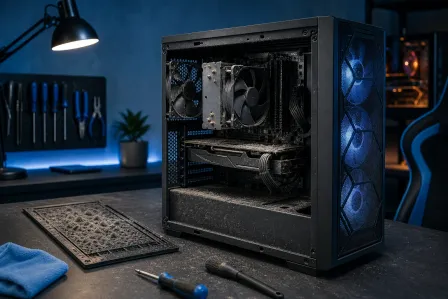
- Re-seat cooler and reapply thermal paste correctly (even pressure matters).
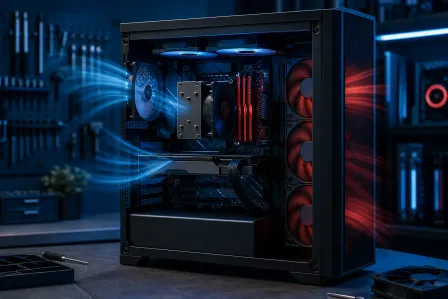
- Improve case airflow: front intake + rear/top exhaust, clean cable routing, dust filters not clogged.
- Adjust fan curves to ramp earlier (quiet is nice, stable is nicer).
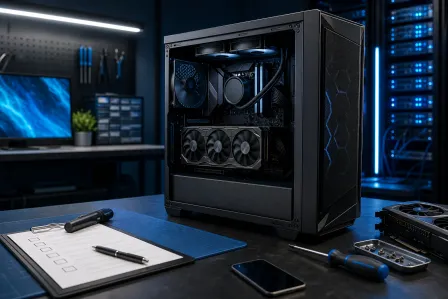
Clear Pass/Fail Checklist (Print This, Tape It to Your Case)
- CPU stress test: 30-60 min OCCT CPU with no errors, no crashes, no sustained throttling.
- Cinebench stability: repeat runs with consistent scores and no app crashes.
- GPU stress test: 30-60 min 3DMark loop + OCCT GPU with no artifacts, no driver resets.
- Memory test gaming pc: MemTest86 passes with zero errors.
- PSU stability check: combined load test with no reboots or shutdowns.
- Thermals: clocks remain stable after heat soak; no repeated throttle flags in HWiNFO logs.
If Your Gaming PC Is Crashing Under Load: What the Results Usually Mean
Here’s the fast “diagnosis map” from a hardware goblin who lives for benchmarks:
- Reboot under combined load: PSU capacity/quality, GPU power cables, motherboard power delivery, or unstable undervolt.
- Black screen + driver recover: GPU OC too aggressive, driver issue, GPU power transient sensitivity, or overheating hotspot.
- Game-only crashes: unstable RAM XMP/EXPO, shader cache issues, or game-specific driver bugs.
- Stutters after time: thermal throttling, NVMe heat, or background tasks.
Also: rule out software gremlins. If stability suddenly tanks after “nothing changed,” do a quick malware sanity check and system hygiene review. Malwarebytes has solid reading on performance-impacting threats: Malwarebytes resources for ruling out malware-related performance issues.
Palm Beach County Gamers: Want a Shop-Grade Stability Validation?
If you’re in West Palm Beach, Jupiter, Palm Beach Gardens, Lake Worth Beach, Boynton Beach, Royal Palm Beach, Wellington, or anywhere in Palm Beach County, Fix My PC Store can help you validate a new custom build, confirm an upgrade, or hunt down that “only crashes after an hour” demon.
- Desktop acting up? Start with gaming PC computer repair and stability diagnostics.
- Got a gaming laptop that throttles like crazy? Our laptop repair and thermal service can bring back those lost frames.
- Don’t want to unplug your whole setup? Use remote support for PC stability testing and we’ll guide the process and interpret logs.
Ready to Upgrade Your Gaming Rig?
Get expert gaming PC builds, upgrades, and repairs from Palm Beach County's performance specialists.
Level Up Now