Gaming PC Random Restarts Under Load: A No-Guesswork Fix Plan
Listen to this article
TL;DR: If your gaming PC random restarts the moment the action gets spicy, it’s usually one of three villains: power delivery (PSU, cables, GPU spikes), thermals (CPU/GPU overheating), or instability (overclocks, undervolts, RAM). This guide walks you through a clean diagnostic flow so you stop guessing and start fixing - safely.
And yes, I know the pain: you’re mid-raid, frames are butter smooth, chat is vibing, then boom - black screen, reboot, and your squad is typing “???” in all caps. Let’s get you back to clutch stability.
Why Gaming PC Random Restarts Happen Under Load (The Real Reasons)
When a PC restarts while gaming, it’s not “random.” It’s your system hitting a protection limit. Modern hardware is smart: it will shut down or reboot to avoid damage when something goes out of spec.
Power delivery issues: PSU wattage, aging, and transient load shutdown
This is the big one. Games don’t load your GPU like a steady treadmill - they spike it like a sprint. Those GPU power spikes (also called transient spikes) can briefly demand way more power than the average draw. If your PSU can’t handle that momentary hit, you can get a transient load shutdown or instant reboot.
Signs it’s power-related:
- Instant restart with no blue screen
- Happens in demanding games or during scene changes (menu to match, loading into a map)
- More common after GPU upgrades
- Event Viewer shows Kernel-Power without a helpful error (more on that soon)
Overheating vs power issue in a gaming PC
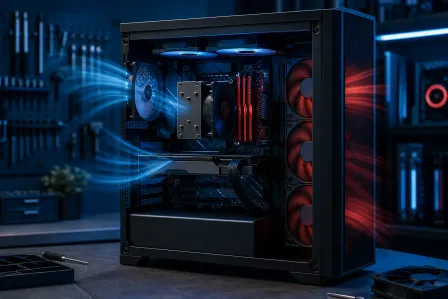
Thermals can also hard-reset a system, especially if the CPU hits its thermal limit and the motherboard decides “nope.” GPUs usually throttle first, but a severe hotspot or bad cooler contact can still cause crashes or shutdown behavior.
Signs it’s heat-related:
- Fans ramp to jet-engine mode right before the restart
- Restarts happen after 10-30 minutes, not instantly
- Temps are at or near the limit (CPU often 95-100C on some platforms under heavy load)
OC instability troubleshooting: CPU, GPU, and RAM
Overclocking is an art form, but unstable settings are a classic “GG” moment. Even a “tiny” undervolt or memory XMP/EXPO profile can be stable in benchmarks and still crash in real games.
Signs it’s instability:
- Blue screens, game crashes to desktop, or driver resets (sometimes)
- Problem started right after tweaking BIOS, enabling XMP/EXPO, or GPU tuning
- Different games fail differently
Check Windows Event ID 41 Kernel Power (What It Means and What It Doesn’t)
Open Event Viewer in Windows 10 or Windows 11 and look for:
- Windows Logs -> System
- Filter for Event ID 41, source Kernel-Power
Windows Event ID 41 Kernel Power basically means: “The computer rebooted without a clean shutdown.” That’s it. It does not tell you the root cause. Think of it like the scoreboard saying “you lost,” not showing the replay.
Still useful though: if you see Event ID 41 at the exact time of the restart and there’s no obvious blue screen data, it strongly points toward power loss, PSU protection, or a hard reset triggered by firmware/hardware.
If you need Microsoft’s official Windows troubleshooting hub, here you go: Microsoft Support for Windows troubleshooting.
Step-by-Step Fix Plan for PC Shuts Off While Gaming (No Guesswork)
Alright, gamer. Here’s the flow I use when someone tells me their PC shuts off while gaming. Do it in order. Don’t shotgun parts yet.
Step 1: Return to stock settings (stability baseline)
This is the “remove the chaos” step.
- Set CPU to stock (disable manual OC, consider disabling PBO/auto OC temporarily)
- Set GPU to stock (remove overclocks, remove aggressive undervolts)
- If you recently enabled XMP/EXPO, consider testing with it off for one session
Why this matters for gaming: Games hit weird mixed loads. A system can pass a simple stress test and still fail when CPU, GPU, and RAM all spike at once.
Step 2: Monitor temps and power behavior while gaming
Use a reputable hardware monitor (there are several) and watch:
- CPU temperature and clocks
- GPU temperature and hotspot (if available)
- GPU power draw (watts) and frequency
If you see temps pegged at the limit right before the restart, you’re in overheating territory. If temps look fine and it still hard reboots, power delivery jumps up the suspect list.
Step 3: Run a power stability stress test (the right way)
You’re trying to reproduce the crash in a controlled environment.
- Test GPU-heavy load
- Test CPU-heavy load
- Then test combined load (this is where weak PSUs often fold)
Why this matters: A borderline PSU can survive GPU-only or CPU-only, but fail when both pull hard at the same time. That’s the classic “it only restarts in games” pattern.
Power Supply Failing Gaming PC: How to Tell If the PSU Is the Culprit
If you’re chasing power supply failing gaming PC symptoms, here are the highest-signal clues.
Clue 1: The restart is instant and clean
No warning, no blue screen, no time to save the clip. Just black screen and reboot. That’s very often PSU protection (over-current, over-power, under-voltage) doing its job.
Clue 2: It started after a GPU upgrade
New GPUs can be absolute beasts, but they can also be absolute gremlins if the PSU is undersized or the cables are wrong. Even if “average wattage” looks okay, GPU power spikes can still dunk on a mediocre unit.
Clue 3: Your PSU is older or lower tier
Capacitors age. Heat cycles are real. A PSU that was fine years ago might not be fine when you’re pushing higher sustained loads and bigger spikes in 2026 games.
PSU Wattage Sizing for a Gaming PC (Stop Playing Wattage Roulette)
Let’s talk PSU wattage sizing gaming PC style, like trading cards. You want headroom, not just “it boots.”
- Headroom helps with transient spikes: A PSU near its limit is more likely to trip protections during sudden load swings.
- Quality matters as much as wattage: A well-built 750W unit can outperform a sketchy 850W unit in real stability.
- Separate cables matter: High-power GPUs should use the recommended cabling method (often separate PCIe cables rather than daisy chaining, depending on GPU and PSU guidance).
Rule of thumb: If you’re running a high-end GPU and a modern CPU, don’t spec the PSU like you’re building an office PC. Spec it like you want butter smooth gameplay and zero reboots when the match gets sweaty.
GPU Power Cable Melting and 12VHPWR Connector Inspection (Do This Safely)
Okay, real talk: GPU power cable melting is rare, but it’s serious. If you’re running a GPU that uses the 12VHPWR (12+4 pin) connector, you must treat cable seating like it’s a boss mechanic.
Safety first
- Shut down the PC
- Flip the PSU switch off (if present) and unplug the power cable
- Press the power button once to discharge residual power
- Let components cool before touching connectors
12VHPWR connector inspection checklist
Do a careful 12vhpwr connector inspection:
- Look for discoloration, warping, or a burnt smell on the connector and socket
- Check for debris or damaged pins
- Ensure the connector is inserted fully and straight (no gap)
- Avoid tight bends right at the plug - give it some gentle clearance
PCIe power cable seating and routing
Even on older 6-pin/8-pin setups, PCIe power cable seating matters. Reseat the connectors firmly until they click. If your PSU uses modular cables, reseat at the PSU end too. A slightly loose connection can heat up under load and cause instability.
Undervolt GPU Stability: The “More FPS Feel” Without the Reboot Gremlins
I love a good undervolt. When it’s dialed in, you get lower temps, less fan noise, and often the same performance. Poggers efficiency.
But an aggressive undervolt can cause sudden crashes or restarts under specific loads. If you suspect undervolt instability:
- Back off the undervolt slightly (small steps)
- Test in the exact games that trigger the issue
- Watch for driver resets, black screens, or hard reboots
Why this matters: Stability is the real flex. Anyone can post a screenshot of a low voltage. A monster rig stays stable for hours while streaming and gaming.
Don’t Ignore the “Not Hardware” Stuff (But Don’t Blame It First)
Most hard restarts under load are power/thermal/instability, but don’t completely ignore software.
- Update GPU drivers (cleanly, if needed)
- Update motherboard BIOS if you’re on a very old revision (follow vendor instructions carefully)
- Scan for malware if behavior is weird outside gaming
If you want a solid security resource: Malwarebytes Blog security resources.
When to Stop DIY and Get Bench Testing (Palm Beach County Gaming PC Repair)
If you’ve done the baseline steps and it still reboots, it’s time to go from “guessing” to measuring. In-shop bench testing can isolate:
- Failing PSU behavior under combined load
- Thermal throttling or poor cooler contact
- RAM instability that only shows under certain patterns
- GPU connector or cable issues that are easy to miss
Fix My PC Store helps gamers across Palm Beach County, including West Palm Beach and nearby areas, with stability diagnostics, PSU replacements, cable checks, and performance tuning that’s actually safe. If you need hands-on help, start with gaming PC computer repair and stability diagnostics. If your issue is happening on a portable setup, we also do laptop repair for gaming laptops that shut off under load. And if you’re trying to troubleshoot without tearing your whole setup apart, remote support for PC troubleshooting can be a clutch first step.
Quick “If This, Then That” Cheatsheet
- Instant reboot, no blue screen - suspect PSU, cables, GPU transient spikes
- Reboot after heat soak - suspect CPU/GPU thermals, paste, airflow
- Crashes after tuning - undo OC/undervolt, test RAM stability
- 12VHPWR looks discolored or smells burnt - stop using it and get it inspected ASAP
Ready to Upgrade Your Gaming Rig?
Get expert gaming PC builds, upgrades, and repairs from Palm Beach County's performance specialists.
Level Up Now