Gaming PC Overheating: Fix Thermal Throttling Before It Kills Your FPS
Listen to this article
TL;DR: Gaming PC overheating is one of the most common - and most sneaky - performance killers out there. Your rig doesn't crash, it doesn't throw error codes, it just quietly tanks your frame rate while you're mid-match wondering why everything feels like you're gaming through molasses. This guide walks you through diagnosing the problem, fixing your airflow, replacing thermal paste, and deciding on the right cooling upgrade to get back to butter-smooth gameplay.
What Is Thermal Throttling and Why Should Gamers Care?
Okay, real talk. Thermal throttling is your PC's self-preservation instinct kicking in. When your CPU or GPU hits dangerously high temperatures, the hardware automatically reduces its clock speeds to generate less heat and avoid a meltdown. Sounds reasonable, right? The problem is, those reduced clock speeds mean reduced performance - and we're talking serious FPS drops that can make a high-end rig feel like a budget potato.
Here's the brutal truth: most gamers never even realize it's happening. You're not getting a blue screen. You're not getting a warning popup. You're just getting wrecked in-game and blaming your GPU driver or your internet connection. Meanwhile, your CPU is sitting at 95 degrees Celsius quietly crying for help.
For context, here are the general safe temperature ranges you want to stay within during gaming:
- CPU under gaming load: Under 85 degrees Celsius is solid. Above 90 degrees and you're in throttle territory.
- GPU under gaming load: Most modern GPUs are designed to run up to around 83-90 degrees Celsius, but sustained temps above 85 degrees Celsius can start impacting performance and longevity.
- Idle temps: CPU should be 30-50 degrees Celsius. GPU should be 30-45 degrees Celsius.
If your numbers are higher than that, we've got work to do. Let's get into it.
How to Diagnose Gaming PC Overheating with Temperature Monitoring
First things first - you can't fix what you can't see. PC temperature monitoring is step one, and honestly it should just be part of every gamer's toolkit permanently. Here are the tools you need:
Best Free Temperature Monitoring Tools
- HWiNFO64 - The absolute GOAT for detailed sensor data. CPU temps, GPU temps, VRM temps, everything. Run this in sensor-only mode while gaming and check the max values afterward.
- MSI Afterburner - Even if you don't have an MSI card, this works with virtually all GPUs. The on-screen display overlay is clutch for watching GPU temp in real time during a session.
- GPU-Z by TechPowerUp - Great for a quick snapshot of your GPU temperature and clock speeds to see if throttling is actively occurring.
- Windows 11 Task Manager - Basic but useful. Check the Performance tab for a quick CPU temperature and usage overview. For more detailed health info, Microsoft's Windows Security device health check is a solid starting point.
Run your monitoring software, fire up a demanding game or a benchmark like 3DMark or Furmark, and let it cook for 15-20 minutes. Then check your peak temperatures. If you're hitting those danger zones we talked about, you've confirmed the problem. Now let's fix it.
Case Airflow Optimization: The Free Fix Most Gamers Ignore
Before you spend a single dollar, let's talk about airflow optimization because this is where SO many builds fall apart. You could have a beastly cooler inside a case that's basically a heat trap and you'd still be throttling. Airflow is everything.
The Basic Airflow Principle: Positive vs. Negative Pressure
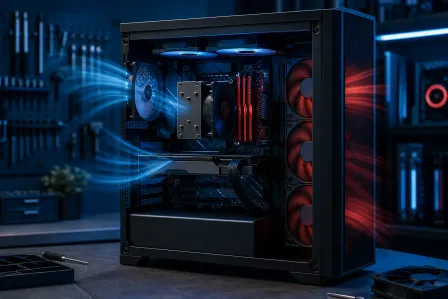
Your goal is to create a clear path for cool air to enter, pass over your components, and exit as hot air. The classic setup is front and bottom fans as intake (pulling cool air in) and rear and top fans as exhaust (pushing hot air out). This creates a front-to-back airflow path that keeps your CPU cooler in the direct line of fresh air.
Common Airflow Dead Zones to Fix Right Now
- Cable management chaos - Messy cables blocking airflow are a silent FPS killer. Route cables behind the motherboard tray. This is free and takes an afternoon.
- Dust filters clogged solid - Pull those filters and clean them. A clogged filter is basically suffocating your PC. Do this monthly if you game daily.
- Not enough fans or wrong fan placement - Most budget cases come with one or two fans. Adding intake fans to empty front fan slots makes a massive difference.
- PC location matters - Is your tower shoved in a desk cabinet with no ventilation? Is it on carpet sucking up dust? Placement affects temps more than people realize.
- Radiator fans pointing the wrong way - If you have an AIO liquid cooler, make sure the radiator fans are exhausting hot air out of the case, not recirculating it inside.
Fixing your case airflow optimization alone can drop CPU and GPU temps by 5-15 degrees Celsius. That's not nothing - that's the difference between throttling and not throttling for a lot of builds.
Thermal Paste Replacement: When Did You Last Change It?
This is the one that gets people. Thermal paste - the compound between your CPU and its cooler - dries out over time. We're talking 2-4 years for most quality pastes, and some budget pastes can start degrading even sooner. When it dries out and cracks, thermal conductivity tanks and your CPU temps spike hard.
Signs You Need a Thermal Paste Replacement
- Your PC is 3+ years old and the thermal paste has never been replaced
- CPU temps have gradually gotten worse over time even with clean fans
- You're seeing 15-20 degree Celsius spikes under light loads that weren't there before
- You removed your cooler for any reason and the old paste is dried, flaky, or cracked
How to Replace Thermal Paste the Right Way
Replacing thermal paste is one of the highest-value maintenance tasks you can do. Here's the quick rundown:
- Power down completely and unplug from the wall
- Remove the CPU cooler carefully
- Clean off the old paste from both the CPU heat spreader and the cooler base using isopropyl alcohol (90% or higher) and a lint-free cloth or coffee filter
- Apply a small pea-sized amount of quality thermal paste (Thermal Grizzly Kryonaut, Arctic MX-6, or Noctua NT-H2 are all bangers) to the center of the CPU
- Reinstall the cooler - the mounting pressure spreads the paste evenly
Done right, a fresh thermal paste application can drop CPU temperatures by 10-20 degrees Celsius. That is MASSIVE. That's the difference between throttling at 95 degrees and cruising at 75 degrees. GG to the old dried-out paste - you won't be missed.
Not comfortable cracking open your rig? Our team at Fix My PC Store handles gaming PC repair and maintenance in West Palm Beach including thermal paste replacement and full cooling system servicing. We've brought back plenty of builds that were throttling hard just from a paste refresh and a fan cleanup.
Gaming PC Cooling Upgrade: Air Cooling vs. Liquid Cooling
Okay, so you've cleaned the dust, fixed the airflow, replaced the thermal paste, and you're still running hot. Time to talk about a proper gaming PC cooling upgrade. This is where it gets fun.
Air Cooling: The Reliable Workhorse
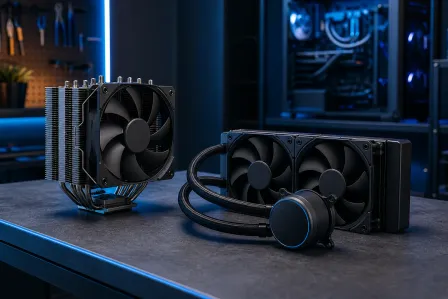
Don't sleep on high-end air cooling. A quality tower cooler like the Noctua NH-D15 or the be quiet! Dark Rock Pro 4 can absolutely keep pace with mid-range AIOs and they're often more reliable long-term since there's no pump to fail. If you're running a mid-range CPU and not pushing extreme overclocks, a quality air cooler is a clutch, cost-effective choice.
Best for: Mid-range builds, gamers who want reliability, cases with good airflow already in place.
AIO Liquid Cooling: The Aesthetic Beast
All-in-one liquid coolers (AIOs) are the move if you want lower sustained temps under heavy loads, quieter operation at peak performance, and let's be honest - they look absolutely poggers with RGB headers lighting up that radiator. A 240mm or 360mm AIO on a high-end CPU like an Intel Core i9 or AMD Ryzen 9 is a match made in gaming heaven.
Best for: High-end builds, overclocking enthusiasts, gamers who also stream or render, anyone who wants that clean aesthetic.
What About GPU Overheating?
GPU overheating is a slightly different beast. Most graphics cards come with their own cooler attached, so your options are:
- Improve case airflow (we covered this - do it first)
- Replace the GPU thermal paste - Yes, GPUs have thermal paste too and it dries out just like CPU paste. This is more advanced but incredibly effective on older cards.
- Aftermarket GPU cooler - Some GPUs support aftermarket cooler replacements for a serious thermal upgrade
- Undervolt your GPU - Using MSI Afterburner to reduce GPU voltage while maintaining clock speeds can drop temps by 10-15 degrees Celsius with zero performance loss. This is genuinely one of the most underrated moves in PC gaming.
Laptop Gamers: You're Not Off the Hook
Gaming laptops are thermal throttling machines by default - the compact design means heat has nowhere to go. If you're gaming on a laptop and noticing fps drops and sluggish performance, the same principles apply but the solutions are a little different.
Cleaning the laptop's internal fans and heatsink vents is critical - these clog up fast. Replacing the thermal paste on a gaming laptop CPU and GPU can make a night-and-day difference, especially on laptops 2+ years old. A quality laptop cooling pad adds extra airflow underneath and can drop temps by a meaningful amount.
Our team handles gaming laptop repair and thermal maintenance in Palm Beach County including internal cleaning, thermal paste replacement, and fan servicing. If your gaming laptop sounds like a jet engine and still runs hot, bring it in.
Can't Make It In? Remote Diagnostics Are a Thing
Not everyone in Palm Beach County can drop their rig off for a same-day service - we get it. If you want to talk through your temperature readings, get help interpreting your HWiNFO data, or figure out exactly what cooling upgrade makes sense for your specific build, our remote support service has you covered. We can walk you through the diagnostics process live and point you in the right direction without you leaving the house.
The Bottom Line: Don't Let Heat Kill Your Frames
Gaming PC overheating and thermal throttling are fixable problems. This isn't a hardware death sentence - it's a maintenance issue, and in most cases it's cheaper and easier to fix than people expect. Start with the free stuff: clean your fans, fix your cable management, optimize your airflow. Then check if your thermal paste needs replacing. If you're still running hot after that, it's time to look at a proper cooling upgrade.
Your rig deserves to run at full power. Those frames belong to you - don't let heat steal them.
Ready to Upgrade Your Gaming Rig?
Get expert gaming PC builds, upgrades, and repairs from Palm Beach County's performance specialists.
Level Up Now