Gaming PC Overheating: Diagnose & Fix Thermal Throttling
Listen to this article
TL;DR: Thermal throttling is your PC quietly slamming the brakes on your performance to avoid a meltdown - literally. If your frames are randomly tanking, your system is stuttering mid-match, or your fans sound like a jet engine, high temps are probably the culprit. This guide walks you through reading your temps, finding the problem, and fixing it like a pro.
What Is Thermal Throttling and Why Should Gamers Care?
Okay, real talk. Gaming PC overheating is one of the sneakiest performance killers out there. Unlike a blue screen or a crash that screams "something is wrong," thermal throttling just... quietly ruins your day. Your CPU or GPU hits a dangerously high temperature, and instead of catching fire (which would be bad), it automatically slows itself down to cool off. That's thermal throttling - your hardware tapping out to protect itself.
The result? Frames drop. Stutters appear out of nowhere. That clutch 1v5 moment turns into a slideshow. You're not getting the performance your rig is supposed to deliver, and most people have zero idea why.
Here in Palm Beach County, Florida, we deal with a double whammy - ambient temps that are already hot enough to make your cooling system work overtime. If your gaming PC is struggling, heat is the first suspect we're putting in the interrogation room.
Warning Signs Your Gaming PC Is Overheating
Before we break out the tools, let's talk symptoms. Your rig is probably thermally throttling if you're seeing any of these:
- Sudden FPS drops during intense scenes - not a GPU limitation, but a heat spike
- Stuttering or micro-freezes that weren't there six months ago
- Fans screaming at full blast even during light gaming sessions
- System shutdowns or restarts with no error message
- Performance that gets worse the longer you play - it starts fine then degrades
- CPU or GPU usage dropping randomly in task manager while gaming
That last one is the big tell. If you're watching your CPU usage randomly crater from 90% down to 40% mid-game without explanation, thermal throttling is almost certainly happening. Your hardware is hitting its thermal limit and pulling back hard.
How to Monitor CPU and GPU Temperatures While Gaming
You can't fix what you can't measure. Here's how to get real data on your CPU temperature during gaming and GPU heat levels using free tools.
Free Tools to Check Your Temps
The absolute go-to for serious hardware monitoring is HWiNFO - a free real-time hardware monitoring tool that shows you everything - CPU core temps, GPU junction temps, power limits, throttling flags, all of it. It's what the pros use, and it's completely free. Download it, run it in sensors-only mode, and game for 20-30 minutes while keeping an eye on those numbers.
MSI Afterburner with RivaTuner is another banger combo - it gives you an on-screen overlay so you can watch your GPU temp in real time while you play. No alt-tabbing required. Pure gaming data, right on your screen.
You can also use Microsoft's Windows Security device performance and health guide as a starting point for general system health checks on Windows 10 and Windows 11, though dedicated tools like HWiNFO will give you far more granular data.
What Temperature Numbers Are Too Hot?
Here's the quick reference you need:
- CPU under load: Under 85C is generally safe. 90C+ is getting sketchy. 95C+ and your chip is almost certainly throttling.
- GPU core temp: Under 85C is comfortable. 90C+ warrants attention. Most modern NVIDIA and AMD GPUs will throttle around 83-90C depending on the card.
- GPU junction/hotspot temp (AMD): Can legitimately run 100-110C - this is normal for AMD's hotspot sensor. Don't panic on this one alone.
If you're hitting 95C+ on your CPU during gaming, that's not a "warm" system - that's a system begging for help. Time to fix it.
GPU Overheating Diagnosis - Is Your Graphics Card the Problem?
GPU overheating is incredibly common and often the first culprit to investigate. Here's how to isolate it.
Check for Dust Buildup First
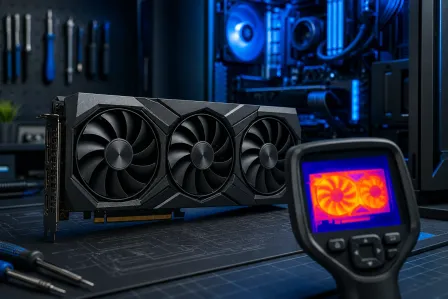
I cannot stress this enough - dust is the enemy. A GPU with clogged fans and heatsink fins can't dissipate heat no matter how good the thermal paste is. Pop your case open and look at your GPU. If it looks like it's wearing a fur coat, that's your problem right there. A can of compressed air aimed at those fins and fans can legitimately drop temps by 10-15C. That's HUGE.
Check GPU Fan Behavior
Most modern GPUs run their fans at 0% until they hit a certain temp threshold - usually around 50-60C. That's normal. But if your GPU fans aren't spinning up at all during heavy load, or if they're making grinding/rattling sounds, you've got a fan issue that's cooking your card.
In MSI Afterburner, you can manually set a fan curve to be more aggressive. Sometimes the stock fan curve just isn't cut out for Florida heat. Pushing your fans to 70-80% at 75C can make a serious difference in keeping your GPU temps in check.
CPU Temperature Gaming Issues - Diagnosing Your Processor
If your GPU temps look fine but you're still seeing throttling, the CPU is next on the suspect list.
Check Your CPU Cooler
Is your CPU cooler properly seated? This sounds basic, but improperly mounted coolers - especially after a PC has been moved or bumped - are a surprisingly common cause of high temps in gaming PCs. Check that all mounting brackets are tight and that the cooler isn't wobbling.
Also, is your cooler even adequate for your CPU? A budget 65W cooler on a 125W TDP processor that you're pushing hard is a recipe for thermal throttling. Matching your cooler to your CPU's actual heat output matters a lot.
Reapplying Thermal Paste - The Single Best Fix
This is where the magic happens. PC thermal paste replacement is hands-down one of the most impactful and underrated maintenance tasks for any gaming rig. Thermal paste dries out and degrades over time - typically after 2-4 years of regular use. When it degrades, heat transfer between your CPU and cooler drops significantly, and temps spike.
Reapplying quality thermal paste - something like Thermal Grizzly Kryonaut or Arctic MX-6 - can drop CPU temps by 10-20C in many cases. That's the difference between a throttling system and a system running at full performance. It's genuinely one of the best bang-for-buck fixes in PC maintenance.
The process: clean off the old paste with 90%+ isopropyl alcohol, apply a small pea-sized amount of new paste to the center of the CPU IHS, reinstall the cooler, and you're done. If you've never done it before and you're not confident, our team at Fix My PC Store handles professional computer repair and thermal maintenance all day long - we've seen everything.
Airflow Optimization for Your Gaming PC Case
Airflow optimization in your gaming PC is the other half of the thermal equation that people constantly overlook. You can have the best cooler in the world, but if your case airflow is a chaotic mess, you're still going to run hot.
The Basics of Good Case Airflow
The goal is simple: cool air comes in from the front and bottom, hot air exits from the rear and top. Positive pressure (slightly more intake than exhaust) or balanced pressure setups are ideal. Here's what to check:
- Are your fans oriented correctly? Front and bottom fans should be intakes (pulling air IN). Rear and top fans should be exhausts (pushing air OUT). Sounds obvious, but reversed fans are shockingly common.
- Is your cable management clean? A rats nest of cables blocking airflow through your case is actively hurting your temps. Tuck those cables behind the motherboard tray.
- Are your case filters clogged? Many cases have dust filters on intakes. Clean them regularly - especially in Florida where humidity can cause dust to clump and clog faster.
- Is your PC in a confined space? A gaming PC jammed in a desk cabinet with no airflow room is a thermal disaster waiting to happen. Give it breathing room.
Adding More Case Fans
If your case has empty fan slots, filling them with quality 120mm or 140mm fans is one of the cheapest and most effective cooling upgrades you can make. More airflow means lower temps across the entire system - CPU, GPU, VRMs, storage, all of it benefits.
When DIY Isn't Enough - Get Professional Help
Look, some thermal issues are straightforward DIY fixes. But some situations call for professional hands. If you've cleaned the dust, reapplied thermal paste, and optimized your airflow and you're still hitting dangerous temps, there might be something deeper going on - degraded cooler mounting hardware, a failing fan, inadequate cooling for your specific hardware configuration, or even a case that just wasn't designed for your build's heat output.
If you're running a gaming laptop that's overheating, the situation is even more critical. Laptop cooling systems are compact and delicate, and thermal paste replacement on a laptop requires full disassembly. Our team handles professional laptop repair and thermal maintenance for gaming laptops throughout Palm Beach County - from West Palm Beach to Boca Raton and everywhere in between.
Not sure if your system is actually throttling? We also offer remote support sessions where we can walk you through running diagnostics on your own machine and reading the data together. Sometimes you just need a second set of expert eyes on the problem.
Quick Thermal Throttling Fix Checklist
Here's your rapid-fire action plan for tackling gaming PC overheating:
- Download HWiNFO and monitor temps during a 20-minute gaming session
- Identify whether CPU or GPU is hitting critical temps (90C+)
- Clean all dust from fans, heatsinks, and case filters with compressed air
- Check that all fans are spinning and oriented correctly
- Verify CPU cooler is properly mounted and adequate for your CPU
- Reapply quality thermal paste to CPU (and GPU if comfortable doing so)
- Optimize case airflow - front/bottom intake, rear/top exhaust
- Improve cable management to clear airflow paths
- Add case fans to empty slots if available
- If temps are still critical after all of the above, get professional help
GG to high temps - with the right fixes, your rig should be back to running butter-smooth frames without thermal throttling slamming the brakes on your performance.
Is Your Gaming PC Running Too Hot?
Stop letting thermal throttling kill your frames. Fix My PC Store's expert techs in West Palm Beach handle thermal paste replacement, cooling upgrades, and full gaming PC diagnostics for Palm Beach County gamers.
Fix My PC Now