Gaming PC Overheating: Diagnose & Fix High CPU/GPU Temps
Listen to this article
TL;DR: Gaming PC overheating is one of the most destructive problems your rig can face - we're talking FPS drops, mid-game shutdowns, and permanent hardware damage. This guide walks you through exactly how to read your temps, find the culprit, and fix it fast. Whether you're in Palm Beach County pushing your build through Florida's brutal heat or just noticing your frames tanking, this is the playbook you need.
Why Gaming PC Overheating Is a Bigger Deal Than You Think
Look, I get it. Your rig is running hot and you're thinking "eh, it's fine, it's still booting." But here's the thing - gaming pc overheating isn't just uncomfortable for your hardware, it's actively destroying it. Every time your CPU or GPU hits critical temps and thermal throttles, it's choking your performance AND shaving time off your components' lifespan. We're talking your RTX 5080 or Ryzen 9 9950X getting cooked from the inside. Not pog. Not pog at all.
And if you're here in South Florida? Oh buddy. Palm Beach County summers are no joke. Ambient temps in a non-air-conditioned room can push 85-90°F, and your PC is already fighting an uphill battle before you even launch a game. That's why this stuff matters MORE here than almost anywhere else in the country.
What Are Safe CPU and GPU Temperatures?
Before we diagnose anything, you need to know what "too hot" actually means. Here's the quick breakdown:
- CPU Idle: 30-50°C is totally normal and healthy
- CPU Under Gaming Load: 65-85°C is acceptable for most modern processors
- CPU Danger Zone: Sustained temps above 90-95°C - your chip is screaming for help
- GPU Idle: 30-50°C depending on the card and its fan curve
- GPU Under Gaming Load: 70-85°C is normal for most GPUs
- GPU Danger Zone: Consistently above 90°C - time to act NOW
Modern CPUs and GPUs have built-in thermal protection, so they'll throttle clock speeds or shut the system down before they literally fry. But running near those limits constantly? That's long-term damage accumulating every single session.
How to Check Your GPU Temps and CPU Temps Right Now
First things first - you can't fix what you can't measure. Let's get some real numbers on the board. Here are the tools I trust:
Free Temperature Monitoring Tools
- MSI Afterburner - The absolute GOAT for GPU monitoring. Free, shows real-time GPU temp, usage, clock speeds, and VRAM. Set up the on-screen display and watch your temps while gaming in real time.
- HWiNFO64 - This thing is a beast for full system monitoring. CPU core temps, GPU junction temps, VRM temps - it reads everything. Run it alongside Afterburner for the complete picture.
- Task Manager (Windows 11) - Quick and dirty. Hit Ctrl+Shift+Esc, go to Performance, and you'll see basic GPU temps right there. Not as detailed, but solid for a quick check.
- AMD Radeon Software / NVIDIA App - Both AMD and NVIDIA's own software suites have built-in performance overlays that show temps in-game. Super clutch for real-time data.
Run a demanding game for 20-30 minutes, then check your peak temps. That's your real number. Don't just check at idle - that tells you nothing about gaming performance.
The Main Causes of Gaming PC Overheating (And How to Find Yours)
Alright, you've got your temps. They're spicy. Let's figure out WHY. There are four main culprits, and I've seen every single one of them absolutely wreck otherwise monster rigs.
1. Dust Buildup - The Silent Frame Killer
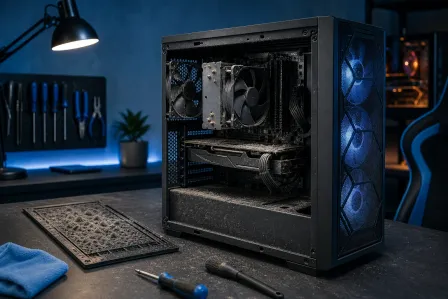
This is the number one cause of high GPU temperature and CPU overheating I see, especially in Florida where humidity and AC systems pull a LOT of particulates through your case fans. Dust acts like an insulating blanket over your heatsinks and radiators, trapping heat instead of dissipating it.
How to check: Pop your side panel and look at your CPU heatsink fins, GPU heatsink, and case fans. If there's a visible layer of gray fuzz - and there usually is after 6-12 months - that's your problem right there.
The fix: Grab a can of compressed air and take your PC outside (seriously, do this outside - the dust cloud is wild). Blast out the heatsink fins, GPU cooler, case fans, and any dust filters on your intake vents. A 15-minute cleaning session can drop temps by 10-15°C. That's HUGE. That's the difference between thermal throttling and butter-smooth gameplay.
2. Dried Out Thermal Paste - The Hidden Killer
This one is sneaky because it's invisible without taking your cooler off. Thermal paste is the heat-conducting compound between your CPU (or GPU die) and the cooler's heatsink. Fresh thermal paste conducts heat efficiently. Dried, cracked, old thermal paste? It's basically an insulator at that point.
Thermal paste typically starts degrading after 3-5 years, but in hot environments like Florida homes without great AC, it can dry out faster. If your CPU temps have been creeping up over the past year even with a clean system, dried thermal paste is almost certainly your cpu overheating fix.
Thermal paste replacement process:
- Remove the CPU cooler carefully
- Clean off the old paste with 90%+ isopropyl alcohol and a lint-free cloth
- Apply a pea-sized amount of quality thermal compound (Thermal Grizzly Kryonaut and Arctic MX-6 are both absolute bangers)
- Reinstall the cooler evenly, making sure all mounting points are secure
Done right, a fresh thermal paste replacement can drop CPU temps by 15-20°C on older builds. That's not a small win - that's a GAME CHANGER.
Not comfortable doing this yourself? Our team at Fix My PC Store's computer repair service handles thermal paste replacements all the time. We've seen some truly horrifying dried paste situations and we've fixed every single one of them. GG.
3. Poor Airflow and Case Configuration
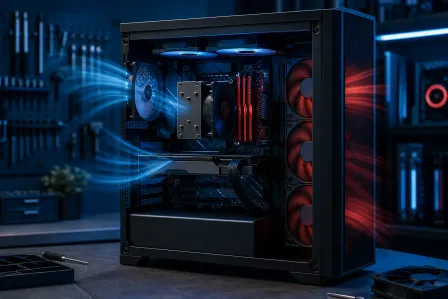
Your case is basically a wind tunnel designed to move cool air over hot components and exhaust it out. When that airflow is compromised - wrong fan directions, not enough fans, cable management blocking flow, or just a poorly designed case - heat builds up fast.
Ideal airflow setup: Intake fans at the front and bottom pulling cool air in, exhaust fans at the top and rear pushing hot air out. This creates positive airflow that keeps temps manageable even under heavy load.
Check your fan directions! This sounds basic but I cannot tell you how many rigs I've seen with fans installed backwards. Every fan has an arrow on the side indicating airflow direction. Double-check yours right now.
Also - if you're gaming in a closed cabinet or entertainment center, STOP. Your PC needs open air around it. Enclosed spaces trap heat and will absolutely tank your temperatures.
4. Failing or Inadequate Cooling Hardware
Sometimes the cooler itself is the problem. Stock CPU coolers that come with processors are... fine. They're fine. But if you're overclocking, running a high-TDP chip like a Ryzen 9 9950X, or just living in a hot climate, stock cooling is leaving performance on the table.
Signs of a failing cooler include: fans that are louder than usual, fans that spin intermittently or stop spinning under load, or a cooler that wobbles when you touch it (indicating a mounting issue).
Upgrade options worth considering:
- Air Coolers: The Noctua NH-D15 and be quiet! Dark Rock Pro 5 are both absolute units that outperform many AIOs at a lower price point
- 240mm/280mm AIO Liquid Coolers: Corsair, NZXT, and Arctic all make solid AIOs that bring CPU temps down dramatically and look incredible with RGB
- 360mm AIO: For serious overclockers or high-end chips - this is where you go when you want maximum thermal headroom
Gaming PC Thermal Throttling - What It Is and Why It's Destroying Your FPS
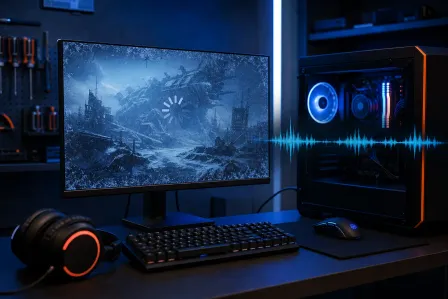
Here's the part that should scare you into action. Gaming pc thermal throttling is when your CPU or GPU automatically reduces its clock speed to generate less heat when temps get too high. Your hardware is literally nerfing itself to survive.
What does this look like in-game? Sudden FPS drops mid-match. Stutters that come out of nowhere. Your RTX 5070 that should be pushing 144fps in your favorite title suddenly dropping to 60fps during intense scenes. Your game feels fine in the menus but tanks when things get heated - literally.
You can spot thermal throttling in HWiNFO by watching for CPU or GPU clock speeds dropping significantly under sustained load. If your CPU is rated for 5.7GHz boost and you're seeing it drop to 3.0GHz during gaming, that's throttling. Fix the temps and those clocks come right back. The performance was always there - it was just being held hostage by heat.
When Your Gaming PC Is Shutting Down Completely
If your gaming pc is shutting down mid-session with no warning, that's the last line of defense kicking in. Your system hit a critical thermal threshold and pulled the emergency brake to prevent permanent damage. This is serious and needs to be addressed immediately - not tomorrow, not next week. NOW.
Before you do anything else, check your Windows Event Viewer (search for it in the Start menu) for critical errors logged at the time of the shutdown. You can also check Microsoft's Windows support resources for diagnosing unexpected shutdowns in Windows 10 and Windows 11.
If cleaning and thermal paste haven't solved the shutdown problem, it's time to bring in the pros. Our gaming PC repair specialists can run full thermal diagnostics and identify whether you're dealing with a cooling hardware failure, a mounting issue, or something more serious like VRM overheating.
PC Heat Management Tips for Florida Gamers
Living in Palm Beach County means fighting heat on two fronts - inside your case AND outside it. Here's how to win that battle:
Environmental Factors That Matter
- Room temperature is everything. A PC in a 75°F room will always run cooler than the same PC in an 85°F room. Game with the AC on if you can.
- Elevate your case off carpet. Carpet blocks bottom intake fans and generates static. Put your tower on a hard surface or a dedicated PC stand.
- Keep your gaming space ventilated. Don't game in a closed closet or tight corner with no air movement around the case.
- Clean your PC more often in Florida. Seriously - the humidity and AC-filtered air means dust accumulates faster here. Quarterly cleaning instead of annual is the move.
Software-Side Heat Management
- Set custom fan curves in MSI Afterburner or your motherboard's BIOS. Don't let your fans run at 30% when your GPU is at 80°C - ramp them up earlier and keep those temps in check.
- Undervolt your GPU. This is one of the most underrated tweaks out there. Reducing voltage slightly (while maintaining performance) generates less heat with zero FPS loss. Sometimes you actually gain frames. It's like magic.
- Update your drivers. AMD and NVIDIA regularly release driver updates that improve power efficiency and thermal management. Stay current.
Got a gaming laptop that's cooking? The same principles apply, but the solutions are different - laptop thermal paste replacement is a more involved process. Check out our laptop repair service if you need professional help getting your gaming laptop's temps under control.
And hey - if you're not sure where to start or want someone to walk through your temps and settings with you remotely, our remote support team can connect to your machine and help you diagnose the issue without you having to leave the house. Pretty clutch option if your rig can still boot.
When to Call in the Pros for PC Cooling Troubleshooting
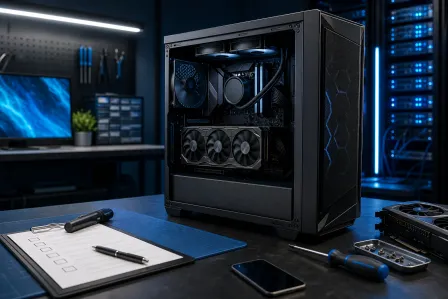
DIY cooling fixes handle the majority of overheating cases - cleaning and thermal paste replacement alone solve probably 80% of the high GPU temperature and CPU overheating issues we see. But sometimes you need backup:
- Your PC is shutting down even after a full clean and thermal paste replacement
- You're seeing temps above 95°C on CPU or GPU even at idle
- A fan has physically failed and you're not comfortable replacing it yourself
- You want to upgrade to a full custom water cooling loop (the ultimate flex, by the way)
- You suspect your cooler mounting is compromised and don't want to risk damaging your motherboard
Fix My PC Store serves all of Palm Beach County including West Palm Beach, Boca Raton, Boynton Beach, Lake Worth, and surrounding areas. We know Florida heat, we know gaming rigs, and we know how to get your system running cool and clean again.
Is Your Gaming PC Running Too Hot?
Don't let overheating destroy your rig or your game. Fix My PC Store's tech specialists in West Palm Beach are ready to diagnose, clean, and cool your build back to peak performance.
Fix My PC Now