Gaming PC Cable Management for Better Airflow & Temps
Listen to this article
TL;DR: Messy cables aren't just ugly - they're literally choking your gaming PC's performance. Proper gaming PC cable management can drop your GPU and CPU temps by 5-10°C, meaning more stable clocks, quieter fans, and butter-smooth gameplay. Let's fix that spaghetti situation inside your case and turn your rig into the clean, mean, frame-pumping machine it was born to be.
Why Gaming PC Cable Management Actually Matters for Performance
Alright, let me hit you with some real talk. I know what you're thinking: "Hank, cables are cables. Who cares if they're messy? Nobody sees inside my case." And look, I get it. But here's the thing - poor gaming PC cable management is one of the most overlooked causes of higher GPU and CPU temperatures in gaming desktops. And higher temps? That means thermal throttling, louder fans, and your precious frames taking a nosedive right when you need them most. Absolute tragedy.
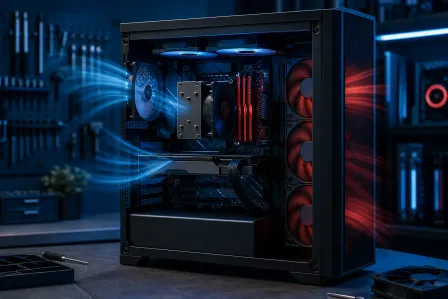
Your PC case is designed with a specific airflow path in mind. Cool air comes in through the front, passes over your components, and hot air gets exhausted out the back and top. When you've got a rat's nest of cables blocking that path, you're essentially putting a wall between your components and the fresh air they desperately need. It's like trying to breathe through a pillow - technically possible, but NOT ideal.
This is where the magic happens: by simply reorganizing your cables, you can unlock performance that was always there, just suffocating under a pile of SATA cables and unused Molex connectors. According to Noctua's airflow optimization guide, unobstructed airflow is one of the most critical factors in keeping your components running at peak performance.
Essential Tools for PC Airflow Optimization Through Cable Routing
Before we dive into the step-by-step process, let's gear up. You wouldn't go into a ranked match without the right loadout, right? Same energy here. Here's your cable management toolkit:
Velcro Cable Ties - Your New Best Friend
Forget zip ties. I said it. Zip ties are fine for a permanent setup, but if you ever want to swap a component or add a new drive, you're cutting ties (literally) and starting over. Velcro cable ties are reusable, adjustable, and won't risk cutting into cable insulation. They're the clutch play of cable management tools. A pack of 50 costs like five bucks. GG.
Cable Combs for That Clean Aesthetic
If you're running sleeved or even stock PSU cables, cable combs are an absolute game-changer. They align individual wires into perfectly parallel rows, making your 24-pin ATX and 8-pin GPU cables look like they belong in a magazine. Form AND function - because aligned cables take up less space and obstruct less airflow. Poggers.
Additional Tools You'll Want
- Cable management clips - Adhesive-backed clips that mount inside your case for custom routing paths
- A headlamp or small flashlight - Trust me, the back of the motherboard tray is a dark place
- Patience - Seriously, good cable management is an art form. Take your time
- Cable sleeves or wraps - For bundling multiple cables into one clean run
Step-by-Step Gaming PC Cable Routing for Maximum Airflow
Alright, this is where we get our hands dirty. Let's walk through the entire process of turning your gaming desktop from a cable disaster into a showpiece. Whether you're building fresh or cleaning up an existing rig, these cable management tips for your gaming desktop apply to both scenarios.
Step 1: Plan Your Routes Before You Plug Anything In
If you're mid-build, STOP before you start plugging in cables. Take a look at your case. Most modern gaming cases have cable routing cutouts - those rubber-grommeted holes around the motherboard tray. These are your highways. Identify where your motherboard power, CPU power, GPU power, and front panel connectors need to end up, then figure out which cutout gets each cable closest to its destination.
Pro tip: the CPU 8-pin power cable usually routes best through the top-left cutout behind the motherboard. Running it behind the tray and up through the top keeps it completely out of the airflow path. This is the difference between "it runs" and "it FLIES."
Step 2: Route the Big Cables First
Start with the 24-pin ATX motherboard power cable and the GPU power cables. These are the thickest and most stubborn cables in your build, so they dictate where everything else goes. Run them behind the motherboard tray and bring them through the cutout closest to their connection point.
For your GPU power cables - and this is HUGE for lower GPU temps through cable routing - make sure they're not dangling in front of your graphics card's fans. I've seen builds where the PCIe power cables literally drape across the GPU shroud, blocking intake air. That's free thermal performance you're leaving on the table!
Step 3: Manage SATA and Peripheral Cables
SATA data cables, USB headers, front panel audio - these smaller cables are where things get messy fast. Bundle them together with velcro ties and route them along the bottom of the case or behind the motherboard tray. If you have unused cables from your PSU (looking at you, non-modular power supplies), stuff them in the PSU shroud or behind the back panel. Out of sight, out of the airflow path.
Running a modular or semi-modular PSU? Only connect the cables you actually need. This alone eliminates half the cable clutter in most builds. Absolute banger move.
Step 4: Secure Everything and Do a Final Check
Once everything is routed, go back with your velcro ties and secure cables at multiple points along their path. You want zero sag, zero droop, and nothing hanging in the main chamber of your case. Pop on your cable combs for the visible runs, and then stand back and admire your work.
Before closing up the side panel, turn on the system and visually check that no cables are contacting fans. A cable touching a fan blade is not just an airflow problem - it's a noise problem and potentially a damage problem. Nobody wants that.
Real Temperature Benchmarks: Before and After Cable Management
Okay, I know some of you are thinking: "This all sounds nice, Hank, but does it ACTUALLY make a difference?" LET ME TELL YOU. We've done this at our shop countless times, and the results are consistently impressive.
Here's what we typically see when we take a gaming PC with poor cable management and clean it up properly:
Typical Thermal Improvements We've Measured
- GPU temperatures: 3-8°C reduction under gaming load
- CPU temperatures: 2-5°C reduction under gaming load
- Ambient case temperature: 4-7°C lower overall
- Fan speeds: Noticeably quieter due to lower thermal demand
Now, these numbers might not sound earth-shattering on paper, but here's why they're a BIG deal. A 5°C drop on your GPU could be the difference between your card maintaining its boost clock at a rock-solid 2100MHz versus throttling down to 1950MHz during an intense gaming session. That translates directly to frames. We're talking the difference between a smooth 144fps experience and annoying micro-stutters during clutch moments.
And if you're into overclocking (you know I am), lower baseline temps give you MORE headroom to push your clocks higher. More MHz, more frames, more wins. GG ez.
As Intel's guide to building a gaming PC emphasizes, proper cable management and airflow are foundational to getting the most out of your hardware investment.
Common Cable Management Mistakes That Kill Your PC Airflow
Let's talk about what NOT to do. I've seen some things in my years of building and repairing gaming PCs, and these mistakes come up over and over:
Mistake 1: Stuffing Cables in Front of Intake Fans
Your front intake fans are the lungs of your system. Blocking them with cables reduces the volume of cool air entering the case. Always route cables BEHIND the motherboard tray, not in front of intake fans.
Mistake 2: Using a Non-Modular PSU Without Managing Extras
Non-modular PSUs come with every cable permanently attached, whether you need them or not. If you can't swap to a modular unit, at least bundle and hide the unused cables in the PSU shroud.
Mistake 3: Ignoring the Back Panel
"Out of sight, out of mind" works until you can't close the back panel. Take time to organize cables behind the motherboard tray too. Overstuffing the back can push on the motherboard and create pressure issues. Keep it tidy on BOTH sides.
Mistake 4: Cable Ties Too Tight on Sensitive Cables
Overtightening zip ties on thin cables like SATA data or fan headers can damage the insulation or pinch the wires. This is another reason velcro ties are the superior choice - they hold firm without crushing.
When to Call in the Pros for Your Gaming PC Build
Look, I love a good DIY project. There's something incredibly satisfying about managing your own cables and seeing those temps drop. But I also know that not everyone has the time, tools, or confidence to tear apart their rig and start rerouting cables. And that's totally fine!
If you're in the Palm Beach County area - West Palm Beach, Boca Raton, Jupiter, Boynton Beach, or anywhere nearby - the crew at Fix My PC Store has got your back. Our computer repair and custom build services include full cable management and airflow optimization as part of every gaming PC build and upgrade we do. We treat every build like it's going on display, because honestly? Clean cables are a point of pride around here.
Maybe you've got a gaming laptop that's running hot too - thermal management matters across all form factors, and our laptop repair team knows how to diagnose and fix overheating issues on portable rigs as well.
Not local? No worries! We also offer remote support services where we can walk you through cable management strategies, fan curve optimization, and thermal troubleshooting over a screen share. It's like having your most knowledgeable gamer friend on speed dial.
Bonus Tips: Maximizing Airflow Beyond Cable Management
Since we're already in optimization mode, here are a few extra tips to squeeze every last degree out of your cooling setup:
- Fan configuration matters: Aim for positive air pressure (more intake than exhaust fans) to reduce dust buildup while maintaining strong airflow
- Clean your filters: Dust filters on intake fans should be cleaned monthly. A clogged filter is basically a cable mess you can't see
- Reapply thermal paste: If your CPU is more than 2-3 years old and you've never reapplied thermal paste, you could see another 5-10°C improvement
- Consider your case: A case with good airflow design (mesh front panel, multiple fan mounts) makes cable management even more effective
- Monitor your temps: Use software like HWiNFO to track temperatures before and after your cable management project so you can see your gains in real numbers
Every degree counts when you're pushing for maximum performance. Stack all these optimizations together, and you've got yourself a rig that runs cooler, quieter, and faster. That's what I call a W.
Your gaming PC deserves to breathe. Clean cables aren't just about aesthetics (though let's be real, a clean build with some RGB glow behind perfectly combed cables is CHEF'S KISS). It's about giving your hardware the environment it needs to perform at its absolute best. Trust me, your future self will thank you for this upgrade.
Now get in there, grab those velcro ties, and let's make that rig look as good as it games. GG, friends. GG.
Ready to Upgrade Your Gaming Rig?
Get expert gaming PC builds, upgrades, and repairs from Palm Beach County's performance specialists. Cable management, airflow optimization, custom builds - we do it all.
Level Up Now