Fix Gaming PC Stutters: A Latency Checklist for Smooth FPS
Listen to this article
Alright squad, Hardware Hank here. If you came looking for a gaming pc stutter fix, you are in the right pit lane. Because nothing hurts more than flexing 180 FPS on the counter while the game feels like 60. That is the classic stutter trap: frame time spikes, sneaky DPC latency, unstable XMP/EXPO, driver conflicts, overlays, or power and thermal limits quietly kneecapping your frame pacing.
Today we are going full detective mode with an evergreen checklist you can run on Windows 10 or Windows 11 to isolate the cause and get back to butter smooth gameplay. Think of it like tuning a monster rig: FPS is the top speed, but frametime consistency is the grip. And grip wins games. GG.
Step 1: Confirm it is stutter (not just low FPS) with a frametime graph
Before you change 47 settings and accidentally nerf your rig, you need proof. Stutter usually shows up as microstutter or “hitching” even when average FPS is high. The giveaway is the frametime graph.
What to measure
- FPS: average and 1% lows (1% lows are the vibe check).
- Frametime (ms): lower is better, but the real goal is flat and consistent.
- Frame time spikes: tall spikes = the stutters you feel.
How to capture it (simple options)
- Use an in-game performance overlay if it includes frametimes.
- Use a trusted overlay tool that can show frametime graphs and 1% lows.
Rule of thumb: A stable 120 FPS with clean frametimes feels way better than 200 FPS with spikes. This is the difference between “it runs” and “it FLIES.”
Step 2: Eliminate the usual suspects (overlays, recording, RGB apps)
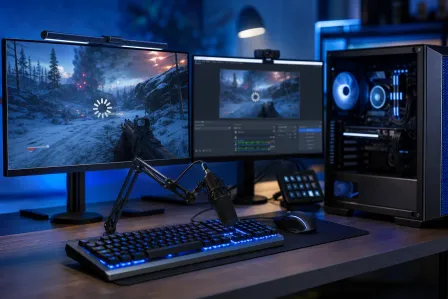
Let me be real: background apps can be absolute gremlins. Especially anything that hooks into the game to draw an overlay, record, stream, or “optimize” settings. This is prime territory for microstutter troubleshooting.
Overlay and capture conflicts
Try a clean test run with overlays disabled temporarily:
- Game overlays (platform overlays, chat overlays)
- GPU overlay features (performance HUDs, recording)
- Third-party monitoring overlays
If stutters vanish, you just found your culprit. Re-enable one at a time until the stutter returns. That is the clutch isolation method.
RGB and peripheral software
I love RGB. I live for it. But some lighting suites and peripheral apps can spike CPU usage or cause driver-level hiccups. If your frametime graph looks like a heart monitor, test with:
- Lighting software closed
- Extra device utilities closed (headset mixers, macro tools)
Step 3: Check DPC latency (the hidden input lag villain)
When people say “my aim feels off” or “inputs feel mushy,” sometimes it is not the game. It is the system struggling with real-time tasks. That is where DPC latency comes in, and yes, it can contribute to input lag and audio crackles too.
What causes high DPC latency?
- Wi-Fi or Ethernet drivers acting up
- Audio drivers
- Bluetooth stacks
- Storage drivers or external devices
Quick wins
- Update chipset drivers from your motherboard vendor.
- Update network and audio drivers from the device or motherboard vendor.
- Unplug non-essential USB devices for a test (yes, even that RGB mouse bungee).
If Windows is being weird, start with official guidance: Microsoft Support for Windows performance and troubleshooting.
Step 4: Validate XMP/EXPO stability (because unstable RAM = stutter city)
Okay, RAM time. XMP (Intel) and EXPO (AMD) profiles are awesome because they unlock the speed you paid for. But if the profile is unstable, you can get random stutters, game crashes, and those nasty “why did my frametime just teleport?” moments. This is a massive part of any gaming pc stutter fix checklist.
Why XMP/EXPO stability matters for gaming
- Unstable memory can cause background error correction and retries.
- That can show up as frame time spikes and sudden FPS drops.
- It can also cause shader compilation hiccups and random application hangs.
How to test (safe approach)
- If stutters started after enabling XMP/EXPO, try disabling it as a test.
- If disabling fixes it, re-enable and try a slightly lower memory speed, or confirm your motherboard BIOS is up to date.
Bang-for-buck note: Running slightly slower but stable RAM is a total W compared to unstable “spec-sheet flex” settings. Your future self will thank you.
Step 5: Watch CPU boost clocks and temps (boost is great until it is not)
Your CPU is basically a tiny overclocking wizard on autopilot. Modern CPUs boost hard when there is thermal and power headroom. But if cooling is weak, dust is thick, or power limits are tight, the CPU can bounce clocks. That bounce can cause uneven frame delivery, especially in CPU-heavy games.
What to look for
- CPU temperature climbing and then clocks dropping
- High CPU usage in one or two cores (common in competitive titles)
- Background tasks stealing CPU time
Fixes that actually move the needle
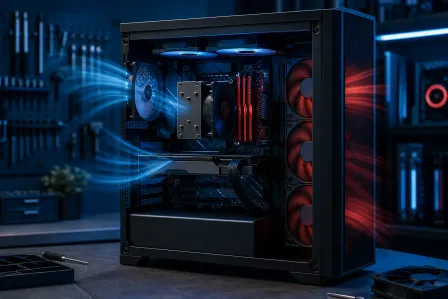
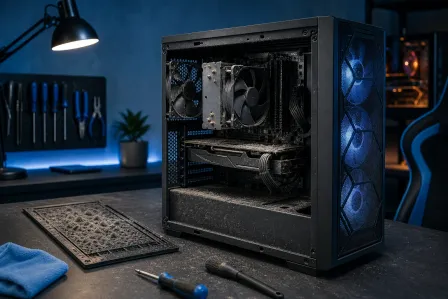
- Clean the cooler and case filters. Airflow is FPS.
- Confirm your CPU cooler is mounted properly and thermal paste is not ancient.
- Set a sane fan curve so the CPU does not heat-soak mid-match.
If you want hands-on help in Palm Beach County, this is exactly the kind of thing we handle with proper diagnostics and thermal service at gaming PC computer repair and performance tuning.
Step 6: Check GPU power limit, temps, and driver sanity
Your GPU is the rare trading card in this build. Treat it right. If the GPU is power-limited, overheating, or stuck in a weird driver state, you can see stutters even with high average FPS.
GPU power limit and thermal throttling
- If the GPU hits its temperature limit, it may reduce clocks to protect itself.
- If the GPU hits a power limit, it can also reduce boost behavior.
- Either way, you get inconsistent frame delivery and frametime spikes.
Driver cleanup and updates (do it the right way)
- Update to a stable GPU driver from NVIDIA or AMD.
- If stutters began after a driver update, consider rolling back to the previous stable version.
- Avoid stacking “optimizer” apps that mess with driver profiles.
Step 7: Tune low-latency features (NVIDIA and AMD) without placebo settings
Now we are talking that competitive edge. These settings can reduce the render queue and tighten responsiveness, but they are not magic. Use them as part of a measured approach with your frametime graph and 1% lows.
NVIDIA latency settings
- In NVIDIA Control Panel, look for the low latency option and test per-game.
- Pairing low latency settings with a reasonable frame cap can improve consistency.
AMD Anti-Lag
- AMD Anti-Lag is designed to reduce input lag in many scenarios.
- Test it in the games you actually play and watch for changes in feel and frametime stability.
Frame caps and VRR (G-SYNC/FreeSync)
- A smart frame cap can reduce spikes by preventing the GPU from slamming into 100% usage constantly.
- Variable refresh rate can smooth perception, but it cannot fix massive frametime spikes from unstable hardware or drivers.
Step 8: Shader cache and storage hiccups (the stutter you get after updates)
Ever load into a match after a big update and it stutters like crazy for a bit? Often that is shader compilation and caching. It can be normal briefly, but if it never settles, something else is up.
What to do
- Give a game a few runs after major GPU driver or game updates to rebuild shaders.
- Make sure you have enough free disk space on the drive the game is installed on.
- Prefer SSD storage for modern games to reduce asset streaming stutters.
Step 9: Malware and background tasks (yes, it matters for FPS)
Look, I am not saying every stutter is a virus. But unwanted software can absolutely cause background CPU spikes, disk thrashing, and network weirdness that feel like in-game lag. If your system is randomly pegging resources at idle, investigate.
For trusted reading on how malware can impact performance, check: Malwarebytes resources on malware and performance impacts.
Clean test method
- Reboot and test with only essential apps running.
- Disable non-essential startup apps temporarily.
- Confirm Windows is fully updated on Windows 10 or Windows 11.
Step 10: When it is time for Palm Beach gaming PC repair (hands-on testing hits different)
If you have done the checklist and your frametime graph still looks like a roller coaster, it is time to bring in the big tools. Some stutters only show up under controlled stress testing, thermal imaging, swap-testing components, or deep driver conflict analysis.
Signs you should get a pro to put hands on the rig
- Stutters persist across multiple games and clean boots
- Random crashes, WHEA errors, or black screens (often stability-related)
- Temps are high even after cleaning
- XMP/EXPO causes instability even at conservative settings
- New GPU or PSU install and now you get weird power behavior
How Fix My PC Store can help (Palm Beach County gamers)
- In-shop diagnostics, stability testing, and thermal service via computer repair for gaming PCs
- For gaming laptops with stutters, heat soak, or power limit issues, we do laptop repair and performance troubleshooting
- Want help without leaving your setup? Try remote support for PC performance tuning for software-side investigation and optimization
We serve gamers across Palm Beach County, including West Palm Beach, Palm Beach Gardens, Lake Worth Beach, Boynton Beach, Jupiter, Royal Palm Beach, and Wellington. If your rig is supposed to be cracked but it is acting cursed, we will get it back to banger status.
Quick recap: the stutter slayer checklist
- Measure frametimes first, do not guess
- Disable overlays and background capture tools to isolate conflicts
- Investigate DPC latency drivers (network, audio, USB)
- Validate XMP/EXPO stability (stability beats spec-sheet flex)
- Watch CPU boost clocks and temps for throttling
- Check GPU power limit, temps, and driver stability
- Use NVIDIA latency settings and AMD Anti-Lag with measured testing
- Consider shader cache rebuild behavior after updates
Ready to Upgrade Your Gaming Rig?
Get expert gaming PC builds, upgrades, and repairs from Palm Beach County's performance specialists.
Level Up Now