Why Is My PC Fan So Loud? 6 Fast Fixes That Actually Work
Listen to this article
A noisy computer fan fix is often the simplest way to stop a small problem (dust and restricted airflow) from turning into a big one (overheating, random shutdowns, or shortened hardware life). If your desktop or laptop suddenly sounds like it’s “revving,” it’s usually because the system is working harder to cool itself—common in Palm Beach County where Florida heat and humidity can push temperatures higher year-round.
This evergreen guide walks you through PC fan cleaning, safe desktop dust removal, airflow improvements, and how to tell when the issue is fan bearing noise or dried thermal paste. You’ll also learn quick temperature checks to confirm the fix.
Noisy computer fan fix: what the sound is telling you
Common causes of loud fans (desktop and laptop)
- Dust buildup on fan blades, heatsinks, and filters (the most common).
- Blocked vents (pushed against a wall, on carpet, or clogged intake grills).
- Poor airflow inside a desktop (bad fan orientation, cable clutter, missing/incorrect case fans).
- High CPU/GPU load from heavy apps, too many startup programs, or malware.
- Fan bearing noise (grinding, rattling, ticking) from a worn fan.
- Dry or poorly applied thermal paste causing CPU temperature too high under normal use.
Why you shouldn’t ignore a loud fan
Modern PCs protect themselves by ramping fans up as temperatures rise. If heat keeps climbing, the system may throttle performance, freeze, or shut down unexpectedly. Over time, repeated overheating can reduce the lifespan of components—especially in warmer environments. A good computer overheating prevention routine is cheaper than replacing a motherboard or GPU later.
PC fan cleaning and desktop dust removal: safe prep before you start
What you’ll need
- Compressed air (air duster) or an electric air blower designed for electronics
- Soft anti-static brush (optional but helpful)
- Microfiber cloth
- Isopropyl alcohol (90%+ preferred) for stubborn grime (optional)
- Screwdriver set (for desktops and some laptops)
- Good lighting
Power and static safety checklist
- Shut down the computer completely.
- Unplug the power cable (and remove the laptop charger).
- For desktops, flip the PSU switch off if your power supply has one.
- Hold the power button for ~10 seconds to discharge residual power.
- Work on a hard surface (avoid carpet) and touch bare metal on the case periodically.
Air duster safe use (important)
- Keep the can upright to avoid spraying liquid propellant.
- Use short bursts—don’t hold the trigger continuously.
- Hold fan blades still with a finger or plastic tool while blowing air. Spinning a fan too fast can damage bearings or generate back-voltage.
- Blow dust out of the case, not deeper into it—aim from inside to outside when possible.
Desktop fan cleaning: step-by-step airflow improvement
1) Open the case and identify airflow direction
Most desktops use a simple pattern: front/bottom intake and rear/top exhaust. Before cleaning, note which fans pull air in and which push air out (many fans have small arrows on the frame showing airflow direction).
2) Clean filters, intakes, and heatsinks first
Dust filters are often the biggest restriction. Remove and clean them (many rinse with water—fully dry before reinstalling). Then blow dust off:
- Front intake grills
- CPU heatsink fins
- GPU fans and heatsink (carefully)
- Power supply intake (do not open the PSU itself)
3) Clean fans without overspinning them
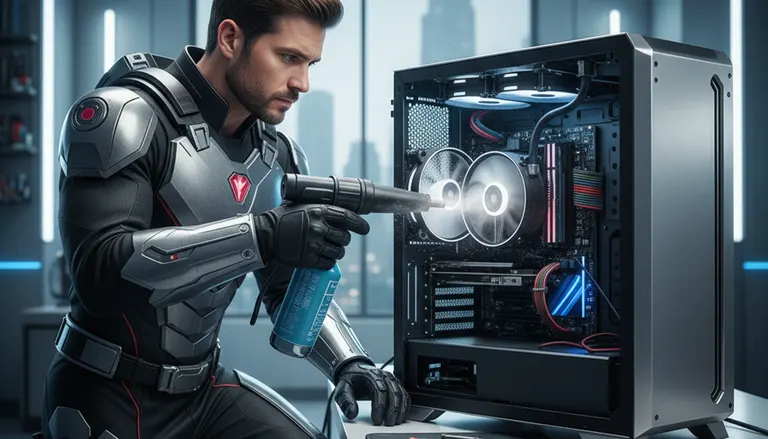
Hold each fan blade in place and use short bursts of air. If there’s sticky buildup, lightly wipe blades with a microfiber cloth (a tiny amount of isopropyl alcohol can help). This is the core of effective PC fan cleaning.
4) Improve internal airflow (quick wins)
- Cable management: route cables away from front-to-back airflow.
- Balance intake and exhaust: too much exhaust can pull dust in through gaps; too much intake can trap heat if exhaust is weak.
- Clearance: keep the PC a few inches from walls; avoid enclosed cabinets.
5) Re-test temperatures and fan noise
After cleaning, boot up and listen. Fans should ramp up briefly at startup, then settle. If you still have loud noise or CPU temperature too high symptoms, continue to the diagnostics sections below.
Laptop fan noise: cleaning vents without damaging the system
Start with external vent cleaning
Laptops are more delicate than desktops. For many users, the safest first step is to blow air through the vents (short bursts, upright can) while holding the laptop fan from spinning if you can access it through a grill. Don’t jam tools into vents.
Avoid common laptop cooling mistakes
- Don’t use laptops on blankets or carpet—it blocks intake vents.
- Don’t “seal” a laptop in a tight dock space with no airflow.
- Don’t keep it in a hot car—heat soak can trigger persistent fan ramping.
When a laptop needs internal cleaning
If vent cleaning doesn’t help, internal dust may be packed into the heatsink fins (a common cause of computer overheating prevention failures). Internal cleaning often requires removing the bottom cover and sometimes disconnecting the battery—steps that vary by model. If you’re unsure, schedule professional computer repair for overheating and fan noise to avoid damaging clips, cables, or the battery connector.
CPU temperature too high: quick checks to confirm the fix
Use built-in Windows tools first
While Windows doesn’t show CPU temperature natively in a universal way, it can help you identify runaway background activity. Open Task Manager and check CPU usage at idle. If it’s unusually high, you may have a software issue, too many startup apps, or malware.
For official Windows guidance on performance troubleshooting, see Microsoft Support for Windows help and troubleshooting.
What “too hot” typically looks like
Exact safe temperatures vary by CPU/GPU model and laptop design, but these patterns are reliable:
- Idle temperatures should generally be much lower than load temperatures.
- If fans are loud at idle, something is wrong (dust, failing fan, or background load).
- If the PC shuts down under load, overheating is a prime suspect.
If you suspect malware is driving high CPU usage and heat, consider virus and malware removal service—it can reduce load, noise, and temperatures.
Fan bearing noise vs. airflow noise: when to replace a fan
How to identify fan bearing noise
Dust-related noise is often a “whoosh” or turbulent airflow sound. Fan bearing noise is different—think clicking, grinding, rattling, or a cyclical chirp. It may change if you gently tilt the PC (desktop) or reposition the laptop.
Replace the fan if you notice:
- Persistent rattling/clicking after cleaning
- Fan wobble or visible vibration
- Fan intermittently stopping or failing to start
- Burning smell or discoloration near the fan hub (stop using the PC and get it checked)
Desktop fans are usually inexpensive and straightforward to replace. Laptop fans are model-specific and can require careful disassembly. If you want help sourcing and installing the right part, book in-shop diagnostics and fan replacement.
Thermal paste replacement: when cleaning isn’t enough
Signs you may need new thermal paste
Thermal paste fills microscopic gaps between the CPU and the cooler. Over years of heat cycling, it can dry out or pump out, reducing heat transfer. Consider thermal paste replacement if:
- Temps remain high after thorough cleaning and airflow fixes
- The CPU cooler was previously removed and reinstalled without new paste
- The PC is several years old and recently started running hotter
High-level safe approach (desktop)
- Power down and unplug.
- Remove the CPU cooler carefully.
- Clean old paste from CPU and cooler base with isopropyl alcohol and lint-free material.
- Apply a small, appropriate amount of new paste (method varies by CPU size; avoid over-application).
- Reinstall cooler with even pressure and reconnect the fan header.
If you’re not comfortable doing this—or if it’s a laptop where access is complex—our team can handle it as part of overheating repair and thermal service.
Computer overheating prevention: keep it quiet all year in Florida
Monthly and quarterly habits that work
- Monthly: quick vent check and light dusting around intakes.
- Quarterly: filter cleaning and deeper dust removal (more often with pets).
- Room conditions: avoid direct sunlight; keep the area cooler when possible.
- Placement: desktops off the floor reduce dust intake; laptops on hard surfaces improve airflow.
Don’t overlook software and storage issues
Overheating isn’t always “just dust.” A failing drive, corrupted OS files, or malware can increase background activity and heat. If you’re seeing crashes or missing files after overheating events, consider data recovery services sooner rather than later—heat-related instability can worsen drive problems.
For quick assistance without a trip, remote IT support can help identify high CPU processes, startup bloat, or suspicious activity contributing to fan noise.
Palm Beach County computer help: when to call a pro
Situations that warrant service
- Repeated shutdowns or thermal throttling even after cleaning
- Laptop fan noise that returns quickly (packed heatsink or failing fan)
- Burning smell, electrical odor, or visible damage
- You need thermal paste replacement but don’t want to risk disassembly
Fix My PC Store provides Palm Beach County computer help including West Palm Beach, Palm Beach Gardens, Lake Worth Beach, Boynton Beach, Wellington, Royal Palm Beach, Jupiter, and surrounding areas. If your system is overheating or the fan is loud, we can diagnose airflow, replace failing fans, and verify temperatures after repair.
Tip: If you suspect malicious software is causing high usage and heat, check reputable guidance like Malwarebytes resources on malware and PC performance and then schedule malware removal if needed.
Need Expert Computer Support?
Get professional help from Palm Beach County's trusted computer repair specialists.
Get Help Today