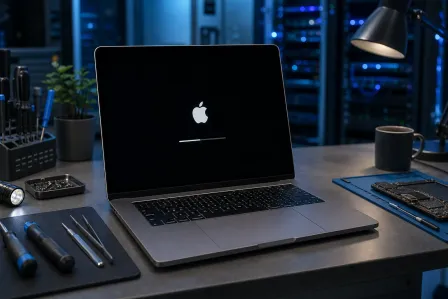
Apple M4 MacBook Overheating After macOS Update: Fix It
Listen to this article
TL;DR: If your Apple M4 MacBook overheating after macOS update problem started right after you updated, it’s usually background tasks, a runaway app, or a setting that changed. Start with CPU checks, indexing/sync patience, and a few boring power tweaks before you assume your laptop is “cooked.”
Now, let me guess. Your MacBook was quiet as a refrigerator, then you updated macOS and suddenly it’s hot enough to warm a sandwich, fans sound like a leaf blower, and everything feels sluggish. I see this exact problem three times a week. Back in my day, the worst an update did was make Windows XP ask you to reboot at the worst possible time. Now people update and wonder why their laptop is trying to launch into orbit.
This guide is for MacBook owners on Apple Silicon (including M4 models) who updated macOS and now deal with heat, fan noise, and thermal throttling (that lovely moment when the system slows down to keep itself from melting). We’ll cover what not to do, what actually works, and when it’s time to bring it to a shop in Palm Beach County so you don’t turn a fixable problem into a data-loss tragedy.
macOS overheating after update: what’s actually happening?
First: heat after a macOS update is often normal for a little while. Not forever. Not “my keyboard is a skillet.” But normal for a bit.
After an update, macOS commonly runs background jobs like:
- Spotlight indexing (rebuilding search)
- Photos analysis (faces, objects, memories, all that jazz)
- iCloud sync (Drive, Photos, Messages, you name it)
- App updates and helper processes reinitializing
Those tasks can hammer CPU cores, which creates heat. Heat triggers fan ramp-up (on models with fans). And if temperatures climb high enough, you get M4 chip thermal throttling, meaning performance drops to protect the hardware. That’s not a defect. That’s the laptop saving itself from bad decisions (yours or the software’s).
How long should post-update heat last?
Usually hours, sometimes a day or two if you have a lot of photos, a lot of iCloud data, or you left your MacBook asleep for weeks like it’s a VCR clock you never set. If it’s still cooking itself after a couple days of normal use, we stop calling it “post-update settling” and start calling it “a problem.”
MacBook running hot after update: the quick triage checklist
Here’s what NOT to do: don’t install five “cleaner” apps, don’t run some sketchy “Mac booster,” and don’t crack open the bottom cover with a butter knife because a guy on a forum said “re-paste it.” That’s how you turn a warm laptop into an expensive paperweight.
Here’s what to do instead.
Step 1: Check what’s chewing CPU (the usual culprit)
Open Activity Monitor and sort by CPU. Apple has a decent overview of using Activity Monitor here: Apple’s guidance on Activity Monitor and checking CPU usage.
Things you might see right after an update:
- mds or mdworker (Spotlight indexing)
- photoanalysisd (Photos analysis)
- bird (iCloud Drive syncing)
- A browser tab doing something dumb (yes, still, in 2026)
If it’s indexing or syncing, give it time. Plug into power, keep the lid open, and let it finish. If it’s a third-party app pinned at 200% CPU for an hour, quit it. If it relaunches and does it again, update that app or remove it.
Step 2: Reboot (yes, really)
I know. It’s the oldest advice in the book. But back in my day, a reboot fixed the dial-up stack, the printer spooler, and your attitude. It still helps now because it clears stuck processes after an OS update.
Step 3: Check for app updates and finish the update cycle
After a macOS update, you often need:
- Additional macOS patches
- Safari updates
- App Store updates
- Vendor updates (Adobe, Microsoft, Zoom, VPN clients)
Outdated apps can misbehave on a newer OS and spin CPU like a cassette tape stuck in rewind.
MacBook fan noise fix: reduce heat without doing anything reckless
If your MacBook has fans and they’re roaring, that’s not the fans “going bad” most of the time. That’s the system begging for less heat.
Use a hard, flat surface (your bed is not a desk)
Don’t use it on blankets, couches, or your lap with a hoodie blocking vents. Airflow matters. I can’t believe I have to say this in 2026, but here we are.
Close heavy apps and browser tab hoarding
Chrome with 47 tabs, Slack, Teams, Zoom, and a 4K YouTube video in the background is basically asking your MacBook to tow a boat uphill. Try this:
- Quit unused apps (not minimize, quit)
- Reduce tabs
- Disable unnecessary browser extensions
Check external displays and hubs
USB-C hubs and external monitors can increase power draw and heat. If you’re troubleshooting, unplug everything and test on just the MacBook for an hour. If the overheating disappears, we found a contributor.
Power settings and “low power” options
On Apple Silicon laptops, power mode settings can change behavior. If you’re doing normal office stuff and your Mac is acting like it’s rendering a Pixar film, try a lower power mode temporarily and see if temps settle. Boring but works.
macOS performance issues and M4 chip thermal throttling: how to tell
Thermal throttling looks like this:
- Fans ramp up
- System feels laggy
- Apps stutter during simple tasks
- Video calls start dropping frames
And the key detail: it gets worse under sustained load. That’s exactly how thermal protection is supposed to behave.
Common software triggers after an update
- Spotlight indexing never finishing due to a corrupted index
- Cloud sync loops (Drive/Photos repeatedly retrying)
- Third-party security/VPN tools that aren’t playing nice
- Browser GPU acceleration quirks (rare, but it happens)
If you want help without driving anywhere, this is exactly the kind of thing we can often diagnose via remote Mac troubleshooting and support. You’d be amazed how many “my Mac is dying” cases are just one misbehaving process and a couple settings.
Apple Silicon overheating in 2026: when it’s not just software
Look, I’m not going to sugarcoat this. If your MacBook is overheating constantly, it can cause real problems. Sustained heat can accelerate battery wear, cause random shutdowns, and in worst cases, lead to board-level damage. Apple Silicon is efficient, not magical.
Warning signs it might be hardware or airflow related
- Heat is extreme even at idle (just sitting on the desktop)
- Fans are loud all the time (on models with fans)
- Mac shuts down or restarts under light use
- Battery health drops fast or it swells (stop using it if that happens)
- Liquid spill history (don’t “forget” to mention that)
Dust is still a thing (yes, even in a “clean” house)
Back in my day, CRT TVs inhaled dust like a shop vac. Laptops aren’t immune either. Dust and pet hair can restrict airflow and trap heat. Some models are more sealed than others, but heat still needs somewhere to go.
If you’re in Palm Beach County, bring it in. We’ll inspect cooling behavior, check thermals under load, and figure out if it’s software, airflow, battery, or something uglier. Start here: MacBook and computer repair services.
macOS MacBook fix steps that are safe (and the ones that waste your time)
Here are safe steps that don’t involve downloading snake oil or taking your laptop apart on the kitchen table.
Safe fixes you can try
- Let indexing finish: keep it plugged in and awake for a while
- Update all apps: App Store and vendor updaters
- Remove login items you don’t need: fewer background agents, less heat
- Test in Safe Mode: if heat disappears, it’s likely third-party software
- Create a new user profile: isolates user-level launch agents and settings
Time-wasters and bad ideas
- “Mac cleaner” apps that promise miracles (they usually create problems)
- Random terminal commands from strangers without understanding them
- Resetting everything repeatedly without checking CPU usage first
- Ignoring malware and adware possibilities because “Macs don’t get viruses” (they do get unwanted software)
If you suspect something shady is running in the background, get it checked properly. We handle cleanup and verification the right way at our virus and malware removal service. And if you want some reading from folks who do this all day, here’s a good general resource: Malwarebytes resources on spotting unwanted software that can spike CPU.
Don’t cook your data: backups and recovery planning
Here’s what actually happens when you ignore overheating: the machine slows, crashes, and eventually something corrupts. Could be an app library. Could be your Photos database. Could be your work project. And then you’re panicking.
If you don’t have a backup, you don’t have data. You’re just borrowing it.
Do this:
- Confirm you have a current Time Machine backup
- If you use iCloud, remember it’s sync, not a full backup
- If the Mac is unstable, stop pushing it and get help
If things already went sideways (missing files, corrupted libraries, drive not mounting), we can help with data recovery and file restoration. The sooner you stop “trying stuff,” the better your odds.
MacBook repair in Palm Beach County: when to stop DIY
DIY is fine until it isn’t. If your MacBook is still running hot after you’ve:
- Checked Activity Monitor for runaway CPU
- Let post-update tasks finish
- Updated apps
- Tested without external accessories
...then it’s time for diagnostics. In our West Palm Beach shop, we see customers from across Palm Beach County, including nearby areas like Palm Beach Gardens, Lake Worth, Boynton Beach, Royal Palm Beach, Wellington, and Jupiter. We’ll tell you if it’s a software cleanup, a configuration fix, or a hardware issue that needs real repair. No drama. No upsell. You don’t need the newest thing. You need the thing that works.
Quick “boring but works” checklist (print this in your brain)
- Reboot after the update
- Activity Monitor: identify the top CPU offenders
- Plug in and let indexing/sync complete
- Update apps and remove unnecessary login items
- Test with everything unplugged
- Back up before you keep experimenting
Need Expert Computer Support?
Get professional help from Palm Beach County's trusted computer repair specialists.
Get Help Today