Windows 11 24H2 BitLocker Bug: How to Recover a Locked PC
Listen to this article
TL;DR: The Windows 11 24H2 update has been triggering unexpected BitLocker recovery screens on thousands of PCs in 2026 - even on machines where encryption was never manually turned on. If your computer won't boot after a Windows update and you're staring at a blue BitLocker recovery screen, don't panic. This guide walks you through exactly how to retrieve your recovery key, get back into your PC, and prevent this from happening again.
Why Is My PC Suddenly Asking for a BitLocker Recovery Key?
Let's break this down, because this one catches a LOT of people off guard.
If you recently updated Windows 11, changed a BIOS setting, or had a firmware update push through automatically, you might have been greeted by a terrifying blue screen asking for a 48-digit BitLocker recovery key. Your first thought was probably: "I never turned on BitLocker. What is happening?"
Here's the thing - you're absolutely right. You probably didn't turn it on manually. But Windows 11 24H2 introduced something called automatic device encryption. On PCs that meet certain hardware requirements (a TPM 2.0 chip, Secure Boot enabled, and a Microsoft account sign-in), Windows 11 quietly enables BitLocker encryption in the background. No prompt. No confirmation. It just... does it.
And that's totally fine - until something disrupts the trust chain between your hardware and the encryption. A BIOS update, a firmware change, a failed Windows update, or even a hardware swap can trigger the BitLocker recovery screen. Suddenly your PC is locked, and you need a key you never knew existed.
This Windows 11 24H2 BitLocker bug has been one of the most common issues we've seen at our computer repair shop in West Palm Beach throughout 2026. You are definitely not alone in this.
How Automatic Device Encryption Works in Windows 11 24H2
Let me explain this in a way that actually makes sense, because Microsoft's documentation can be a bit dense.
BitLocker is a full-disk encryption feature built into Windows. It's designed to protect your data if your laptop gets stolen. When it's working properly, it's invisible - your PC boots normally, and the TPM chip handles the decryption automatically.
With Windows 11 24H2, Microsoft expanded the criteria for automatic device encryption. Previously, this feature only kicked in on certain OEM devices. Now, it activates on a much wider range of hardware. According to Microsoft's BitLocker documentation, the encryption is tied to your Microsoft account, and the recovery key is supposed to be automatically backed up to your account.
The keyword there is "supposed to."
Why the Recovery Key Sometimes Doesn't Get Saved
Here's where things get tricky. The automatic backup of your BitLocker recovery key depends on a few things going right:
- You were signed into a Microsoft account (not a local account) when encryption activated
- Your internet connection was stable during the encryption process
- The backup process completed without errors
If any of those conditions weren't met - maybe you switched to a local account, maybe your Wi-Fi dropped at the wrong moment - your recovery key might not be saved anywhere. And that's when a routine Windows update can turn into a full-blown crisis.
Step-by-Step: How to Retrieve Your BitLocker Recovery Key
Okay, deep breath. Let's walk through this together. There are several places your recovery key might be hiding, and we're going to check every single one.
Option 1: Check Your Microsoft Account Online
This is the most common place to find it, and it works for most people. Here's what to do:
- Grab another device - a phone, a tablet, a friend's computer, anything with a web browser
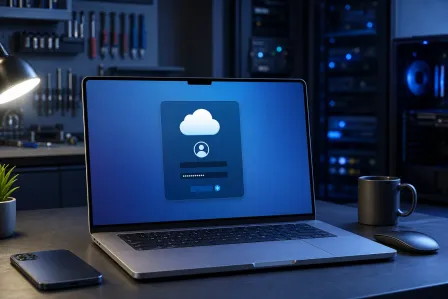
- Go to account.microsoft.com/devices/recoverykey
- Sign in with the Microsoft account you use on the locked PC
- Look for your device name and the associated 48-digit recovery key
- Type that key into the BitLocker recovery screen on your locked PC
Found it? Amazing! That's a huge win. Type it in carefully (those 48 digits are not forgiving of typos), and you should be back in business.
For more detailed instructions, check out Microsoft's official BitLocker recovery key guide.
Option 2: Check Your Azure Active Directory or Work Account
If your PC is managed by an employer or school, the recovery key might be stored in your organization's Azure Active Directory (now called Microsoft Entra ID). Contact your IT department - they can usually retrieve it in minutes.
Option 3: Check for a Printed or Saved Copy
Did you (or whoever set up your PC) ever print the recovery key or save it to a USB drive? It's worth checking. Some PC manufacturers also include BitLocker recovery information in their setup documentation.
Option 4: Check Your Microsoft Account Under a Different Email
Here's one people miss - if you've ever signed into your PC with a different Microsoft account (even temporarily), the key might be saved under that account instead. Try every Microsoft email address you've ever used.
What If You Can't Find Your BitLocker Recovery Key?
I'm not going to sugarcoat this one. If your recovery key truly isn't saved anywhere, the situation gets more complicated. But it's not hopeless. Let's talk about your options.
Professional Data Recovery
Without the recovery key, the encrypted drive cannot be unlocked through normal means. BitLocker uses AES encryption, which is extremely strong by design. However, a professional data recovery service can sometimes help in specific scenarios:
- If the encryption was only partially completed before the lockout
- If the drive has a suspended protection state that can be leveraged
- If there are backup partitions or recovery partitions that weren't encrypted
Our technicians at Fix My PC Store in West Palm Beach have recovered data from BitLocker-locked drives in cases where the encryption wasn't fully applied. It's not guaranteed, but it's absolutely worth exploring before you give up on your files.
Clean Windows Reinstall
If your data isn't critical (or you have cloud backups - please tell me you have cloud backups!), a clean reinstall of Windows is the fastest path back to a working computer. Here's the general process:
- Create a Windows 11 installation USB drive using another PC and Microsoft's Media Creation Tool
- Boot from the USB drive on the locked PC
- During installation, delete the encrypted partition and create a new one
- Install Windows fresh
Important: This will erase everything on the encrypted drive. There's no going back once you delete that partition. If there's any chance your data can be recovered, talk to a professional first.
When to Bring Your PC to a Professional
Look, I love empowering you to fix things yourself. That's kind of my whole deal! But there are times when bringing your machine to a trusted laptop repair specialist is the smartest move. Here's when I'd recommend it:
- You have important files on the locked drive and no backup
- You're not comfortable creating bootable USB drives or editing partitions
- Your PC has other issues beyond the BitLocker screen (hardware problems, multiple failed updates)
- You need your computer back fast for work or school
Our team at Fix My PC Store handles BitLocker recovery cases every week. We serve customers across West Palm Beach, Boynton Beach, Lake Worth, Jupiter, and the greater Palm Beach County area. We've seen every variation of this bug, and we know exactly how to approach each scenario.
How to Prevent the Windows 11 24H2 BitLocker Bug From Happening Again
Once you're back into your PC (and you WILL get back in - you've got this), let's make sure this never catches you off guard again.
Back Up Your BitLocker Recovery Key Right Now
Seriously, do this immediately. Here's how:
- Open Settings > Privacy & Security > Device Encryption (or search "BitLocker" in the Start menu)
- Click Back up your recovery key
- Save it to your Microsoft account, print it, AND save it to a USB drive
- Store the printed copy somewhere safe (not taped to your laptop, please!)
I recommend saving it in at least two different places. Future you will be incredibly grateful.
Consider Whether You Actually Need BitLocker
If you're using a desktop PC that never leaves your home, you might decide that full-disk encryption isn't necessary for your situation. You can turn off device encryption in Settings > Privacy & Security > Device Encryption. Just toggle it off.
A word of caution: If you travel with a laptop or store sensitive information, BitLocker is genuinely valuable protection. Don't disable it just because it caused one bad experience. Instead, make sure your recovery key is properly backed up.
Be Careful with BIOS and Firmware Updates
Since BIOS and firmware updates are the most common trigger for this bug, here's a smart approach:
- Before any BIOS update, suspend BitLocker protection temporarily (you can do this from the BitLocker control panel)
- Complete the BIOS update
- Reboot and confirm everything works
- BitLocker will automatically resume protection
This simple step prevents the TPM from detecting a hardware change and triggering the recovery screen. It takes 30 seconds and saves you hours of stress.
Keep Regular Backups of Your Important Files
This is my broken record moment, but I'll say it anyway: back up your files! Use OneDrive, Google Drive, an external hard drive, or all three. If your drive ever becomes truly inaccessible, having a backup means you've lost nothing but a little time.
Why This BitLocker Bug Is So Widespread in 2026
The reason this issue has exploded in 2026 is a perfect storm of factors. Microsoft has been pushing Windows 11 24H2 updates more aggressively, including cumulative updates that modify boot components. Hardware manufacturers have been rolling out firmware updates for security vulnerabilities. And the expanded automatic encryption criteria means millions more PCs are encrypted than their owners realize.
It's not really a "bug" in the traditional sense - BitLocker is working exactly as designed. The problem is that the automatic encryption happens so silently that users have no idea it's there until something goes wrong. Microsoft could absolutely do a better job of notifying users and ensuring recovery keys are saved before encryption activates.
Until that changes, awareness and preparation are your best defenses. And now you have both!
Get Expert BitLocker Recovery Help in Palm Beach County
If you're staring at a BitLocker recovery screen right now and feeling stuck, we're here for you. The team at Fix My PC Store has been helping customers across Palm Beach County recover from this exact issue all year. Whether you need help retrieving your recovery key, recovering data from an encrypted drive, or getting a fresh Windows installation up and running, our experienced technicians can help.
We offer professional computer repair services for desktops, laptops, and everything in between. Walk-ins are welcome at our West Palm Beach location, or give us a call to describe your situation - we'll let you know exactly what to expect before you bring your machine in.
Remember: getting locked out of your own PC is frustrating, but it's fixable. You've got this - and if you need a hand, we've got you covered.
Locked Out After a Windows Update?
Fix My PC Store in West Palm Beach specializes in BitLocker recovery, data recovery, and Windows repair. Let our expert technicians get you back into your PC fast.
Get Help Today