Water Damaged Phone? What to Do First (and What to Avoid)
Listen to this article
So your water damaged phone just took an unexpected swim. Pool. Rainstorm. Sink. Or the classic: “It was in my pocket and I forgot.” Look, I’m not judging your 8-hour screen time report. Okay, maybe a little. But I am judging anyone who thinks a rice bag is a certified repair tool.
I’m Mobile Max from Fix My PC Store in West Palm Beach, and I see this all the time across Palm Beach County: Boca, Delray, Boynton, Lake Worth, Wellington, Royal Palm, Palm Springs, Jupiter, Palm Beach Gardens, and everywhere in between. The good news? Phone water damage recovery is often possible. The bad news? The first 10 minutes can decide whether you’re saving your phone or shopping for a new one.
Below is an evergreen, step-by-step emergency checklist for iPhone water damage and Android water damage, plus what a real liquid damage repair process looks like when you bring it to pros who do more than “hope it dries.”
Water Damaged Phone: The First 5 Minutes (Do This Now)
1) Get it out of the liquid and power it off
Yes, power it off. Not “let me see if it still works.” Not “I’ll just check one notification.” Off.
- If the screen responds: hold the power button and shut it down.
- If it’s already off: keep it off.
- If it’s doing the boot-loop dance: do not keep forcing restarts.
Why: water itself isn’t the only villain. Electricity plus moisture creates short circuits and accelerates corrosion. The more you keep it powered, the more you’re rolling the dice with the logic board.
2) Remove the case, accessories, and anything trapping moisture
Take off the case. Pop off any wallet attachment. Remove the charging cable. If you’ve got a screen protector that’s lifting and holding water at the edge, don’t peel it like a raccoon with a snack. Just remove the case and dry the exterior first.
Why: cases trap moisture against seams, buttons, speakers, and ports. That turns “oops, splash” into “congrats, you built a tiny humidifier.”
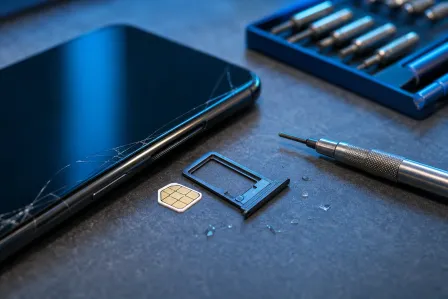
3) Remove the SIM tray (and microSD if you have one)
On many phones, the SIM tray opening is a direct path for moisture to hang out. Pull the tray, remove the SIM, and gently pat everything dry.
Why: it improves airflow and reduces moisture retention. Also, it protects your SIM and can help you move service to a backup phone while we work on yours.
4) Dry the outside the right way (no heat, no heroics)
Use a clean microfiber cloth. Pat. Don’t shake it like a maraca. Don’t blow into ports. If you have compressed air, use it gently and at an angle, not straight into the port like you’re trying to pack water deeper.
Why: aggressive air or shaking can push liquid farther inside, especially into microphones and speaker assemblies.
5) If it’s saltwater, treat it like an emergency
Saltwater damage is the heavyweight champion of phone destruction. Pool water is bad. Ocean water is worse. Salt + moisture + electronics equals fast corrosion and mineral deposits that keep eating parts even after it “dries.”
Action: power off, remove case/SIM, pat dry, and get professional help ASAP. If you’re in Palm Beach County, don’t wait “until tomorrow” unless you like donating phones to the sea.
Supporting image suggestion: Place phone-liquid-damage-indicator-lci.jpg after this section to show what water damage indicators look like.
What to Avoid After Phone Water Damage (Myths That Keep My Shop Busy)
Myth #1: “Put it in rice.”
I’ve rescued phones from rice bags, toilet bowls, and one memorable washing machine incident. Rice is not a repair strategy. It’s a pantry item that leaves dust and starch in ports and speakers.
Do this instead: use airflow in a dry room and, better yet, use silica gel packets if you have them. But even that is not a magic fix for corrosion.
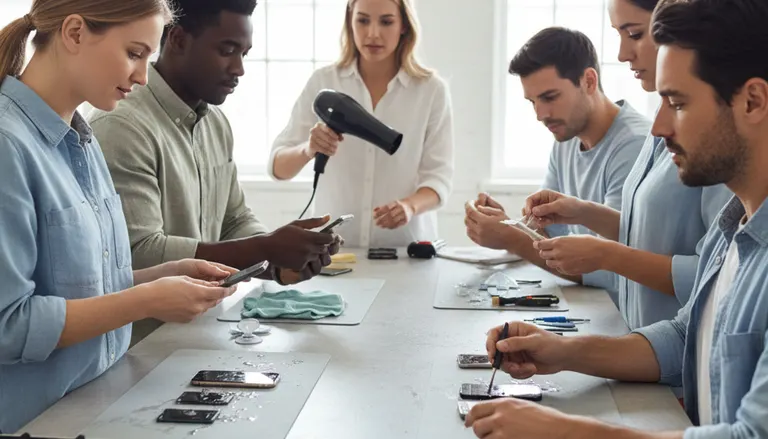
Myth #2: “Use a hair dryer or bake it in the sun.”
Heat feels logical. Heat is also how you warp seals, soften adhesives, and cook batteries. You can also “set” minerals and contaminants onto the board.
Do this instead: room-temperature drying and quick professional inspection. Let me save you a headache: heat is how small water problems become big repair bills.
Myth #3: “It’s water-resistant, so I’m fine.”
Water resistance is not waterproofing, and it’s not permanent. Seals degrade with drops, age, repairs, and temperature changes. Apple and Google both note that water resistance can decrease over time. Here are two reputable references if you want the fine print: Apple’s guidance on iPhone liquid exposure and water resistance and Google Pixel water resistance information and care tips.
Translation: your phone can survive a splash and still die later from corrosion. I see this all the time.
Myth #4: “If it turns on, it’s safe.”
Ah yes, the false sense of victory. A phone can work for hours or days after liquid exposure, then suddenly fail when corrosion finishes the job. If you had liquid in the charging port, speakers, or under the screen, you may still need corrosion cleanup even if it seems fine today.
Phone Won’t Turn On After Water? Here’s What That Usually Means
If your phone won’t turn on after water, it doesn’t automatically mean it’s dead forever. It usually means one of these:
- Battery protection kicked in (some devices will refuse to boot if they detect unsafe conditions).
- A short circuit occurred and a component failed.
- Corrosion is bridging contacts, especially around connectors and power management circuits.
- Display damage (phone may be on, but the screen is not).
Do not keep trying to charge it
This is the big one. Plugging in a wet phone is like inviting electricity to throw a party on a damp circuit board. If you see a “liquid detected” alert, listen to it. If you don’t see an alert, that doesn’t mean you’re safe.
Quick triage you can safely do
- Keep it powered off.
- Remove SIM tray.
- Pat dry exterior.
- Bring it in for evaluation before repeated charging attempts.
Water Damage Indicators: How We (and Manufacturers) Confirm Liquid Exposure
Most phones and tablets include water damage indicators, often called liquid contact indicators (LCIs). They’re typically small stickers inside the device that change color when exposed to moisture.
Where they’re commonly found
- Near the SIM tray opening
- Inside the device near the battery or connectors
- In some tablets, along internal frame edges
What LCIs can and can’t tell you
They can confirm exposure. They can’t tell you how severe the damage is or whether the device is recoverable. I’ve seen phones with tripped indicators that cleaned up beautifully, and phones with “no indicator change” that were still corroded in just the wrong spot.
Liquid Damage Repair: What a Professional Process Actually Involves
When you bring a water damaged phone to a real shop, the goal is not “dry it and pray.” The goal is to stop corrosion, restore safe power flow, and test at the component level. At Fix My PC Store, our liquid damage repair approach focuses on maximizing survival odds and minimizing repeat failures.
Step 1: Intake + risk assessment
We ask what the phone met: fresh water, pool water, coffee, soda, saltwater. (Yes, it matters. A lot.) We also ask whether you tried charging it. I won’t roast you. Much. My flip phone collection is judging you right now, though.
Step 2: Safe disassembly and moisture mapping
We open the device and check common liquid entry points: charging port, speaker mesh, button gaskets, camera openings, and internal shields. We look for residue, discoloration, and corrosion patterns.
Step 3: Corrosion cleanup and board-level inspection
This is the part most “DIY fixes” never touch. Corrosion is a chemical reaction that continues after the phone feels dry. We clean affected areas and inspect under shields and around connectors where corrosion likes to hide.
Step 4: Part-level testing (not just “it boots”)
We test battery health, charging behavior, display output, cameras, speakers, microphones, and cellular/Wi-Fi function. A phone that boots but can’t charge reliably or has a failing backlight is not “fixed,” it’s “about to come back.”
Step 5: Recommendations: repair, data-first, or replacement
Sometimes the smartest move is a targeted repair. Sometimes it’s data recovery after water damage first, then deciding if the device is worth saving. We’ll tell you straight.
Supporting image suggestion: Place corrosion-cleanup-ultrasonic-phone-board.jpg in this section (after Step 3) to illustrate technical corrosion cleanup.
Data Recovery After Water Damage: When to Prioritize Your Photos and Notes
Let’s be real: most people don’t care about the phone. They care about the baby photos, business logins, and the notes app that basically runs their life. If the device got soaked and you don’t have a recent backup, data recovery after water damage becomes priority number one.
Choose a “data-first” approach when:
- The phone is not powering on and you need the data urgently.
- The phone powers on intermittently (that’s a red flag for instability).
- It was saltwater damage or sugary liquid (fast corrosion and residue).
- You already tried charging it wet (higher chance of board damage).
What you should do at home (safely)
- Do not keep rebooting it “to see if it works.”
- If it turns on briefly, do not start installing apps or updating the OS.
- If you can access data safely, focus on essentials: photos, contacts, notes, and authenticator backups.
iPhone Water Damage vs Android Water Damage: Same Problem, Different Headaches
Android vs iOS? I’ll fix ’em both. But we can debate later. Here’s the practical reality: liquid damage behaves similarly across devices, but repair paths can differ.
iPhone water damage: common failure points
- Charging port and dock flex issues
- Display and backlight problems
- Face ID related component sensitivity (model dependent)
- Corrosion at connector interfaces
If you need help fast, start with professional iPhone repair for liquid damage so we can inspect and stop corrosion early.
Android water damage: common failure points
- USB-C port corrosion and unstable charging
- Speaker and microphone mesh contamination
- Battery swelling risk after exposure
- Board-level corrosion near power management
Samsung owners, you’re in good hands too: Samsung water damage repair and diagnostics can catch hidden corrosion before it becomes a no-power situation.
Don’t forget tablets
iPads and Android tablets love to soak up liquid through speaker grilles and edges. If your tablet took a spill, iPad liquid damage repair is worth doing early, especially if it’s used for school or business.
Palm Beach County Water Exposure Scenarios (Yes, We Know Them All)
In West Palm Beach and the surrounding areas, we see the same greatest hits:
- Pool drops: chlorine and minerals leave residue that corrodes.
- Beach days: saltwater damage and sand in ports, a brutal combo.
- Rainstorms: water sneaks in around cases and camera bumps.
- Sink and bathroom accidents: steam plus splashes plus chargers nearby. Great.
My practical rule
If it was anything other than a tiny splash on the screen, treat it seriously. A quick inspection can save you from a bigger repair later.
Your Quick Emergency Checklist (Screenshot This, Then Put Your Phone Down)
- Power off immediately.
- Remove case, cables, accessories.
- Remove SIM tray (and microSD if present).
- Pat dry exterior with microfiber.
- No heat, no hair dryer, no oven, no dashboard sunbathing.
- No rice (I beg you).
- Do not charge until properly inspected and dry.
- Saltwater = urgent. Get help ASAP.
When to Bring It to Fix My PC Store
If you’re in Palm Beach County and your phone took a dunk, here’s when you should stop DIY-ing and come in:
- The device was exposed to saltwater, pool water, soda, coffee, or anything sticky.
- You see fog in the camera lens, screen discoloration, or speaker crackling.
- The phone won’t turn on after water, won’t charge, or charges intermittently.
- You need data recovery after water damage and don’t have a backup.
We handle phones and tablets across brands, and we’ll point you to the right service path: start with smart device repair for liquid damage diagnostics and we’ll take it from there.
Need Expert Mobile Device Repair?
Get professional iPhone, iPad, and Samsung repair from Palm Beach County's trusted mobile device specialists.
Get Device Help