RCS iPhone 2026: Fixing Messaging After Screen Repairs
Listen to this article
TL;DR: If RCS iPhone 2026 texting breaks after a screen repair, it’s usually a settings or carrier handshake issue: update carrier settings, confirm SIM/eSIM, toggle iMessage and RCS, and reset network settings. If you also have weak signal, random “No Service,” or calls dropping, that can point to a hardware seating issue (antenna flex, earpiece/proximity assembly alignment, or other cellular-related connections) and it’s time for a proper diagnosis.
Alright, friend. I see this all the time: you get your iPhone screen replaced, everything looks gorgeous, and then your messages start acting like they’ve got stage fright. Group chats vanish. “Message Delivery Failed” pops up. RCS won’t activate. And suddenly you’re living in 2009 SMS land like one of my beloved retro flip phones (don’t worry, my flip phone collection is judging you right now, but gently).
Let me save you a headache. Here’s how to troubleshoot RCS on iPhone in 2026 after a repair, what to check in what order, and how to tell the difference between a simple settings hiccup and an actual hardware problem.
Why RCS iPhone 2026 issues can show up after a screen repair
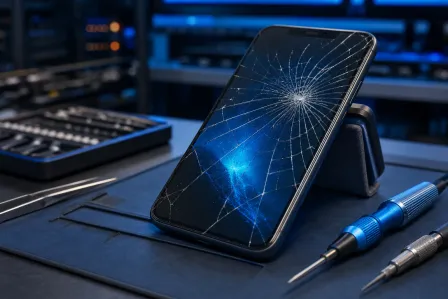
First, a myth I get to swat daily: “A screen repair can’t affect messaging.” Oh yes it can. Not because the glass has feelings, but because modern iPhones are a tight stack of components. During a screen replacement, techs disconnect and reconnect parts that sit near cellular and Wi-Fi related assemblies, and the phone can also re-check carrier provisioning after the device has been powered down.
Most post-repair messaging issues come from one of these buckets:
- Carrier handshake/provisioning: RCS relies on your carrier setup being correct. If carrier settings are stale, RCS can fail to register.
- SIM/eSIM confusion: Especially if you recently switched carriers, moved from physical SIM to eSIM, or did a quick eSIM transfer.
- iMessage vs RCS crossover: Apple’s messaging stack can route messages differently depending on who you’re texting and what’s enabled.
- Network configuration glitches: VPN profiles, old APN info, or corrupted network settings can cause “delivery failed.”
- Hardware seating or damage: Less common, but real: antenna connections, flex cables, or assemblies not seated perfectly can degrade signal and break RCS reliability.
If you’re in Palm Beach County and you had a screen replacement (with us or anyone else) and now texting is weird, don’t panic. We’ll start with the quick wins.
RCS not activating on iPhone: the fast checklist (do this first)
Before you spend three hours toggling random settings like it’s a ritual, do these in order. This is the phone repair equivalent of “turn it off and on again” - and it actually works.
1) Confirm you actually have working cellular data
RCS needs a stable data connection. So:
- Turn Wi-Fi off and load a webpage on cellular.
- If the page won’t load, your RCS problem is probably a cellular connectivity problem.
If cellular data is flaky after a repair, skip ahead to the hardware warning signs section.
2) Check for a carrier settings update (yes, it matters)
On iPhone, carrier settings updates can quietly fix messaging registration issues.
- Go to Settings > General > About
- Wait about 10-15 seconds on that screen
- If you see a prompt for a carrier settings update, accept it
This is one of the most common fixes for RCS not activating when everything else looks fine.
3) Verify your SIM or eSIM is healthy
After a repair, sometimes it’s not the repair itself - it’s that your SIM/eSIM is hanging on by a thread and the reboot exposed it.
- Physical SIM: Remove it, inspect for damage, reinsert firmly.
- eSIM: Go to Settings > Cellular and confirm your line is On and set as your default for cellular data.
If you have multiple lines (work/personal), make sure the correct line is used for messaging. Dual SIM setups are great, until they aren’t.
4) Toggle iMessage and restart (iMessage vs RCS troubleshooting 101)
Even in 2026, iMessage can still be the “main character” on iPhone. If iMessage is stuck activating or confused, it can make RCS behavior look broken.
- Go to Settings > Apps > Messages
- Toggle iMessage off, wait 10 seconds, toggle it back on
- Restart the iPhone
Then test texting:
- Text an iPhone user (iMessage path)
- Text an Android user (RCS/SMS path depending on their setup)
Android vs iOS? I’ll fix ’em both. But we can debate later.
5) Reset network settings (the clean slate move)
If you’re seeing message delivery failed, missing group threads, or RCS won’t register, resetting network settings clears a lot of hidden junk (Wi-Fi configs, cellular settings, VPN profiles).
Apple’s official steps are here: Reset your iPhone network settings (Apple Support).
Quick path (wording may vary slightly): Settings > General > Transfer or Reset iPhone > Reset > Reset Network Settings.
Heads up: you’ll need to re-enter Wi-Fi passwords. Consider it a small tax for spending 7 hours a day on your phone. Look, I’m not judging your screen time report. Okay, maybe a little.
iPhone messaging not working after repair: symptoms and what they usually mean
Here’s how I mentally sort cases at the counter in West Palm Beach. It saves time, and more importantly, it saves you from trying 37 TikTok “fixes” that do absolutely nothing.
If iMessage works but Android texts fail
- Likely: carrier provisioning, RCS registration, or cellular data instability
- Try: carrier settings update, confirm cellular data works, reset network settings
If Android texts work but iMessage fails
- Likely: iMessage activation issue (Apple ID, phone number registration, or temporary Apple service hiccup)
- Try: toggle iMessage, verify your number is selected under “Send & Receive,” restart
If group chats are missing or split into separate threads
- Likely: messaging route changed (RCS vs SMS vs iMessage), or your default line changed on dual SIM
- Try: confirm the correct cellular line is active, update carrier settings, restart
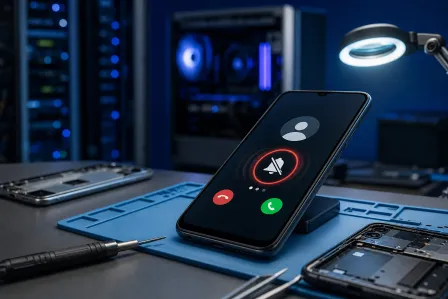
If you see “No Service,” dropped calls, or cellular data randomly dies
- Likely: hardware-related signal issue or line provisioning problem
- Try: test in multiple locations, check SIM/eSIM, then consider in-shop diagnosis
If you want Apple’s baseline messaging troubleshooting steps, they’re here: If you can’t send or receive messages on your iPhone (Apple Support). Solid info, minus the part where they can’t see what I see on a repair bench.
Post-repair phone check: what to verify after an iPhone screen replacement
This is where I sigh about people not using phone cases. But I’ll be nice. After any iPhone screen repair, do a quick “post-check” so you catch problems immediately (while it’s easy to fix).
Quick functional tests (5 minutes, tops)
- Cellular: Make a call, then switch to speaker, then back.
- Data: Turn Wi-Fi off, load a webpage on cellular.
- Messages: Send one text to an iPhone user and one to an Android user.
- Group chat: Reply in a mixed group chat (iPhone + Android).
- Audio: Play a voice memo and test the earpiece.
If anything fails, note exactly what happened. “Messaging is broken” is vague. “RCS messages to Android fail on cellular but work on Wi-Fi” is the kind of detail that gets you fixed faster.
Don’t forget the basics that cause fake “RCS problems”
- Low Power Mode: Usually fine, but can change background behavior.
- VPN/security apps: Can interfere with carrier services.
- Wi-Fi Calling: Great when it works, confusing when it half-works.
When RCS problems point to hardware after a repair (the stuff you can’t “toggle” away)
Most RCS issues are software or carrier-related. But if you’re seeing consistent signal instability after a screen replacement, I start thinking about hardware.
Hardware warning signs I take seriously
- “No Service” appears intermittently, especially when you move the phone or press near the top/edges.
- Calls drop in areas where you normally have good coverage.
- Cellular data is unstable (works for a minute, then dies, then returns).
- RCS works only on Wi-Fi but fails on cellular even with good bars.
- Bluetooth/Wi-Fi issues start at the same time (can indicate broader connectivity problems).
What can physically go wrong during or after a screen repair
I’m not here to scare you, just to be real. Inside a modern iPhone, a few things matter a lot for reliable connectivity:
- Antenna connections and flex cables: If a connector isn’t seated perfectly, you can get weak or inconsistent signal.
- Earpiece/proximity sensor assembly seating: This area is commonly transferred during screen work on many iPhone models. If it’s misaligned or pinched, you can see odd side effects (and yes, sometimes it correlates with connectivity symptoms depending on model and routing).
- Liquid or impact history: A “simple screen break” phone often has hidden trauma. I’ve rescued phones from rice bags, toilet bowls, and one memorable washing machine incident. Water damage can corrode connectors and make issues show up later.
Baseband symptoms are the big red flag category: persistent “No Service,” inability to activate cellular consistently, or the phone not recognizing a modem-related function. That’s not a settings issue. That’s a diagnostic issue.
Fix My PC Store Palm Beach: when to bring it in (and what we’ll do)
If you’ve done the checklist and you’re still stuck, bring it in. Especially if you’re in West Palm Beach, Palm Beach Gardens, Lake Worth, Wellington, Royal Palm Beach, Jupiter, or anywhere else in Palm Beach County. Reliable messaging is not optional anymore. It’s how your boss finds you. It’s how your group chat drags you to brunch. It’s how your kids ask for snacks from three rooms away.
At Fix My PC Store, we’ll handle the practical stuff first:
- Verify carrier settings and line provisioning behavior
- Confirm SIM/eSIM status and test with known-good configurations when possible
- Run a post-repair connectivity check (cellular, Wi-Fi, Bluetooth)
- Inspect internal connections if hardware symptoms point that way
If you need a screen redo, a deeper diagnostic, or you’re not sure if it’s iPhone-specific, start here: smart device repair services. For Apple-specific help, use our iPhone repair service page.
And because messaging problems aren’t exclusive to iPhone: if your iPad is the one failing to sync messages or stay connected, we do iPad repair and troubleshooting. If you’re on Team Android and your RCS life is chaos after a screen swap, yep, we do Samsung repair too. Equal-opportunity fixing. Maximum-opinionated tech commentary included for free.
Quick recap: the order that fixes most RCS iPhone 2026 issues
- Confirm cellular data works (Wi-Fi off test)
- Install any carrier settings update
- Check SIM/eSIM and correct default line
- Toggle iMessage, restart, and retest iPhone-to-iPhone and iPhone-to-Android
- Reset network settings
- If signal is unstable: stop toggling and get a hardware diagnosis
Need Expert Mobile Device Repair?
Get professional iPhone, iPad, and Samsung repair from Palm Beach County's trusted mobile device specialists.
Get Device Help