RAM Upgrade vs. Replacement: Fix Slowdowns the Right Way
Listen to this article
TL;DR: If your PC feels slow, you might not need a whole new computer. RAM upgrade vs. replacement comes down to one question: is your memory insufficient for what you do, or is it failing?
Let’s break this down together. I’ll show you how to spot memory-related slowdowns, confirm computer RAM failure signs, estimate RAM replacement cost, and choose the fix that makes your PC feel snappy again. You’ve got this!
Why “slow PC” often means “memory problem” (RAM upgrade diagnosis)
So many customers in Palm Beach County walk into Fix My PC Store ready to replace their entire computer. And honestly, I get it. When your PC crawls, it feels like everything is broken.
Here’s the good news: a huge chunk of “my computer is dying” cases are really just RAM pressure (not enough memory) or a bad RAM stick (memory failure). Those are very fixable problems, often for way less than a new machine.
What RAM actually does (in plain English)
RAM is your computer’s short-term working space. When you open apps, browser tabs, and files, they move into RAM so the CPU can access them quickly. If you run out of RAM, Windows 10 or Windows 11 starts shuffling data to the storage drive (called paging or using a page file). That works, but it’s slower, especially on older hard drives.
Translation: when RAM is tight, your PC can feel like it’s stuck in traffic.
Classic “not enough RAM” symptoms (slow PC memory fix clues)
- Browser tabs reload when you switch between them
- Apps freeze briefly, then recover
- PC slows down most when multitasking (video calls + browser + spreadsheets)
- Fans spin up during normal tasks because the system is working harder
- You see frequent “Not Responding” moments, but it eventually continues
Computer RAM failure signs: when it’s replacement, not an upgrade
Insufficient RAM is annoying. Failing RAM can be chaotic. If memory modules are damaged or unstable, you may see crashes that feel random. This is where upgrade or replace RAM becomes a safety decision, not just a speed decision.
Common signs of failing RAM
- Blue screen errors (BSOD) that happen repeatedly
- Random restarts or sudden shutdowns
- Files that become corrupted (especially after crashes)
- Installations that fail for no clear reason
- PC won’t boot sometimes, but does other times
Quick reassurance: if you’re seeing this, you didn’t “mess up.” Hardware can degrade, and memory can fail. The win is recognizing the pattern early!
Before blaming RAM, rule out two common imposters
Two things can mimic RAM trouble:
- Malware or unwanted software chewing up resources
- Storage issues (a failing drive or a nearly-full drive) causing slowdowns and crashes
If you suspect malware, start with a trusted cleanup plan or let a pro handle it. Our virus removal service for slow, unstable PCs is built for exactly this situation.
And if you’re worried about files after crashes, pause and protect your data first. Our data recovery service can help if you’re seeing corruption or drive trouble.
How to diagnose RAM-related slowdowns (memory troubleshooting you can do)
This sounds complicated, but I promise it’s not! You don’t need to be a tech expert to do a basic RAM upgrade diagnosis. Let’s walk through a few quick checks.
Step 1: Check memory usage in Task Manager (Windows 10/11)
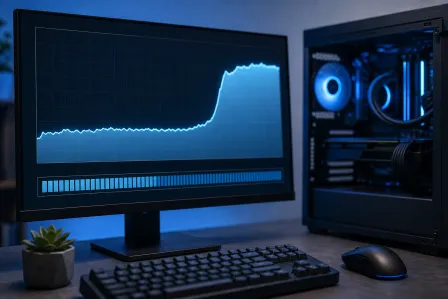
Open Task Manager and look at Memory usage while you’re doing your normal work. If memory is consistently very high, that’s a strong hint your PC needs more RAM.
Microsoft has a simple guide here: Microsoft Support: how to open Task Manager.
- If Memory is high (for example, staying near the top while you multitask), that points toward an upgrade.
- If Memory is not high but you still get crashes and weird behavior, that points toward replacement testing.
Step 2: Notice when the slowdown happens
Ask yourself a friendly detective question: Does the PC slow down only when I do more?
- Only when multitasking: likely insufficient RAM
- Even at idle, plus crashes: could be failing RAM, malware, or storage issues
If the PC is slow even when “nothing is open,” it’s also worth checking for background programs and potential malware. The Malwarebytes Blog has solid, practical explanations of how unwanted software can impact performance.
Step 3: Run a memory test (for suspected failure)
When you suspect computer RAM failure signs, you want a test that stresses memory and checks for errors. Windows includes a built-in memory diagnostic tool, and there are also widely-used bootable memory testers (often used by technicians) that can be even more thorough.
If the test reports errors, treat that like a big, helpful signpost: replace the bad module rather than just adding more RAM.
Step 4: Reseat RAM (desktop) or check access (laptop)
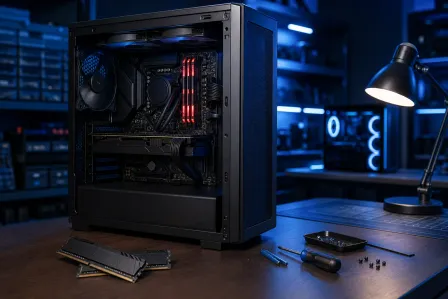
Sometimes RAM issues are as simple as a module not sitting perfectly in its slot, especially after a bump or move. Reseating means removing the RAM and reinstalling it firmly.
- Desktop PCs: usually straightforward to reseat RAM
- Laptops: varies a lot. Some have easy access panels, others require deeper disassembly
If you’d rather not open it up (totally fair), our computer repair service and laptop repair service can handle safe testing and installation.
Upgrade or replace RAM: the decision guide
Here’s the heart of the RAM upgrade vs. replacement decision. You’re choosing between adding capacity (upgrade) or swapping faulty parts (replacement). Sometimes you do both, but let’s keep it simple.
Choose a RAM upgrade when…
- Your PC is stable (no frequent crashes), just slow under load
- Task Manager shows high memory usage during normal tasks
- Your workflow has grown: more browser tabs, larger files, more apps
Small win moment: If your PC is stable, that’s great news. Stability usually means your hardware is healthy, and an upgrade can feel like a fresh start!
Choose RAM replacement when…
- Memory tests show errors
- You see repeated BSODs or random restarts
- Your PC fails to boot reliably
- You’ve confirmed the issue follows a specific RAM stick (in multi-stick systems)
Choose “upgrade + replace” when…
- You have multiple sticks and one is bad, and you also want more total RAM
- Your system is older and currently below what you need, plus it’s unstable
RAM replacement cost vs. upgrade cost: what to expect
Let’s talk money, because this is where people often assume the worst. In 2026, RAM pricing varies based on the type (DDR4 vs DDR5), capacity, and brand. Laptops can also have different labor needs depending on how accessible the RAM is.
What affects RAM replacement cost?
- RAM type: Your system only supports certain generations and speeds
- Capacity: More GB costs more, but usually delivers the biggest performance boost per dollar
- Device design: Some laptops are quick to open, others take more time
- Diagnosis time: Confirming a failing module can take testing
If you’re comparing options, remember: replacing a whole computer includes moving data, reinstalling apps, re-licensing software, and re-learning settings. A smart memory fix can avoid that headache.
Upgrade value: why RAM is often the best “performance per dollar” repair
For many everyday PCs, a RAM upgrade is one of the most noticeable improvements you can make, especially if you multitask. It can reduce paging, speed up app switching, and make the whole system feel smoother.
That said, RAM is not magic. If your storage drive is failing or your system is infected, you’ll still feel slowdowns. That’s why good memory troubleshooting matters.
Computer memory repair checklist (quick, practical, and safe)
Want a simple path? Here’s a checklist you can follow without feeling overwhelmed.
Checklist: slow PC memory fix steps
- Back up important files (always a good habit before hardware work).
- Check Task Manager Memory while you work normally.
- Reduce startup apps and reboot once (fresh baseline test).
- Run a memory diagnostic if you suspect crashes or instability.
- Decide upgrade vs. replacement using the guide above.
- Confirm compatibility (DDR generation, max supported RAM, slot count).
If you’d like help with compatibility (it’s easy to buy the wrong RAM, and that’s a super common learning moment), our team can confirm what your system supports and install it cleanly via PC performance repair and computer repair or laptop memory upgrade and repair.
Local help in Palm Beach County: when it’s time to bring it in
If you’re in West Palm Beach or nearby areas across Palm Beach County, you don’t have to guess. A good shop can test RAM, confirm whether it’s insufficient or failing, and recommend the most cost-effective fix.
We regularly help customers from West Palm Beach, Palm Beach Gardens, Lake Worth Beach, Boynton Beach, Jupiter, Royal Palm Beach, Wellington, and surrounding communities. (If you’re close, you’re probably in our orbit!)
And remember: choosing a RAM upgrade or replacement is not “admitting defeat.” It’s smart maintenance. You’re extending the life of your machine and keeping your budget focused where it matters.
Need Expert Computer Support?
Get professional help from Palm Beach County's trusted computer repair specialists.
Get Help Today