Phone Not Charging? A Step-by-Step Guide to Diagnose Ports, Cables & Batteries
Listen to this article
TL;DR: If your phone not charging has you panicking, don’t immediately blame the battery. Most “dead phone” cases I see are really a bad cable, a tired power adapter, or a charging port packed with lint (yes, pocket fluff is undefeated). Follow the steps below to safely narrow it down and avoid turning a simple fix into a pricey one.
Phone not charging: start with the obvious (because it works)
I know, I know. You’ve already “tried everything.” Let me save you a headache: start with the boring checks first. This is the phone repair equivalent of “turn it off and on again”… and it actually works.
Step 1: Confirm it’s not a software hiccup
- Restart the phone. iPhone or Android, doesn’t matter. A stuck charging controller can happen.
- Check for a moisture warning. If you see a liquid detection alert (common on iPhone and many Androids), stop charging by cable. More on that in a bit.
- Try a different wall outlet. Not the power strip that’s been stepped on since 2019.
Look, I’m not judging your 8-hour screen time report. Okay, maybe a little. But if your phone is hot and running 40 apps, charging can slow down or pause to protect the battery.
Charging cable test: the fastest way to catch the real culprit
Before you assume you need charging port repair or a phone battery replacement, do a proper charging cable test. Cables fail constantly. They get bent, pinched, yanked, and emotionally damaged.
Step 2: Use a known-good cable (not “the one that usually works”)
- Borrow a cable that you know charges another device reliably.
- If you’re on iPhone, use a quality Lightning cable or USB-C cable (depending on model) that isn’t frayed or loose.
- If you’re on Android, use a decent USB-C cable that supports charging properly (some cheap ones are power-only, some are data-only, some are just… sad).
Step 3: Do the “wiggle test” (gently)
Plug in the cable and very lightly move the connector side-to-side.
- If charging cuts in and out, you may have a loose charging port, damaged cable tip, or worn port contacts.
- If it only charges at a weird angle, that’s not a “quirk.” That’s a problem.
Power adapter test: why fast charging not working is often the brick
If fast charging not working is the complaint, the wall adapter is a prime suspect. I see this all the time: people swap cables but keep using the same tired cube that’s been through three phones and a vacation in a beach bag.
Step 4: Try a different adapter and a different power source
- Test with a different wall adapter (preferably a reputable brand).
- Test from a wall outlet instead of a laptop USB port. Computer ports often provide less power.
- If you have a USB-C PD (Power Delivery) adapter, try that with a compatible cable.
Reality check: Fast charging requires the right combo of phone + cable + adapter. If any one of those is wrong, your phone may charge slowly or not at all.
USB-C port cleaning and Lightning port cleaning: lint is the silent killer
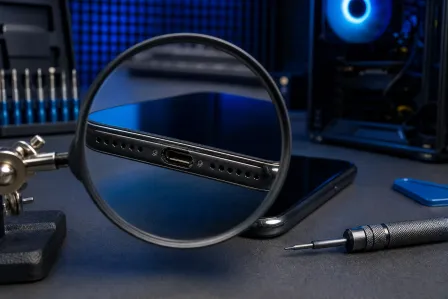
Here’s my most common “miracle fix” that isn’t a miracle at all: port cleaning. Your charging port is basically a tiny pocket vacuum. Over time, lint packs down like concrete and prevents the plug from seating fully.
Important: Clean carefully. If you gouge pins or short contacts, you can turn a simple cleaning into a real charging port repair.
Step 5: Safe charging port inspection (flashlight is your friend)
- Power the phone off.
- Use a bright light to look into the port.
- Signs of trouble: felt-like lint, dark debris, green/white crust (corrosion), or bent internal tabs.
Step 6: How to clean a USB-C port safely
- Use a wooden toothpick or a plastic floss pick. No metal. Your port is not a cast-iron skillet.
- Gently scoop lint out in small bits.
- Finish by blowing lightly or using compressed air in short bursts (don’t go full hurricane).
Step 7: How to clean a Lightning port safely
Lightning port cleaning is similar, but be extra gentle because the contact pins are exposed.
- Use a non-metal pick and work slowly.
- If you see corrosion (green/white), stop and get it checked. Corrosion can spread and cause intermittent charging.
Yes, I have rescued phones from rice bags, toilet bowls, and one memorable washing machine incident. No, rice is not a repair tool. It’s a side dish.
Wireless charging not working? Isolate the problem like a pro
If wireless charging not working but cable charging is fine (or vice versa), you can narrow the issue quickly.
Step 8: Test wireless charging the right way
- Remove the case and any metal accessories (pop sockets, magnetic rings, wallet cases).
- Center the phone on the charger. Alignment matters more than people want to believe.
- Try a different wireless charger and a different power adapter.
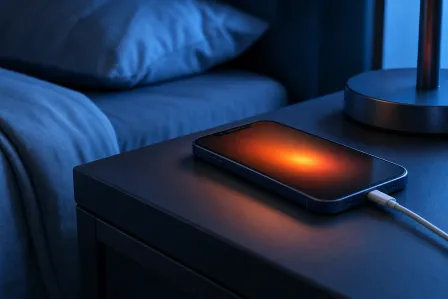
Pro tip: If your phone gets hot and stops charging wirelessly, that can be normal thermal protection. It can also point to battery health issues or a charger that’s underpowered.
iPhone charging issues vs Android charging issues: what’s different?
Android vs iOS? I’ll fix ’em both. But yes, the failure patterns can differ.
Common iPhone charging issues I see all the time
- Lint-packed Lightning port causing the cable to “click” in loosely.
- Accessory warnings from low-quality cables.
- Moisture detection preventing wired charging until the port is fully dry.
If you want Apple’s official checklist, here’s a solid reference: Apple Support steps if your iPhone or iPad won’t charge.
Common Android charging issues (especially USB-C)
- Worn USB-C ports from heavy use (USB-C is great, but constant plugging wears any port).
- Fast charge negotiation problems from bad cables/adapters.
- Dirty port preventing full insertion (USB-C needs a snug fit to charge reliably).
Pixel users can cross-check with Google’s guide here: Google Pixel Help: fix charging problems.
Loose charging port vs battery problem: how to tell without guessing
Charging failures are commonly misdiagnosed as “dead batteries.” Sometimes it is the battery. Often, it isn’t.
Signs you likely need charging port repair
- Cable feels loose or won’t seat fully even after cleaning.
- Charging cuts in/out when the phone moves.
- Only charges at an angle.
- Visible bent pins, corrosion, or damage inside the port.
Signs you likely need phone battery replacement
- Phone charges to a certain percent then drops quickly.
- Random shutdowns even with battery percentage remaining.
- Phone gets unusually warm during light use or charging.
- Battery swelling (screen lifting, back cover separating). If you see this, stop charging and get help.
Quick at-home battery reality check
- iPhone: Settings > Battery > Battery Health (if available on your model) can give clues.
- Android: Battery health visibility varies by brand. If your phone is older and runtime has tanked, that’s a hint.
Myth to retire: “If it won’t charge, the battery is dead.” Nope. A dead battery is one possibility, not the default answer.
Overheating and moisture: when to stop troubleshooting
Some situations are not “keep trying different chargers” situations.
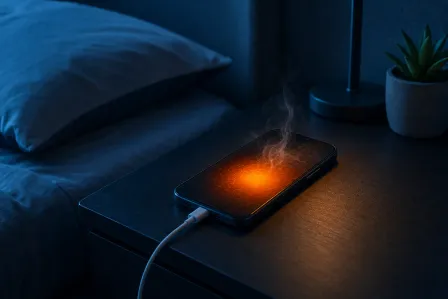
Stop and get help if you notice:
- Burning smell or visible smoke (yes, it happens).
- Port corrosion (green/white crust).
- Battery swelling or screen lifting.
- Moisture alerts that keep returning.
Also, please don’t spray cleaner into the port, don’t shove a paperclip in there, and don’t “just try it anyway” after the phone took a swim. I’ve seen the aftermath. My retro flip phone collection is judging you right now.
When to bring it in for Palm Beach County phone repair
If you’ve tested a known-good cable, a known-good adapter, cleaned the port safely, and isolated wireless charging, but your phone not charging problem persists, it’s time for a proper diagnostic.
At Fix My PC Store in West Palm Beach, we handle accurate, same-day troubleshooting for Palm Beach County phone repair needs, including:
- Charging port repair (loose ports, damaged pins, corrosion cleanup when possible)
- Phone battery replacement when battery health is the true culprit
- Charging and power diagnostics for both iPhone charging issues and Android charging issues
If you’re in West Palm Beach, Palm Beach Gardens, Lake Worth, Boynton Beach, Jupiter, Wellington, Royal Palm Beach, or anywhere nearby, you’re in our neighborhood.
Book the right service (and avoid the wrong one)
If you suspect a port issue, start with our general smart device repair service so we can diagnose it correctly. For Apple devices, check iPhone charging port repair and charging diagnostics or iPad repair for charging and battery issues. Samsung user? We’ve got you: Samsung repair for USB-C charging problems.
Need Expert Mobile Device Repair?
Get professional iPhone, iPad, and Samsung repair from Palm Beach County's trusted mobile device specialists.
Get Device Help