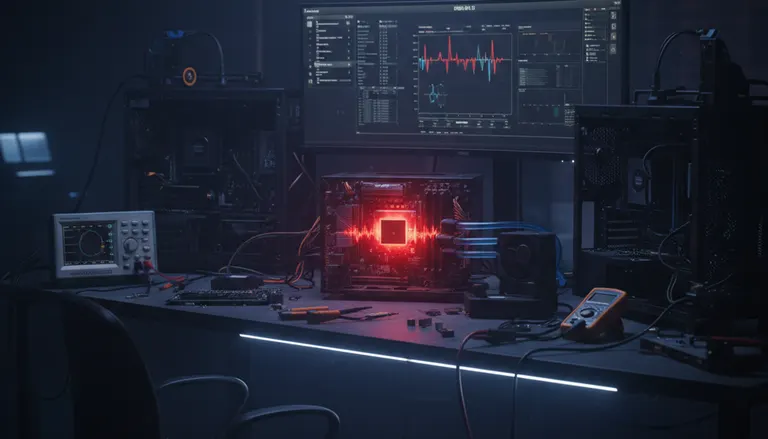
PCIe 5.0 SSD Overheating & Random Reboots: 2026 Repair Checklist
Listen to this article
TL;DR: PCIe 5.0 SSD overheating is a real-world performance boss fight in 2026. When a Gen5 NVMe drive gets too spicy, you can see NVMe thermal throttling, sudden restarts (hello Kernel-Power 41), drive dropouts, and even WHEA_UNCORRECTABLE_ERROR BSODs.
I’m Hardware Hank, and I’m here to help you separate “my SSD is cooking” from “my RAM/PSU is trolling me,” then walk you through a safe, shop-friendly checklist that Fix My PC Store can knock out fast for Palm Beach County gamers.
Why PCIe 5.0 SSD overheating causes random reboots (and why Gen5 runs hotter)
PCIe 5.0 NVMe SSDs are absolute beasts. We’re talking insane sequential speeds that make load screens feel like a bad memory. But here’s the trade: higher throughput means the controller works harder, and that extra work turns into heat. If your case airflow is mid, your motherboard heatsink contact is meh, or you stuffed a Gen5 drive under a GPU backplate sauna, you can trigger instability.
When temps spike, modern NVMe drives protect themselves with thermal throttling (they downclock to cool off). If cooling is still not enough, you can get disconnects, I/O errors, freezes, or a full system restart. Not because your PC is cursed. Because physics is undefeated.
Common symptoms that scream “NVMe thermal throttling”
- Random reboots during installs, downloads, or game updates (lots of sustained writes).
- Stutters and long hangs when launching games, patching, or unpacking files.
- Drive vanishes in Windows until you reboot (or vanishes in BIOS intermittently).
- Kernel-Power event 41 in Event Viewer after a sudden restart.
- WHEA_UNCORRECTABLE_ERROR BSOD (often hardware bus or storage related).
Why it’s worse in older cases and laptops
In 2026, a ton of people are upgrading to Gen5 storage while keeping older cases with limited front intake, dusty filters, or “aesthetic airflow” (you know the type). Laptops are even tighter: thin chassis, shared heatpipes, and an M.2 slot parked under a keyboard deck with minimal thermal mass. Result: that speedy stick becomes a tiny space heater.
Crash codes and logs: Kernel Power 41 and WHEA_UNCORRECTABLE_ERROR PCIe clues
Let’s talk receipts. If your rig is rebooting or blue-screening, we don’t guess. We check logs like it’s a ranked match VOD review.
Check Event Viewer for Kernel-Power 41 (what it means)
Kernel-Power 41 usually means Windows noticed the system shut down unexpectedly (power loss, crash, hard reset). It’s not a diagnosis by itself, but it’s a huge clue that the reboot wasn’t a clean Windows restart.
Use this Microsoft guide to open Event Viewer: Microsoft Support: open Event Viewer to check Kernel-Power and WHEA errors.
WHEA_UNCORRECTABLE_ERROR (0x124): why storage heat can trigger it
WHEA_UNCORRECTABLE_ERROR is Windows telling you it got a hardware error it couldn’t recover from. People instantly blame CPU overclocks (and yeah, that can do it), but NVMe and PCIe bus instability can also be in the mix, especially if the SSD is overheating or the motherboard firmware is struggling with link stability.
Here’s the technical overview: Microsoft Learn: WHEA_UNCORRECTABLE_ERROR (0x124) overview.
2026 Repair Checklist: Fix PCIe 5.0 SSD overheating and random reboots safely
Alright, gamer. Here’s the checklist I’d run on the bench. You can do some of this at home, but if you want it done fast and clean in Palm Beach County, this is exactly the kind of job our computer repair service for random reboot and hardware crash issues handles all day.
Step 1: Confirm it’s heat (not RAM or PSU) with controlled testing
- Reproduce the crash with a sustained SSD workload: game install, large file copy, or a disk benchmark. If it dies during heavy writes, that’s suspicious.
- Watch SSD temps using a reputable hardware monitor (the key is reading the NVMe sensor). If you see temps racing up during sustained writes and then the system locks, that’s a smoking gun.
- Quick sanity checks: reseat the M.2 drive, reseat RAM, and verify all PSU cables are fully seated.
Heat pattern vs RAM/PSU pattern: RAM issues often show as app crashes, memory errors, or BSODs under mixed load. PSU issues often show as reboots under GPU load (gaming spikes) more than pure storage writes. NVMe heat issues love sustained install/patch workloads.
Step 2: Inspect M.2 heatsink install (this is where the magic happens)
Most “my Gen5 drive is unstable” cases come down to one of these:
- No heatsink at all on a Gen5 drive (GG).
- Thermal pad film not removed (yes, it happens).
- Wrong thermal pad thickness so the heatsink barely touches the controller.
- Heatsink installed crooked or screws uneven, causing poor contact.
Pro tip: The NVMe controller is usually the hottest spot. If your pad only kisses the NAND chips but misses good controller contact, you’ll still throttle and crash.
Step 3: Replace or correct thermal pads (don’t guess, verify contact)
Thermal pad replacement is clutch when the stock pad is dried out, torn, or the wrong thickness for your board’s heatsink. You want firm, even contact without bowing the drive.
- Clean old residue carefully (no scraping traces like a caveman).
- Use a pad thickness that matches the heatsink gap so it compresses slightly.
- After mounting, look for an even imprint on the pad when removed (a quick contact check).
Step 4: Improve airflow around the M.2 zone (your SSD needs oxygen too)
Gen5 drives hate dead air. If your GPU is dumping heat right onto the M.2 area, temps can spike hard.
- Case: add or reposition an intake fan to feed the motherboard area.
- Dust: clean filters and heatsinks. Dust is basically a thermal blanket.
- Cable management: don’t block front-to-back airflow.
If you’re on a laptop, airflow options are limited, which is why our laptop repair for overheating and crash diagnostics often includes cleaning, thermal inspection, and verifying the M.2 thermal interface is actually doing its job.
Step 5: Update SSD firmware (stability fixes are real)
SSD firmware updates can improve thermal behavior, power management, and compatibility with certain chipsets. The safe play:
- Back up important data first (always).
- Use the SSD manufacturer’s official utility for updates.
- After updating, re-test sustained writes and check temps again.
If the drive is already flaking out and disappearing, do not spam benchmarks. Prioritize data safety. That’s when data recovery for unstable SSDs becomes the smart move.
Step 6: Update motherboard BIOS (PCIe and NVMe compatibility matters)
Motherboard BIOS updates can improve PCIe stability, NVMe compatibility, and overall system reliability. If you’re getting WHEA errors or weird detection issues, a BIOS update is a legit fix path.
- Update using the motherboard vendor’s documented method.
- After updating, load optimized defaults, then re-apply your settings carefully.
- If you’re overclocking, re-test stability. Overclocking is an art form, but stability is king.
Step 7: Run drive health diagnostics (SMART, error logs, and reality checks)
Heat can cause crashes, but it can also accelerate wear. Check the drive’s health stats (SMART) and look for:
- Media/data integrity errors
- Unsafe shutdown counts (these climb fast with random reboots)
- Critical warnings
If health indicators look bad or the drive keeps dropping even after cooling fixes, replacement is the play. No shame. Even legendary cards get retired when they start bricking matches.
Step 8: Distinguish SSD heat issues from malware or software chaos
Random reboots are usually hardware, but don’t ignore software. If your system is also running slow, popping weird processes, or acting possessed, get it checked. A clean system makes hardware diagnostics way more accurate.
If you suspect infection, our virus removal and malware cleanup service can rule out software-based instability so you’re not chasing phantom “hardware overheating” that’s actually a compromised OS.
M.2 heatsink install tips for PCIe 5.0 SSDs (no-scuff, max-contact)
Want butter smooth stability? This is the install meta:
- Use a real heatsink: motherboard M.2 shields are fine if they have a proper thermal pad and decent mass. For Gen5, more cooling is usually better.
- Don’t stack pads unless you know the gap. Stacking can create uneven pressure and worse contact.
- Avoid bending the SSD: too-thick pads can bow the PCB and stress solder joints.
- Pick the right slot: some boards place an M.2 slot under the GPU. If you have another slot with better airflow, use it (as long as lanes and performance fit your build).
When to replace the SSD (and when to stop testing before you lose data)
Here’s the hard truth: if the drive is disappearing, corrupting files, or throwing persistent errors even after you fix cooling and update firmware/BIOS, it’s not “fine.” It’s a ticking time bomb.
Replace the SSD if:
- It drops out of BIOS intermittently.
- SMART shows critical warnings or growing error counts.
- It still crashes under sustained writes with good temps and proper heatsink contact.
Stop stress testing and prioritize data recovery if:
- You hear clicking or see constant disconnect/reconnect behavior (especially on external enclosures).
- Windows can’t reliably read the drive long enough to copy important files.
Palm Beach County repair help: fast diagnosis for Gen5 NVMe crashes
If you’re in West Palm Beach or anywhere in Palm Beach County, this is the kind of issue we can diagnose quickly: confirm temps, check heatsink contact, replace thermal pads, update SSD firmware, update BIOS, and verify stability with controlled testing. The goal is simple: no more random reboots, no more WHEA jump scares, and your games loading at gg ez speeds.
And if your data matters (it does), we’ll tell you when to stop testing and switch to a safer recovery-first approach.
Need Expert Computer Support?
Get professional help from Palm Beach County's trusted computer repair specialists.
Get Help Today