PC Won’t Boot After a BIOS Update? Safe Recovery Steps in 2026
Listen to this article
TL;DR: If your pc won't boot after bios update, don’t panic and don’t spam the power button like it’s a quick-time event. First, figure out if you’re dealing with a firmware-level no-POST (motherboard can’t even start) or a Windows boot problem (POST works, Windows doesn’t). Then follow safe steps: power drain, CMOS reset, minimal boot, and (if your board supports it) UEFI BIOS recovery or BIOS Flashback.
Alright squad, Hardware Hank here. BIOS updates in 2026 are getting pushed harder than ever because CPU microcode tweaks and security advisories are basically the new meta. Most of the time, updating is clean and you’re back to chasing buttery smooth frames. But when a flash gets interrupted, or the wrong file gets used, you can end up with the classic nightmare: motherboard no POST, infinite reboot loop, or Windows refusing to start. Let’s fix it safely without turning your motherboard into a very expensive RGB paperweight.
First: Is It Firmware-Level or Windows-Level?
This is the clutch moment. Before you start yanking parts, you need to identify what failed. Different problem, different fix.
Signs of a firmware-level failure (no POST / corrupted BIOS)
- No display output at all (not even the motherboard logo).
- Keyboard doesn’t light up, no BIOS entry prompt, no POST beep (if you have a speaker).
- Debug LEDs stuck on CPU/DRAM/BOOT, or a Q-code that never changes.
- Fans spin, RGB turns on, but it never progresses. Classic motherboard no post fix territory.
Signs POST works but Windows is the problem
- You can enter BIOS/UEFI setup.
- You see drives listed in BIOS.
- You get “No boot device,” “Preparing Automatic Repair,” or Windows blue recovery screens.
- This often shows up as windows won't start after bios update because BIOS settings changed (boot mode, Secure Boot, TPM, storage mode).
PC Won’t Boot After BIOS Update: Safe Triage Checklist (Do This First)
If your pc won't boot after bios update, the goal is to avoid making it worse. No rage re-flashing. No random settings roulette. We go step-by-step.
1) Full power drain (the underrated “reset your brain” move)
- Shut the PC off.
- Flip the PSU switch to 0 and unplug the power cable.
- Press and hold the power button for 15-20 seconds to discharge leftover power.
- Wait 1-2 minutes, then reconnect power and try one boot.
This clears weird “half-awake” states that can happen after firmware changes. It’s simple, safe, and sometimes it’s literally gg ez.
2) Check the obvious: monitor and GPU output
- If you have a dedicated GPU, make sure your cable is plugged into the GPU, not the motherboard video output.
- Try another cable/port (DisplayPort vs HDMI).
- If you recently changed BIOS settings, the primary display output can swap.
3) Give it time if it’s memory training
After a BIOS update, boards sometimes retrain RAM (especially if you run XMP/EXPO). That can look like a boot loop for a few minutes. If you see it rebooting a couple times, let it cook for 5-10 minutes before you assume it’s bricked.
CMOS Reset Steps (Safe Defaults to Undo Bad Settings)
This is the “undo button” for settings. It does not magically repair a corrupted BIOS, but it fixes a ton of post-update boot issues caused by unstable memory timings, wrong boot mode, or a bad overclock. And yes, overclocking is an art form, but right now we’re going for stability, not flexing.
CMOS reset steps using the jumper (preferred)
- Power off, PSU switch to 0, unplug.
- Locate the CLR_CMOS / CLRTC / JBAT jumper (check your motherboard manual).
- Move the jumper to the clear position for 10-15 seconds (or short the pins if it’s a 2-pin style).
- Return the jumper to normal, reconnect power, boot.
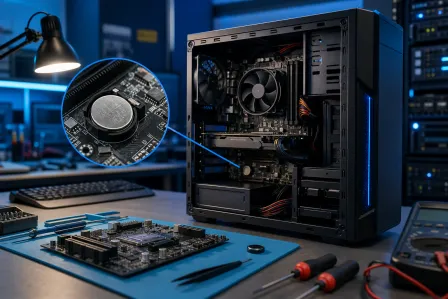
CMOS reset steps using the battery (works on most boards)
- Power off, unplug, power drain.
- Remove the coin-cell battery (usually CR2032).
- Wait 5 minutes.
- Reinstall battery, boot, then enter BIOS and load optimized defaults.
Pro tip: After a CMOS reset, your system may forget boot order and memory profiles. That’s normal. We want “it boots” first, then we bring XMP/EXPO back like a controlled buff, not a YOLO nerf.
Minimal Boot: Reduce the System to the Bare Minimum
If you’re still stuck, we go into detective mode. Minimal boot isolates whether the issue is a device, RAM stick, GPU, or storage causing a hang.
Minimal boot checklist
- Disconnect all USB devices except keyboard (no hubs, no capture cards, no RGB controllers if they’re sketchy).
- Disconnect extra drives (leave only the OS drive later, but for no-POST testing you can disconnect all storage).
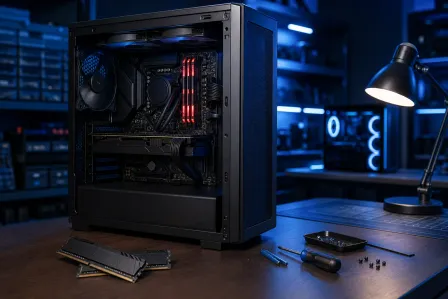
- Use one RAM stick in the recommended slot (usually A2). Try each stick one at a time.
- Reseat GPU and power connectors (24-pin ATX and 8-pin CPU EPS).
If your board has debug LEDs, watch them. If it hangs on DRAM, that’s a huge hint. If it hangs on BOOT, you’re likely in “Windows won’t start after BIOS update” land.
UEFI BIOS Recovery and BIOS Flashback (The Real BIOS Update Failed Recovery Tools)
Now we’re talking the big guns. If the update truly corrupted firmware, you need a recovery method your motherboard supports. Some boards have built-in recovery routines, and many have some form of BIOS Flashback (names vary by brand). This is the difference between “dead board” and “back in the lobby with full FPS.”
What BIOS Flashback is (and why it’s poggers)
BIOS Flashback lets you re-flash the BIOS using a USB drive and a dedicated port/button, often without needing the CPU or RAM to fully POST. That’s massive for corrupted bios repair.
Safe BIOS Flashback procedure (general best practices)
- Confirm your exact motherboard model (not just the brand). Match it precisely.
- Download the correct BIOS file from the motherboard manufacturer’s support page.
- Use a small USB drive (8-32 GB is usually fine) and format it to FAT32.
- Follow the manufacturer instructions for file naming (some require a specific filename). Don’t guess.
- Plug the USB into the dedicated Flashback USB port (often labeled).
- Press and hold the Flashback button until the LED starts blinking.
- Do not interrupt power while it flashes. Wait until the LED stops per your board’s instructions.
Important: I’m keeping this generic on purpose because each motherboard brand and model has specific steps. The golden rule is to follow the manufacturer’s guide for your exact board. If you’re unsure, stop. A bad flash attempt can turn a recoverable situation into a hard brick.
If your board supports dual BIOS
Some motherboards include dual BIOS (a backup chip). If yours does, check the manual for the BIOS switch or recovery toggle. If you can boot from the backup, you can often re-flash the primary safely. That’s basically having a second life in a ranked match.
Boot Loop After Firmware Update: The Usual Fixes (That Actually Matter)
A boot loop after firmware update is often settings-related, not “dead motherboard.” Here’s what usually causes it:
Memory profile instability (XMP/EXPO)
New BIOS versions can change memory training behavior. If you had an aggressive XMP/EXPO profile, it might no longer be stable. After CMOS reset, boot with defaults first. Once stable, re-enable XMP/EXPO and test. If it loops again, drop to a lower profile or manually reduce frequency.
CPU undervolt/overclock settings wiped or changed
If you were running custom CPU settings, the new BIOS may reset or reinterpret them. Boot stock first. Then reapply your tuning gradually. Overclocking is art, but stability is the canvas.
Storage mode changes (AHCI/RAID)
Sometimes BIOS updates reset storage controller modes. If Windows was installed under a different mode, it can fail to boot. If you know you were using RAID, verify it didn’t revert. If you don’t know, don’t randomly flip settings because you can make Windows unbootable.
Windows Won’t Start After BIOS Update (But You Can Enter BIOS)
If you can get into BIOS and see your drive, your firmware is probably okay. Now it’s about boot configuration.
Check boot order and UEFI vs Legacy
- Ensure your OS drive is first in boot priority.
- Most modern Windows 10/11 installs are UEFI with GPT. If BIOS reset flipped to Legacy/CSM, Windows may not boot.
Use Windows recovery tools
If Windows still won’t load, use Microsoft’s recovery guidance to access repair options. Start here: Windows recovery options (Microsoft Support). You can also try Startup Repair in Windows (Microsoft Support).
Secure Boot and TPM changes
BIOS updates can reset Secure Boot keys or TPM settings. That can mess with BitLocker or boot validation. If BitLocker is enabled, you may need the recovery key. Don’t brute force random toggles if your data matters.
When to Stop DIY and Call a Pro (Avoid Bricking and Data Loss)
I love a good DIY win. But there’s a point where “one more attempt” becomes “I just made it worse.” If any of these are true, it’s time for bench diagnostics:
- You attempted Flashback and it fails repeatedly (no LED activity, instant stop, or endless blinking).
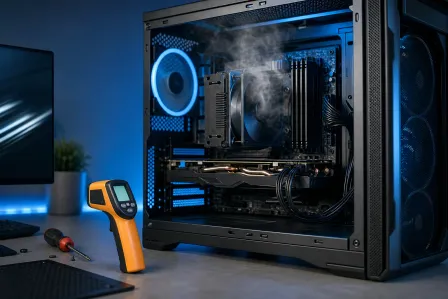
- The board shows clear signs of power issues (burn smell, repeated clicking PSU, random shutdowns).
- You need the files on the drive and you’re worried about encryption or corruption.
- You’re on a laptop where BIOS recovery procedures can be model-specific and fragile.
If you’re in Palm Beach County and you want a safe, methodical recovery (and not a “hope and pray” approach), Fix My PC Store can help with professional computer repair diagnostics, careful laptop repair for no-boot issues, and if the worst happens, data recovery services to protect your saves, projects, and work files.
Local Help: Palm Beach County Computer Repair for No-POST and BIOS Recovery
Whether you’re in West Palm Beach, Palm Beach Gardens, Lake Worth, Boynton Beach, Jupiter, or nearby areas, a failed BIOS update can be a fast trip from “new microcode, nice” to “black screen, pain.” The good news: most cases are recoverable with the right tools and a calm process.
What we typically check on the bench
- POST behavior with known-good RAM/PSU/GPU
- Recovery method support (Flashback, dual BIOS, vendor recovery modes)
- BIOS chip health and firmware integrity
- Storage and Windows boot configuration without risking your data
And yes, we’ll also tell you straight up if it’s a settings issue versus a true bios update failed recovery scenario. No fluff. Just results.
Need Expert Computer Support?
Get professional help from Palm Beach County's trusted computer repair specialists.
Get Help Today