PC Won’t Boot? A No-Guesswork Troubleshooting Flowchart
Listen to this article
TL;DR: If your pc won’t boot, don’t swap parts randomly. Use this quick flowchart to sort the problem into one of four buckets: power, display, boot drive/Windows, or failing hardware. Once you know the bucket, the fix gets a whole lot faster!
And hey, if you’re in Palm Beach County (West Palm Beach, Palm Beach Gardens, Lake Worth, Boynton Beach, Wellington, Royal Palm Beach, Jupiter), this guide will also help you decide when DIY steps are safe vs when professional diagnostics are the most cost-effective move. You’ve got this.
How to use this “PC won’t boot” troubleshooting flowchart (no guessing!)
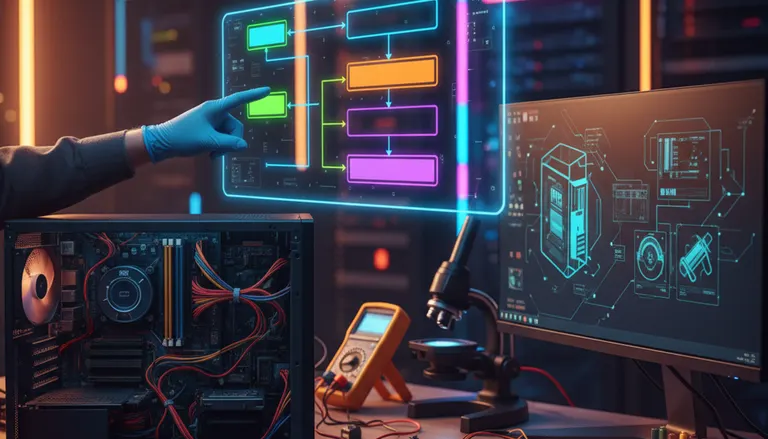
Let’s break this down like a decision tree. Start at Step 1 and follow the branch that matches what you see. The goal is simple: observe, test one thing, then decide. That’s how you avoid wasted time and unnecessary part swaps.
Before you start: 3 quick safety rules
- Unplug power before opening a desktop case or reseating parts.
- Laptops: avoid opening the chassis unless you’re comfortable. If you’re not, that’s totally okay. Skip to the “When to stop and get diagnostics” section.
- Data matters? If the drive might be failing, minimize repeated boot attempts. Every extra attempt can make recovery harder.
Flowchart Step 1: Does the computer have any power at all? (no power troubleshooting)
This is the first fork in the road for “computer won’t start” situations.
A) No signs of life (no lights, no fans, no sound)
We’re in no power troubleshooting mode. Here’s the order that saves the most time:
- Check the outlet with a lamp or phone charger. Small win: you just ruled out the simplest failure.
- Check the power cable (and try a different one if you have it). For desktops, make sure it’s firmly seated in the PSU and the wall.
- Desktop PSU switch: confirm the rear switch is set to I (on), not O (off).
- Power strip/surge protector: bypass it. Plug directly into the wall.
- Laptop: verify the charger LED (if present). If the charger brick has a light and it’s off, the charger may be dead.
If you still have zero power, the most common culprits are a failed power supply (desktop), a charger/DC-in issue (laptop), or less commonly a motherboard short.
Power supply test (desktop): what’s realistic at home?
A proper power supply test is best done with a PSU tester or multimeter. If you don’t have those tools, the safest DIY option is:
- Swap in a known-good PSU (same or higher wattage, reputable brand) if you already have one available.
If you don’t have a spare, it’s often cheaper (and faster) to bring it in for diagnosis than to buy parts blindly. If you’re local, our computer repair diagnostics in West Palm Beach can confirm PSU vs motherboard quickly.
B) There is power (lights/fans), but it won’t boot
Great. That means the outlet and basic power path are likely okay. Next we figure out if it’s a display problem or a boot process problem.
Flowchart Step 2: Is it a black screen on startup, or do you see a logo/error?
This step is all about what your screen is doing. A black screen on startup can mean “no video output” even if the PC is running.
A) Black screen on startup (no logo, no BIOS screen)
- Check monitor power and brightness. Confirm the monitor is actually on.
- Correct input source: HDMI vs DisplayPort matters. Make sure the monitor is set to the input you’re using.
- Try a different cable (HDMI/DP) and a different monitor or TV if possible.
- Desktop with a graphics card: plug the cable into the graphics card outputs, not the motherboard video ports (unless you know you’re using integrated graphics).
If you get video after changing cable/input, celebrate that win! The PC may have been fine the whole time.
If it’s still black: look for POST clues (beep codes and lights)
Many desktops give hints during startup called POST (Power-On Self Test). Listen for motherboard beep codes or look for diagnostic LEDs (CPU, DRAM, VGA, BOOT). The exact meaning varies by motherboard brand, so use your motherboard manual if you can find it.
Common pattern: repeated beeps or a DRAM light often points to memory issues. That leads us to a safe DIY step: reseating RAM.
Flowchart Step 3: Stuck before Windows? Try a RAM reseat and minimal boot
This sounds complicated, but I promise it’s not! A RAM reseat fixes a surprising number of “PC turns on but won’t boot” cases, especially after moving a computer or a small bump.
RAM reseat (desktop): quick steps
- Power off, unplug, and press the power button for 10 seconds (helps discharge leftover power).
- Open the case and remove the RAM sticks.
- Reinsert firmly until the latches click.
- Test with one stick at a time if you have multiple sticks (this helps identify a bad stick or slot).
If the PC boots with one stick but not the other, you just found a likely bad module. That’s a very real troubleshooting win.
Minimal boot test (desktop)
If you’re comfortable, disconnect non-essential devices to reduce variables:
- Unplug external USB devices (printers, hubs, external drives).
- For desktops, disconnect extra internal drives (leave only the boot drive connected).
If minimal boot works, add devices back one at a time until the failure returns. That tells you what’s triggering the issue.
Flowchart Step 4: Can you enter BIOS/UEFI, and is BIOS not detecting drive?
If you can see the manufacturer logo or get into BIOS/UEFI (often by pressing Del or F2 on startup), you’re making progress. Once you see BIOS, we answer two key questions:
- Is the boot drive detected? (SSD/HDD listed in storage information)
- Is the correct boot device selected? (boot order/boot priority)
A) BIOS not detecting drive
If BIOS not detecting drive is the situation, Windows cannot load because the PC can’t even see the storage.
Try these safe checks:
- Desktop SATA SSD/HDD: reseat the SATA data cable and SATA power cable. Try a different SATA port on the motherboard.
- M.2 NVMe SSD: power down and reseat the drive (one screw). Make sure it’s fully inserted at an angle, then pressed flat and secured.
If the drive still does not show up in BIOS, the drive may have failed or the motherboard storage controller may be having issues. If the data is important, this is a good moment to stop DIY and consider professional data recovery options before repeated attempts.
B) Drive is detected, but you see “boot device not found”
A boot device not found message usually means one of these:
- Boot order is pointing to the wrong device (like a USB drive).
- The Windows bootloader is damaged.
- The drive is failing in a way that still lets it show up in BIOS.
First, disconnect any USB drives and set the internal SSD/HDD as the first boot device in BIOS. Save and restart.
Flowchart Step 5: Windows won’t load (Startup Repair, Safe Mode not working, reboot loop)
If you can see the Windows logo but it never reaches the sign-in screen, you’re likely dealing with Windows boot issues, corrupted system files, or a failing drive.
A) Continuous reboot loop
A continuous reboot loop often happens when Windows crashes early and restarts automatically.
- Try to enter Windows Recovery Environment (WinRE). Microsoft explains WinRE here: Windows Recovery Environment (WinRE).
- From WinRE: Troubleshoot - Advanced options - Startup Repair.
Windows Startup Repair is safe to try. It’s designed to fix boot configuration problems without you needing to manually edit anything.
B) Safe Mode not working
If Safe Mode not working, that’s a clue the issue is deeper than a simple startup app conflict. Still, it’s worth attempting the proper entry method (WinRE is often required on modern systems). Microsoft’s guide is here: Start your PC in Safe Mode.
If Safe Mode fails and Startup Repair fails, focus on protecting your data and confirming hardware health (especially the SSD/HDD).
C) Black screen after Windows starts (cursor or no cursor)
If you get past BIOS but land on a black screen, it can be:
- A graphics driver issue
- A corrupted Windows profile or shell
- Disk errors that prevent Windows from loading the desktop
WinRE is again your friend. If you can reach it, try System Restore (if available) or Uninstall Updates (if the issue began after an update). Mistakes here are learning moments, but if you’re unsure, pause and get help. You don’t need to be a tech expert to make a smart call.
Flowchart Step 6: Startup diagnostics that save time (and parts)
If your PC won’t boot and you’ve narrowed it down to “something hardware-ish,” the best next step is targeted testing, not shopping.
Quick diagnostic clues (what they often point to)
- Random freezing + slow boots before failure: SSD/HDD may be degrading.
- Boots sometimes, fails sometimes: RAM instability, PSU instability, or overheating.
- No display + VGA light: GPU seating, GPU power cables, or GPU failure.
- BOOT light on motherboard: drive/bootloader issue (drive detected but not booting).
When DIY is safe vs when pro diagnostics are cheaper
DIY is usually safe when you’re doing reversible steps like checking cables, changing monitor inputs, reseating RAM, and running Startup Repair.
It’s often smarter to stop and get professional help when:
- BIOS not detecting drive and the data matters.
- You suspect a power supply but don’t have test equipment.
- You see signs of motherboard failure (burning smell, visible damage, repeated POST failures).
- You’ve tried WinRE options and the PC still won’t boot.
If you’re in Palm Beach County, our team can run proper startup diagnostics and confirm whether it’s PSU, RAM, SSD/HDD, or motherboard. Start here for Palm Beach computer repair, or if it’s portable, check our laptop repair service.
Common “PC won’t boot” scenarios (fast answers)
“It turns on, but nothing on screen.”
Think display path first: input source, cable, GPU vs motherboard port. Then think POST clues and RAM reseat.
“It says boot device not found.”
Unplug USB devices, verify boot order, confirm the drive is detected, then try WinRE Startup Repair if Windows is involved.
“It keeps restarting.”
Continuous reboot loop can be Windows corruption, a failing drive, or unstable power. Try WinRE Startup Repair, then consider hardware diagnostics if it persists.
“I’m worried about my files.”
That’s a smart instinct. If a drive might be failing, minimize boot attempts and ask about data recovery options sooner rather than later.
Palm Beach County note: when to bring it in (and what to tell us)
If you decide to get help, here’s what to write down before you come in. This makes your repair faster and cheaper:
- What you see: black screen, logo then crash, boot device not found, etc.
- Any beep pattern or diagnostic LED (CPU/DRAM/VGA/BOOT).
- What you already tried (cable swap, RAM reseat, Startup Repair).
- Whether the data is critical.
We serve West Palm Beach and nearby areas across Palm Beach County, and we’ll help you choose the most cost-effective path: repair, replace, or recover. Once you see the logic, it’ll totally click!
Need Expert Computer Support?
Get professional help from Palm Beach County's trusted computer repair specialists.
Get Help Today