PC Random Restarts? A Step-by-Step Hardware Diagnostic Checklist
Listen to this article
Alright gamer fam, let’s talk about one of the most rage-inducing PC problems ever: pc random restarts. You’re mid-match, frames are butter smooth, then BAM - black screen, reboot, and your squad is typing “???” in chat. Not poggers.
The brutal part? When a computer keeps rebooting, the cause can be power, heat, RAM, drivers, Windows corruption, or straight-up failing hardware. If you start swapping parts like trading cards without a plan, you can burn time, money, and possibly your data. So I built you a hardware diagnostics checklist that’s safe, practical, and actually helps you narrow it down.
If you’re in Palm Beach County (West Palm Beach, Palm Beach Gardens, Lake Worth, Boynton Beach, Wellington, Royal Palm Beach, Jupiter and nearby), this guide will also tell you when it’s time to stop grinding solo and bring it to the pros for professional computer repair for random restarts.
Before You Start: Protect Your Data and Recreate the Crash
Step 0: Back up anything important (seriously)
Random restarts can be harmless… or they can be the early warning siren for a dying drive or unstable power. If you’ve got irreplaceable stuff (photos, school/work files, game captures), back it up now. If Windows won’t stay up long enough, don’t keep brute-forcing it.
- If the PC is stable for short bursts, copy critical files to an external drive.
- If the system is too unstable or the drive is clicking/vanishing, pause troubleshooting and consider data recovery services before things get worse.
Step 1: Note the pattern (this is your clue loot)
Patterns are everything. Answer these:
- Does it restart under gaming load? Think GPU + PSU + temps.
- Does it restart at idle? Think PSU, motherboard, RAM, or Windows issues.
- Is it a clean reboot (Windows logo) or instant power cut? Instant power cut screams power or thermal protection.
- Any BSOD? A bsod reboot loop often points to drivers, RAM, or storage corruption.
Supporting image suggestion: Place windows-event-viewer-critical-errors-restart.jpg after this section to show what “critical errors” look like.
PC Random Restarts Checklist: Start With the Easy Wins
Step 2: Kill the dust buildup (free FPS for your cooling)
Dust is the silent nerf to your cooling. A dust buildup pc can cause overheating shutdowns that look exactly like “random restarts.”
- Power down, unplug, hold the power button for 10 seconds.
- Open the side panel.
- Use compressed air to clean: CPU cooler fins, GPU heatsink, front intake filter, PSU intake, and case fans.
- Make sure fans spin freely and aren’t grinding.
Why it matters for gaming: When temps spike, your CPU/GPU throttle (lower clocks = lower FPS). If temps keep climbing, the system can hard reset to protect itself. That’s your rig doing self-preservation, not “being random.”
Step 3: Check cables and power delivery (the sneaky stuff)
Loose power connections can cause instant restarts under load (especially when the GPU boosts). Reseat:
- 24-pin motherboard power
- 8-pin (or 4+4) CPU EPS power
- GPU PCIe power (8-pin/12VHPWR, depending on your card)
- RAM sticks (yes, reseat them)
If you’re on a desktop, plug directly into a wall outlet temporarily (skip questionable power strips/UPS) just to test. If that changes behavior, you may have dirty power or a failing surge protector.
When a Computer Keeps Rebooting: Power Supply Failure Symptoms vs Overheating
Step 4: Spot power supply failure symptoms (PSU is the usual suspect)
Let me be real: the PSU is the unsung hero. When it starts failing, it can’t hold stable voltage during spikes, and your PC just resets like it got hit with a stun grenade.
Common power supply failure symptoms:
- Instant restarts when launching a game or benchmark
- PC shuts off like someone pulled the plug (no BSOD)
- Burning smell, buzzing, or clicking from PSU
- Random restarts become more frequent over days/weeks
- New GPU upgrade triggers the issue (higher transient power spikes)
Safe test: If you have access to a known-good PSU with enough wattage and proper connectors, swapping PSUs is the cleanest confirmation. Don’t open the PSU. Ever. Capacitors can hold charge.
Why it matters for FPS: A stable PSU keeps boost clocks stable. A weak/failing PSU can cause crashes right when your GPU tries to go full beast mode.
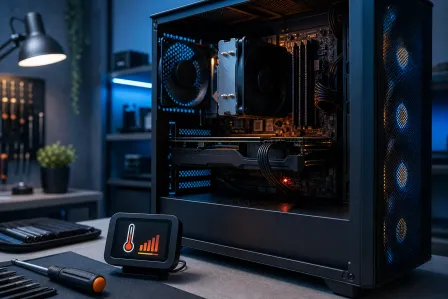
Step 5: Confirm overheating shutdowns with CPU temperature monitoring
Thermals are the other big villain. Use reputable monitoring tools (HWInfo64 is a common choice) and watch temps while gaming or during a controlled stress test.
What to look for:
- CPU package temps climbing rapidly and staying high
- GPU hotspot temps spiking (varies by model, but big spikes are suspicious)
- Fans not ramping up (fan curve issue or dead fan)
Quick checks:
- Is the CPU cooler firmly mounted?
- Is thermal paste dried out (older builds)?
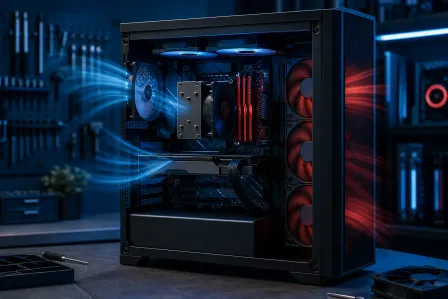
- Are case fans oriented correctly (front/side intake, rear/top exhaust)?
Supporting image suggestion: Place cpu-temperature-monitoring-overheating-shutdowns.jpg in this section near the first paragraph.
Faulty RAM Test: The “Looks Fine Until It Isn’t” Problem
Step 6: Disable overclocks (XMP/EXPO is awesome, but test stock)
Overclocking is an art form, but diagnostics start at baseline. If you’re running XMP (Intel) or EXPO (AMD) memory profiles, temporarily switch to default memory settings in BIOS/UEFI. Same goes for CPU undervolts or aggressive GPU overclocks.
Why: Unstable RAM settings can cause restarts, app crashes, and BSODs that look like “Windows being Windows.” We want to eliminate instability first, then bring the spice back later.
Step 7: Run a proper faulty RAM test
For Windows 10 and Windows 11, you can start with Windows Memory Diagnostic, but for deeper testing, many techs use MemTest86 from a bootable USB. Either way, you’re hunting for errors. Even one error can be a problem.
- Test with XMP/EXPO off first.
- If errors appear, test one stick at a time in the recommended slot.
- Also try a different slot if one slot is acting cursed.
Gaming impact: Bad RAM can cause stutters, crashes, and restarts right when textures and assets are streaming hard. That’s the opposite of clutch.
Windows Event Viewer Critical Errors: Reading the Crash Tea Leaves
Step 8: Check Event Viewer for reboot clues
Windows logs can point you toward power loss vs driver issues. Here’s the legit path to start: Microsoft Support: Open Event Viewer.
In Event Viewer, look under:
- Windows Logs - System
- Filter for Critical and Error
Common entry: “Kernel-Power” (often Event ID 41). This doesn’t automatically mean “bad PSU,” but it does mean Windows detected an unexpected shutdown. Pair it with your symptoms: instant power cut under load is very PSU-ish, while BSOD codes lean driver/RAM/storage.
Step 9: If you’re stuck in a BSOD reboot loop
If you’re seeing repeated blue screens, note the stop code. Then:
- Boot into Safe Mode (if possible) and uninstall recently added drivers or software.
- Update GPU drivers from NVIDIA/AMD directly (clean install if needed).
- Run Windows Update.
If malware is in the mix, it can destabilize the system and trigger restarts. If you suspect infection (popups, unknown processes, browser hijacks), get help from professional virus removal. For extra reading on threats and cleanup best practices, hit Malwarebytes Blog resources.
Motherboard Failure Signs (and Other Hardware Gotchas)
Step 10: Watch for motherboard failure signs
Motherboards rarely die dramatically. They die weird. And random restarts are one of their favorite “I’m not okay” signals.
Motherboard failure signs:
- Random restarts regardless of load (idle or gaming)
- USB dropouts, random device disconnects
- System won’t hold BIOS settings, time resets often (could also be CMOS battery)
- RAM slots behaving inconsistently
- Visible damage: bulging capacitors, corrosion, burn marks
Also check: If the restart happens when you bump the desk or move the case, look for a short (loose standoff, stray screw) or a cracked solder joint. That’s rare, but it happens.
Step 11: Storage and corruption (the underrated restart trigger)
A failing SSD/HDD can cause freezes, BSODs, and reboots, especially if the system files are affected. Signs include slow boots, apps hanging, and disk errors.
- Check drive health (SMART status) with a reputable tool.
- If you hear clicking from an HDD or the drive disappears, stop and consider data recovery.
Stop Troubleshooting Here If You Hit These Red Flags
I love a good DIY victory, but some situations are not worth the gamble:
- Burning smell, smoke, or visible scorching
- Repeated hard power cuts that get worse quickly
- Critical data on a drive that may be failing
- System won’t stay on long enough to back up
- You already tried baseline steps and the PC still randomly restarts
At that point, it’s smarter (and often cheaper) to get a proper bench diagnosis instead of playing parts roulette. If it’s a laptop doing this, don’t wrestle it alone: laptop repair for reboot issues is the move because battery/VRM/thermal designs are tighter and more finicky than desktops.
Palm Beach County Help: Get Your Rig Stable and Your FPS Back
If you’re in West Palm Beach or anywhere around Palm Beach County, Fix My PC Store can help you track down the real cause of pc random restarts with structured testing: PSU verification, thermal checks, RAM diagnostics, storage health, and Windows log review. No guessing, no unnecessary parts swapping. Just clean, methodical troubleshooting so your rig goes back to being an absolute beast.
When you’re ready, book computer repair in Palm Beach County and let’s get you back to butter smooth gameplay.
Need Expert Computer Support?
Get professional help from Palm Beach County's trusted computer repair specialists.
Get Help Today